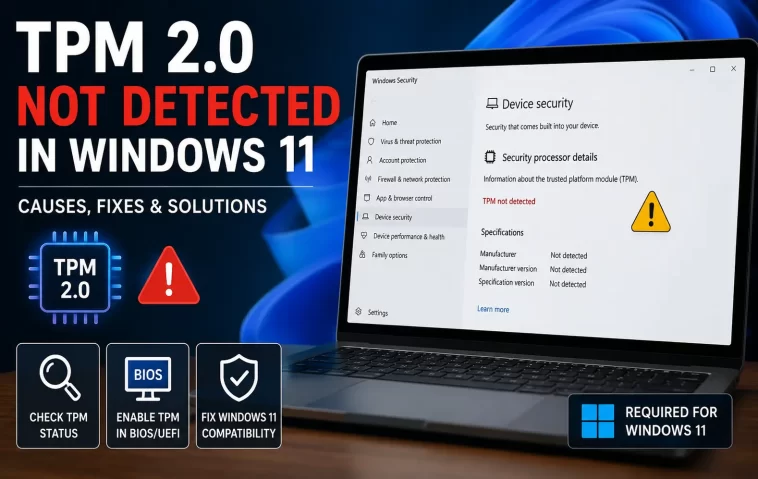
I spent a good chunk of a Sunday afternoon trying to figure out why a perfectly capable Lenovo suddenly told me “compatible TPM cannot be found” right after a BIOS update. TPM 2.0 not detected in Windows 11 is one of those errors that looks catastrophic but is usually just a firmware setting hiding in a menu nobody thinks to check. So let’s fix it.
Quick Answer
If you just want the short version before diving into details:
- Open tpm.msc and check if it says “Compatible TPM cannot be found” or shows a version below 2.0
- Enter BIOS/UEFI and look for Intel PTT or AMD fTPM — it’s almost always disabled by default on retail motherboards
- Update your BIOS/UEFI firmware, since some versions ship with buggy TPM handshake code
- Check Device Manager under Security devices for a driver conflict (yellow triangle icon)
- If none of that works, clear the TPM through Windows Security, not directly from UEFI
Why It Fails
There isn’t one single cause here, and honestly that’s part of why this error is so annoying to troubleshoot — you’re kind of guessing until you narrow it down.
The TPM is present but disabled in firmware. This is the big one. Most consumer motherboards, especially ones people build themselves, ship with the firmware TPM turned off by default. It’s not broken, it’s just sitting there unused.
Firmware TPM naming confusion. Intel calls it PTT (Platform Trust Technology). AMD calls it fTPM. Some OEMs bury it under “Trusted Computing” or “Security Device Support” instead of anything with the word TPM in it. If you’re scanning the BIOS for a menu item literally called “TPM,” you might miss it entirely.
A botched firmware update. BIOS updates occasionally reset settings to defaults, including whatever TPM state you had configured. And on some boards, specific firmware versions have known bugs where the TPM handshake with Windows just doesn’t complete correctly.
Driver-level conflicts. Less common, but it happens — a non-Microsoft TPM driver gets installed (sometimes bundled with OEM utility software) and it blocks the default driver Windows expects to use.
TPM state got cleared or corrupted. If BitLocker was ever configured and then something changed — a boot order tweak, a Secure Boot toggle, a motherboard battery drain — the TPM can end up in a state where Windows just stops seeing it as valid.
One cause people almost never think about: CMOS battery failure. If your motherboard’s CMOS battery is dying, some BIOS settings — TPM included — can silently revert on every reboot. You fix it, it works for one session, then it’s “not detected” again next time you boot. That one cost me an embarrassing amount of time on an older desktop before I checked the battery.
Technical Comparison Table
| Symptom | Likely Cause | Fix Difficulty |
|---|---|---|
| tpm.msc shows “Compatible TPM cannot be found” | Disabled in BIOS/UEFI | Easy |
| TPM shows but version is 1.2, not 2.0 | Hardware limitation | Not fixable via software |
| TPM detected in BIOS, not in Windows | Driver conflict | Medium |
| Works after enable, fails again next boot | CMOS battery or firmware bug | Medium to hard |
Step-by-Step Fixes
Step 1: Confirm what Windows actually sees
Press Win + R, type tpm.msc, hit enter. If it says “The TPM is ready for use,” check the Specification Version under TPM Manufacturer Information. Anything below 2.0 means your hardware genuinely doesn’t meet Windows 11’s requirement, and no setting change will fix that. If it says “Compatible TPM cannot be found,” move to Step 2.
Step 2: Enable it in firmware
Restart, get into BIOS/UEFI (F2, F12, Del, or Esc depending on your board — check your manufacturer if you’re not sure). Look under Security, Advanced, or Trusted Computing. Find Intel PTT or AMD fTPM (sometimes labeled AMD PSP fTPM) and set it to Enabled. Save and exit.
And yes, I know “just go into BIOS” sounds obvious. But I’ve watched people spend an hour convinced their PC lacked TPM entirely when it was one toggle away the whole time.
Step 3: Update your BIOS/UEFI firmware
Check your motherboard or laptop manufacturer’s support page for the latest firmware version. Some updates specifically patch TPM detection bugs. This is annoying to do and occasionally risky if power drops mid-flash, so back up anything important first.
Step 4: Check Device Manager for driver issues
Open Device Manager, expand Security Devices, look for Trusted Platform Module 2.0. If there’s a yellow warning icon, right-click and update the driver, letting Windows search automatically. If a third-party driver is listed instead of the standard Microsoft one, uninstall it and let Windows reinstall its own.
Step 5: Clear the TPM the right way
Go to Windows Security > Device Security > Security Processor Troubleshooting > Clear TPM. Don’t do this from inside the UEFI menu directly — clearing it through Windows keeps things in a state the OS actually expects. You’ll be prompted to restart and possibly confirm with a keypress during boot.
What Actually Worked For Me
So on that Lenovo I mentioned — I went through the obvious stuff first. Checked BIOS, PTT was already enabled, oddly. Updated the firmware anyway, no change. Cleared the TPM through Windows Security, restarted, still “not detected.”
At that point I was ready to blame the hardware entirely. But — and this is the half-remembered part — I recalled a forum comment from years back about Group Policy silently disabling TPM startup on some enterprise-imaged machines, which this laptop had been before I wiped it. Ran gpedit.msc, went to Computer Configuration > Administrative Templates > System > Trusted Platform Module Services, and sure enough, “Configure TPM startup” had a leftover policy set to disabled. Set it to Not Configured, restarted, and tpm.msc finally showed “ready for use.”
Would not have guessed that one from a clean troubleshooting checklist. That’s the frustrating part of this error — the fix that works for most people (enable PTT/fTPM) isn’t always the fix that works for you.
Advanced Fixes and Edge Cases
Group Policy leftovers. As above — if the machine was ever domain-joined or came with an OEM image, check gpedit.msc for a TPM startup policy that’s overriding your firmware setting.
Event Viewer logs. Check Windows Logs > System, filtered for TPM-related events. Error codes here sometimes point to a specific initialization failure rather than a generic “not found,” which narrows things down faster than guessing.
Secure Boot dependency. On some boards, TPM won’t initialize properly unless Secure Boot is also enabled. If you’ve disabled Secure Boot for dual-booting or another OS, re-enable it and check if TPM detection changes.
Multiple TPM instances. Rare, but some boards let you toggle between a discrete TPM chip and firmware TPM. Windows doesn’t handle switching between them well — if you’ve ever flipped that setting, clear the TPM and stick to one going forward, or BitLocker will throw a fit.
CMOS reset as a last resort. If nothing above works and you suspect corrupted firmware settings, a full CMOS reset (removing the battery for a few minutes, or using the BIOS reset jumper) can clear whatever’s stuck. You’ll need to redo all your BIOS settings afterward, not just TPM.
Prevention Tips
- After any BIOS update, recheck your TPM setting — don’t assume it survived the update
- If your PC is more than 4-5 years old, keep an eye on CMOS battery health; a $5 battery replacement can save you a confusing afternoon
- Avoid installing third-party TPM management tools unless you specifically need them for enterprise deployment
- Document your BIOS settings (screenshot them) before doing a firmware update, so you can restore anything that resets
FAQ
Does clearing the TPM delete my files? No, but it can lock you out of BitLocker-encrypted drives if you don’t have your recovery key saved. Grab that key first.
My BIOS doesn’t show any TPM option at all. Now what? Check your exact motherboard model against the manufacturer’s spec sheet. Some budget boards genuinely don’t support fTPM/PTT, and no BIOS update adds hardware that isn’t there.
Can I just bypass the TPM requirement instead of fixing it? You can, using registry edits or modified install media, but Microsoft doesn’t support that path and you’ll likely be blocked from certain future updates. Not something I’d recommend for a daily driver.
Is a discrete TPM chip better than firmware TPM (fTPM/PTT)? Not really for most home users. Firmware TPM meets the same 2.0 spec and works fine for BitLocker and Windows Hello. Discrete chips matter more in specific enterprise attestation scenarios.
I enabled TPM but Windows Update still won’t proceed. Why? Give it a restart or two — Windows doesn’t always re-check hardware compliance instantly after a settings change. If it’s still stuck after that, run the PC Health Check app to see exactly what it’s flagging.
Editor’s Opinion
honestly this error trips people up way more than it should, mostly bc the naming is a mess across every motherboard brand. 90% of the time its just ptt or ftpm sitting disabled in bios and ppl panic thinking their hardware is dead. check that first before you go nuclear on cmos resets or clearing tpm. the group policy thing that got me is rare but worth knowing about if you inherited a machine that used to be on a domain.
