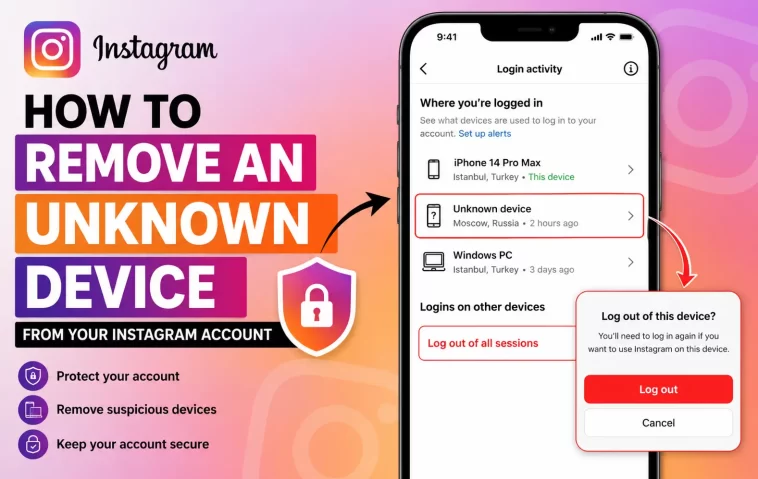
I noticed it because of the location, not the device name. “Chrome, somewhere in a country I hadn’t visited in years” — sitting right there in my login activity, active, like it belonged. It wasn’t dramatic, no scary popup, no locked-out screen. Just a quiet entry that had clearly been there a while. If you’re trying to remove an unknown device from your Instagram account right now, the good news is the process itself only takes a couple of minutes. The part that actually matters is what you do right after.
Quick Answer
- Go to Settings → Accounts Center → Password and security → Where you’re logged in.
- Find the device you don’t recognize, tap it, and select Log out.
- Immediately change your password — logging a device out doesn’t stop them from logging back in with the same credentials.
- Check your linked email and phone number for anything unfamiliar, and remove it if it’s not yours.
- Turn on two-factor authentication if it isn’t already active, ideally with an authenticator app rather than SMS.
Why Unknown Devices Show Up in the First Place
Not every unfamiliar entry means you’ve been hacked, and that’s worth saying up front because panic makes people do dumb things like immediately deleting the app or resetting everything at once. There are a handful of real causes here, and they’re not all equally serious.
Password reuse from another breach. This is the big one, honestly. If you used the same password on Instagram as some other site that got breached, credential-stuffing bots try that same combo everywhere, Instagram included. So the “unknown device” isn’t really a person browsing your account by hand — it’s automated, and it moved on the moment it got in.
A browser session that never got cleared. Logged in on a friend’s laptop two years ago and forgot about it? That session can sit alive in your login activity indefinitely unless you force a log-out. Not malicious. Just forgotten.
Third-party apps with lingering permissions. Old follower-tracking apps, unofficial “who unfollowed me” tools, some sketchy photo editor you connected once — these sometimes show up under app permissions rather than the device list, and they’re an overlooked cause a lot of guides skip entirely.
A genuine account compromise via email. If someone got into your email first, they can reset your Instagram password without needing your login at all. This is the scenario where logging out a device fixes nothing, because they’ll just get back in through the same email.
IP or location weirdness from a VPN or mobile carrier. Sometimes the “unknown location” flag is just your own network routing traffic oddly. Not every strange city name means an intruder.
Where Users Run Into This
People notice unknown devices in a few pretty distinct situations — after a public Wi-Fi login they forgot to sign out of, after reusing a password that later leaked in a breach elsewhere, after connecting a shady third-party app for follower stats, or after a family member borrowed their account on a shared tablet and the session just stuck around. And on business or creator accounts, it happens more, because there’s usually more than one person with access and nobody’s tracking who logged in from where.
Risk Levels: What to Actually Worry About
| Signal | Risk Level | What It Usually Means |
|---|---|---|
| New device, same city, matches your recent travel | Low | Probably just you on a new phone or browser |
| Unknown device type, unfamiliar city | Medium | Worth logging out and changing your password, but not necessarily a full compromise |
| Password changed without your action, or a code sent that you didn’t request | High | Active takeover attempt — act immediately |
| Multiple unknown sessions across different countries at once | High | Likely automated credential stuffing, not a single person |
Step-by-Step Fixes
Step 1: Open your login activity
On the app, tap your profile icon, then the menu, then Accounts Center → Password and security → Where you’re logged in. On desktop it’s basically the same path through Settings. You’ll get a list of active and recent sessions, each showing device type, an approximate location, and roughly when it was active.
Step 2: Identify the device that isn’t yours
Look for combinations that don’t add up — a device type you’ve never owned, a city you’ve never been to, activity timestamps from when you weren’t using your phone at all. But don’t assume every odd location is an intruder; carrier routing and VPNs can make your own login look like it’s coming from somewhere else.
Step 3: Log it out
Tap the session, then select Log out (sometimes worded as “Log out of this device”). This ends that session immediately — it won’t be able to browse, post, or message using your account anymore, at least not without logging back in fresh.
Step 4: Change your password right away
This step actually matters more than the log-out itself. If someone has your password, logging their session out just buys you a few minutes before they log back in. Use something you’re not reusing anywhere else — a password manager makes this a lot less annoying than it sounds.
Step 5: Check connected apps and website permissions
Go to Settings and Activity → Apps and Websites, and remove anything you don’t recognize or don’t use anymore. This is the step most people skip, and it’s often where the actual persistent access is hiding.
Step 6: Review your linked email and phone number
Make sure both belong to you and are current. If either has been swapped out, change it back and secure that email account too — a compromised email is often the real root cause, not Instagram itself.
Step 7: Turn on two-factor authentication
If it wasn’t already on, turn it on now, and save the backup code somewhere outside your phone. An authenticator app holds up better against SIM-swap attacks than SMS codes do, so it’s worth the extra minute of setup.
What Actually Worked For Me
My first instinct was to change the password and call it done. That felt like enough. It wasn’t — the same unknown device type showed up again about two days later, different city this time. That’s when it clicked that the actual entry point was an old third-party app I’d connected years back for scheduling posts, one I’d completely forgotten still had standing permission to log in on my behalf. Removing that from Apps and Websites is what actually stopped it. The password change alone hadn’t touched it at all, since the app wasn’t using my password to get in — it had its own access token that survived the reset.
So the lesson, at least from that one very annoying week, was that a password change feels like the fix but often isn’t the whole fix. Check the app permissions too, even if nothing looks obviously wrong there.
Advanced Fixes and Edge Cases
If the unknown device keeps reappearing after every log-out and password change, the compromise almost certainly isn’t in Instagram at all — it’s your email. Log out of all sessions on your email account, change that password too, and check for forwarding rules an attacker might have set up to quietly copy your incoming mail.
If you can’t find the “Where you’re logged in” option at all, it may be that your account is on an older layout that hasn’t migrated to Accounts Center yet. Force-updating the app or checking on desktop instead of mobile usually surfaces it.
For business or creator accounts with team access, don’t assume an unfamiliar device belongs to an attacker before checking whether a team member or agency you’ve forgotten about still has login credentials. This happens more than you’d think with accounts that changed marketing agencies at some point without a full credential rotation.
Prevention Tips
- Don’t reuse passwords across sites — this is genuinely the single biggest reason accounts get accessed by unknown devices.
- Review your login activity every couple of months, not just when something feels off.
- Remove third-party app permissions you’re not actively using, even ones that seem harmless.
- Keep 2FA on with an authenticator app, and store the backup code somewhere that isn’t just your phone.
FAQ
Will logging out an unknown device notify that person? No, there’s no notification sent to them. They’ll just find themselves logged out the next time they try to do anything.
Can I see the exact identity of whoever logged in from an unknown device? No. You get device type and an approximate location, nothing more specific than that.
Does changing my password automatically log out every device? Usually yes, but check your login activity afterward to confirm — don’t just assume it worked.
Is it normal for my own phone to show up as an “unknown” device after an update? Yeah, this happens sometimes, especially after an OS update or reinstalling the app. Not every unfamiliar-looking entry is a security issue.
Editor’s Opinion
the app permissions thing is what nobody talks about enough, everyone jumps straight to “change your password” like thats the whole fix. it usually isnt. if the same weird device keeps coming back after you’ve already changed everything, go check apps and websites before you assume your accounts just cursed. also reuse passwords less, seriously.
