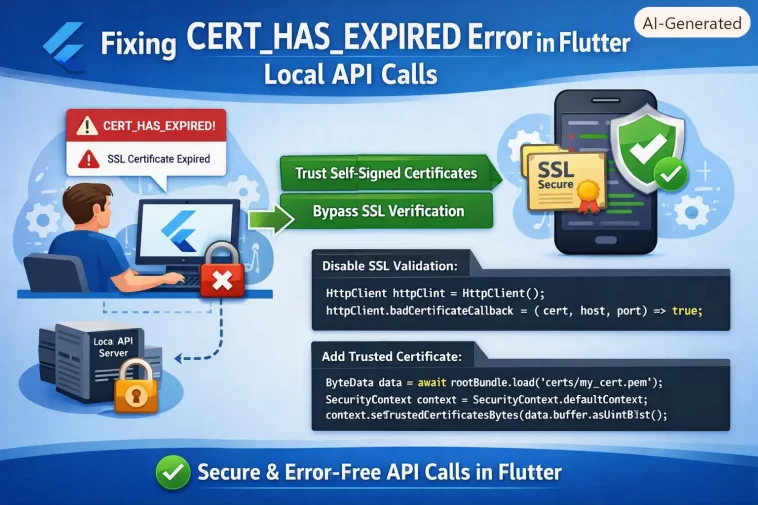
If you’re staring at a CERT_HAS_EXPIRED error or a HandshakeException the moment your Flutter app tries to hit your local API, welcome to a very specific kind of pain. This almost always happens when you’re testing against https://localhost or a self-signed cert on your dev machine, and it has basically nothing to do with your certificate actually being expired most of the time — which is the confusing part.
Let’s sort out why this happens and what actually fixes it, because “just ignore SSL errors” advice floating around forums will get you in trouble later.
Quick Answer
- Check your device or emulator’s system date/time first — this causes false “expired” errors constantly
- If using a self-signed cert, install it properly on the emulator/device trust store, don’t just bypass validation
- On Android, add a
network_security_config.xmlentry for your dev domain - On iOS, check your
Info.plistfor App Transport Security (ATS) exceptions - Never ship a
badCertificateCallbackthat returnstrueunconditionally to production — that’s a security hole, not a fix
Why This Happens
There’s more than one cause here, and from what I’ve seen, people usually jump to “my cert is broken” when it’s often something else entirely.
1. Device or emulator clock is wrong. This is the one nobody checks first and probably should. Android emulators especially can drift or reset to a wrong date after a snapshot restore. If the emulator thinks it’s 2019, your perfectly valid 2026 cert looks expired to it. So before touching any code, check the date on the actual device or emulator — not your host machine.
2. Self-signed certs aren’t trusted by the mobile OS. Your browser or curl might trust a self-signed cert because you added an exception once. The Android or iOS trust store doesn’t know anything about that. Flutter’s underlying HttpClient (via dart:io) validates against the system trust store, and a self-signed cert isn’t in it by default.
3. Using localhost from an emulator instead of the host-mapped address. This one trips up almost everyone at some point. On the Android emulator, localhost refers to the emulator itself, not your dev machine. You need 10.0.2.2 instead. iOS simulators are different — they can actually use localhost directly since they share the host network stack. Mixing these up gives connection errors that sometimes get misreported as cert issues depending on what’s listening on that port instead.
4. Certificate chain is incomplete. If you’re using a cert from a local CA (like mkcert) but only installed the leaf certificate without the root CA on the device, the chain validation fails. It’s not “expired,” it’s “untrusted,” but the error messages Flutter surfaces aren’t always precise about which.
5. Actual expiration, sometimes. Yes, sometimes the cert really is expired. Dev certs from tools like mkcert or self-issued OpenSSL certs often get generated with short validity windows and people forget to regenerate them after a few months.
Common Scenarios
- Android emulator hitting a local Node/Express/Django server — usually the
10.0.2.2vslocalhostissue, or clock drift after emulator snapshot restore - iOS Simulator with a self-signed cert — usually ATS blocking the connection outright before it even gets to a handshake
- Physical device on the same Wi-Fi network — usually the cert simply isn’t trusted on that device at all, since it’s not localhost anymore, it’s a real network address
- CI/CD emulator runs — clock sync issues are more common here since CI emulators often boot from cached snapshots
Step-by-Step Fixes
Step 1: Check the Device Clock First
Seriously, do this before anything else. On an Android emulator, open Settings → System → Date & Time and confirm it’s correct and auto-syncing. If it’s off, that’s your whole problem, and you just saved yourself an hour.
Step 2: Confirm You’re Using the Right Host Address
For Android emulator:
dart
final baseUrl = 'https://10.0.2.2:5000';For iOS simulator:
dart
final baseUrl = 'https://localhost:5000';For a physical device on the same network, use your machine’s LAN IP, like https://192.168.1.42:5000, and make sure your local server is actually bound to 0.0.0.0 and not just 127.0.0.1 — a mistake that’s easy to make and looks like a cert problem when it’s really a “nothing’s listening there” problem.
Step 3: Generate a Proper Local Dev Certificate
Skip raw OpenSSL self-signed certs if you can. Use mkcert instead — it creates a local CA and installs it into your system trust store, which makes debugging way less painful:
bash
mkcert -install
mkcert localhost 127.0.0.1 10.0.2.2
This gives you a cert your machine trusts, but you still need to get the CA onto the mobile device or emulator (see Step 4).
Step 4: Install the CA Certificate on Android
Push the mkcert root CA to the emulator:
bash
adb push rootCA.pem /sdcard/Then on the emulator: Settings → Security → Encryption & Credentials → Install a certificate → CA certificate, and select the file. Android 7+ also requires a network_security_config.xml entry pointing to your cert if you want app-level trust without relying purely on the system store:
xml
<network-security-config>
    <domain-config>
        <domain includeSubdomains="true">10.0.2.2</domain>
        <trust-anchors>
            <certificates src="@raw/rootca"/>
        </trust-anchors>
    </domain-config>
</network-security-config>
Reference it in AndroidManifest.xml under application:
xml
android:networkSecurityConfig="@xml/network_security_config"Step 5: Handle iOS ATS Exceptions
For iOS, add an ATS exception in Info.plist scoped to your dev domain only — not globally:
xml
<key>NSAppTransportSecurity</key>
<dict>
    <key>NSExceptionDomains</key>
    <dict>
        <key>localhost</key>
        <dict>
            <key>NSExceptionAllowsInsecureHTTPLoads</key>
            <true/>
            <key>NSIncludesSubdomains</key>
            <true/>
        </dict>
    </dict>
</dict>
Scoping it to just localhost matters. A blanket ATS bypass across all domains is a habit that tends to sneak into production builds and nobody notices until an app review flags it.
Technical Comparison: Fixes by Platform
| Platform | Root Cause Usually | Fix | Notes |
|---|---|---|---|
| Android Emulator | Wrong host address or untrusted CA | Use 10.0.2.2, install root CA | Clock drift also common here |
| iOS Simulator | ATS blocking or untrusted cert | Add scoped ATS exception, install CA in Keychain | localhost works directly, unlike Android |
| Physical Android device | Cert not trusted, wrong network IP | Install CA manually, use LAN IP | Some Android versions restrict user CAs for apps targeting API 24+ |
| Physical iOS device | Same as simulator, plus network isolation | Same ATS fix, check Wi-Fi firewall | Corporate networks sometimes block the port entirely |
What Actually Worked For Me
My first instinct was to just override badCertificateCallback and move on with my life. It worked instantly, which felt great for about a day, until I hit a different, weirder connection issue and realized I’d been debugging blind because the cert bypass was hiding a real network config problem underneath it the whole time.
So I backed that out and actually installed the CA properly using mkcert. That took maybe 15 minutes and fixed it cleanly, no bypass needed. The clock thing wasn’t my issue that time, though it has been on a different project — an old CI runner had its snapshot clock frozen at some date months in the past, and every test run failed with the exact same CERT_HAS_EXPIRED message until someone (not me, a coworker) mentioned offhand that emulator snapshots don’t always resync time on boot. That one wasn’t in any doc I found.
Advanced Fixes and Edge Cases
Inspect the actual TLS handshake with OpenSSL. From your dev machine, you can confirm what the server is actually presenting:
bash
openssl s_client -connect localhost:5000 -showcertsCheck the notAfter field in the output. If it says the cert is valid but the app still throws CERT_HAS_EXPIRED, the problem is almost certainly the device’s clock, not the cert.
Use SecurityContext in Dart for controlled trust, not blanket bypass. Instead of disabling validation entirely, you can load your specific CA into a SecurityContext and pass it to your HttpClient:
dart
final context = SecurityContext(withTrustedRoots: true)
  ..setTrustedCertificates('assets/rootCA.pem');
final client = HttpClient(context: context);
This keeps validation on for everything else while trusting your specific dev CA — a much safer middle ground than a global bypass.
Check for a proxy or VPN intercepting traffic. If you’re on a corporate VPN or using something like Charles Proxy for debugging, its own cert can conflict with your app’s expected cert chain. Temporarily disabling the proxy is a quick way to rule this out.
Prevention Tips
- Keep dev certs generated with
mkcertand regenerate periodically — check the actual expiration date instead of assuming - Never leave a global ATS bypass or unconditional
badCertificateCallbackin code that could ship to production - Document the
10.0.2.2vslocalhostdistinction somewhere your team will actually see it — this gets rediscovered by every new hire otherwise - Consider using a tunneling tool like
ngrokfor testing against a real HTTPS endpoint instead of fighting local certs entirely, especially for physical device testing
FAQ
Is CERT_HAS_EXPIRED always about an actual expired certificate? No, and honestly it’s more often not. Device clock issues and untrusted CAs both throw the same message.
Can I just disable SSL verification for testing? You can, but don’t leave it in. It hides other problems and it’s an easy thing to forget before a release build.
Why does localhost work on iOS Simulator but not Android Emulator? The iOS Simulator shares your Mac’s network stack directly, so localhost really is your machine. The Android Emulator runs its own virtual network, so localhost refers to itself.
Does mkcert work without an internet connection? Yes, it generates certs locally using its own local CA — no internet needed after initial install.
Will this happen with HTTP instead of HTTPS? No, cert errors are HTTPS-specific by nature. HTTP has other problems (like Android’s cleartext traffic blocking by default), but not this one.
Editor’s Opinion
Most of the time this isn’t really a cert problem, it’s a “the emulator’s clock is wrong” or “you typed localhost when you needed 10.0.2.2” problem wearing a cert error’s name tag. Check the boring stuff first — date, host address — before touching any trust store config. And don’t leave a bypass callback in your code just because it made the error go away for now; that’s a problem for future you, and future you will not be happy about it.
