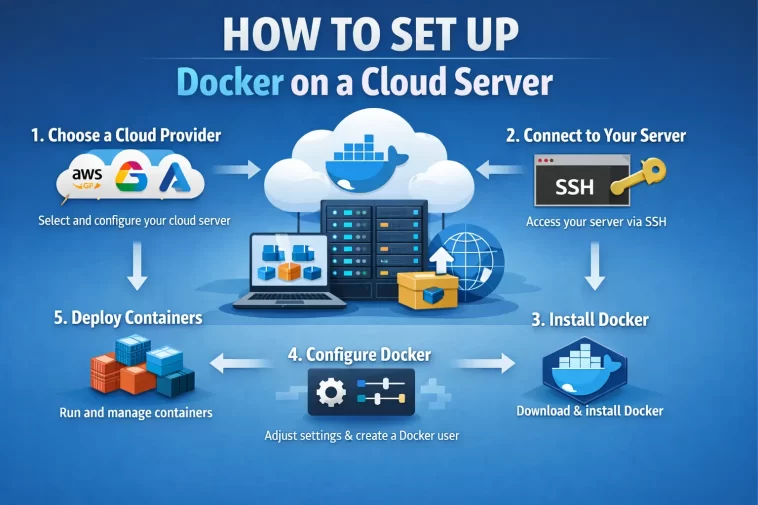
Setting up Docker on a cloud server is one of the first things most developers do after spinning up a new instance — and for good reason. Docker lets you package your applications into containers that run the same way everywhere, regardless of what’s installed on the underlying server. No more “it works on my machine” problems.
Whether you’re deploying a web app, setting up a development environment, or running microservices, Docker on a cloud server gives you a clean, reproducible, and portable setup. And once it’s installed, managing your applications becomes significantly easier.
This guide covers the entire process — from a fresh cloud server to a fully working Docker installation with your first container running.
What Is Docker and Why Run It on a Cloud Server?
Docker is a containerization platform. Instead of installing your application and all its dependencies directly on the server, you package everything into a container — a lightweight, isolated unit that includes the app, its runtime, libraries, and config.
Running Docker on a cloud server specifically makes sense for several reasons:
- Scalability — spin up more containers as traffic grows
- Isolation — each app runs in its own container without interfering with others
- Portability — move containers between servers or cloud providers without reconfiguring anything
- Speed — containers start in seconds, not minutes
- Cost efficiency — run multiple isolated apps on a single server instead of paying for separate instances
Cloud providers like AWS, Google Cloud, DigitalOcean, Linode, and Hetzner all work perfectly with Docker. This guide uses Ubuntu 22.04 LTS as the server OS, which is the most widely used Linux distribution for cloud servers today.
What You Need Before You Start
Make sure you have the following ready:
- A cloud server running Ubuntu 22.04 LTS (or 20.04 LTS)
- SSH access to that server with a user that has sudo privileges
- Basic comfort with the Linux command line
- A stable internet connection on the server (needed to pull Docker images)
If you don’t have a cloud server yet, any major provider works. DigitalOcean’s $6/month Droplet, Hetzner’s CX11, or a GCP e2-small instance are all solid starting points.
Step 1: Connect to Your Cloud Server
Before anything else, connect to your server via SSH. Open your terminal and run:
ssh your-username@your-server-ipReplace your-username with your server user (often root or ubuntu) and your-server-ip with your server’s public IP address.
If you’re on Windows, use Windows Terminal with the built-in SSH client or PuTTY. Once you’re in and see the command prompt, you’re ready to start.
Step 2: Update Your Server
Always update the package index and installed packages before adding new software. This ensures you’re working with the latest security patches and avoids conflicts during installation.
Run:
sudo apt update && sudo apt upgrade -yThis may take a minute or two. Once it’s done, you’re on a clean, up-to-date system.
Step 3: Install Required Dependencies
Docker needs a few prerequisite packages to handle secure HTTPS downloads and repository management. Install them with:
sudo apt install -y ca-certificates curl gnupg lsb-releaseThese are lightweight utilities that are likely already installed on most cloud server images, but running this command ensures nothing is missing.
Step 4: Add Docker’s Official GPG Key
To install Docker securely, you need to add Docker’s official GPG key. This lets your system verify that the packages you download actually come from Docker — not a third-party mirror or a compromised source.
Run these commands in order:
sudo mkdir -p /etc/apt/keyringscurl -fsSL https://download.docker.com/linux/ubuntu/gpg | sudo gpg --dearmor -o /etc/apt/keyrings/docker.gpgsudo chmod a+r /etc/apt/keyrings/docker.gpgNo output means everything worked correctly. If you see an error, double-check your internet connection and try again.
Step 5: Add the Docker Repository
Now add Docker’s official repository to your system’s package sources. This tells apt where to find and download Docker from.
echo \
  "deb [arch=$(dpkg --print-architecture) signed-by=/etc/apt/keyrings/docker.gpg] \
  https://download.docker.com/linux/ubuntu \
  $(lsb_release -cs) stable" | \
  sudo tee /etc/apt/sources.list.d/docker.list > /dev/null
Then update your package index to include the new repository:
sudo apt updateYou should now see Docker packages available when you search with apt.
Step 6: Install Docker Engine
With the repository added, installing Docker is a single command:
sudo apt install -y docker-ce docker-ce-cli containerd.io docker-buildx-plugin docker-compose-pluginHere’s what each package does:
- docker-ce — the Docker Engine itself
- docker-ce-cli — the command-line interface for interacting with Docker
- containerd.io — the container runtime Docker uses under the hood
- docker-buildx-plugin — extended build capabilities for multi-platform images
- docker-compose-plugin — lets you run
docker composecommands (the modern replacement for docker-compose)
Installation takes about a minute. Once it’s done, Docker is installed — but there are a couple more steps before it’s fully ready to use.
Step 7: Start and Enable Docker
Install Docker service doesn’t start automatically on all systems. Start it and set it to launch automatically on every reboot:
sudo systemctl start docker
sudo systemctl enable docker
Verify Docker is running:
sudo systemctl status dockerYou should see active (running) in green. Press Q to exit the status view.
Step 8: Run Docker Without Sudo
By default, Docker commands require sudo. That’s fine for security, but it gets tedious quickly. Adding your user to the docker group lets you run Docker commands without sudo every time.
sudo usermod -aG docker $USERThen apply the group change without logging out:
newgrp dockerFrom now on, you can run all Docker commands without prefixing them with sudo.
Step 9: Verify the Installation
Test that Docker is installed and working correctly by running the official hello-world container:
docker run hello-worldDocker will:
- Check if the
hello-worldimage exists locally (it won’t the first time) - Pull it from Docker Hub automatically
- Run it in a container
- Print a confirmation message
If you see “Hello from Docker!” in the output, your installation is working perfectly.
Check your Docker version while you’re at it:
docker --version
docker compose version
Both commands should return version numbers without errors.
Step 10: Install Docker Compose (Standalone — Optional)
The docker-compose-plugin installed in Step 6 gives you docker compose (with a space). This is the modern approach and works for most use cases.
However, if you’re following older tutorials that use docker-compose (with a hyphen) as a standalone command, you can install the standalone version too:
sudo apt install docker-compose -yOr install a specific version manually from GitHub for the most up-to-date release:
sudo curl -L "https://github.com/docker/compose/releases/latest/download/docker-compose-$(uname -s)-$(uname -m)" -o /usr/local/bin/docker-compose
sudo chmod +x /usr/local/bin/docker-compose
docker-compose --version
Both versions work fine — the plugin version (docker compose) is the one Docker officially recommends going forward.
Step 11: Run Your First Real Container
The hello-world container confirms Docker works, but let’s run something actually useful — an Nginx web server — to see Docker in action.
docker run -d -p 80:80 --name my-nginx nginxBreaking down this command:
-d— runs the container in the background (detached mode)-p 80:80— maps port 80 on the server to port 80 inside the container--name my-nginx— gives the container a readable namenginx— the image to use (pulled from Docker Hub automatically)
Now open your browser and navigate to your server’s IP address. You should see the Nginx welcome page.
Useful commands for managing this container:
docker ps                    # list running containers
docker stop my-nginx         # stop the container
docker start my-nginx        # start it again
docker rm my-nginx           # remove the container entirely
docker logs my-nginx         # view container logs
Step 12: Use Docker Compose for Multi-Container Apps
Most real applications need more than one container — a web server, a database, a cache layer. Docker Compose lets you define and manage all of them together in a single file.
Create a working directory and a Compose file:
mkdir my-app && cd my-app
nano docker-compose.yml
Paste in this example that runs Nginx with a simple config:
yaml
version: '3.8'

services:
  web:
    image: nginx:latest
    ports:
      - "80:80"
    restart: always

  db:
    image: postgres:15
    environment:
      POSTGRES_USER: myuser
      POSTGRES_PASSWORD: mypassword
      POSTGRES_DB: mydb
    volumes:
      - db-data:/var/lib/postgresql/data
    restart: always

volumes:
  db-data:
Save the file (Ctrl+O, Enter, Ctrl+X in nano), then start both containers:
docker compose up -dBoth Nginx and PostgreSQL are now running as separate containers, managed together. To stop them both:
docker compose downThis is how most production Docker setups work — a Compose file that defines the entire application stack.
Step 13: Basic Docker Security Hardening
A few security steps worth doing before you put anything important on this server:
Keep Docker updated:
sudo apt update && sudo apt upgrade docker-ce -yNever run application containers as root inside the container. In your Dockerfile, add:
USER nonrootOr use an image that already runs as a non-root user.
Limit container resources to prevent a runaway container from taking down the whole server:
docker run -d --memory="512m" --cpus="1.0" nginxUse Docker’s built-in network isolation. Containers on a custom bridge network can communicate with each other but are isolated from the host network by default — which is exactly what you want for security.
Useful Docker Commands to Know
Once Docker is running, these are the commands you’ll use most often:
| Command | What It Does |
|---|---|
docker ps | List running containers |
docker ps -a | List all containers including stopped |
docker images | List downloaded images |
docker pull nginx | Download an image without running it |
docker exec -it my-nginx bash | Open a shell inside a running container |
docker logs my-nginx | View logs from a container |
docker stop my-nginx | Stop a running container |
docker rm my-nginx | Remove a stopped container |
docker rmi nginx | Remove a downloaded image |
docker system prune | Clean up unused containers, images, and networks |
FAQ
What cloud server is best for running Docker?
Any major provider works well. DigitalOcean, Hetzner, Vultr, and Linode are popular among developers for their straightforward pricing and clean interfaces. For enterprise workloads, AWS EC2, Google Cloud Compute Engine, and Azure VMs are more feature-rich. For a basic Docker setup, a server with at least 1 GB RAM and 1 vCPU handles lightweight containers comfortably. Anything running multiple services should have at least 2 GB RAM.
Does Docker work on all Linux distributions?
Docker officially supports Ubuntu, Debian, Fedora, CentOS, and RHEL. The installation steps in this guide are for Ubuntu. For other distributions, the GPG key and repository URLs differ slightly, but the overall process is nearly identical. Check the official Docker documentation at docs.docker.com for distribution-specific instructions.
What’s the difference between Docker and a virtual machine?
A virtual machine runs a full operating system on top of your server’s hardware using a hypervisor. Docker containers share the host OS kernel and only isolate the application layer. This makes containers much lighter — they start in seconds, use far less RAM, and have minimal overhead. The trade-off is slightly less isolation than a full VM, though Docker’s security model is robust for most use cases.
Can I run Docker on a $5 or $6 cloud server?
Yes, for lightweight workloads. A single Nginx container or a small Node.js app runs fine on a 1 GB RAM instance. Running multiple containers simultaneously — especially anything with a database — benefits from at least 2 GB of RAM. If memory gets tight, you can add a swap file to help, though swap is slower than real RAM.
How do I make Docker containers restart automatically after a server reboot?
Use the --restart flag when running a container:
docker run -d --restart always nginxOr in a Docker Compose file, add restart: always under each service. This tells Docker to automatically start the container when the Docker daemon starts — which happens automatically on boot since you enabled it in Step 7.
What is Docker Hub and do I need an account?
Docker Hub is the default public registry where Docker images are stored. When you run docker pull nginx, Docker downloads it from Docker Hub. You don’t need an account to pull public images. You do need a free account if you want to push your own images to Docker Hub. Create one at hub.docker.com.
How do I update Docker images to the latest version?
Pull the latest version of the image:
docker pull nginx:latestThen stop and remove the old container and start a new one using the updated image. Docker Compose makes this easier:
docker compose pull
docker compose up -d
This pulls the latest versions of all images defined in your Compose file and recreates the containers.
Is Docker suitable for production use?
Absolutely. Docker is used in production by companies of all sizes. For serious production deployments, consider adding Docker Swarm for multi-host clustering or moving to Kubernetes for larger-scale orchestration. For single-server setups, plain Docker with Compose and a reverse proxy like Nginx or Caddy in front of your containers is a solid and widely used production stack.
Final Thoughts
Setting up Docker on a cloud server takes less than 15 minutes once you know the steps — and the payoff is immediate. You get a clean, reproducible environment where deploying new applications is as simple as pulling an image and running a container.
Start with the basics covered here. Get comfortable with docker run, docker ps, and docker logs. Once those feel natural, Docker Compose will click quickly, and from there you have everything you need to run a solid multi-service application stack on a single cloud server.
The learning curve is short. The productivity gain is real.
