Logitech MK880 multi-device pairing lets you switch the same keyboard and mouse between up to three computers using Easy-Switch, and it’s a lot less fiddly than it sounds once you know the actual button sequence. I set mine up between a work laptop and a personal desktop in about five minutes, so here’s the exact process, plus the couple of spots where it’s easy to get stuck.
Quick Answer
- The MK880 supports Easy-Switch across up to three devices, using either Bluetooth or a Bolt receiver.
- Each device gets its own numbered channel — press and hold that channel’s button for about three seconds to start pairing.
- Switching between already-paired devices afterward is just a quick tap of the channel button, no re-pairing needed.
- Logi Options+ makes the whole process easier and is required if you’re using a Bolt receiver instead of direct Bluetooth.
What You’ll Need Before You Start
You don’t need much here, but check these first so you’re not troubleshooting blind later:
- The MK880 keyboard and mouse, both with fresh or sufficiently charged batteries.
- Bluetooth enabled on each computer you want to pair with — or, if you bought the version that includes one, a Logi Bolt receiver for each device that doesn’t have built-in Bluetooth.
- Logi Options+ installed (recommended, and required for Bolt receiver pairing).
Step 1: Decide Which Connection Method You’re Using
The MK880 can connect two ways, and it’s worth picking one per device rather than mixing things up:
Bluetooth works if your computer has built-in Bluetooth — most modern laptops do, desktops sometimes don’t. No receiver needed.
Logi Bolt receiver is the better option for secure or enterprise setups, and it’s necessary for any computer without Bluetooth. You can pair up to six Bolt devices to a single receiver, which matters if you’ve got other Logitech gear in the mix.
Step 2: Pair Your First Device
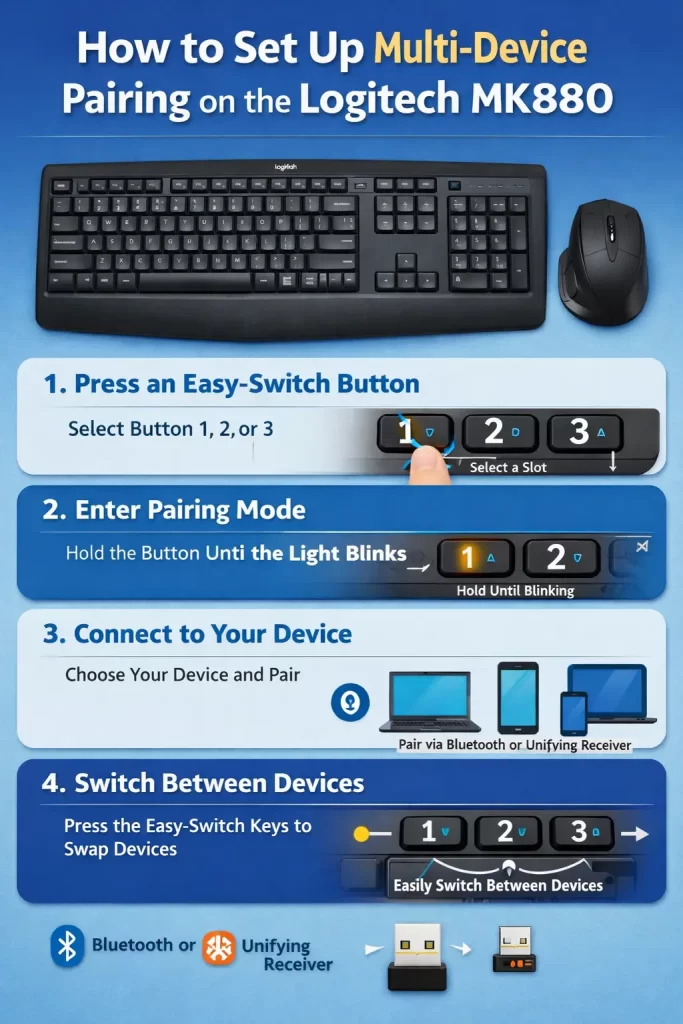
- On the keyboard, locate the Easy-Switch channel buttons — they’re numbered 1, 2, and 3.
- Press and hold the channel button you want to assign to this computer for about three seconds, until its LED starts blinking quickly. That blinking means the keyboard is now discoverable.
- On your computer, go to Bluetooth settings and look for the MK880 in the list of available devices. Select it to complete pairing.
- Repeat the same channel-button process on the mouse — short press the connect button on the bottom of the mouse, then long press the same channel until the LED blinks fast, and select it from your computer’s Bluetooth list.
If you’re using a Bolt receiver instead of Bluetooth, the steps are a little different — plug the receiver into the computer first, then put the receiver itself into pairing mode by holding its connect button until the LED blinks fast, and only then long-press the keyboard or mouse channel button. Logi Options+ will walk you through this if you use the “Add Device” button in the app.
Step 3: Pair the Remaining Devices
Once your first computer is paired to channel 1, move to the second computer and repeat the exact same process using channel 2. Same for a third computer on channel 3. Each channel remembers its own pairing, so you’re not overwriting anything you already set up.
One thing worth knowing — you don’t need to be sitting at the new computer with the old one disconnected first. The channels are independent, so pairing channel 2 doesn’t touch whatever’s already saved on channel 1.
Step 4: Switch Between Paired Devices
This is the part that actually makes Easy-Switch worth setting up in the first place. Once two or three devices are paired, switching between them is just a short press of the corresponding channel button — no long press, no re-pairing, no digging through Bluetooth menus again. Tap channel 1 to control your first computer, tap channel 2 to jump to the second, and so on.
Do this on both the keyboard and the mouse separately. They don’t automatically switch together, so if you’re moving from computer A to computer B, you’ll tap the channel button on the keyboard and then the same channel number on the mouse.
Common Issues and Quick Fixes
A few things trip people up here, and most have simple fixes.
Device won’t show up in Bluetooth settings. Make sure the channel LED is actually blinking fast, not just on solid — solid usually means it’s already connected to something else, not in discovery mode. If it’s not blinking at all, the long-press probably didn’t register; try again and hold a beat longer than feels necessary.
Switching channels doesn’t do anything. This usually means that channel was never actually paired in the first place. Go back through Step 2 for that specific channel rather than assuming it’ll just connect once you tap it.
Keyboard and mouse end up on different computers. This happens because the keyboard and mouse switch independently — it’s not a bug, just something to remember. Get in the habit of switching both every time you change computers.
Bolt receiver not detecting the device. Disconnect and reconnect the receiver, then repeat the pairing sequence from the start. This fixes the vast majority of Bolt-specific pairing hiccups.
FAQ
Can I use Easy-Switch without Logi Options+? Yes, for Bluetooth pairing you can do it through your OS’s native Bluetooth settings. Bolt receiver pairing is easier with Logi Options+, though.
How many devices can the MK880 actually switch between? Three, using the three numbered Easy-Switch channels.
Does the keyboard work on Mac and Windows at the same time? Yes — the MK880 supports Windows, macOS, ChromeOS, Linux, iPadOS, and Android, so you can pair different OS devices to different channels without issues.
Do I need a receiver if my computer has Bluetooth? No, Bluetooth pairing works fine on its own for computers with built-in Bluetooth support.
Editor’s Opinion
took me longer to find which button was the actual channel button than to do the pairing itself, not gonna lie. once you know where they are tho it’s genuinely a quick setup, and switching between my two machines with one tap each is the kind of small thing that ends up saving more time than you’d expect over a week.
