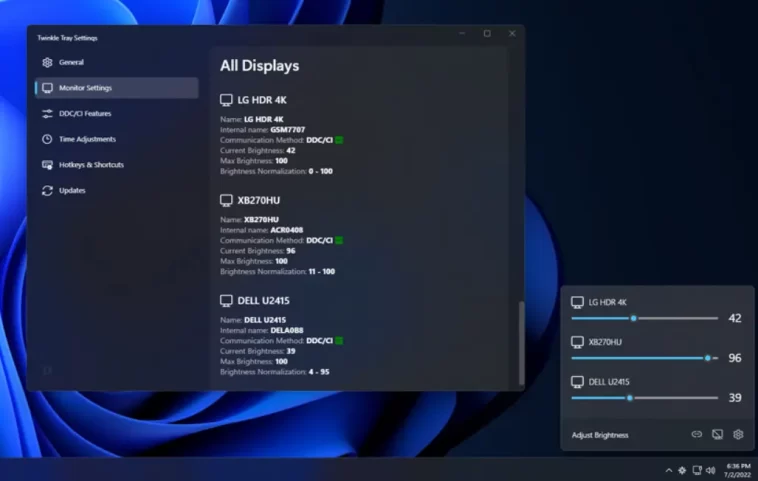
Powerful Twinkle Tray is the first thing you’ll want to hear about if you’ve ever struggled with controlling brightness on an external monitor in Windows 11. And that struggle is real. Twinkle Tray solves a problem so basic yet so persistent that many Windows users simply gave up on it years ago.
Let’s be honest — Windows still refuses to offer proper brightness control for external displays. The built-in slider only works on laptop screens. The moment you plug in a second monitor, your brightness control disappears. Your only option becomes digging through tiny monitor menus, pressing stiff buttons, or wrestling with those awkward joystick controls. It’s slow, clunky, and frustrating.
Twinkle Tray fixes all of this instantly, and once you try it, you won’t want to go back.
Why Powerful Twinkle Tray Changes the Experience Completely
When you install Twinkle Tray, it adds a small icon to your system tray. Clicking it shows the brightness level of every connected monitor. You just drag the sliders — done. Each screen can be dimmed or brightened in seconds.
Twinkle Tray isn’t only about brightness, either. Thanks to the DDC/CI protocol, it can also:
- Adjust contrast
- Manage volume
- Control monitor power states
No need to touch physical buttons. No more menu-hunting. Everything is software-controlled and fast.
This alone makes the app a lifesaver for anyone using external monitors — especially desktop users who deal with big screens that hide their buttons behind the panel.
Why Twinkle Tray Is So Useful Every Day
Windows has ignored external monitor brightness for years. Twinkle Tray fills that gap perfectly.
Here’s what makes it stand out:
1. Works instantly with external monitors
Instead of Windows ignoring your display, Twinkle Tray communicates directly with the monitor and changes brightness on command.
2. You can assign keyboard shortcuts
With hotkeys, you can adjust brightness without opening anything.
No clicks. No menus. Just smoother, faster brightness control.
3. Perfect for multi-monitor setups
If you use two or three monitors, you’ll especially love this. When you open Twinkle Tray, all brightness sliders appear side by side. You can adjust them individually or match them quickly.
That annoying problem where one monitor looks too bright and the other too warm?
Gone.

Brightness Matching, Fine-Tuning, and Monitor Customization
One of the smartest features is brightness range customization. If your monitors do not match visually — one too bright, one too dim — Twinkle Tray allows you to redefine minimum and maximum brightness for each display. This creates a more balanced look, especially late at night when eye comfort matters most.
You can also rename your monitors (“Main Display”, “Vertical Panel”, “Left Side Monitor”) and rearrange their order in the interface. No more guessing which slider controls which screen.
Quick benefits recap:
- See all monitor brightness levels in one window
- Adjust brightness individually or all at once
- Set custom brightness ranges for each screen
- Rename monitors
- Use keyboard shortcuts for instant control
For gamers, streamers, coders, and multi-monitor workers, this convenience is rare — and incredibly valuable.
Automation, Scheduling, and Smart Ease-of-Use
Twinkle Tray isn’t just about manual control. It also supports automation without requiring any light sensors. You can set time-based brightness profiles like:
- 09:00 → 80% brightness
- 22:30 → 20% brightness
This is perfect for maintaining consistent eye comfort all day long.
There’s also an idle-dimming option that lowers brightness automatically if your system stays inactive for a while — something Windows usually does only on laptop displays.
Another brilliant detail:
Hover over the tray icon and scroll your mouse wheel to adjust brightness instantly. It’s such a small feature, but after a few days you won’t want to live without it.
And yes — keyboard shortcuts are fully customizable. You can create hotkeys for individual monitors or one shortcut to adjust all displays at the same time. It’s simple, fast, and works far better than most official monitor control apps.
Is Twinkle Tray Really Worth Installing?
In daily use, the answer is yes — absolutely.
If you use a desktop PC or multiple monitors, Twinkle Tray adds comfort you’ll feel every single day.
Bright room? Increase brightness in a second.
Late at night? Drop to a soft, comfortable level instantly.
The ability to avoid physical monitor menus — and the ability to automate brightness changes — makes the experience dramatically smoother.
And the best part?
You develop healthier brightness habits without even trying.
Twinkle Tray quickly proves itself essential because Windows still doesn’t natively support this basic feature. For anyone using external displays, this tool is an easy recommendation.
