How to create a mobile hotspot Windows 11 is a question many users ask when they want to share their internet connection with other devices. Whether you need internet on your phone, tablet, smart TV, or another laptop, Windows 11 makes this process surprisingly easy. You don’t need extra software, technical skills, or advanced settings. Everything you need is already built into the operating system.
In this guide, I will explain how to create a mobile hotspot Windows 11 in a clear and simple way. We’ll go step by step, cover common problems, and share useful tips so your hotspot works smoothly.
What Is a Mobile Hotspot in Windows 11?
Before learning how to create a mobile hotspot Windows 11, it helps to understand what it actually is.
A mobile hotspot allows your Windows 11 computer to share its internet connection with other devices using Wi-Fi, Bluetooth, or Ethernet. For example:
- Your laptop is connected to Wi-Fi
- Your phone has no internet
- You turn your laptop into a hotspot
- Your phone connects to your laptop’s internet
It’s that simple.
Windows 11 includes a built-in mobile hotspot feature, so you don’t need to download any apps or drivers in most cases.
Why Use a Mobile Hotspot on Windows 11?
There are many situations where knowing how to create a mobile hotspot Windows 11 is useful:
- You’re traveling and only one device has internet
- Your phone’s mobile data is weak or expensive
- Your home Wi-Fi router is not working
- You want to share Ethernet internet wirelessly
- You need a temporary internet solution
Windows 11 makes this feature stable, fast, and easy to manage.
Requirements Before Creating a Mobile Hotspot
Before following the steps on how to create a mobile hotspot Windows 11, make sure you have:
- A Windows 11 PC or laptop
- An active internet connection (Wi-Fi, Ethernet, or mobile data)
- A working Wi-Fi adapter
- Administrator access to Windows
Most modern laptops already meet these requirements.
How to Create a Mobile Hotspot Windows 11 (Step-by-Step)
Now let’s get to the most important part: how to create a mobile hotspot Windows 11 using the built-in settings.
Step 1: Open Windows Settings
- Click the Start Menu
- Select Settings
- Or press Windows + I on your keyboard
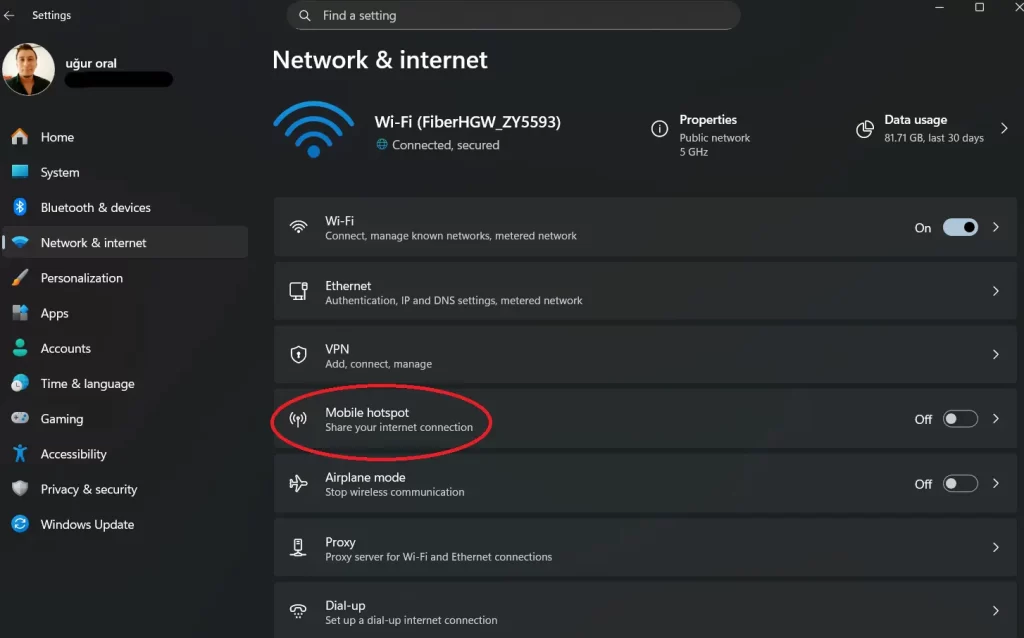
Step 2: Go to Network & Internet
Inside Settings:
- Click Network & Internet
- Scroll down until you see Mobile hotspot
- Click on it
This is where Windows 11 manages hotspot settings.
Step 3: Choose the Internet Connection to Share
Under “Share my internet connection from”:
- Select Wi-Fi if your PC is connected wirelessly
- Select Ethernet if your PC uses a cable
- Select Cellular if supported
This step is essential when learning how to create a mobile hotspot Windows 11 correctly.
Step 4: Choose How to Share the Connection
Under “Share over”:
- Wi-Fi (recommended)
- Bluetooth (lower speed, less power usage)
Wi-Fi is best for speed and stability.
Step 5: Set Network Name and Password
Click Edit and customize:
- Network name (Hotspot name)
- Network password (at least 8 characters)
- Network band (2.4 GHz or 5 GHz)
Click Save when done.
Step 6: Turn On the Mobile Hotspot
Now simply toggle:
Mobile hotspot → On
Your Windows 11 PC is now sharing internet.
That’s it. You have successfully learned how to create a mobile hotspot Windows 11.
How to Connect Other Devices to the Hotspot
After enabling the hotspot:
- Open Wi-Fi on your phone or other device
- Find the hotspot name you created
- Enter the password
- Connect
Your device will now use your Windows 11 internet connection.
How to Create a Mobile Hotspot Windows 11 Using Quick Settings
There’s a faster way too.
- Press Windows + A
- Open Quick Settings
- Click Mobile hotspot
If it’s not visible:
- Click the pencil icon
- Add Mobile hotspot
- Save changes
This method is perfect if you use the hotspot often.
Common Problems and Solutions
Even though how to create a mobile hotspot Windows 11 is simple, problems can sometimes occur.
Hotspot Option Missing
Possible reasons:
- Wi-Fi driver is outdated
- Wi-Fi adapter disabled
- Hardware not supported
Solution:
- Update network drivers
- Check Device Manager
- Restart your PC
Devices Can’t Connect
Possible causes:
- Weak signal
- Wrong password
- Firewall conflict
Solution:
- Move devices closer
- Recheck password
- Temporarily disable firewall for testing
Internet Works on PC but Not on Hotspot
This often happens with Ethernet sharing.
Solution:
- Restart hotspot
- Disable and re-enable network adapter
- Restart Windows Network services
Tips for Better Mobile Hotspot Performance
To get the best results when using how to create a mobile hotspot Windows 11, follow these tips:
- Use 5 GHz band if available
- Keep your laptop plugged in
- Limit the number of connected devices
- Place your laptop in an open area
- Avoid heavy downloads on the host PC
Is Mobile Hotspot Safe to Use?
Yes, the mobile hotspot in Windows 11 is safe if you:
- Use a strong password
- Don’t share it publicly
- Turn it off when not needed
Windows 11 uses modern encryption standards to protect your connection.
When Should You Turn Off the Hotspot?
You should disable the hotspot when:
- You’re done using it
- Battery is low
- You’re on a public network
- You don’t need to share internet anymore
Just toggle Mobile hotspot → Off in Settings.
Final Thoughts
Learning how to create a mobile hotspot Windows 11 is extremely useful in daily life. Whether you’re at home, at work, or on the road, this feature gives you flexibility and control over your internet connection.
Windows 11 makes the process easy, fast, and reliable. With just a few clicks, your PC becomes a wireless router. No apps, no cables, no stress.
If you follow the steps in this guide, you’ll have a working hotspot in minutes—even if you’re not tech-savvy.
