Have you ever spent hours perfecting a report, only to realize the person you’re sending it to can’t open the file? Or maybe you need to upload a resume, but the website specifically demands a PDF instead of a standard Word document.
Learning how to save a Word document in different formats is one of those “boring” adult skills that actually saves you a massive amount of stress in the long run. Whether you are using a PC, a Mac, or even the online version of Word, the process is surprisingly straightforward once you know where the buttons are hidden.
In this guide, we’ll walk through every method imaginable—from the standard “Save As” to the “Export” feature—and explain why you might choose one format over another.
Why Should You Change Your File Format?
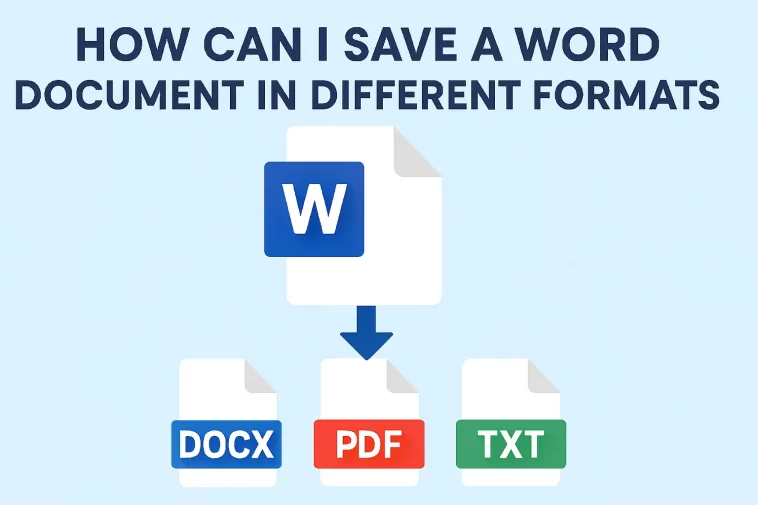
Before we dive into the “how,” let’s talk about the “why.” By default, Microsoft Word saves files as .docx. This is great for editing, but it isn’t always the best choice for sharing.
- PDF (.pdf): Best for documents you don’t want others to edit. It keeps your fonts and layout exactly the same on every device.
- Plain Text (.txt): Removes all formatting. Great for coding or raw notes.
- Rich Text Format (.rtf): A “middle ground” that keeps some formatting but is readable by almost any word processor.
- Old Word Versions (.doc): Necessary if you are sending a file to someone using a prehistoric version of Office (pre-2007).
Method 1: The “Save As” Technique (The Classic Way)
This is the most common way to change your file type. It works on both Windows and Mac versions of the desktop app.
- Open your document. Make sure you’ve saved your current progress first.
- Click on “File” in the top-left corner of your screen.
- Select “Save As.” (On newer versions of Word, you might need to click “Browse” or “This PC” to open the classic window).
- Choose your location. Pick the folder where you want the new file to live.
- Find the “Save as type” dropdown. This is the magic box. Click it, and you’ll see a long list of options like PDF, Word 97-2003, and Rich Text Format.
- Hit “Save.”
Method 2: Exporting to PDF (The Professional’s Choice)
If your goal is specifically to create a PDF, using the “Export” function is often cleaner than “Save As.” It gives you a few more options regarding file size and quality.
On Windows:
- Go to File > Export.
- Click Create PDF/XPS Document.
- Click the button that says Create PDF/XPS.
- Before saving, look at the Options button. This allows you to choose if you want to include “tracked changes” or “comments” in your PDF.
On Mac:
- Go to File > Save As.
- In the “File Format” box at the bottom, select PDF.
- You will see a radio button asking if you want the file “Best for electronic distribution” (smaller file) or “Best for printing” (higher quality).
Method 3: Saving in Word Online (The Web Version)
If you are using the free version of Word in your web browser, things look a little different. Since Word Online auto-saves to OneDrive, you don’t “Save As” in the traditional sense.
- Click File in the top ribbon.
- Click Save As.
- You will see options like:
- Download a Copy: Saves it as a .docx on your computer.
- Download as PDF: Converts it and saves it to your computer.
- Download as ODT: (OpenDocument Text) for use in software like LibreOffice.
Which Format Should You Choose?
| Format | Best For… | Why? |
| .docx | Editing | Standard modern Word format. Small file size. |
| Sharing/Printing | Prevents accidental edits; looks the same on all screens. | |
| .dotx | Templates | Use this if you made a letterhead you want to reuse. |
| .txt | Simplicity | No images, no bold text, just words. Universal compatibility. |
| .html | Websites | If you want to view your document as a web page. |
Pro Tips for Converting Files
1. Check Your Formatting After Saving
When you save a Word document as a PDF, it usually looks perfect. However, if you save it as a .txt or an older .doc file, things might shift. Always open the new file to make sure your images haven’t flown off the page or your fonts haven’t turned into something ugly.
2. The “Print to PDF” Hack
If your “Save As” function is acting glitchy, there is a universal backup plan. Go to File > Print. Under the “Printer” selection, choose Microsoft Print to PDF (Windows) or click the PDF dropdown at the bottom (Mac). This “prints” a digital copy of your document into a PDF file.
3. Renaming Matters
When saving in a different format, try to change the file name slightly (e.g., “Resume_Final_PDF”). This prevents you from accidentally overwriting your original, editable Word document. Once you save as a PDF, you can’t easily go back and fix a typo in that specific file!
Summary
Knowing how to save a Word document in different formats is a vital part of digital literacy. Whether you’re submitting a thesis, sending an invoice, or archiving old journals, the “Save As” and “Export” menus are your best friends.
The next time a colleague says, “I can’t open this,” you’ll know exactly what to do. Just head to that File menu, drop down the format list, and pick the one that fits the job!
