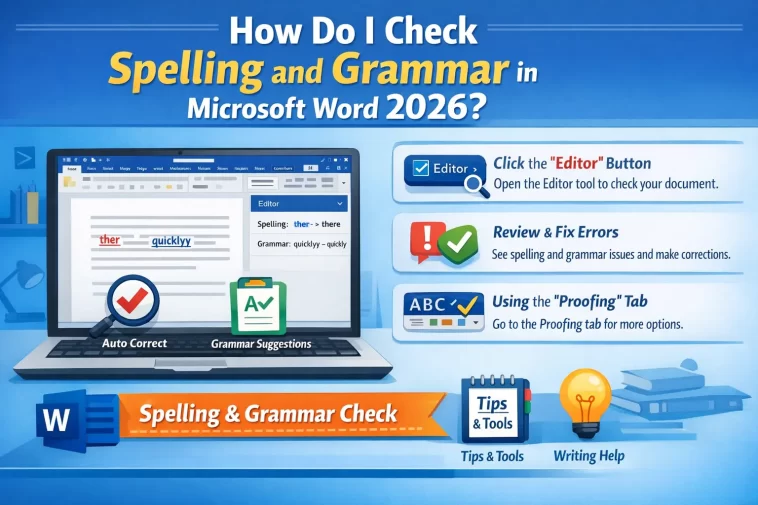
If you write anything regularly—emails, blog posts, school assignments, or work documents—you already know how important clean, error-free writing is. Even a small spelling mistake can make your content look unprofessional. That’s why tools like Microsoft Word have always included built-in spelling and grammar checking.
In this guide, you’ll learn how to check spelling and grammar in Microsoft Word 2026 step by step. Everything is explained in a simple, practical way so you can start using it immediately.
Why Spelling and Grammar Checking Matters
Before jumping into the steps, it’s worth understanding why this feature matters so much.
When your writing is clean:
- You look more professional
- Your ideas are easier to understand
- You avoid embarrassing mistakes
- Your content becomes more trustworthy
Microsoft Word 2026 has improved its proofreading tools compared to older versions. It doesn’t just catch spelling mistakes—it also suggests better grammar, clarity improvements, and even style changes.
How Do I Check Spelling and Grammar in Microsoft Word 2026?
Let’s start with the most direct answer.
1. Use Automatic Spelling and Grammar Check
Microsoft Word 2026 checks your writing automatically as you type.
Here’s how it works:
- Red underline → spelling mistake
- Blue or green underline → grammar or style issue
What to do:
- Right-click on the underlined word or sentence
- Choose one of the suggested corrections
- Click to apply the fix
This is the fastest and easiest way to correct errors.
2. Run a Full Spelling and Grammar Check
If you want to review your entire document at once, you can run a full check.
Steps:
- Go to the Review tab
- Click on Spelling & Grammar
- Word will go through your document one issue at a time
- Choose:
- Change (fix it)
- Ignore (skip it)
- Add to Dictionary (if it’s a correct word)
This method is great when you’re done writing and want a final review.
3. Use the Editor Panel (Recommended)
Microsoft Word 2026 includes an advanced feature called Editor.
Steps:
- Go to the Home or Review tab
- Click on Editor
- A panel will open on the right side
Inside the Editor panel, you’ll see:
- Spelling errors
- Grammar suggestions
- Clarity improvements
- Formality suggestions
This is more advanced than basic spell check and gives deeper writing feedback.
4. Turn On or Off Spelling and Grammar Check
If you don’t see underlines, the feature might be disabled.
Steps:
- Go to File → Options
- Click Proofing
- Make sure these are checked:
- ✔ Check spelling as you type
- ✔ Mark grammar errors as you type
Click OK to save.
5. Check Grammar Only or Spelling Only
Sometimes you may want to check only grammar or only spelling.
Steps:
- Go to File → Options → Proofing
- Customize settings:
- Enable or disable grammar checking
- Adjust writing style rules
Word 2026 allows more control than older versions.
6. Add Words to Your Dictionary
If Word keeps marking a correct word as wrong (like a name or technical term), you can add it to your dictionary.
Steps:
- Right-click the word
- Click Add to Dictionary
Now Word will stop flagging it.
7. Use Keyboard Shortcut for Faster Checking
If you prefer shortcuts:
- Press F7
This instantly starts the spelling and grammar check for your document.
Advanced Tips for Better Results
If you want to get the most out of Microsoft Word 2026, here are some useful tips.
Use Writing Style Settings
Word can check more than grammar—it can help improve your writing style.
Steps:
- Go to File → Options → Proofing
- Under Writing Style, choose:
- Grammar only
- Grammar & Refinements
This enables suggestions like:
- Conciseness
- Clarity
- Formal tone
Use Read Aloud Feature
Sometimes hearing your text helps catch errors.
Steps:
- Go to Review
- Click Read Aloud
You’ll notice mistakes that are easy to miss when reading silently.
Combine with Manual Proofreading
Even though Microsoft Word 2026 is powerful, it’s not perfect.
Always:
- Read your document once manually
- Check names, numbers, and context
Automated tools can miss subtle meaning errors.
Common Problems and Fixes
Problem: Spell Check Not Working
Fix:
- Go to File → Options → Proofing
- Enable spelling check options
Problem: Words Not Underlined
Fix:
- Make sure the language is set correctly
- Select text → Review → Language → Set Proofing Language
Problem: Grammar Suggestions Missing
Fix:
- Enable Grammar & Refinements in settings
Final Thoughts
So, how do I check spelling and grammar in Microsoft Word 2026? The answer is simple: use automatic checking, run manual reviews, and take advantage of the Editor tool.
Microsoft Word 2026 has made proofreading easier than ever. Whether you’re writing a quick email or a long article, these tools help you produce clean, professional content with minimal effort.
The key is to combine:
- Automatic corrections
- Manual review
- Editor suggestions
Once you get used to it, checking spelling and grammar becomes second nature.
