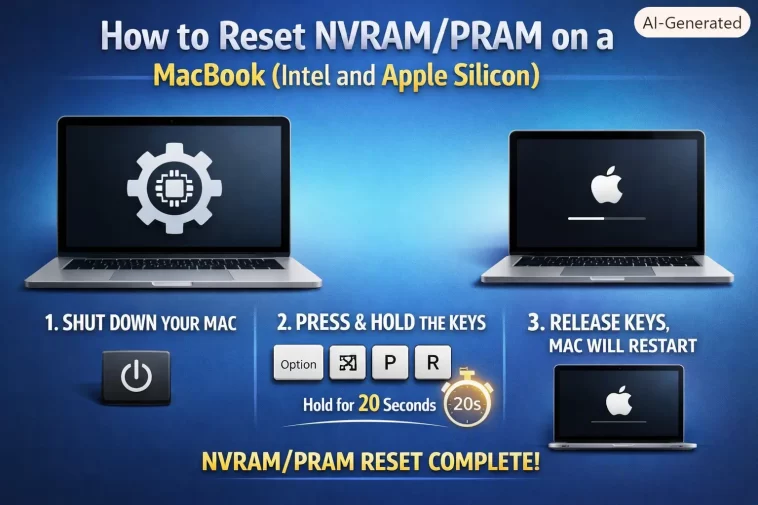
Had a MacBook Pro come in with the volume stuck weirdly low no matter what I did in System Settings, and the classic advice everywhere was “just reset the PRAM.” Tried the old key combo, nothing happened — because it’s an M2 machine, and that shortcut simply doesn’t exist on Apple Silicon anymore. Nobody tells you that part until you’ve already tried holding four keys down for twenty seconds like an idiot. So here’s the actual current process, split properly by chip type.
Quick Answer
- Intel MacBooks: shut down, then hold Option + Command + P + R for about 20 seconds right after powering on
- Apple Silicon MacBooks (M1 through M4): there is no key combo — <cite index=”128-1″>macOS automatically tests and clears NVRAM at every boot, so a full shutdown followed by a 30-second wait and normal power-on does the equivalent job</cite>
- Check which chip you have first under Apple menu > About This Mac before attempting either method
- NVRAM/PRAM resets fix things like wrong startup volume, odd display resolution, stuck sound settings, and some boot chime issues
- It won’t fix software crashes, app bugs, or anything unrelated to these specific low-level settings
Why It Fails (and Why the Old Method Doesn’t Work Anymore)
NVRAM (and PRAM before it, which is really the same concept under an older name) stores a small set of settings your Mac needs before macOS even fully loads — things like speaker volume, screen resolution, time zone, startup disk choice, and recent kernel panic information. On Intel Macs, this lived on a small dedicated chip that could be manually cleared with that four-key combo.
<cite index=”128-1″>Apple explicitly removed the NVRAM reset key combination on Apple Silicon Macs because these chips handle power management and firmware differently from Intel Macs — there’s no separate NVRAM chip to reset in the same way.</cite> Instead, the system checks and clears this data automatically as part of every normal boot sequence. Which sounds almost too convenient, but it does genuinely mean the manual process just isn’t something you can trigger yourself on those machines.
This is exactly why so many guides floating around are outdated or just wrong for current hardware — they were written for Intel Macs and never got updated to reflect that Apple Silicon works completely differently here. If you try the old key combo on an M-series MacBook, nothing happens, not because you did it wrong, but because there’s nothing there to trigger.
Step-by-Step: Intel MacBooks
Step 1: Confirm you actually have an Intel Mac
Apple menu > About This Mac. If it says “Processor” with an Intel name (like Intel Core i5, i7, i9), you’re on Intel and this method applies to you.
Step 2: Shut down completely
Apple menu > Shut Down. Wait until the screen is fully black and the Mac has powered off, not just gone to sleep.
Step 3: Power on and immediately hold the key combo
Press the power button, and right away press and hold Option + Command + P + R together. Timing matters here — you want these keys down before the grey startup screen appears.
Step 4: Hold for about 20 seconds
Keep holding. You may hear the startup chime play, sometimes more than once, or see the Apple logo appear and disappear. That’s normal and expected during this process.
Step 5: Release and let it boot normally
After around 20 seconds, release the keys and let the Mac finish starting up on its own.
Step 6: Recheck your settings
Volume, display resolution, and startup disk selection may have reset to their defaults. Go back into System Settings and adjust anything that needs to be set again.
Step-by-Step: Apple Silicon MacBooks (M1, M2, M3, M4)
Step 1: Confirm your chip
Apple menu > About This Mac. If it lists M1, M2, M3, or M4 under the chip line rather than an Intel processor name, this is the method for you.
Step 2: Shut down completely
Apple menu > Shut Down. Wait for the screen to go fully black.
Step 3: Wait about 30 seconds
<cite index=”124-1″>This gives the system enough time to fully power down before restarting, similar in spirit to the old NVRAM reset, even though there’s no key combo involved.</cite>
Step 4: Power back on normally
Press the power button and let the Mac boot as it normally would. There’s genuinely nothing else to do — <cite index=”126-1″>a Mac with Apple silicon automatically tests and resets NVRAM on startup</cite>, so a clean shutdown and restart is the full extent of the manual process.
Step 5: Recheck settings if you were troubleshooting something specific
If you were trying to fix a stuck display or sound setting, check whether it’s resolved. If not, the issue likely isn’t NVRAM-related on this hardware, since the system handles that automatically regardless.
What Actually Happened With Mine
Went in assuming the M2 MacBook would behave like every Intel one I’d worked on for years, held the key combo, waited, nothing. Felt a little silly once I realized why — not because the steps were wrong, but because I was applying an old habit to hardware that doesn’t support it anymore.
Did the shutdown-and-wait approach instead, and the volume issue actually cleared on the very next boot. So the “reset” still worked in the sense that mattered, it just didn’t need any dramatic key-holding to get there. From what I’ve seen since on a couple of other Apple Silicon machines, that’s pretty consistent — the automatic process at boot handles most of what the old manual reset used to.
Advanced Notes and Edge Cases
If a full shutdown and restart doesn’t resolve an Apple Silicon issue, it’s probably not an NVRAM problem. <cite index=”128-1″>On these chips, NVRAM is tested and cleared automatically at every boot, so if the symptom persists after a clean restart, the underlying cause is somewhere else — worth looking at Safe Mode, a fresh user account test, or an SMC-adjacent power cycle instead.</cite>
T2 chip Intel Macs have a slightly different SMC reset, separate from NVRAM. <cite index=”127-1″>On MacBook models with the Apple T2 Security Chip (2018 or later Intel models), the SMC reset involves holding the power button for 10 seconds, then a separate key combination if that doesn’t resolve things — this is a different process from the NVRAM/PRAM reset covered above, even though people often lump the two together.</cite>
Check whether the issue is actually persistent kernel panic data rather than a settings problem. NVRAM also stores information about recent kernel panics. If you’re chasing a specific crash-related symptom rather than a settings glitch, a reset can sometimes clear stale panic data that’s confusing diagnostic tools, though this is a narrower case than the typical volume or display issue.
Prevention Tips
- Check your chip type before following any online guide for this — a huge number of guides don’t distinguish clearly, and following Intel steps on Apple Silicon just wastes your time
- Reset NVRAM/PRAM (or do the Apple Silicon equivalent shutdown) as a step when troubleshooting odd startup disk selection, stuck volume, or display resolution problems specifically — not as a general “fix everything” step
- After a reset, expect to redo a few personal settings like display resolution or startup disk choice, so don’t be alarmed if those look different afterward
FAQ
Does resetting NVRAM delete my files? No. It only affects a small set of low-level system settings, not your data.
Will this fix a MacBook that won’t turn on at all? Not directly — that’s usually a different kind of issue, possibly SMC or hardware-related rather than NVRAM-related.
How do I know if I have Intel or Apple Silicon without checking About This Mac? Older MacBooks (2020 and earlier, aside from the 2020 M1 models) are Intel. From late 2020 onward, most new MacBooks shipped with Apple Silicon, but checking About This Mac directly is the only sure way.
Is PRAM the same thing as NVRAM? Functionally yes for troubleshooting purposes — PRAM is the older name Apple used before switching terminology to NVRAM, and guides often use both interchangeably.
Why did an old guide tell me to hold different keys? Some very old Mac models used a different key combination before Option+Command+P+R became standard. If you’re on a MacBook from the last decade or so, the combo above is correct for Intel models.
Editor’s Opinion
the amount of outdated advice floating around for this one is kind of wild honestly, half the guides out there dont even mention apple silicon doesnt have the key combo at all. felt dumb holding those keys for nothing but at least now i know. moral of the story: check your chip first, dont just follow muscle memory from the last decade of intel macs.
