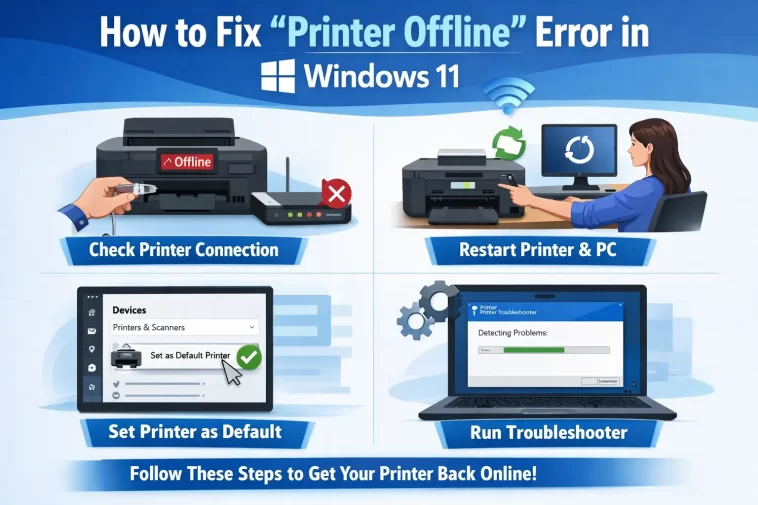
The printer offline error in Windows 11 is one of the most frustrating tech problems you can run into — not because it’s complicated, but because it happens at the worst possible time. You need to print something important, your printer is sitting right there, powered on and blinking cheerfully, and Windows just shrugs and says “Offline.”
The good news? In the vast majority of cases, this is not a hardware problem. Your printer is almost certainly fine. The issue is almost always on the Windows side — a stuck print queue, a wrong setting, a driver that got corrupted after an update, or a wireless printer that quietly changed its IP address without telling anyone.
This guide walks you through every working fix, in the right order, from the simplest 30-second checks to deeper Windows troubleshooting. Follow them one by one and test your printer after each major step. Most people find their fix within the first three or four methods.
Why Does Windows 11 Show a Printer as Offline?
Before jumping into fixes, it helps to know what’s actually causing the problem. Windows 11 marks a printer as “offline” whenever it can’t communicate with it. That breakdown in communication can happen for several different reasons:
- The “Use Printer Offline” mode is turned on — Windows has a setting that manually forces the printer offline. It can get switched on accidentally, and it’s one of the first things to check.
- A stuck print job in the queue — A failed or frozen print job can block the queue completely, causing everything behind it — including the printer status — to freeze up.
- The Print Spooler service has crashed — The Print Spooler is the Windows service that manages all printing. If it stops running, every printer on the system appears offline.
- Outdated or corrupted drivers — Windows 11 updates can overwrite or break printer driver files, especially after major feature updates.
- A network/IP address conflict — Wireless printers often lose their place on the network when the router restarts and reassigns IP addresses. Windows keeps looking for the old address and finds nothing.
- Wrong printer port settings — Windows may be trying to reach the printer through the wrong port, especially after a driver reinstall or Windows update.
With that in mind, let’s fix it.
Fix 1: Power Cycle Everything (30 Seconds)
It sounds obvious, but this genuinely resolves the issue in a surprising number of cases — especially if the printer’s internal software has frozen or if there’s been a brief network hiccup.
Steps:
- Turn your printer off using its power button (don’t just unplug it — shut it down cleanly).
- Unplug it from the wall and wait 30 seconds.
- Plug it back in and power it on.
- Restart your computer as well.
- Try printing a test page.
If you’re on a wireless printer, also restart your router. Unplug it, wait 30 seconds, plug it back in, and give it a minute to fully reconnect before trying to print.
Fix 2: Disable “Use Printer Offline” Mode
This is the single most common cause of the offline error and takes under a minute to check. Windows has a built-in setting that lets you manually put a printer in offline mode — useful in specific scenarios, but easy to enable accidentally.
Steps:
- Press Windows key + I to open Settings.
- Go to Bluetooth & devices → Printers & scanners.
- Click on your printer from the list.
- Click Open print queue.
- In the print queue window, click Printer in the top menu bar.
- If Use Printer Offline has a checkmark next to it, click it to uncheck it.
- Close the window and try printing again.
If this was the issue, your printer should immediately come back online.
Fix 3: Clear the Print Queue
A stuck or corrupted print job can completely jam the queue. Nothing new gets through, and Windows keeps the printer marked as unavailable until the jam clears. The problem is that sometimes even canceling jobs from the queue window doesn’t work — you have to clear them manually.
Steps:
Method A — From the print queue window:
- Open the print queue for your printer (same steps as Fix 2).
- Right-click each job and select Cancel.
- Confirm the cancellation and wait a moment.
Method B — Manual clear (more reliable for stubborn queues):
- Press Windows key + R, type
services.msc, and press Enter. - Scroll down to Print Spooler, right-click it, and select Stop. Leave the window open.
- Open File Explorer and navigate to:
C:\Windows\System32\spool\PRINTERS - Delete all files inside that folder. Do not delete the folder itself — just the files inside it.
- Go back to the Services window, right-click Print Spooler, and select Start.
- Try printing again.
This completely clears every pending and stuck job in the queue and gives the spooler a fresh start.
Fix 4: Restart the Print Spooler Service
Even if you don’t have stuck jobs, the Print Spooler itself can crash or get into a broken state — especially after Windows updates. Restarting it takes about 30 seconds and often brings the printer back online instantly.
Steps:
- Press Windows key + R, type
services.msc, press Enter. - Scroll down and find Print Spooler in the list.
- Right-click it and select Restart.
- If it’s not running at all, right-click and select Start.
- While you’re here, double-click Print Spooler, make sure Startup type is set to Automatic, then click OK.
Fix 5: Run the Windows Printer Troubleshooter
Windows 11 has a built-in printer troubleshooter that can automatically detect and fix several common problems. It’s not a magic wand, but it catches things like incorrect settings, driver issues, and service problems that you might otherwise spend time tracking down manually.
Steps:
- Press Windows key + I to open Settings.
- Go to System → Troubleshoot → Other troubleshooters.
- Find Printer in the list and click Run.
- Follow the on-screen instructions and let the troubleshooter complete.
- Restart your PC if prompted and test the printer.
If the troubleshooter finds and fixes something, great. If it says “No issues found” but the printer is still offline, move on to the next fix.
Fix 6: Set the Printer as Default
Sometimes Windows 11 gets confused about which printer should be the default, especially if you’ve installed multiple printers or recently upgraded from Windows 10. This can cause print jobs to be sent to the wrong device.
Steps:
- Open Settings → Bluetooth & devices → Printers & scanners.
- Scroll down and look for “Let Windows manage my default printer” — turn this off.
- Click on your printer and select Set as default.
- Try printing again.
Fix 7: Update or Reinstall the Printer Driver
Outdated or corrupted printer drivers are a very common cause of the offline error in Windows 11 — particularly after major Windows feature updates, which can overwrite driver files. Updating the driver through Device Manager is a good first step, but downloading directly from the manufacturer’s website is more reliable.
Steps:
Option A — Update through Device Manager:
- Right-click the Start button and select Device Manager.
- Expand Printers or Print queues.
- Right-click your printer and select Update driver.
- Choose Search automatically for drivers.
- Restart your PC after the update completes.
Option B — Manual download (recommended):
- Go to your printer manufacturer’s website (HP Support, Canon Support, Epson Support, Brother Support, etc.).
- Search for your exact printer model and download the latest Windows 11 driver.
- Run the installer and follow the steps.
- Restart your PC.
Option C — Reinstall the driver completely:
- In Device Manager, right-click your printer and select Uninstall device.
- Check the box to delete the driver software if prompted.
- Restart your computer.
- Windows will try to reinstall the driver automatically, or you can install it manually from the manufacturer’s site.
Fix 8: Check the Printer Port Settings
This is a lesser-known fix but it resolves a lot of persistent offline problems — especially for network printers. Windows can get confused about which port to use when communicating with the printer, particularly if the printer’s IP address has changed or if a driver update swapped the port type.
Steps:
- Open Settings → Bluetooth & devices → Printers & scanners.
- Click your printer and then click Printer properties.
- Go to the Ports tab.
- Look at which port is selected. It should be a Standard TCP/IP Port matching your printer’s current IP address.
- If the port is incorrect, click Add Port, select Standard TCP/IP Port, and enter your printer’s IP address.
- Click Apply and OK.
To find your printer’s current IP address, print a network configuration page from the printer itself (check your printer’s manual for how to do this — it’s usually a button combination or a menu option).
Also, on the Ports tab, click Configure Port and make sure SNMP Status Enabled is unchecked. This setting can cause Windows to think the printer is offline when it’s actually just not responding to status queries.
Fix 9: Assign a Static IP Address to Your Printer
If your wireless printer keeps going offline repeatedly — fine for a day, then offline again after the router restarts — the root cause is almost certainly a changing IP address. Every time your router restarts, it may assign the printer a new IP address. Windows keeps trying to reach the old one and fails.
The permanent fix is to assign a static IP address.
Steps — Via your router:
- Open your router’s admin panel (usually by typing
192.168.1.1or192.168.0.1in a browser). - Find the DHCP reservations or static IP section (it varies by router brand).
- Find your printer in the connected devices list and reserve its current IP address permanently.
- Save the settings.
Steps — Via Windows after assigning the static IP:
- Go to Printer Properties → Ports as described in Fix 8.
- Update the port to point to the printer’s now-permanent static IP address.
This prevents the offline problem from coming back after every router restart.
Fix 10: Remove and Reinstall the Printer
If none of the above has worked, a clean reinstall is your next move. This removes all the old driver data, stale port configurations, and queue debris that may have built up.
Steps:
- Open Settings → Bluetooth & devices → Printers & scanners.
- Click your printer and select Remove.
- Confirm the removal.
- Clear the print spooler folder as described in Fix 3 (the manual method).
- Restart your PC.
- After restarting, download the latest driver from the manufacturer’s website.
- Run the installer and add the printer fresh.
- Print a test page before sending anything important.
This clean setup removes bad queue data, stale printer ports, and old driver conflicts that survive normal reinstalls. It’s the nuclear option — but it works.
Fix 11: Check Windows Firewall Settings
In some cases, Windows Firewall blocks the printer discovery process, particularly for network printers. This is more common after security software installations or changes.
Steps:
- Open Windows Security → Firewall & network protection.
- Click Allow an app through firewall.
- Scroll through the list and make sure File and Printer Sharing is allowed on both Private and Public networks.
- If it’s not listed or not enabled, click Change settings, find it, and enable it.
Quick Reference: Fix by Situation
Not sure where to start? Here’s a fast guide:
Printer just randomly went offline → Try Fix 2 (Use Printer Offline setting) and Fix 3 (clear print queue) first.
Printer went offline after a Windows 11 update → Fix 7 (update/reinstall driver) is the most likely solution.
Wireless printer keeps going offline again and again → Fix 9 (static IP address) is the permanent fix you need.
Nothing has printed for hours and there are old jobs stuck → Fix 3 (manual queue clear) + Fix 4 (restart spooler).
Never worked at all on Windows 11 → Fix 10 (clean reinstall from scratch).
FAQ — Fixing Printer Offline Error in Windows 11
Why does my printer say offline when it’s clearly on and connected?
This usually means Windows is trying to communicate with the printer through the wrong port or a stale IP address, the Print Spooler service has crashed, or the “Use Printer Offline” mode is enabled in the printer settings. None of these mean your printer is broken.
How do I restart the Print Spooler in Windows 11?
Press Windows key + R, type services.msc, and press Enter. Scroll down to Print Spooler, right-click it, and select Restart. This takes about five seconds and often resolves offline errors immediately.
My printer went offline after a Windows 11 update. What do I do?
Windows updates can corrupt or replace printer driver files. Download the latest driver directly from your printer manufacturer’s website (HP, Canon, Epson, Brother, etc.) and reinstall it. Don’t rely on Windows Update to find the right one — go straight to the source.
Why does my wireless printer keep going offline every time I restart the router?
Your router is assigning a new IP address to the printer each time it restarts. Windows keeps looking for the old address. The fix is to assign a static (permanent) IP address to your printer through your router’s DHCP reservation settings, then update the printer port in Windows to match.
How do I clear a stuck print queue in Windows 11?
Stop the Print Spooler service via services.msc, then navigate to C:\Windows\System32\spool\PRINTERS and delete all files inside that folder. Start the Print Spooler service again. This completely clears all stuck and pending jobs.
Can I fix the printer offline error without reinstalling the driver?
Yes, in most cases. The offline error is often caused by the “Use Printer Offline” setting, a stuck print queue, or a crashed Print Spooler — none of which require a driver reinstall. Driver reinstall is only necessary when the above fixes don’t help or when the printer stopped working after a Windows update.
My printer is shared on a network through another PC. Why does it show offline?
In a managed or shared printer environment, the issue may be on the print server side, not your own PC. The IT administrator may need to restart the print spooler on the server, clear the server-side queue, or update the shared driver. Individual users often don’t have the permissions to fix this themselves.
Final Thought
The printer offline error feels like a big deal in the moment, but it’s almost always a software problem with a straightforward fix. Start with the simple stuff — check the offline setting, clear the queue, restart the spooler. If those don’t work, update the driver. If the problem keeps coming back, assign a static IP address.
Work through the steps in order, test after each one, and you’ll be printing again faster than you’d expect. And if you ever find yourself staring at the “offline” message in the future, you’ll know exactly where to start.
