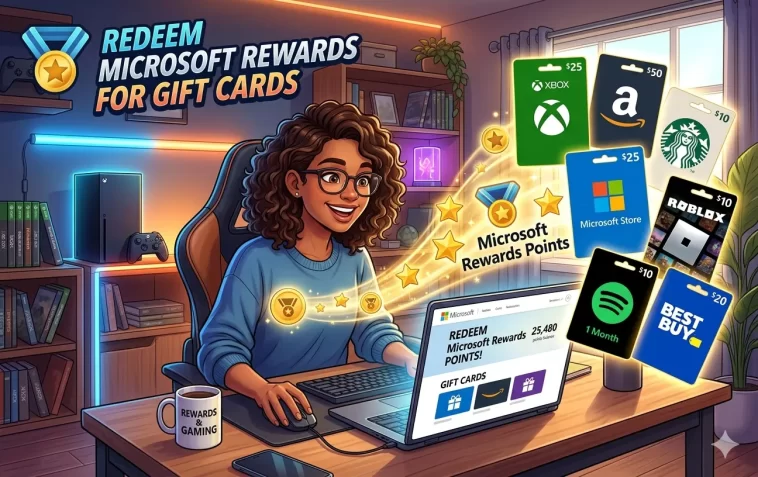
Redeeming Microsoft Rewards for gift cards is the most popular way to use your accumulated points — and for good reason. You can trade points for Amazon, Starbucks, Xbox, Target, Walmart, and dozens of other gift cards, completely free, just by using Bing for your everyday searches.
This guide walks you through exactly how to redeem, what gift cards are available, how many points you need, and what to do if something goes wrong.
What Are Microsoft Rewards Points Worth?
Before redeeming, it helps to understand the basic value of your points.
The standard conversion rate is approximately 1,000 points = $1 USD in gift card value. However, the exact points required per gift card varies — Microsoft and Xbox branded cards often offer slightly better value than third-party cards.
| Gift Card | Approximate Points Required |
|---|---|
| $5 Microsoft / Xbox Gift Card | ~4,750–5,000 points |
| $5 Amazon Gift Card | ~5,000–5,250 points |
| $10 Microsoft / Xbox Gift Card | ~9,500–10,000 points |
| $10 Amazon Gift Card | ~10,000–12,350 points |
| $5 Starbucks Gift Card | ~5,000–5,250 points |
| $5 Google Play Gift Card | ~5,000 points |
Note: Exact point costs vary by region, account level, and current promotions. Always check the live catalog at rewards.bing.com for your specific cost before redeeming.
Gift Cards Available in the Microsoft Rewards Catalog
The catalog changes regularly, but commonly available gift cards include:
Retail & General Use:
- Amazon
- Walmart
- Target
- Best Buy
- Sephora
- Nike
Food & Drink:
- Starbucks
- Dunkin’
- DoorDash / Uber Eats
Gaming & Entertainment:
- Xbox Gift Cards
- Microsoft Store Gift Cards
- Roblox (Robux)
- Minecraft (Minecoins)
- Riot Points (League of Legends)
- Google Play
Other:
- PayPal (select regions)
- iTunes / Apple (select regions)
- Various regional retailers
Not all gift cards are available at all times. High-demand cards like Amazon and Walmart frequently go out of stock. Xbox and Microsoft Store cards are almost always available. Check the catalog regularly for updates.
Step-by-Step: How to Redeem Microsoft Rewards for Gift Cards
Step 1 — Sign In to Your Microsoft Rewards Account
Go to rewards.bing.com and sign in with the Microsoft account you use to earn points. This is important — your points are tied to a specific account, so make sure you’re logged into the right one.
You can also access the redemption catalog directly at rewards.bing.com/redeem.
Step 2 — Check Your Points Balance
Your current points balance is displayed at the top right of the dashboard. Make sure you have enough points for the gift card you want before proceeding.
If you’re close but not quite there, the dashboard also shows your progress toward Level 2 and any active streak bonuses that could push you over the threshold soon.
Step 3 — Browse the Redemption Catalog
Click Redeem in the top navigation bar. The catalog shows all currently available rewards including gift cards, sweepstakes entries, and charitable donations.
To find gift cards specifically:
- Use the filter options to select “Gift Cards” as a category
- Or scroll through the catalog to spot them visually
- Use the search bar if you’re looking for a specific brand (e.g., type “Amazon” or “Starbucks”)
Step 4 — Select Your Gift Card
Click on the gift card you want. You’ll see:
- The full name and value of the card
- The points required for redemption
- Any terms or restrictions that apply
Some cards offer multiple denominations (e.g., $5 or $10). Select the value that fits your points balance.
Step 5 — Click Redeem and Verify Your Identity
Click the Redeem or Redeem Rewards button.
Microsoft may ask you to verify your identity before completing the redemption. This is a standard security step and usually requires one of the following:
- A phone number verification — Microsoft sends an SMS code to the phone number linked to your account. Enter it to confirm.
- An email verification code — An alternative if phone verification isn’t available.
This verification step protects your account from unauthorized redemptions. Make sure your phone number is already linked to your Microsoft account before you try to redeem — you can add or update it at account.microsoft.com → Your info.
Step 6 — Confirm the Redemption
After entering your verification code, review the redemption summary one more time:
- Gift card name and value
- Points to be deducted
- Delivery method (email code or account credit)
Click Confirm. Your points are deducted from your balance immediately.
Step 7 — Receive Your Gift Card Code
How you receive your gift card depends on the type:
Microsoft and Xbox gift cards are deposited directly into your Microsoft account balance — no code needed. The funds show up as a credit on your account, usable in the Microsoft Store and Xbox Store.
Third-party gift cards (Amazon, Starbucks, etc.) are delivered as a digital redemption code sent to the email address on your Microsoft account. Check your inbox within a few minutes. If you don’t see it, check your spam or junk folder.
To view your redemption history and retrieve codes at any time, go to rewards.bing.com → Order History, find your redemption, and click Order Details.
How to Use Your Gift Card After Redemption
Once you have the code, using it is straightforward.
For Amazon gift cards:
- Go to amazon.com and sign in
- Navigate to Account → Gift Cards → Redeem a Gift Card
- Enter the code and click Apply to your balance
- The balance is added to your Amazon account and used automatically on your next order
For Starbucks gift cards:
- Open the Starbucks app or go to starbucks.com
- Go to Card → Add a Card or Reload Card
- Enter the gift card number and PIN from your email
- Use it to pay in-store or through the app
For Xbox / Microsoft credit: Since these are deposited directly to your Microsoft account balance, you can spend them immediately in the:
- Xbox console store
- Microsoft Store on Windows
- xbox.com or microsoft.com
Tips to Get the Best Value from Redemptions
Wait for sale events. Microsoft occasionally runs promotional periods where popular gift cards cost fewer points than usual. These “Rewards sale” events appear on the dashboard and are worth waiting for if you have a specific card in mind.
Prioritize Microsoft and Xbox cards. These typically offer the best points-to-dollar ratio in the catalog. If you use Xbox Game Pass or shop the Microsoft Store, redeeming for Xbox gift cards and applying that balance gives you excellent value.
Check the catalog on mobile if a card is missing on desktop. Some users have found that Amazon and Walmart gift cards appear on the Bing mobile app even when they’re not showing on the desktop browser. If your target card is out of stock on desktop, try the Bing app on your phone.
Set a points goal. The dashboard lets you mark a specific reward as your goal. Once set, you’ll see your progress toward it every time you check in — a small motivational boost for daily earning.
Don’t let points sit too long. Points expire after 18 months of no earning activity. If you have a large balance building up, redeem periodically rather than waiting for a single large purchase. Regular redemptions also keep your account active.
Common Redemption Problems and Fixes
Gift Card Shows as “Out of Stock”
High-demand cards like Amazon, Walmart, and Target are the most frequently out of stock. Microsoft allocates a limited number of codes per cycle, and popular cards disappear fast.
Fix: Check back daily — the catalog is updated regularly. Try the mobile Bing app as an alternative. If you’re flexible, consider Xbox or Microsoft Store cards as a reliable alternative that’s almost always available.
Phone Verification Code Not Arriving
Microsoft requires phone verification for gift card redemptions. If the code isn’t arriving:
- Check that the phone number linked to your account is correct and active
- Toggle airplane mode on and off on your phone to refresh your network connection
- Wait a few minutes — delivery can be delayed during high-traffic periods
- If you’ve entered the wrong code too many times, you must wait 48 hours before trying again
If your phone number is blocked or flagged, you’ll need to contact Microsoft Rewards Support at rewards.bing.com/support.
Phone Number Already in Use
Microsoft limits the number of Rewards accounts that can share a single phone number to 6 per household. If you’re getting an error saying your number is already taken, it may be linked to another account.
Fix: Contact Microsoft Rewards Support — only they can release a phone number from a previous account association.
Wrong Account Signed In
If your points aren’t showing or the gift card you redeemed hasn’t appeared, you may be signed into a different Microsoft account than the one with your points balance.
Fix: Sign out completely and sign back in with the correct account. Double-check that the account on the Rewards dashboard matches the one receiving emails.
VPN or Region Mismatch
Microsoft blocks redemptions from accounts that appear to be operating in a different region than their account settings, including connections made through VPNs.
Fix: Disable any VPN before attempting to redeem. Make sure your Microsoft account region matches your actual location.
Redemption Error Screen
A general error screen during checkout can be caused by browser cache issues, network instability, or a temporary server problem.
Fix: Clear your browser cache and cookies, try a different browser or device, and attempt the redemption again. If the error persists, wait a few hours and try again — it’s often temporary.
Frequently Asked Questions
How long does it take to receive a gift card after redeeming? Third-party gift cards like Amazon and Starbucks are usually delivered by email within a few minutes. Microsoft and Xbox credits are applied to your account balance immediately. Check your Order History at rewards.bing.com if you don’t see it.
Can I redeem on my phone? Yes. You can redeem through the Bing app on iOS or Android or via the mobile browser at rewards.bing.com. Some cards available on mobile may not appear on desktop, and vice versa.
Is phone verification always required? For most gift card redemptions, yes. Microsoft requires phone verification as a security measure. Add your phone number to your Microsoft account in advance at account.microsoft.com to avoid delays at checkout.
Can I gift the gift card to someone else? Gift card codes delivered by email can be shared — just forward the code to someone else. However, Microsoft and Xbox credits are deposited directly to your account and cannot be transferred.
What if I never received my gift card code? Check your spam/junk folder first. If it’s not there, go to rewards.bing.com → Order History → Order Details to retrieve the code. If you still can’t find it, contact Microsoft Rewards Support.
Can I redeem points if I don’t have a phone number on my account? No. Phone number verification is mandatory for gift card redemptions. You must add a valid phone number to your Microsoft account before you can redeem. Add yours at account.microsoft.com → Your info → Add phone.
Do Microsoft and Xbox gift cards expire? Microsoft credit added to your account balance does not expire. However, the promotional balance terms apply — funds acquired through Rewards are considered promotional balance and cannot be transferred or refunded.
What is the maximum I can redeem per day? Microsoft does not publicly state a strict daily redemption limit, but redeeming excessively in a short period can trigger security reviews. Redeeming once every few days or weekly is the safest pattern.
Redeeming Microsoft Rewards for gift cards is straightforward once you know the steps. The key is keeping your phone number verified in advance, checking the catalog regularly for high-demand cards, and building a habit of earning points daily so you’re always close to your next redemption. With a consistent routine, a free $5 to $10 gift card every month is very achievable.
