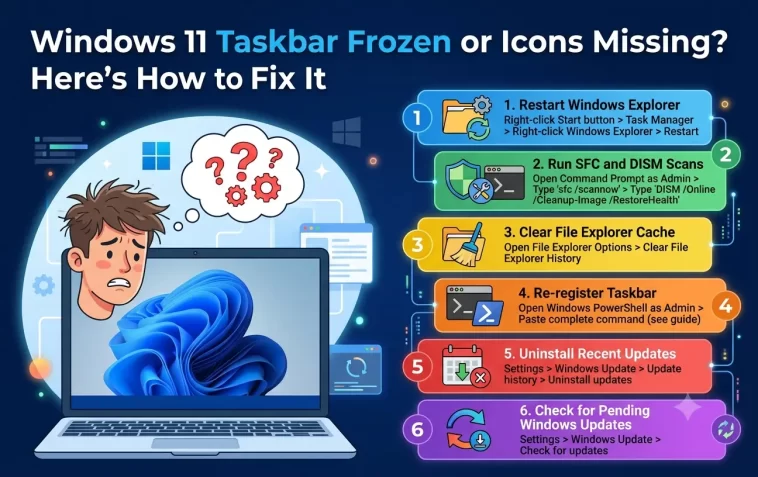
Windows 11 taskbar freezing up on you is one of those problems that sounds minor until it actually happens. Your icons disappear, nothing responds to clicks, and the whole bottom bar just sits there doing nothing. Meanwhile, your apps are still running in the background — you just can’t reach them.
This happens more often than Microsoft would like to admit. The good news is that you don’t need to reinstall Windows or call tech support. The fixes below are straightforward, and most people solve this within the first two or three steps.
Why Does the Windows 11 Taskbar Freeze or Lose Icons?
The taskbar in Windows 11 is controlled by explorer.exe and a handful of background services. When any of these crash or get stuck, the taskbar stops responding. Icons can vanish, become unclickable, or freeze in place.
The most common triggers are:
- A Windows Update that installed incorrectly or partially
- A corrupted system file quietly breaking things in the background
- The explorer.exe process crashing without a proper restart
- Conflicting software — especially shell extensions or third-party customization tools
- Overloaded startup programs competing for resources at boot
Now let’s get it fixed.
Step 1: Restart Windows Explorer
This is the first thing to try — and it fixes the problem more often than you’d expect. Windows Explorer controls the taskbar, desktop, and file manager all at once. A quick restart takes less than 10 seconds.
How to do it:
- Press Ctrl + Shift + Esc to open Task Manager
- Scroll down to find Windows Explorer under “Windows processes”
- Right-click it and select Restart
Your screen will go black for a second or two, then come back. Try clicking on the taskbar icons afterward to see if they respond.
Step 2: Kill and Restart the Taskbar Process Manually
If restarting Explorer from the menu didn’t fully solve it, do it manually through the command line. This gives you a clean slate.
How to do it:
- In Task Manager, click File > Run new task
- Type
cmdand check the box for administrative privileges - Click OK, then run these two commands one at a time:
taskkill /f /im explorer.exeWait two seconds, then:
start explorer.exeThis forcefully kills the process and starts it fresh. The taskbar should reload completely.
Step 3: Restart Key Background Services
The taskbar depends on several Windows services running in the background. If any of them have crashed, restarting them can bring frozen icons back to life.
How to do it:
- Press Win + R, type
services.msc, and press Enter - Find and restart each of these services (right-click > Restart):
- Windows Management Instrumentation
- Windows Update
- Shell Hardware Detection
If a service shows as “Stopped,” right-click it and choose Start instead.
Step 4: Run the System File Checker
Corrupted system files are a surprisingly common reason for taskbar problems. Windows has a built-in tool that scans for them and repairs them automatically.
How to do it:
- Open Task Manager and run a new task as administrator (same as Step 2)
- Type
powershelland check the admin box - In the PowerShell window, run:
sfc /scannowThe scan takes 10–20 minutes. Don’t close the window while it’s running. Once it’s done, restart your PC and check the taskbar.
Step 5: Run DISM to Repair the Windows Image
If SFC found issues but couldn’t fix them — or if the taskbar is still misbehaving — DISM goes one level deeper. It repairs the underlying Windows installation image that SFC pulls from.
How to do it:
Open an elevated PowerShell window and run:
DISM /Online /Cleanup-Image /RestoreHealthThis connects to Microsoft’s servers to download clean replacement files, so it needs an internet connection. It can take 20–30 minutes. Restart when it’s finished.
Step 6: Re-register All Windows Apps via PowerShell
This is the fix that works when everything else has failed. It re-registers every built-in Windows app package — including the taskbar components — from scratch.
How to do it:
- Open PowerShell as administrator (Task Manager > Run new task > type
powershell> check admin box) - Paste this command and press Enter:
powershell
Get-AppXPackage -AllUsers | Foreach {Add-AppxPackage -DisableDevelopmentMode -Register "$($_.InstallLocation)\AppXManifest.xml"}You’ll see a stream of red text — ignore it. These are just warnings about packages that are already registered. Restart your PC when it finishes.
Step 7: Check for Windows Updates
Microsoft has shipped several patches targeting taskbar bugs in Windows 11. If your system is a few updates behind, one of those patches might be exactly what you need.
How to do it:
- Press Win + I to open Settings (if that doesn’t work, use Task Manager > Run new task > type
ms-settings:windowsupdate) - Click Check for updates
- Install everything available, including optional updates
- Restart your PC
It’s a simple step that many people skip, and it solves more problems than you’d think.
Step 8: Check for Third-Party Software Conflicts
Certain apps are notorious for interfering with the Windows 11 taskbar. Shell customization tools, older antivirus software, and some system utilities hook into explorer.exe and can cause exactly these kinds of freezes.
What to look for:
- Recently installed desktop customization software (StartAllBack, ExplorerPatcher, etc.)
- Older versions of antivirus programs not fully compatible with Windows 11
- System utility tools that modify the taskbar or Start Menu
Try temporarily disabling or uninstalling recently added software, then restart and check if the taskbar behaves normally.
Step 9: Create a New User Account to Test
If the taskbar works fine on a fresh user account but not on yours, the problem is tied to your profile specifically — not Windows itself.
How to do it:
- Press Win + R, type
netplwiz, and hit Enter - Click Add and follow the steps to create a new local account
- Sign out and log into the new account
- Check if the taskbar works there
If it does, your original user profile is corrupted. You can copy your personal files to the new account and use that going forward.
Step 10: Perform a System Restore
If the taskbar was working fine until recently and then suddenly broke — after an update or a new software install — a System Restore can roll things back without touching your personal files.
How to do it:
- Press Win + R, type
rstrui, and press Enter - Choose a restore point from before the problem started
- Confirm and let Windows restart
Your documents, photos, and downloads are not affected. Only system settings and installed programs are rolled back.
Quick Fixes Worth Trying First
Before going through all the steps above, these one-liners sometimes solve the problem immediately:
- Sign out and sign back in — clears temporary session data
- Restart your PC — obvious, but often skipped
- Change display scaling — go to Settings > Display > Scale, change it, then change it back
- Disconnect and reconnect a second monitor — multi-monitor setups sometimes cause taskbar glitches
FAQ
Why do taskbar icons disappear in Windows 11?
Icon disappearance is usually caused by the explorer.exe process crashing silently or a corrupted icon cache. Restarting Windows Explorer through Task Manager fixes it in most cases. If icons keep disappearing after reboots, running SFC or clearing the icon cache manually will solve it more permanently.
Why is my taskbar completely frozen and unclickable?
A frozen taskbar almost always points to a stuck explorer.exe process or a conflicting background service. Force-killing explorer.exe through the command line (Step 2) and restarting it fresh is the most reliable immediate fix.
Can a Windows Update cause the taskbar to stop working?
Yes, and this has happened multiple times with Windows 11. A bad cumulative update can break taskbar functionality for some users. Microsoft typically releases a patch within a few days. Checking for newer updates (Step 7) often resolves update-caused taskbar issues.
How do I access apps if my taskbar isn’t working?
Press Ctrl + Shift + Esc to open Task Manager. From there, use File > Run new task to launch any application by typing its name or path. You can also press Win + E to open File Explorer directly.
Will this problem come back after fixing it?
It depends on the root cause. If it was a one-time glitch or a bad update, fixing it once is usually enough. If it keeps recurring, the most likely culprits are a third-party app interfering with the taskbar or ongoing Windows Update conflicts. Keeping your system updated and avoiding shell-modifying software reduces the chance of it returning.
Is a frozen taskbar a sign of hardware failure?
No. Taskbar freezes in Windows 11 are almost always a software issue — a crashed process, corrupted file, or bad update. Hardware problems show up differently (blue screens, random shutdowns, storage errors). If your taskbar is the only issue, you don’t need to worry about your hardware.
Should I do a clean install of Windows to fix this?
That’s not necessary for a taskbar issue. All the fixes above work without wiping your data. A clean install is a last resort for serious system instability — not for a frozen taskbar that a few command-line tools can repair in under an hour.
Final Thoughts
A frozen or broken Windows 11 taskbar feels worse than it is. In the vast majority of cases, restarting Windows Explorer or running a quick SFC scan gets everything back to normal within minutes.
Work through the steps from the top. Start simple, and only go deeper if the earlier fixes don’t stick. By the time you reach Step 6, the problem is almost certainly solved.
