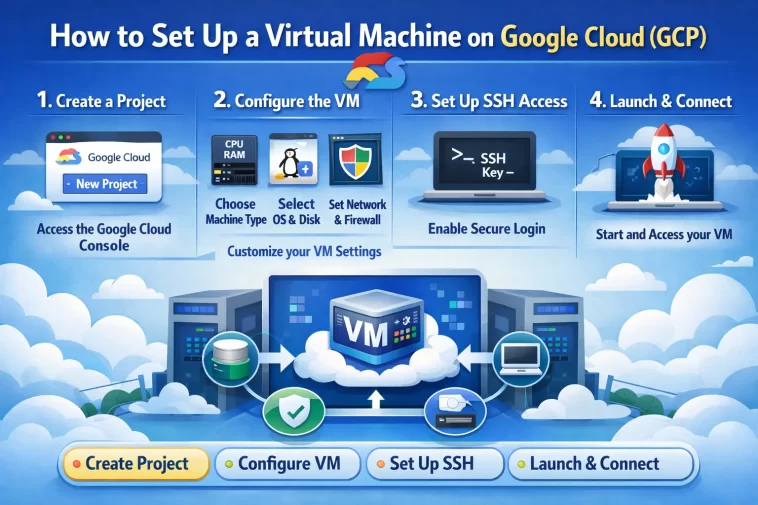
Setting up a virtual machine on Google Cloud is one of the most useful skills you can have if you’re working with cloud infrastructure. Whether you’re hosting a web app, running tests, or just learning how cloud computing works, Google Cloud Platform (GCP) gives you a reliable and scalable environment to do it in.
The process is more straightforward than most tutorials make it sound. You don’t need to be a DevOps engineer or have prior cloud experience. If you have a Google account and a credit card, you can have a VM running in under 10 minutes.
This guide walks you through every step — from creating your GCP account to connecting to your virtual machine for the first time.
What Is a Virtual Machine on Google Cloud?
A virtual machine (VM) is essentially a computer running inside another computer. On Google Cloud, VMs are called Compute Engine instances. They run on Google’s infrastructure, which means you get enterprise-grade hardware without buying any of it yourself.
You choose the operating system, the CPU and RAM specs, the storage size, and the region where the VM runs. You pay only for what you use — by the second — and you can stop the instance whenever you’re not using it to avoid charges.
GCP also offers a free tier that includes one e2-micro instance per month in select regions, which is enough for lightweight projects and learning.
What You Need Before You Start
Getting everything ready beforehand saves time:
- A Google account (Gmail works fine)
- A credit or debit card for billing verification (required even for the free tier)
- Basic comfort with a browser-based interface
- Optionally: an SSH client if you’re on Windows (PuTTY or Windows Terminal work well)
That’s genuinely all you need. GCP handles the rest through a clean web interface called the Google Cloud Console.
Step 1: Create a Google Cloud Account and Enable Billing
Google Cloud Platform starts at cloud.google.com. Click Get started for free and sign in with your Google account.
New accounts get a $300 free credit valid for 90 days. This is more than enough to run a VM for learning purposes without spending anything.
How to set up billing:
- Go to cloud.google.com and click Get started for free
- Sign in with your Google account
- Select your country and agree to the terms of service
- Enter your payment details — Google uses this to verify identity, not to charge you automatically
- Click Start my free trial
Once your account is active, you’ll land in the Google Cloud Console dashboard. This is your control center for everything.
Step 2: Create a New Project
Google Cloud organizes everything into projects. A project is a container for your resources — VMs, storage, databases, and so on. You need at least one project before you can create a VM.
How to create a project:
- In the top navigation bar, click the project dropdown (it may say “My First Project” by default)
- Click New Project
- Give it a name — something descriptive like “my-vm-project”
- Leave the organization field blank unless you’re part of a Google Workspace organization
- Click Create
Wait a few seconds for the project to be created, then make sure it’s selected in the top dropdown before moving forward. Everything you create in the next steps will belong to this project.
Step 3: Enable the Compute Engine API
Before you can create any VMs, you need to enable the Compute Engine API for your project. This is a one-time step per project.
How to enable it:
- In the left sidebar, click APIs & Services > Library
- Search for Compute Engine API
- Click on it and hit Enable
- Wait 30–60 seconds for it to activate
Alternatively, just navigate to Compute Engine > VM Instances from the left menu. GCP will prompt you to enable the API automatically if it isn’t already on.
Step 4: Create Your Virtual Machine Instance
This is the main step. Here’s where you configure and launch your VM.
How to get there:
- In the left sidebar, go to Compute Engine > VM Instances
- Click Create Instance
You’ll see a configuration page with several sections. Here’s what to set:
Name Your Instance
Give it a clear, lowercase name with no spaces — for example, my-first-vm. Hyphens are fine.
Choose a Region and Zone
Pick a region close to your physical location for lower latency. For the free tier, use one of these regions:
- us-east1
- us-west1
- us-central1
The zone within a region (like us-east1-b) doesn’t matter much for basic setups — just leave the default.
Choose a Machine Type
This controls how much CPU and RAM your VM gets.
For the free tier, select:
- Series: E2
- Machine type: e2-micro (2 vCPUs, 1 GB RAM)
For a more capable VM (paid), e2-medium or e2-standard-2 are good starting points for most workloads.
Choose a Boot Disk (Operating System)
Click Change under Boot disk to select your OS.
Popular choices:
- Debian 12 — lightweight, stable, great default
- Ubuntu 22.04 LTS — familiar to most developers, excellent documentation
- CentOS Stream — good for enterprise-style environments
- Windows Server — available but costs more per hour
For boot disk size, 10 GB is the free tier default. Increase it to 20–50 GB if you’re running a real application.
Configure the Firewall
Scroll down to the Firewall section. If you’re hosting a website or API, check both:
- Allow HTTP traffic
- Allow HTTPS traffic
If you’re just testing or learning, you can skip this for now and adjust it later.
Launch the Instance
Once everything is configured, click Create at the bottom of the page.
Your VM will take 30–60 seconds to start. You’ll see a green checkmark next to the instance name when it’s ready.
Step 5: Connect to Your VM via SSH
Once your instance is running, connecting to it takes one click.
The easiest method — browser SSH:
- In the VM Instances list, find your instance
- Click the SSH button in the Connect column
- A terminal window opens directly in your browser — no additional software needed
You’re now inside your virtual machine. You can run Linux commands, install software, and configure your environment.
What to run first:
Update the package list and install any available updates:
sudo apt update && sudo apt upgrade -yThis keeps your VM secure from the start.
Step 6: Connect via SSH from Your Local Machine (Optional)
The browser SSH is convenient, but connecting from your own terminal gives you more control — especially for transferring files or running long sessions.
How to set up SSH keys:
- In the GCP Console, go to Compute Engine > Metadata
- Click the SSH Keys tab
- Click Add SSH Key
- Paste your public SSH key (usually found at
~/.ssh/id_rsa.pubon Mac/Linux) - Click Save
Then connect from your terminal:
ssh your-username@your-vm-external-ipReplace your-username with your Google account username (without the @gmail.com part) and your-vm-external-ip with the external IP shown in the VM Instances list.
On Windows, use Windows Terminal with the built-in SSH client or download PuTTY for a GUI-based connection.
Step 7: Install Software and Configure Your VM
Now that you’re connected, you can set up your VM for whatever you need. Here are some common setups:
Install a Web Server (Nginx)
sudo apt install nginx -y
sudo systemctl start nginx
sudo systemctl enable nginx
Visit your VM’s external IP in a browser — you should see the Nginx welcome page if HTTP was enabled in the firewall settings.
Install Node.js
curl -fsSL https://deb.nodesource.com/setup_20.x | sudo -E bash -
sudo apt install -y nodejs
node -v
Install Python
Python 3 comes pre-installed on most Linux images. Check the version with:
python3 --versionTo install pip:
sudo apt install python3-pip -yStep 8: Stop Your Instance When Not in Use
This is important — a running VM costs money even if you’re not using it. Get into the habit of stopping your instance when you’re done.
How to stop your VM:
- Go to Compute Engine > VM Instances
- Check the box next to your instance
- Click Stop at the top of the page
Your data and configuration are saved. When you need it again, click Start and it’ll be back up in about 30 seconds.
To avoid surprise charges, you can also set up budget alerts under Billing > Budgets & alerts in the GCP Console.
Step 9: Set Up a Static IP Address (Optional but Recommended)
By default, your VM gets a new external IP address every time it starts. If you’re running a website or connecting remotely with a fixed IP, this is inconvenient.
How to reserve a static IP:
- Go to VPC Network > IP Addresses
- Click Reserve External Static IP Address
- Name it, choose your region, and associate it with your VM instance
- Click Reserve
Note that static IPs have a small hourly charge when they’re not attached to a running instance. Attach it to your VM to avoid that fee.
FAQ
How much does a Google Cloud VM cost?
The e2-micro instance is free in the free tier (one per account in eligible regions). Paid instances start at around $0.01–$0.05 per hour for small configurations. Larger instances with more CPU and RAM cost more. You can estimate costs using the GCP Pricing Calculator at cloud.google.com/products/calculator.
Can I run Windows on a Google Cloud VM?
Yes. Windows Server images are available when choosing your boot disk. Keep in mind that Windows instances have an additional per-hour license fee on top of the compute cost. For most development and learning use cases, a Linux image is cheaper and more straightforward.
Is Google Cloud free to try?
New accounts get $300 in free credits valid for 90 days. There’s also a permanent free tier that includes one e2-micro VM per month in select US regions. You won’t be charged automatically when the trial ends — you have to explicitly upgrade to a paid account.
How do I transfer files to my Google Cloud VM?
Use SCP from your local terminal:
scp localfile.txt your-username@your-vm-ip:/home/your-username/Alternatively, use SFTP through a GUI tool like FileZilla. In the GCP Console, you can also upload files through the browser SSH terminal using the gear icon in the top-right corner of the SSH window.
What’s the difference between stopping and deleting a VM?
Stopping a VM shuts it down but keeps all your data and configuration intact. You’re not charged for compute time while it’s stopped, but you still pay for the persistent disk storage. Deleting a VM permanently removes the instance and its disk — everything is gone. Always stop rather than delete unless you’re completely done with the instance.
Can I resize my VM after creating it?
Yes. Stop your instance first, then click on the instance name, click Edit, and change the machine type. Start it again when done. You can upgrade or downgrade CPU and RAM without losing any data.
How do I keep my VM secure?
A few essential steps: keep the OS updated with sudo apt update && sudo apt upgrade, disable password-based SSH login and use SSH keys only, configure the firewall to only allow the ports you actually need, and enable Cloud Armor or VPC firewall rules for production workloads. Also avoid running services as root whenever possible.
Final Thoughts
Setting up a virtual machine on Google Cloud is genuinely one of those skills that pays off immediately. Once you’ve done it once, the whole process takes less than five minutes from login to connected terminal.
Start with the free tier e2-micro instance to get comfortable with the interface. Once you know your way around, scaling up to a more powerful machine or automating deployments with Terraform or the gcloud CLI becomes a natural next step.
The hardest part is getting started. You’ve already done that.
