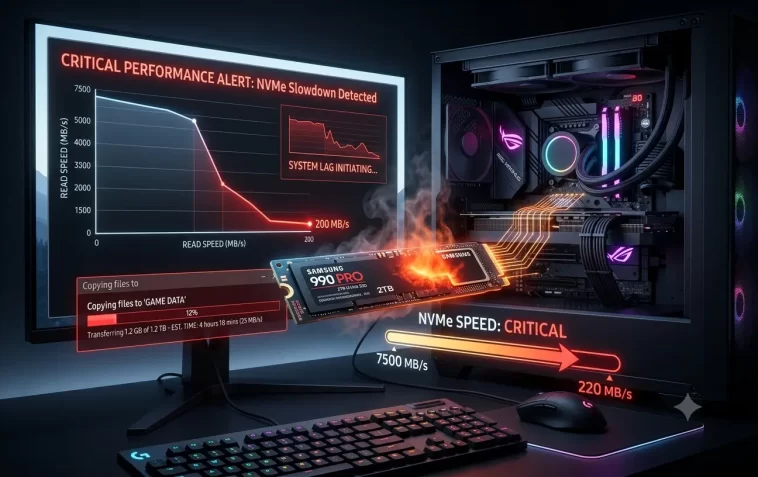
NVMe SSD performance drops after Windows updates are a real and well-documented problem. Read and write speeds that were previously hitting 3,000 MB/s or higher can fall to a fraction of that — sometimes without any obvious error message.
This guide explains exactly why this happens and walks you through every fix, from simple settings changes to deeper driver-level solutions. No data loss required.
Why Does an NVMe SSD Slow Down After a Windows Update?
Windows updates can affect SSD performance in several ways:
- Driver replacement — Windows Update sometimes swaps your manufacturer’s optimized NVMe driver with Microsoft’s generic one, which has lower performance
- Power plan reset — updates frequently reset power settings to Balanced, which throttles the SSD
- DRAM cache disabling — some updates interfere with how the SSD’s cache is utilized
- BitLocker or encryption changes — security updates can trigger software encryption on previously unencrypted drives, cutting speeds dramatically
- Scheduler or storage policy changes — Windows may switch from the high-performance NVMe queue settings to slower compatibility modes
- Firmware conflicts — a Windows update can conflict with older SSD firmware
Understanding the cause helps you apply the right fix instead of guessing.
Step 1 – Benchmark Your SSD First
Before changing anything, get a baseline measurement of your current speeds. This tells you how bad the drop actually is and helps you confirm when a fix works.
Download CrystalDiskMark (free, safe, widely used):
- Go to crystalmark.info and download CrystalDiskMark
- Run it and select your NVMe drive
- Click All to run the full benchmark
- Note the Sequential Read and Sequential Write speeds
Compare these to your SSD’s rated specs (found on the manufacturer’s product page or the box). If you’re seeing less than 50–60% of rated speeds, something is definitely wrong.
Step 2 – Check and Fix the Power Plan
This is the most common cause of post-update slowdowns and the easiest to fix. Windows Update frequently resets the power plan to Balanced, which actively throttles NVMe drives to save power.
- Open Control Panel → Hardware and Sound → Power Options
- Select High performance
- If you don’t see it, click Show additional plans
- Select High performance and close the window
Now open advanced power settings to go deeper:
- Click Change plan settings next to your active plan
- Click Change advanced power settings
- Expand PCI Express → Link State Power Management
- Set it to Off
- Expand Hard disk → Turn off hard disk after
- Set it to Never (0 minutes)
- Click Apply → OK
Run CrystalDiskMark again. In many cases, this single fix restores most of the lost performance.
Step 3 – Check Which NVMe Driver Is Installed
Windows Update is notorious for replacing manufacturer NVMe drivers — from Samsung, WD, or Seagate — with Microsoft’s generic stornvme.sys driver. The generic driver works, but it doesn’t take advantage of hardware-specific optimizations.
Check your current driver:
- Right-click Start → Device Manager
- Expand Disk drives
- Right-click your NVMe SSD → Properties
- Go to the Driver tab
- Look at Driver Provider — if it says Microsoft, you’re using the generic driver
Reinstall the manufacturer’s driver:
- Samsung NVMe SSD → Download Samsung Magician (samsung.com/semiconductor/consumer-storage/magician)
- WD / SanDisk NVMe SSD → Download WD Dashboard (westerndigital.com)
- Seagate NVMe SSD → Download SeaTools (seagate.com)
- SK Hynix / Platinum P41 → Check hynix.com for the driver package
- Generic / OEM NVMe → Go to your laptop or motherboard manufacturer’s support page and download the NVMe driver for your model
After installing the manufacturer driver, restart your PC and benchmark again.
Step 4 – Check If BitLocker or Software Encryption Is Active
This is one of the most underdiagnosed causes of severe SSD slowdowns. If Windows enabled software-based BitLocker encryption after an update — especially on drives that previously used hardware encryption — read/write speeds can drop by 30–50%.
Check encryption status:
- Press
Windows + R, typemanage-bde -status C:, press Enter - Look at Encryption Method
- Hardware Encryption or None = no performance impact
- XTS-AES 128 or XTS-AES 256 = software encryption is active
If software encryption is causing the slowdown:
You have two options:
Option A — Disable BitLocker (if you don’t need it):
- Open Control Panel → BitLocker Drive Encryption
- Click Turn off BitLocker next to your drive
- Wait for decryption to complete (can take hours on large drives)
- Benchmark again after completion
Option B — Switch to hardware encryption: This requires your SSD to support it (most modern NVMe drives do). The process involves decrypting, enabling the hardware encryption setting in the SSD’s firmware, and re-encrypting. Refer to your SSD manufacturer’s documentation for the exact steps.
Step 5 – Update Your SSD Firmware
SSD manufacturers regularly release firmware updates that improve performance, fix bugs, and address compatibility issues with Windows updates. Running old firmware after a major Windows update can cause speed drops.
For Samsung:
- Open Samsung Magician
- Go to Firmware Update
- Follow the on-screen instructions
For WD / SanDisk:
- Open WD Dashboard
- Check the Firmware section for available updates
For other brands:
- Check the manufacturer’s official support page for your SSD model
- Download and run the firmware update tool they provide
Always back up important data before a firmware update, even though the risk of data loss is very low.
Step 6 – Verify the NVMe Is Running in the Correct PCIe Mode
Windows updates can sometimes reset storage controller settings, causing your NVMe drive to run in PCIe 3.0 mode instead of PCIe 4.0 or 5.0 — cutting maximum speeds in half or more.
Check in Device Manager:
- Right-click Start → Device Manager
- Expand Storage controllers
- Look for your NVMe controller — it should mention PCIe Gen 4 or Gen 5 if your system supports it
Check in BIOS:
- Restart your PC and enter BIOS (usually F2, F10, Del, or Esc during startup — check your motherboard manual)
- Look for PCIe Configuration or M.2 Settings
- Make sure the slot your NVMe is in is set to PCIe Gen 4 (or Gen 5 if supported)
- Save and exit
If the BIOS shows it downgraded to Gen 3 after an update, changing it back here will restore full speed.
Step 7 – Disable the Windows Write-Cache Buffer Flushing
Windows has a setting that flushes the write cache buffer frequently to protect data in case of power loss. While safe, this can significantly reduce write performance on NVMe drives.
- Right-click Start → Device Manager
- Expand Disk drives
- Right-click your NVMe SSD → Properties
- Go to the Policies tab
- Check Turn off Windows write-cache buffer flushing on the device
- Click OK
- Restart your PC
Note: Only enable this on desktop PCs with a reliable power supply. On laptops without a UPS, there’s a small risk of data corruption during unexpected power loss.
Step 8 – Check the NVMe Thermal Throttling
NVMe SSDs generate heat — and when they get too hot, they throttle their speed to protect themselves. A Windows update that increases background disk activity can push drive temperatures higher and trigger throttling.
Check the temperature:
- Open CrystalDiskInfo (free download from crystalmark.info)
- Look at the temperature reading for your NVMe drive
- Normal operating temperature: 40–70°C
- Throttling usually starts above 70–75°C
If your drive is running hot:
- Improve airflow inside your PC case
- Add an M.2 heatsink (inexpensive, around $5–15, available on Amazon)
- Check that your case fans are working properly
- Make sure no cables are blocking airflow near the M.2 slot
Step 9 – Roll Back the Problematic Windows Update
If the performance drop started immediately after a specific Windows update, rolling it back is a direct fix.
- Open Settings → Windows Update → Update history
- Click Uninstall updates
- Find the update installed around the time the slowdown started
- Click Uninstall → follow the prompts
- Restart and benchmark
You can pause future updates temporarily while you wait for Microsoft to release a fixed version:
- Go to Settings → Windows Update → Advanced options
- Set Pause updates for up to 5 weeks
Step 10 – Run TRIM and Optimize the Drive
Over time, especially after heavy write activity (like a Windows update installing files), an NVMe drive can have fragmented or unoptimized storage blocks. Running TRIM cleans this up.
- Search Defragment and Optimize Drives in the Start menu
- Select your NVMe SSD
- Click Optimize
- Windows runs TRIM on SSDs (not traditional defragmentation)
- Wait for it to complete, then benchmark
Windows should do this automatically on a weekly schedule, but manual runs after major updates can help.
Step 11 – Check AHCI vs NVMe Mode in BIOS
In rare cases, a BIOS or Windows update can switch the storage controller mode from NVMe to AHCI. AHCI is designed for SATA drives — running an NVMe drive in AHCI mode devastates performance.
Check in BIOS:
- Restart and enter BIOS
- Go to Storage Configuration or SATA Configuration
- Make sure the mode is set to NVMe or PCIe — not AHCI or IDE
- Save and exit
If it was set to AHCI incorrectly, switching back to NVMe mode and restarting Windows should restore full speeds immediately.
Quick Reference Table
| Symptom | Best Fix to Try First |
|---|---|
| Speeds dropped right after Windows Update | Step 9 – Roll back the update |
| Both read and write speeds are slow | Step 2 – Fix the power plan |
| Write speeds slow, read speeds normal | Step 7 – Disable write-cache buffer flushing |
| Speeds are half of rated (PCIe issue) | Step 6 – Check PCIe mode in BIOS |
| Microsoft driver showing in Device Manager | Step 3 – Reinstall manufacturer driver |
| Drive runs above 70°C | Step 8 – Check thermal throttling |
| Slowdown after security update | Step 4 – Check BitLocker encryption |
| Random slowdowns under load | Step 8 – Thermal throttling |
| Nothing else works | Step 11 – Check AHCI vs NVMe in BIOS |
How to Prevent This from Happening Again
Once you’ve fixed the slowdown, a few steps can prevent it from recurring:
- Lock your NVMe driver: After installing your manufacturer’s driver, open Device Manager → right-click the drive → Properties → Driver tab → click Update Driver → Browse my computer → Let me pick → uncheck Show compatible hardware — this prevents Windows from auto-replacing it
- Use manufacturer software: Keep Samsung Magician, WD Dashboard, or your brand’s equivalent installed — they monitor performance and alert you to issues
- Monitor after every update: Run a quick CrystalDiskMark benchmark after major Windows updates to catch regressions early
- Set a restore point before updates: Go to Control Panel → System → System Protection → Create a restore point before major updates
FAQ
Q: How much speed loss is normal for an NVMe SSD over time? A small amount of gradual degradation is normal — around 5–10% over several years of heavy use. A sudden drop of 30% or more after an update is not normal and is always caused by a software or configuration issue, not drive wear.
Q: Will my data be safe while I fix the performance issue? Yes. All the fixes in this guide are non-destructive. The only exception is disabling BitLocker, which involves decryption — your data stays intact throughout that process.
Q: My NVMe shows full speed in benchmarks but feels slow in daily use. Why? Sequential speeds (what benchmarks measure) are only part of the picture. Random read/write speeds and queue depth performance affect everyday feel. Run the 4K Q1T1 test in CrystalDiskMark — this reflects real-world performance more accurately than sequential speeds.
Q: Can Windows Update keep replacing my manufacturer NVMe driver automatically? Yes. Windows Update can push driver updates even if you’ve manually installed a different one. To prevent this, use the Group Policy editor: run gpedit.msc → Computer Configuration → Administrative Templates → Windows Components → Windows Update → Do not include drivers with Windows Updates → set to Enabled.
Q: How do I know if my SSD is being thermally throttled? Download CrystalDiskInfo and check the temperature during a benchmark run. If the temperature goes above 70°C and the speed drops significantly during the test, thermal throttling is the cause.
Q: Should I defragment my NVMe SSD? No — never run traditional defragmentation on an SSD. Windows knows to run TRIM instead when you click Optimize in the Defragment tool. Traditional defragmentation on SSDs causes unnecessary write cycles without any benefit.
Q: My laptop’s NVMe is slow but my desktop’s is fine. Why? Laptops throttle NVMe drives more aggressively due to thermal and power constraints. The power plan fix (Step 2) is especially important on laptops. Also check if your laptop manufacturer has a performance mode in their power management software.
Q: Is it worth replacing a slow NVMe SSD? Only if the drive itself is failing (check CrystalDiskInfo for health warnings) or is genuinely old. In almost every case of post-update slowdowns, the drive is fine — a software or configuration issue is the cause, and the fixes above will resolve it.
Final Thoughts
An NVMe SSD slowing down after a Windows update is almost never a hardware problem. It’s almost always one of four things: the wrong power plan, a replaced driver, an unexpected encryption change, or a BIOS mode mismatch.
Start with the power plan fix and the driver check — those two steps alone resolve the majority of post-update slowdowns. If speeds are still off after that, work through the remaining steps in order.
Your SSD is almost certainly fine. It just needs the right configuration to perform the way it was designed to.
