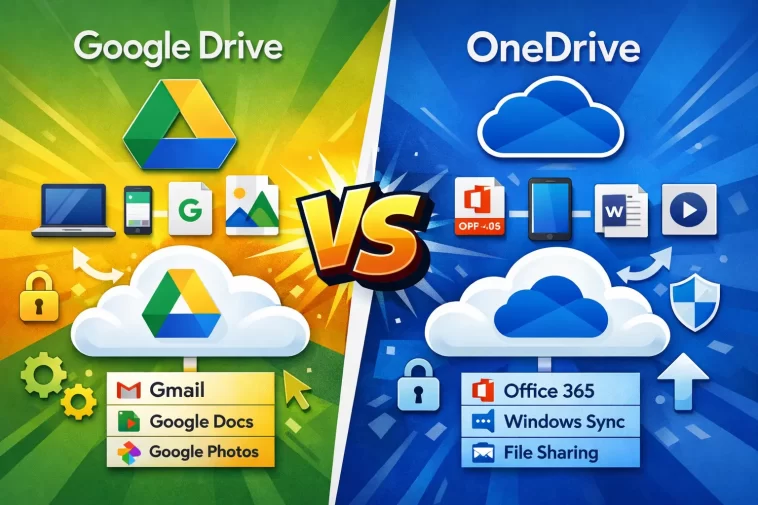
Cloud storage has become essential. Whether you’re backing up files, sharing documents, or working across multiple devices, you need a reliable place to store your data online. Google Drive and OneDrive are the two biggest names in the space — and choosing between them isn’t always obvious.
This guide breaks down everything that matters: storage, pricing, performance, security, and real-world usability. By the end, you’ll know exactly which one fits your needs.
Quick Overview
Google Drive is Google’s cloud storage platform, tightly integrated with Google Docs, Sheets, Slides, and Gmail. It works on every major platform and is the default storage solution for anyone with a Google account.
OneDrive is Microsoft’s cloud storage service, built into Windows 11 and deeply connected to Microsoft 365 apps like Word, Excel, and Outlook. If you use a Windows PC or Microsoft Office, OneDrive is already part of your workflow whether you realize it or not.
Both are mature, reliable platforms used by hundreds of millions of people. The differences come down to your existing ecosystem, how you work, and what you’re willing to pay.
Free Storage Comparison
| Feature | Google Drive | OneDrive |
|---|---|---|
| Free storage | 15 GB | 5 GB |
| Shared across services | Gmail, Photos, Drive | OneDrive only |
| Upgrade required at | 15 GB | 5 GB |
Google Drive wins here — and it’s not close. You get 15 GB free compared to OneDrive’s 5 GB. For casual users who just want to back up documents and photos without paying, Google Drive lasts significantly longer before you hit the limit.
Keep in mind that Google’s 15 GB is shared across Gmail, Google Photos, and Drive. If you have years of emails and photos, that free tier fills up faster than you’d expect.
Pricing and Storage Plans
Google One (Google Drive Paid Plans)
| Plan | Storage | Price |
|---|---|---|
| Free | 15 GB | $0 |
| Basic | 100 GB | $1.99/month |
| Standard | 200 GB | $2.99/month |
| Premium | 2 TB | $9.99/month |
Microsoft 365 (OneDrive Paid Plans)
| Plan | Storage | Price |
|---|---|---|
| Free | 5 GB | $0 |
| OneDrive 100 GB | 100 GB | $1.99/month |
| Microsoft 365 Personal | 1 TB | $6.99/month |
| Microsoft 365 Family | 1 TB × 6 users | $9.99/month |
At the 100 GB level, both services cost the same — $1.99 per month. But OneDrive pulls ahead significantly at the next tier. Microsoft 365 Personal gives you 1 TB of storage plus the full Microsoft Office suite (Word, Excel, PowerPoint, Outlook) for $6.99 per month. Google’s 2 TB plan costs $9.99 and includes no productivity apps.
If you already pay for or need Microsoft Office, OneDrive’s value proposition is hard to beat.
Desktop and Platform Integration
Google Drive
- Works on Windows, macOS, iOS, Android, and any web browser
- Desktop app syncs files to your local drive
- No native integration with Windows — it’s a third-party app on PC
- Deep integration with Chromebooks and Android devices
- Works seamlessly with Chrome browser
OneDrive
- Built directly into Windows 11 — no installation needed
- Files on demand: see all your cloud files without downloading them
- Deep integration with Microsoft Office apps
- Available on macOS, iOS, and Android
- Native integration with Windows File Explorer
For Windows users, OneDrive has a clear advantage. It’s already there, already syncing, and already connected to your documents folder. You don’t have to think about it — it just works in the background.
For macOS users or people who avoid the Microsoft ecosystem, Google Drive feels more natural and less intrusive.
Office and Productivity Apps
This is one of the most important differences between the two services.
Google Drive
Google Drive comes with the full Google Workspace suite for free:
- Google Docs (word processing)
- Google Sheets (spreadsheets)
- Google Slides (presentations)
- Google Forms, Drawings, Sites
These are web-based apps that work in any browser. They’re collaborative by default — multiple people can edit the same document in real time with no friction.
OneDrive
OneDrive pairs with Microsoft 365, which includes:
- Word, Excel, PowerPoint, Outlook
- OneNote, Teams, Publisher
The free version gives you access to Office for the web — browser-based versions of Word, Excel, and PowerPoint. For the full desktop apps, you need a Microsoft 365 subscription.
Which productivity suite is better?
Google Workspace is better for real-time collaboration and web-based work. Microsoft 365 is better for professional documents, complex spreadsheets, and users who need the full desktop app experience. If your workplace uses one over the other, that’s your answer — stick with what your team uses.
File Sharing and Collaboration
Google Drive
- Sharing is simple — paste a link or enter an email
- Set permissions: viewer, commenter, or editor
- Real-time collaboration in Google Docs is fast and reliable
- Anyone with a Google account can collaborate easily
- Works well for sharing with people outside your organization
OneDrive
- Sharing works similarly — link-based or email-based
- Permissions: view, edit, or require sign-in
- Real-time collaboration in Office web apps works well
- Better suited for internal sharing within Microsoft 365 organizations
- SharePoint integration for business and enterprise teams
For casual sharing with friends, family, or external collaborators, Google Drive is slightly easier — no Microsoft account is required to view shared files. OneDrive works best within organizations where everyone already has Microsoft accounts.
Photo and Video Storage
Google Drive
- Stores photos and videos like any other file
- Integrates with Google Photos for automatic phone backup
- Smart search — find photos by people, places, or objects
- Google Photos has its own app and interface separate from Drive
- No free unlimited photo storage anymore (ended in 2021)
OneDrive
- Personal Vault — extra-secure folder for sensitive files, protected by additional authentication
- Automatic phone backup via the OneDrive mobile app
- Integrates with Windows Photos app
- AI-powered photo search and memories features
- Video playback directly in the browser
Both handle photos and videos well. Google Photos has better AI-powered search and organization tools. OneDrive’s Personal Vault is a genuinely useful feature for storing sensitive documents like IDs and financial records.
Security and Privacy
| Feature | Google Drive | OneDrive |
|---|---|---|
| Encryption at rest | AES 256-bit | AES 256-bit |
| Encryption in transit | TLS | TLS |
| Two-factor authentication | Yes | Yes |
| Zero-knowledge encryption | No | No |
| Personal Vault (extra layer) | No | Yes |
| GDPR compliant | Yes | Yes |
Both platforms use strong encryption and support two-factor authentication. Neither offers zero-knowledge encryption by default — meaning the company technically has the ability to access your files, though they’re bound by their privacy policies.
OneDrive has a slight edge for personal security with its Personal Vault feature — a protected folder that requires additional identity verification (PIN, fingerprint, or authenticator app) to access.
Google’s privacy approach is a concern for some users. Google’s business model is built on data. While Google states it doesn’t use Drive content to serve ads, it does scan files for policy violations. For users who are privacy-conscious, this is worth considering.
Offline Access
Both services let you access files offline, but the experience differs.
Google Drive:
- You must manually mark files for offline access in the browser or app
- Works well once set up, but requires a bit of configuration
- Google Docs offline works in Chrome with the extension installed
OneDrive:
- Files on Demand lets you see all cloud files in File Explorer without downloading
- Right-click any file → “Always keep on this device” to make it available offline
- Feels more native on Windows because it’s integrated into the file system
OneDrive’s offline experience on Windows is smoother. It looks and behaves like a regular folder on your computer — you just don’t always need to download everything.
Mobile Apps
Both Google Drive and OneDrive have polished mobile apps for iOS and Android.
Google Drive mobile:
- Clean, fast interface
- Easy file upload and sharing
- Automatic backup via Google Photos (separate app)
- Works great on Android — deeply integrated
OneDrive mobile:
- Automatic camera backup built in
- Personal Vault access on mobile
- Scan documents directly to PDF
- Works great on iOS — Microsoft’s iOS apps are well-regarded
Both apps are rated highly in their respective app stores. If you’re on Android, Google Drive feels more at home. If you’re on iPhone, OneDrive integrates surprisingly well.
Which One Should You Choose?
There’s no single right answer — it depends on how you work.
Choose Google Drive if:
- You use Gmail and Google Workspace regularly
- You collaborate with people outside a single organization
- You want the most free storage without paying
- You’re on a Chromebook or Android device
- You prefer browser-based work over desktop apps
Choose OneDrive if:
- You use Windows 11 as your main OS
- You already pay for Microsoft 365 or need Office apps
- You work in an organization that uses Microsoft Teams or SharePoint
- You want seamless File Explorer integration
- You want the Personal Vault for sensitive files
Use both if:
- You have different needs for different types of files
- Your workplace uses one and you prefer the other personally
- You want redundancy for your most important backups
Many people end up using both — Google Drive for personal documents and collaboration, OneDrive for Windows integration and Office files. There’s no rule that says you have to pick just one.
FAQ: Google Drive vs OneDrive
Can I use both Google Drive and OneDrive at the same time? Yes. Both desktop apps can run simultaneously on Windows and macOS. Many users keep both installed and use each for different purposes.
Which is faster for uploading large files? Upload speed depends more on your internet connection than the platform. In real-world testing, both perform similarly. OneDrive can be slightly faster on Windows due to native OS integration.
Is Google Drive or OneDrive better for students? Google Drive is generally better for students — the free 15 GB is more generous, Google Docs is free and collaborative, and most schools use Google Workspace for Education. However, students with Microsoft 365 through their school get 1 TB of OneDrive storage free.
Can I store large video files on both services? Yes. Both support large file uploads. OneDrive has a 250 GB single file size limit. Google Drive’s single file limit varies by file type but handles large videos well through the browser uploader.
Which is more reliable — Google Drive or OneDrive? Both have excellent uptime records. Google has a slight historical edge in reliability, but OneDrive has improved significantly in recent years. For critical backups, consider using both.
Does OneDrive work well on Mac? Yes. Microsoft’s OneDrive app for macOS works well and has improved considerably. However, it doesn’t offer the same deep OS integration as on Windows, so the advantage narrows significantly on Mac.
Is my data safe if I stop paying for a plan? On Google, if you exceed the free 15 GB after a paid plan lapses, you lose the ability to add new files but existing files remain accessible for a period. On OneDrive, Microsoft typically gives you time to download your files before restricting access. Always check the current terms before canceling.
