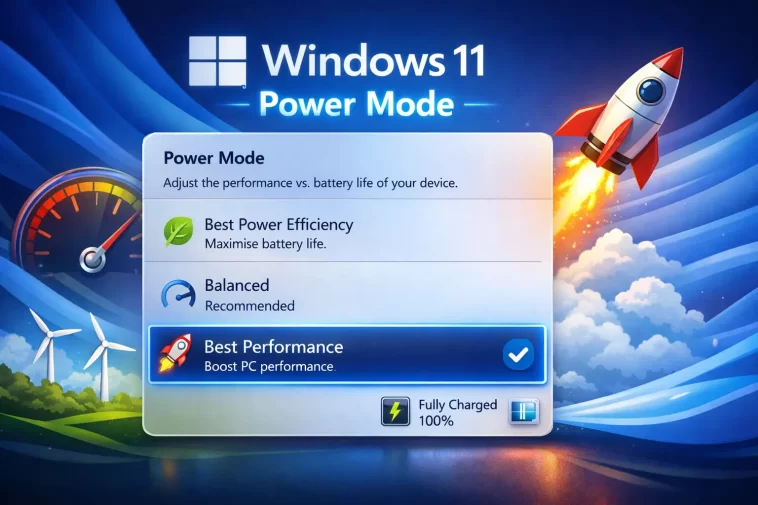
If you’ve ever dug into your Windows 11 power settings, you’ve probably noticed two things that seem related but work differently — Power Mode and Battery Saver. Most people leave both on default and never think about them again.
But understanding what these settings actually do can make a real difference in how long your battery lasts and how fast your laptop performs.
What Is Power Mode in Windows 11?
Power Mode is a setting in Windows 11 that controls the balance between performance and energy efficiency. It tells Windows how aggressively to use your hardware — your CPU, GPU, cooling fans, and background processes — at any given moment.
Think of it like a throttle. Turn it up and your laptop runs faster but burns through battery quicker. Turn it down and everything runs more conservatively, but your battery lasts longer.
Where to Find Power Mode Settings
- Press Windows + I to open Settings
- Go to System > Power & battery
- Look for the Power mode dropdown under the Power section
You’ll see three options — and sometimes four depending on your device.
The Three Power Mode Options Explained
1. Best Power Efficiency
This mode tells Windows to prioritize saving energy above everything else. Your CPU runs at lower speeds, background tasks are limited, and Windows reduces activity on components that aren’t needed right now.
Best for:
- Working on documents, emails, or light browsing
- Situations where you need to stretch battery life as far as possible
- Being away from a charger for a long time
Trade-off: Some tasks feel slightly slower. Video rendering, compiling code, or running heavy software will take longer than usual.
2. Balanced (Default)
This is the default setting for most Windows 11 laptops. Balanced mode lets Windows automatically adjust performance based on what you’re doing. If you open a demanding app, Windows ramps up the CPU. When you’re idle or doing light work, it scales back down.
Best for:
- Everyday use — a mix of browsing, documents, video, and communication apps
- Most users who don’t have specific performance or battery needs
- Situations where you’re sometimes plugged in and sometimes not
Trade-off: It’s not the fastest option and not the most efficient option. It’s the middle ground.
3. Best Performance
This mode pushes your hardware to its limits. The CPU runs at higher clock speeds more consistently, cooling fans spin faster, and Windows stops throttling background processes. Everything responds faster and runs at maximum capability.
Best for:
- Gaming, video editing, 3D rendering, or compiling large projects
- Tasks where speed matters and you’re plugged in
- Users who need maximum responsiveness at all times
Trade-off: Battery drains significantly faster. Your laptop will also run warmer and fans will be louder. Not recommended when running on battery.
4. Best Performance (High Performance / Ultimate)
Some devices — particularly gaming laptops or workstations — show an additional High Performance or Ultimate Performance mode. These go even further than Best Performance, disabling certain power-saving features entirely to squeeze out maximum speed.
These modes are generally only useful in very specific professional or gaming scenarios. Running them on battery is not practical.
Does Power Mode Change When You Plug In or Unplug?
Yes — and this is important to understand. Windows 11 remembers your Power Mode setting separately for when you’re plugged in and when you’re on battery.
So you can set it to Best Performance when plugged in and Best Power Efficiency when on battery, and Windows will switch automatically. To do this, just change the Power mode setting while on battery, then plug in and change it again.
This way you never have to think about it — your laptop performs when it has power and saves battery when it doesn’t.
What Is Battery Saver Mode in Windows 11?
Battery Saver is a separate feature from Power Mode. While Power Mode controls performance levels, Battery Saver is more of an emergency conservation mode that kicks in when your battery gets low.
When Battery Saver is active, Windows applies a specific set of restrictions designed to stretch your remaining battery as far as possible.
What Battery Saver Actually Does
When enabled, Battery Saver makes the following changes automatically:
- Lowers screen brightness — typically reduces it by around 30%
- Pauses Windows Update downloads — no large updates will download in the background
- Limits background app activity — apps that normally refresh or sync in the background are paused
- Reduces push notifications — some notifications from apps are delayed or blocked
- Limits Mail sync frequency — your email app won’t check for new messages as often
- Reduces hardware activity — certain background system tasks are throttled
None of these changes affect your core ability to work. You can still browse, write, watch videos, and use apps normally. Battery Saver just quietly trims everything non-essential running behind the scenes.
When Does Battery Saver Turn On Automatically?
By default, Windows 11 activates Battery Saver automatically when your battery drops to 20%.
You can change this threshold to whatever percentage works for you:
- Go to Settings > System > Power & battery
- Click on Battery saver to expand the section
- Find Turn battery saver on automatically at and adjust the percentage
If you want more time in Battery Saver mode, set it higher — like 30% or 40%. If you prefer Battery Saver to kick in only when critically low, set it to 10%.
Turn Battery Saver On Manually
You don’t have to wait for the automatic trigger. You can enable Battery Saver at any time:
Method 1 — Quick Settings:
- Click the battery icon or Wi-Fi/sound icon in the taskbar
- Click the Battery saver button in the Quick Settings panel
Method 2 — Settings:
- Go to Settings > System > Power & battery
- Click Battery saver
- Toggle Turn on now to enable it immediately
Battery Saver turns off automatically as soon as you plug your laptop in.
Power Mode vs Battery Saver: What’s the Difference?
People often confuse these two features because they both affect battery life. Here’s a clear breakdown:
| Feature | Power Mode | Battery Saver |
|---|---|---|
| What it controls | CPU speed, performance level | Background activity, brightness, syncing |
| When it applies | Always — plugged in or on battery | Primarily when battery is low |
| Affects performance? | Yes, significantly | Minimally |
| Triggered by battery %? | No | Yes — at 20% by default |
| Can be set manually? | Yes | Yes |
| Turns off when plugged in? | No — stays until you change it | Yes — turns off automatically |
The simplest way to think about it: Power Mode is about how hard your hardware works. Battery Saver is about how much background stuff Windows is allowed to do.
They work independently, but you can use both together. Running Best Power Efficiency mode with Battery Saver enabled gives you maximum conservation when you’re low on power.
Recommended Settings for Different Situations
Working in a coffee shop without a charger
- Power Mode: Best Power Efficiency
- Battery Saver: Enable manually or set threshold to 40%
Everyday office or home use
- Power Mode: Balanced
- Battery Saver: Default automatic at 20%
Gaming or video editing at your desk
- Power Mode: Best Performance
- Battery Saver: Not needed — plugged in
Long flight or travel with no power outlet
- Power Mode: Best Power Efficiency
- Battery Saver: Turn on manually from the start
- Also: lower screen brightness manually and close unused apps
Video call or remote meeting on battery
- Power Mode: Balanced (video calls need consistent performance)
- Battery Saver: Off (it can interfere with notifications and sync)
A Few Extra Tips for Better Battery Management
Don’t always run on Best Performance. It’s tempting to leave your laptop on maximum performance all the time, but it wears out your battery faster and generates more heat — which also degrades battery health over time.
Let Windows handle it most of the time. Balanced mode with automatic Battery Saver at 20% is genuinely good enough for most users. Windows 11’s power management has improved significantly and the automatic adjustments are smarter than they used to be.
Use Power Efficiency when writing or reading. If you’re spending two hours writing a document or reading articles, there’s no reason to run on Balanced or Performance mode. Switching to Best Power Efficiency costs you nothing in that scenario and can add 30–60 minutes to your battery life.
Check which power mode you’re on before a long session. It takes five seconds to open Quick Settings or Power & battery and confirm you’re in the right mode. Making it a habit saves frustration later.
Frequently Asked Questions
What does Power Mode do in Windows 11? Power Mode controls how aggressively Windows uses your hardware. Best Power Efficiency conserves battery, Balanced adjusts automatically, and Best Performance maximizes speed at the cost of battery life.
When does Battery Saver turn on automatically in Windows 11? By default, Battery Saver activates when your battery drops to 20%. You can change this threshold in Settings > System > Power & battery > Battery saver.
Does Battery Saver reduce performance in Windows 11? Not significantly. Battery Saver mainly limits background activity, lowers screen brightness, and pauses syncing. It doesn’t throttle your CPU the way Power Mode does.
Can I use Power Mode and Battery Saver at the same time? Yes. They work independently. Using Best Power Efficiency mode alongside Battery Saver gives you maximum battery conservation.
What is the best Power Mode for battery life? Best Power Efficiency is the best option for extending battery life. It runs your hardware at lower speeds and reduces background activity.
Does Power Mode automatically switch when I plug in my laptop? Windows 11 remembers separate Power Mode settings for plugged in and on battery. You can configure each independently and Windows will switch between them automatically.
Should I leave my laptop on Best Performance all the time? Not recommended unless you’re always plugged in. Running on Best Performance constantly generates more heat and accelerates battery degradation over time.
Power Mode and Battery Saver are two of the most underused tools in Windows 11. Once you understand what each one actually does, a few small adjustments can meaningfully extend how long you get through the day on a single charge.
