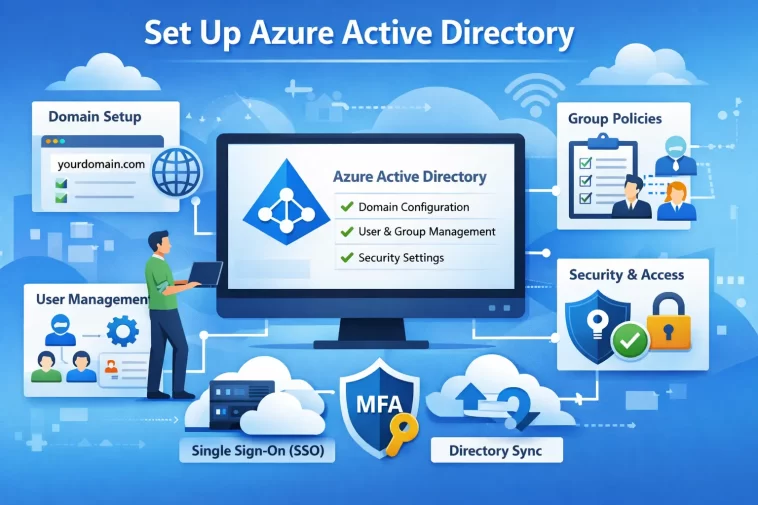
If you’re moving your business to the cloud or trying to manage employee access more effectively, Azure Active Directory (Azure AD) is one of the most powerful tools Microsoft offers. It handles identity management, single sign-on, and access control across your entire organization — all from one central dashboard.
This guide walks you through everything you need to know to get Azure AD up and running for your business.
What Is Azure Active Directory?
Azure Active Directory is Microsoft’s cloud-based identity and access management service. It lets you manage who has access to your apps, devices, and data — whether your team is in the office or working remotely.
It is not the same as the traditional Windows Server Active Directory. Azure AD is built for the cloud and works with thousands of third-party apps including Google Workspace, Salesforce, Zoom, and more.
Key Benefits of Azure AD
- Single Sign-On (SSO): Users log in once and access all their apps without repeated logins.
- Multi-Factor Authentication (MFA): Adds a second layer of security beyond just passwords.
- Conditional Access: Control who can access what, from where, and on which devices.
- Self-Service Password Reset: Reduces IT helpdesk workload significantly.
- App Integration: Connects with thousands of SaaS applications out of the box.
Before You Begin
Before setting up Azure AD, make sure you have the following ready.
Requirements
- A Microsoft account (personal or business)
- An active Azure subscription (a free tier is available)
- Admin access to your organization’s IT setup
- A list of users, groups, and apps you want to manage
Choosing the Right Azure AD Plan
Microsoft offers four tiers:
- Free — Included with any Microsoft cloud subscription. Basic user and group management.
- Microsoft 365 Apps — Included with Microsoft 365 business plans. Adds identity reporting.
- Premium P1 — Adds Conditional Access, hybrid identity support, and advanced group features.
- Premium P2 — Adds Identity Protection and Privileged Identity Management (PIM).
For most small to medium businesses, Premium P1 covers the majority of needs. Large enterprises or businesses with strict compliance requirements should consider Premium P2.
Step 1 — Create Your Azure Account
If you do not already have an Azure account, here is how to get started.
- Go to portal.azure.com
- Click Start for free or sign in with an existing Microsoft account
- Complete the registration form with your business details
- Add a payment method (required even for the free tier as identity verification)
- Once registered, you will land on the Azure Portal dashboard
Your Azure subscription automatically includes a default Azure AD tenant linked to your account.
Step 2 — Access Your Azure AD Tenant
A tenant is your organization’s dedicated instance of Azure AD. Think of it as your company’s private directory in the cloud.
How to Find Your Tenant
- In the Azure Portal, search for Azure Active Directory in the top search bar
- Click on Azure Active Directory from the results
- You will see your default tenant overview page showing your organization name, tenant ID, and domain
Set Your Custom Domain
By default, your tenant uses a domain like yourcompany.onmicrosoft.com. You should add your real business domain.
- In Azure AD, go to Custom domain names
- Click Add custom domain
- Enter your business domain (e.g., yourcompany.com)
- Azure will give you a DNS TXT record to add to your domain registrar
- Add the TXT record in your domain registrar’s DNS settings
- Return to Azure and click Verify
This process can take up to 48 hours for DNS to propagate, though it is usually much faster.
Step 3 — Add Users to Azure AD
With your tenant set up, the next step is adding your team members.
Add a Single User Manually
- In Azure AD, click Users in the left menu
- Click New user → Create new user
- Fill in the required fields:
- Username (e.g., [email protected])
- Name
- Password (auto-generate or set manually)
- Optionally fill in job title, department, and location
- Click Create
The user will receive a temporary password and will be prompted to change it on first login.
Bulk Import Users
For larger teams, importing via CSV is much faster.
- In the Users section, click Bulk operations → Bulk create
- Download the provided CSV template
- Fill in user details in the spreadsheet
- Upload the completed CSV file
- Azure will process the file and create all accounts simultaneously
Invite External Users (Guest Access)
If you work with contractors, partners, or clients who need limited access:
- Click New user → Invite external user
- Enter the external user’s email address
- Set their access permissions
- Send the invitation
External users access your resources through their own Microsoft or social account — they do not need a separate password for your system.
Step 4 — Create and Manage Groups
Groups make it far easier to manage permissions at scale. Instead of assigning access to individuals, you assign it to a group and add users to that group.
Types of Groups in Azure AD
- Security groups — Used to manage access to resources and apps
- Microsoft 365 groups — Used for collaboration (shared mailboxes, Teams, SharePoint)
How to Create a Group
- In Azure AD, click Groups → New group
- Choose the group type (Security or Microsoft 365)
- Enter a group name and description
- Set the membership type:
- Assigned — You manually add members
- Dynamic User — Members are added automatically based on user attributes (e.g., department = “Sales”)
- Add members and owners
- Click Create
Dynamic groups are extremely powerful for large organizations — when a new employee joins the Sales department, they are automatically added to the Sales group and get the right access immediately.
Step 5 — Enable Multi-Factor Authentication (MFA)
MFA is one of the most important security steps you can take. Microsoft reports that MFA blocks over 99.9% of account compromise attacks.
Enable MFA for All Users
- In Azure AD, go to Security → Multi-Factor Authentication
- Click Additional cloud-based MFA settings
- Under Users, select the users or groups you want to enable MFA for
- Set their status to Enabled or Enforced
Using Conditional Access for MFA (Recommended for P1/P2)
Conditional Access gives you more control — for example, requiring MFA only when users log in from outside the office network.
- Go to Security → Conditional Access
- Click New policy
- Name your policy (e.g., “Require MFA outside office”)
- Under Assignments, select the users or groups it applies to
- Under Conditions, set the location or device conditions
- Under Access controls, select Grant → Require multi-factor authentication
- Enable the policy and click Save
Step 6 — Register and Assign Applications
One of Azure AD’s biggest strengths is its ability to provide single sign-on across thousands of applications.
Add an App from the Gallery
- In Azure AD, go to Enterprise applications
- Click New application
- Search for the app you want to add (e.g., Salesforce, Zoom, Slack)
- Click the app and then click Create
Assign Users or Groups to the App
- Open the app in Enterprise applications
- Click Users and groups
- Click Add user/group
- Select the users or groups who need access
- Click Assign
Those users will now see the app in their Microsoft My Apps portal and can access it with single sign-on.
Add a Custom App
If you have an internal business app:
- Click New application → Create your own application
- Choose whether it uses SAML, OpenID Connect, or another protocol
- Follow the configuration wizard to set up the SSO connection
Step 7 — Configure Self-Service Password Reset (SSPR)
Self-service password reset lets users reset their own passwords without calling IT — saving time and reducing helpdesk tickets.
- In Azure AD, go to Password reset
- Under Properties, set SSPR to Selected (choose specific groups) or All
- Under Authentication methods, choose how users verify identity:
- Mobile app notification
- Mobile app code
- Mobile phone (SMS)
- Security questions
- Require at least 2 methods for better security
- Click Save
Users will now be able to reset their own passwords from the login screen.
Step 8 — Monitor and Review Access
Setting up Azure AD is not a one-time task. Regular monitoring keeps your environment secure.
Key Areas to Monitor
- Sign-in logs — Review who logged in, from where, and on what device
- Audit logs — Track all changes made in Azure AD
- Risky sign-ins — Azure flags suspicious login attempts automatically
- Access reviews — Periodically review whether users still need the access they have
How to Access Logs
- In Azure AD, click Monitoring → Sign-in logs or Audit logs
- Filter by date, user, application, or status
- Export logs to Excel or integrate with Microsoft Sentinel for advanced SIEM monitoring
Set Up Alerts
- Go to Monitoring → Diagnostic settings
- Connect Azure AD logs to Log Analytics, Event Hub, or a storage account
- Create custom alerts for events like failed login attempts exceeding a threshold
Common Mistakes to Avoid
- Skipping MFA setup — This is the single biggest security risk. Enable it from day one.
- Using the default onmicrosoft.com domain — Always add your custom business domain for a professional appearance and proper email routing.
- Not using groups — Managing permissions user by user becomes impossible at scale. Build a group structure from the start.
- Neglecting guest user permissions — External users can be a security risk if not properly scoped. Review guest access settings regularly.
- Ignoring sign-in logs — Azure AD gives you rich security data. Review it regularly or connect it to a SIEM tool.
Frequently Asked Questions (FAQ)
What is the difference between Azure AD and Active Directory?
Traditional Active Directory (AD DS) is an on-premises directory service used to manage users and computers within a local network. Azure Active Directory is a cloud-based identity service designed for modern cloud and SaaS applications. They can work together in a hybrid setup using Azure AD Connect.
Is Azure Active Directory free?
A basic version of Azure AD is included free with any Microsoft cloud subscription, including Microsoft 365. Advanced features like Conditional Access and Identity Protection require Premium P1 or P2 licenses.
How many users can Azure AD support?
Azure AD can scale to support hundreds of thousands of users. Microsoft does not publish a hard cap — the service is designed for enterprise-scale deployments.
Can I use Azure AD without Microsoft 365?
Yes. Azure AD is a standalone service available through Azure subscriptions independently of Microsoft 365. You can use it to manage access to any application that supports SAML, OAuth, or OpenID Connect.
What is a tenant in Azure AD?
A tenant is your organization’s dedicated, isolated instance of Azure Active Directory. It contains all your users, groups, and application registrations. Every Azure AD customer gets their own tenant.
How do I connect on-premises Active Directory to Azure AD?
You use a free tool called Azure AD Connect. It synchronizes your on-premises AD users, groups, and passwords to Azure AD, creating a hybrid identity environment where users have one account for both local and cloud resources.
Is Azure AD being renamed?
Yes. Microsoft announced in 2023 that Azure Active Directory is being rebranded to Microsoft Entra ID as part of the broader Microsoft Entra product family. The functionality remains the same — only the name has changed.
Final Thoughts
Setting up Azure Active Directory — now known as Microsoft Entra ID — is one of the most valuable investments you can make in your business’s security and productivity infrastructure. It gives you centralized control over who accesses what, protects your data with modern authentication, and scales effortlessly as your team grows.
Start with the basics: create your tenant, add your domain, bring in your users and groups, and enable MFA immediately. From there, build out conditional access policies, app integrations, and monitoring as your needs grow.
The setup takes a few hours, but the security and efficiency benefits will last for years.
