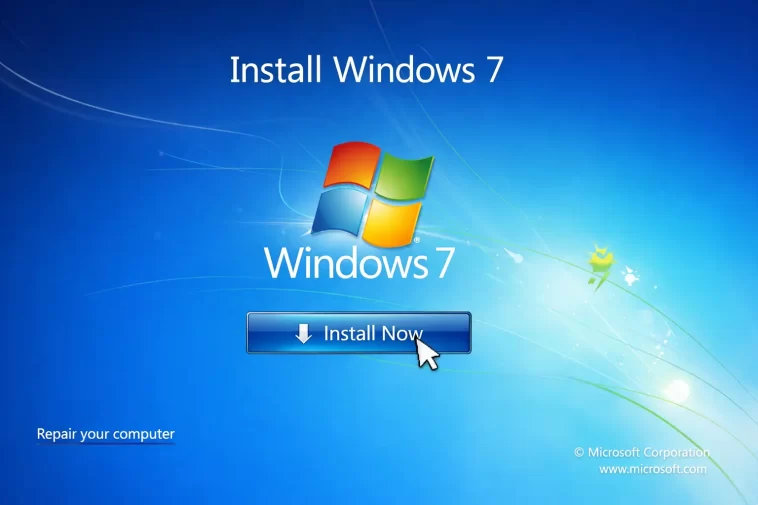
Install Windows 7 without a product key — it sounds like a shortcut, and honestly, I get why so many people search for it. A while back, I had an old laptop sitting in a drawer, completely wiped, and I just wanted to breathe life back into it for basic tasks. I didn’t have the original disc or the sticker with the key on it anymore. So I started digging into whether it was actually possible to get Windows 7 running without one.
What I found surprised me. The answer is: yes, technically you can — but there’s a lot more to the story. This post walks you through exactly what happens when you skip the product key, the real limitations you’ll face, how to extend your trial window, and what your smartest long-term options are.
What Is a Windows 7 Product Key and Why Does It Matter?
A product key is a 25-character alphanumeric code that Microsoft uses to verify your copy of Windows is genuine. During installation, Windows uses this key to register and activate itself with Microsoft’s servers.
Without it, Windows still installs — but it runs in an unactivated state. That unactivated state has some real consequences that most guides gloss over.
Can You Actually Install Windows 7 Without a Product Key?
Yes, you can. During the setup process, Windows 7 gives you the option to skip the product key entry screen. You click past it, finish the installation, and the system boots up normally.
But here’s the catch: you’re not getting a free, permanent copy of Windows. You’re getting a limited-time trial. Microsoft allows this for evaluation purposes — so you can test the OS before committing to a purchase. What you’re not getting is a fully functional, long-term operating system.
Step-by-Step: How to Install Windows 7 Without a Product Key
Step 1: Get a Legitimate Windows 7 ISO or Installation Disc
You need Windows 7 installation media first. If you still have the original DVD, you’re set. If not, you can find archived ISO files from Microsoft’s older download servers or trusted tech communities. Make sure you download the correct edition — Home Premium, Professional, or Ultimate — because the product key is edition-specific.
Do not download ISOs from random file-sharing sites. Many of them come bundled with malware.
Step 2: Create a Bootable USB Drive (If Using ISO)
If you have an ISO file, you’ll need to put it on a USB drive to boot from it. Here’s how to do it:
- Download a tool like Rufus (free, widely used, clean)
- Plug in a USB drive with at least 4 GB of space
- Open Rufus, select your ISO file, choose your USB drive, and click Start
- Wait for it to finish — usually takes a few minutes
Once done, your USB is bootable and ready.
Step 3: Boot Your Computer from the USB or DVD
Restart your computer. As it boots up, press the key that opens your boot menu — usually F12, F2, ESC, or DEL, depending on your motherboard. Select your USB drive or DVD drive from the list.
If you’re not sure which key to press, check the screen right as your computer starts — it often flashes the key for a second. Alternatively, look up your laptop or motherboard model online.
Step 4: Begin the Windows 7 Installation
Once you’re in the setup wizard, follow these steps:
- Select your language, time, and keyboard preferences — click Next
- Click Install Now
- Accept the license agreement
- Choose Custom (advanced) installation for a fresh install
- Select the partition where you want Windows installed
Step 5: Skip the Product Key When Prompted
This is the key moment (no pun intended). When Windows asks for your product key, you’ll see a small option at the bottom — something like “Skip” or just leave the field blank and click Next.
Make sure you uncheck the box that says “Automatically activate Windows when I’m online.” This prevents an immediate activation failure prompt.
Windows will warn you that you haven’t entered a key. That’s fine — click through it and continue.
Step 6: Complete the Setup
Windows will finish copying files, restart a couple of times, and then walk you through basic setup — creating a user account, setting your timezone, choosing your network. Go through these normally.
When it’s done, you’ll be at the Windows 7 desktop. Everything looks normal. Everything works — for now.
Step 7: Check Your Activation Status
Once on the desktop, right-click on Computer and select Properties. Scroll down to the bottom. You’ll see something like:
“You have X days to activate. Activate Windows now.”
By default, you have 30 days from the moment of installation before restrictions kick in.
What Happens After 30 Days?
This is where things get uncomfortable. After the 30-day grace period runs out, Windows 7 enters a reduced functionality mode. Here’s what you can expect:
- Your desktop wallpaper turns black
- You’ll see a persistent watermark saying “This copy of Windows is not genuine”
- Personalization features are locked — you can’t change your wallpaper or theme
- Windows Update stops working — no security patches
- Frequent pop-up reminders every few minutes to activate
- Some system features become restricted or unavailable
The system doesn’t completely lock you out — you can still use applications and browse the web — but it’s uncomfortable and, frankly, risky without security updates.
How to Extend the Trial Period Up to 120 Days
Here’s something most people don’t know: you can extend the 30-day trial using a built-in Windows command. This is completely legitimate — Microsoft built it in.
You can run this process up to 3 times, giving you a total of 120 days before you absolutely need a key.
Here’s how:
- Click Start, type
cmdin the search bar - Right-click Command Prompt and choose Run as Administrator
- Type this command and press Enter:
slmgr -rearm- You’ll see a dialog saying the rearm was successful
- Restart your computer
After rebooting, check your activation status again — you’ll have a fresh 30 days added. You can do this a maximum of 3 times total, bringing your no-key window to 120 days.
This is useful if you’re genuinely testing the OS before deciding to buy, or if you’re in a transitional period while setting up a different system.
Is Installing Windows 7 Without a Key Legal?
For evaluation and testing purposes — yes, it’s legal. Microsoft explicitly allows this. The 30-day trial exists for a reason.
Using it long-term without ever purchasing a license is where you cross into a legal gray area. Microsoft’s licensing terms require you to have a valid product key if you intend to use the OS beyond the trial window.
Using third-party activators, crack tools, or loader software to fake activation is a different matter. These tools are illegal, violate Microsoft’s terms of service, and — more practically — are a significant security risk. Many of them contain malware. Avoid them entirely.
The Bigger Picture: Windows 7 Is End-of-Life
Here’s something important that’s worth saying plainly: Microsoft ended support for Windows 7 on January 14, 2020. That means no more security updates, no bug fixes, no technical support from Microsoft.
Running Windows 7 today — even with a valid key — means you’re running an OS with known, unpatched security vulnerabilities. No antivirus software can fully compensate for missing OS-level security patches.
If you’re resurrecting an old machine, ask yourself what you actually need it for. If it’s for light tasks like document editing or offline use, it might be fine in a limited capacity. But if you plan to connect it to the internet regularly, the security risks are real.
Better Alternatives to Consider
If you need a working PC and don’t want to pay for a Windows license, here are some legitimate paths:
- Upgrade to Windows 10: Microsoft offered a free upgrade for a long time, and while that official window has closed, eligible devices may still qualify. Windows 10 itself reached end of support in October 2025, so plan accordingly.
- Windows 11: If your hardware meets the requirements (it’s more demanding than Windows 7 hardware), this is the current supported option.
- Linux: Free, open-source, and runs excellently on older hardware. Distributions like Linux Mint or Ubuntu are beginner-friendly and actively maintained. For an old machine you’re trying to revive, Linux is often the smartest move.
- Recover Your Original Key: If Windows 7 was pre-installed on your machine, the product key may still be embedded in the BIOS/UEFI firmware. Tools like ProduKey or Belarc Advisor can often retrieve it without booting into Windows.
FAQ
Can I use Windows 7 forever without a product key?
Not comfortably. After 30 days, you’ll face persistent activation reminders, a black desktop, and no security updates. You can extend the trial to 120 days using the slmgr -rearm command, but beyond that, the experience becomes increasingly limited and insecure.
Is skipping the product key during installation legal?
Yes, for evaluation and testing purposes, Microsoft allows this. Using the OS long-term without purchasing a license is where you violate Microsoft’s licensing terms.
Will Windows 7 still work without being activated?
You can still use it for basic tasks, but expect a degraded experience — black wallpaper, constant activation reminders, no personalization, and no Windows Update access.
Can I activate Windows 7 for free using crack tools or activators?
Technically some of them work, but they’re illegal and genuinely dangerous. Many contain malware or spyware. This is not a path worth taking.
Where can I find a legitimate Windows 7 product key today?
Microsoft no longer sells Windows 7 licenses directly. You may find them through refurbished hardware sellers, legitimate third-party key marketplaces (be careful to vet these), or by recovering the key embedded in your machine’s BIOS if it was pre-installed.
Is Windows 7 still safe to use in 2025 and beyond?
Not for general internet use. With no security updates since January 2020, any newly discovered vulnerabilities are permanently unpatched. For offline or isolated use, it’s lower risk — but connecting it to the internet exposes you to real threats.
What’s the best alternative for an old PC that can’t run Windows 10 or 11?
Linux is your best bet. Distributions like Linux Mint are designed to be accessible for Windows users and run well on older hardware. They’re free, actively updated, and won’t leave you exposed the way an unsupported Windows version would.
Final Thoughts
Installing Windows 7 without a product key is possible, and for short-term testing or evaluation, it’s a perfectly reasonable thing to do. The setup process is straightforward, and the OS runs normally for the first 30 days.
But if you’re thinking of using it as your daily driver long-term, the combination of the trial limitations and the end-of-support security risks make it a hard sell. For old hardware, Linux gives you a free, secure, and well-supported alternative that’s honestly worth the small learning curve.
If you need Windows specifically, track down your original key or consider what your hardware can actually support going forward.
