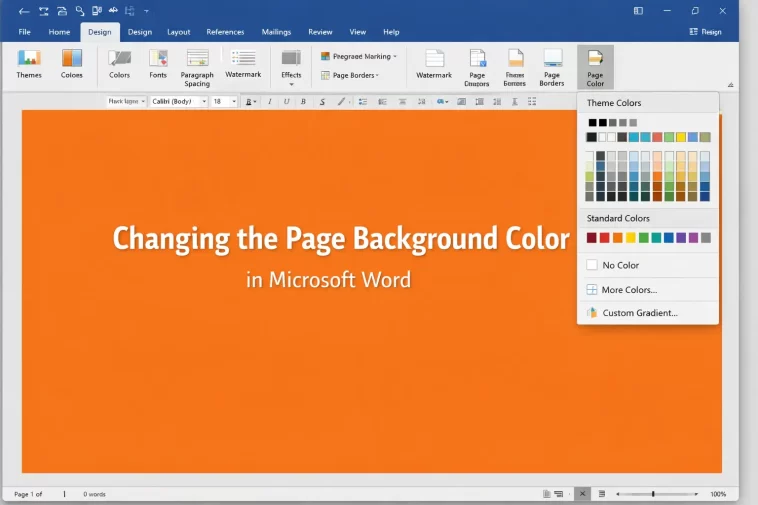
I once spent way too long trying to figure out why a page background I’d set looked perfect on screen and then printed as a blank white page. Turns out that’s expected behavior, not a bug, and almost nobody explains that part before walking you through the steps. So let’s actually cover both — how to change the background color of a page in Word, and why it might not look the way you expect once it leaves the screen.
Why This Confuses People More Than It Should
There are a few reasons this feature behaves differently than people assume.
Page Color in Word is meant for on-screen viewing, not printing. By default, Word treats background color as a display setting, similar to how a website background doesn’t usually print either. Unless you change a specific setting, your colored page will print on plain white paper with no color at all.
Page Color applies to the whole document, not a single page, by default. This trips people up constantly. If you only want one page colored — say, a cover page — the regular Page Color option won’t do that on its own. You need section breaks to isolate that page first.
Themes and backgrounds can conflict. If your document has a Word theme applied, switching themes later can quietly reset your background color back to default without much warning, because the color you picked may have been tied to the theme’s color palette rather than a fixed value.
Background settings don’t always survive certain file conversions. Saving as PDF, or opening in older Word versions, can flatten or strip background color depending on settings. Not always, but enough that it’s worth checking after conversion if color matters.
Page Color vs Watermark vs Borders and Shading vs Themes
These four get mixed up in search results constantly, so here’s the actual difference.
| Feature | What It Does | Prints By Default? |
|---|---|---|
| Page Color | Fills the entire page background with a solid color or gradient | No |
| Watermark | Places faint text or image behind content | Yes |
| Borders and Shading | Adds a border and/or fills a paragraph or section with color | Yes |
| Theme Colors | Changes overall document color scheme including backgrounds in some templates | Varies |
Borders and Shading is the one people often actually want when they say “background color,” especially if they’re trying to highlight a specific block of text rather than the whole page.
Step-by-Step: Setting Page Background Color
Step 1: Go to the Design tab
Click Design in the ribbon, then look for Page Color in the Page Background group.
Step 2: Pick a color
Click Page Color and choose from the standard colors, or click More Colors for a custom hex/RGB value. There’s also a Fill Effects option for gradients, textures, or patterns if a flat color feels too plain.
Step 3: Confirm it applied across the document
By default, this changes the background for every page in the file, not just the current one. If that’s what you wanted, you’re done here.
Step 4: Make it print (if you need that)
Go to File > Options > Display, and under “Printing options,” check the box for “Print background colors and images.” Without this, your colored page stays screen-only no matter how many times you reapply it.
Step 5: Save and reopen to confirm it stuck
Background settings occasionally don’t save properly in older .doc format. Saving as .docx is more reliable if this is something you need to persist.
Coloring Just One Page Instead of the Whole Document
This is the part most tutorials skip, and it’s the one people actually search for most.
- Place your cursor at the end of the page you want colored differently.
- Go to Layout > Breaks > Next Page (this creates a section break).
- Click into the section you want colored.
- Apply Page Color as normal — it’ll only affect the current section, not the whole document.
And one thing worth knowing: if you forget the section break first, applying Page Color will silently color every page, and you might not notice until you’ve scrolled through the whole file.
What Actually Worked For Me
My first attempt at this was on a one-page flyer, so I didn’t run into the section-break issue at all — just picked a color, applied it, done in under a minute. Honestly a little anticlimactic.
The actual headache came later on a multi-page document where I wanted just the cover page colored. I applied Page Color expecting it to ask which page, and instead it colored the entire 12-page document instantly. My first fix attempt was undoing it and trying to select the page in the document before clicking Page Color — that did nothing, because Page Color doesn’t respond to text selection at all.
What fixed it was inserting a section break before the second page, then reapplying the color while my cursor sat inside the first section. That’s not something I would’ve guessed without poking around the Layout tab first — Word doesn’t really hint that section breaks are the key to single-page coloring.
Advanced Fixes and Edge Cases
Background color missing after exporting to PDF. Check File > Options > Display again — the print setting also controls what gets included in a PDF export, since Word treats PDF export similarly to printing in this regard.
Gradient or texture backgrounds looking different across devices. Custom fill effects can render slightly differently depending on the printer driver or PDF renderer being used. If consistency matters, flatten the page to an image before distributing, though that obviously locks the text from being editable.
Color resetting after applying a new theme. If you’ve set a custom Page Color and then change the document theme afterward, check Page Color again — themes can override it without an obvious warning message.
Section breaks causing unexpected page numbering changes. Adding a section break for color purposes can also reset page numbering or header/footer continuity if you’re not careful. Worth checking those settings right after adding the break, not after you’ve finished the whole document.
Things That Get Recommended but Rarely Help
A common suggestion online is to use a full-page image as a background instead of Page Color, assuming it’ll print more reliably. In practice this usually creates bigger file sizes and the same printing toggle still applies — it doesn’t bypass the print setting at all, so it solves nothing while adding weight to the file.
Prevention Tips
- Decide whether you need one page or the whole document colored before applying anything
- Always check the print settings if the color needs to show up on paper or in PDF
- Save as .docx, not .doc, if background settings need to be reliable
- Re-check Page Color after switching document themes
FAQ
Why doesn’t my Word background color print? Word treats it as a screen-only setting by default. Turn on background printing under File > Options > Display.
Can I set a different background color for just one page? Yes, but only with a section break first. Page Color alone applies to the whole document.
Does background color show up when I save as PDF? Only if you’ve enabled the print background setting — PDF export follows the same rule as printing.
Why did my background color disappear after I changed the theme? Themes can override custom Page Color settings. Reapply the color after switching themes if this happens.
Is Page Color the same as a watermark? No. Watermarks sit behind text as faint images or text, and they print by default. Page Color fills the entire background and doesn’t print unless you change that setting.
Editor’s Opinion
The print toggle thing is genuinely the part that trips people up most, and Word really should surface that setting closer to the Page Color button instead of burying it in Options. Once you know about the section-break trick for single pages, the rest is honestly pretty quick. Just don’t skip checking the print setting if this needs to leave your screen.
