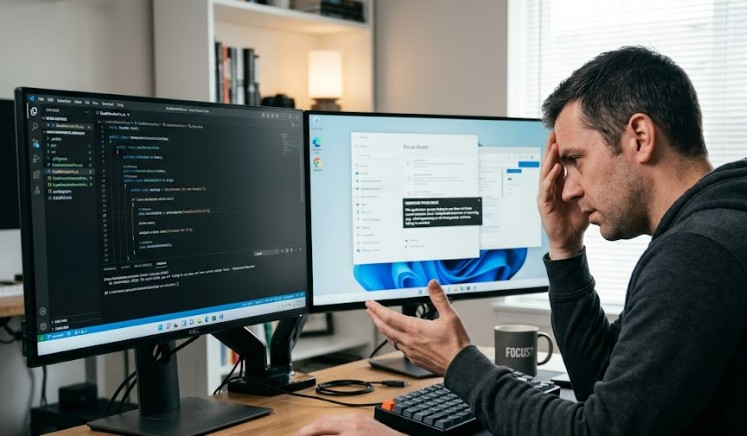
A dual monitor focus switching issue is one of those bugs that doesn’t show up in any error log, which makes it miserable to diagnose. You click over to your second screen and either your windows have rearranged themselves, or your main display just locks up for a second like it forgot you exist. I’ve had both versions of this happen on three different machines, and the fixes aren’t the same depending on which symptom you’re actually getting.
Quick Answer
- If windows jump position: it’s almost always a display ID or scaling mismatch, not a “bug” exactly
- If the main screen freezes briefly on focus switch: look at refresh rate mismatch and Multi-Plane Overlay (MPO) first
- GPU driver age matters more than people think — a driver from even six months ago can behave differently with mixed-refresh setups
- Cable and port bandwidth (especially through docks/hubs) cause symptoms that look identical to a software bug
- Test in Extend mode vs Duplicate mode early — it tells you in 30 seconds whether this is a compositor issue or something else
Why It Fails
There isn’t one cause here — there are at least four, and they produce overlapping symptoms, which is exactly why this is so annoying to troubleshoot.
Mismatched refresh rates between monitors. When your primary runs at 144Hz and your secondary runs at 60Hz, Windows’ Desktop Window Manager has to juggle two different timing models at once. And when you shift focus from one to the other, that handoff is where the momentary freeze tends to show up. It’s not actually frozen — it’s the compositor stalling for a frame or two while it resyncs.
Multi-Plane Overlay (MPO) conflicts. This is a Windows 11 rendering feature that assigns hardware planes to different visual elements for efficiency. So, sounds great in theory. But on mixed-refresh dual setups, those planes can fall out of sync right at the moment of a window or focus transition, which is what causes that split-second stutter or freeze people report.
Display ID changes after sleep, wake, or dock reconnect. This one’s responsible for windows jumping position rather than freezing. Windows assigns an internal ID to each monitor based on its connection. If your dock disconnects and reconnects, or your second monitor briefly loses power, Windows can re-enumerate the displays in a different order than before — and any window that was “remembered” at a certain position gets placed somewhere that no longer makes sense.
DPI scaling mismatches. If your main monitor is set to 125% scaling and your second one is at 100%, moving a window across that boundary forces Windows to recalculate its size and position on the fly. Sometimes it gets the math right. Sometimes — not entirely sure why, but it happens more on older apps with hardcoded window logic — it doesn’t, and the window ends up somewhere weird.
A less obvious cause that I see overlooked constantly: cable and port bandwidth. An HDMI cable rated for 60Hz running a monitor that’s trying to negotiate a higher refresh mode, especially through a USB-C dock or adapter, can produce the exact same micro-freeze symptom as a software timing conflict. People troubleshoot drivers for hours before checking the cable.
Common Scenarios
- Gaming on the primary monitor with Discord or a browser open on the secondary — GPU load spikes and the secondary’s refresh rate drops or stutters
- Laptop docked to an external monitor, where sleep/wake cycles regularly cause window position drift
- Mixed-brand monitor setups (one gaming monitor, one office monitor) with very different native refresh rates
- Remote work setups using a USB-C dock, where bandwidth gets split across video, USB, and charging simultaneously
Step-by-Step Fixes
Step 1: Match Refresh Rates as a Baseline Test
Go to Settings > System > Display > Advanced display. Set both monitors to the same refresh rate, even if that means dropping your high-refresh monitor down temporarily.
Image: Windows 11 Advanced Display Settings showing refresh rate dropdown for each monitor
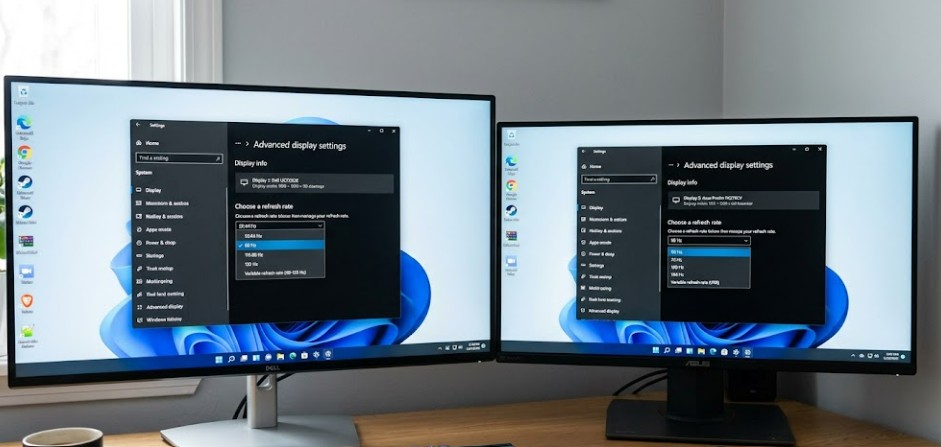
If the freeze disappears immediately, you’ve confirmed it’s a timing/compositor issue, not a driver crash or hardware fault. You can decide afterward whether you want to live with matched refresh rates or chase a fix that lets you keep both at native speed.
Step 2: Disable Multi-Plane Overlay
This requires a registry edit, so back up the registry first or create a restore point.
- Open Registry Editor (
regedit) - Navigate to
HKEY_LOCAL_MACHINE\SOFTWARE\Microsoft\Windows\Dwm - Create a new DWORD value named
OverlayTestMode - Set it to
5 - Restart
This disables MPO system-wide. It can slightly increase GPU load on some setups, so don’t be shocked if your fans spin up a little more during video playback afterward — that trade-off is usually worth it if the freeze was driving you up the wall.
Step 3: Update GPU Drivers (Properly, Not Just “Check for Updates”)
Windows Update drivers are frequently behind. Go directly to NVIDIA, AMD, or Intel and grab the latest driver. Use the clean install option if your control panel offers it — a regular update can leave old configuration files behind that conflict with the new version.
Step 4: Check Cable and Port Path
Swap the cable for a known-good one rated for your target resolution and refresh rate. If you’re going through a dock or hub, try plugging the monitor directly into the GPU instead. If the issue vanishes, the dock’s bandwidth was the actual problem, not Windows or the driver at all.
Step 5: Fix Window Position Drift After Sleep/Dock Events
For the “windows jump position” symptom specifically:
- In display settings, make sure your monitors are arranged correctly and click Identify to confirm Windows has the right physical order
- Disable any “fast startup” or aggressive sleep settings on the dock if your laptop manufacturer provides dock-specific software
- Consider a third-party window manager tool that remembers and restores window positions by monitor name rather than by display ID — this sidesteps the re-enumeration problem entirely
Step 6: Normalize DPI Scaling Where Possible
If your monitors are wildly different in size or resolution, try setting both to 100% scaling as a test, even temporarily. If position jumping stops, you’ve confirmed scaling math as the cause, and you can then decide whether to keep custom scaling per monitor or just accept matched scaling for stability.
Advanced Fixes and Edge Cases
Event Viewer check. Open Event Viewer and look under Windows Logs > System for events around the exact timestamp of a freeze. A Display or nvlddmkm (NVIDIA driver) related warning right at that moment points to a driver-level timing issue rather than an application problem.
HDR mismatch between displays. If one monitor supports HDR and the other doesn’t, and HDR is enabled system-wide, Windows has to do tone-mapping conversions on the fly when a window crosses or focus shifts between displays. Turning off HDR on a per-monitor basis (Settings > Display > pick the monitor > HDR toggle) is worth testing even if you don’t think HDR is involved — it’s a more common contributor than people expect.
GPU scheduling mode. In Settings > System > Display > Graphics, there’s a “Hardware-accelerated GPU scheduling” toggle. This changes how the GPU handles frame queuing at a low level, and on some mixed-monitor setups, toggling it off resolves the freeze where nothing else does. On others, toggling it on fixes it. There’s no universal answer here — it really is trial and error.
DDU clean reinstall. If a regular driver reinstall doesn’t help, Display Driver Uninstaller run in Safe Mode followed by a fresh driver install clears out conflicting leftover files that a normal “update” or “uninstall” through Device Manager won’t touch.
What Actually Worked For Me
My version of this was the freeze, not the position jump, on a setup with a 165Hz primary and a 75Hz secondary. I went through the obvious stuff first — updated drivers, reseated cables, even swapped which port each monitor used on the GPU. None of it helped, and that’s frustrating in a very specific way, because each failed attempt takes 10–15 minutes with a restart, so an evening disappears fast.
What ended up fixing it was the MPO registry edit from Step 2, which I almost didn’t try because it felt like overkill for what seemed like a minor visual glitch. So, that’s not entirely accurate either — it wasn’t minor, it was happening every time I alt-tabbed into a Discord call while gaming, which got old fast. After the registry change, the freeze stopped completely, and from what I’ve seen in forum threads since, MPO conflicts are way more common on mixed-refresh setups than NVIDIA or Microsoft seem to acknowledge publicly.
Refresh rate matching is the fix that’s recommended most often and works most reliably as a quick diagnostic — but most people don’t want to permanently downgrade their high-refresh monitor just to fix a stutter, so it ends up being step one for confirming the cause rather than the actual long-term fix.
Prevention Tips
- Keep GPU drivers reasonably current, especially after a Windows feature update — those tend to shift compositor behavior in small ways
- If buying a second monitor, try to match refresh rate to your primary if multi-monitor stability matters more to you than having a high-refresh secondary
- Avoid daisy-chaining displays through budget USB-C hubs for anything beyond 60Hz/1080p — bandwidth gets split in ways that aren’t obvious from the spec sheet
- Don’t enable HDR system-wide unless both displays genuinely support it well; partial HDR setups cause more problems than they solve for most people
FAQ
Why does my main monitor freeze only when I click into my second monitor, not the other way around? This usually points to your primary handling the heavier compositor workload (often because it’s the higher refresh display), so the resync stall is more visible there. Direction of freeze can be a useful diagnostic clue.
Does this happen more with NVIDIA or AMD GPUs? Both report it, though MPO-related complaints show up more often with NVIDIA in forum threads — that could just be sample size since NVIDIA has a larger user base, not necessarily an indication their drivers are worse for this specific issue.
Will a Windows 11 update fix this automatically? Sometimes a feature update changes compositor behavior enough to resolve it. It can also introduce it on a setup that was previously fine. Don’t count on updates as a fix — treat them as a variable to retest after.
Is this a hardware problem or a software problem? Could be either, honestly. The cable/port bandwidth angle is hardware-adjacent even though it presents as a software glitch, which is part of why this is hard to diagnose from symptoms alone.
My windows only move position after the laptop wakes from sleep — is that the same issue? That’s the display re-enumeration cause specifically, not the freeze/timing cause. Step 5 above is the relevant fix for that version.
Editor’s Opinion
this one took me longer to actually pin down than i expected going in, mostly because the freeze and the position-jump versions get lumped together online even though the causes barely overlap. if you’re only getting the freeze, start with refresh rate matching as a test, then MPO if that doesn’t kill it. if it’s windows jumping around after sleep or docking, that’s a completely different fix and you’ll waste time chasing GPU drivers for nothing. also seriously check your cable before you assume it’s a driver issue, i wasted way too long on that myself.
