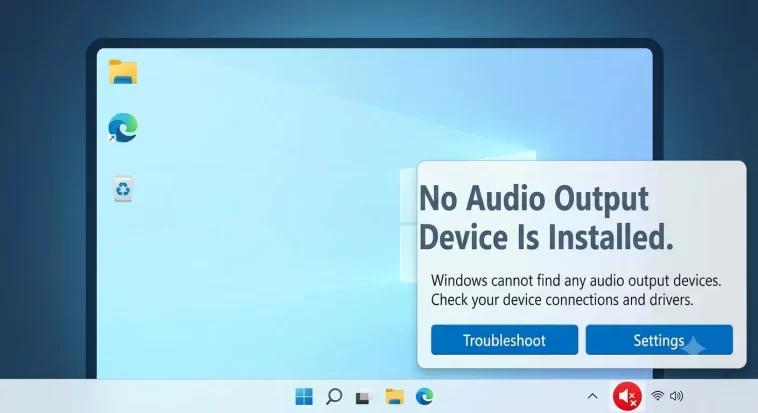
No audio output device is installed is one of those errors that shows up out of nowhere — you had sound five minutes ago, now there’s a red X over the speaker icon and nothing plays. I’ve chased this one down on a desktop and a laptop, and the cause was different both times, which is honestly the whole problem with most generic guides for this error.
Quick Answer
- Check Windows Audio and Windows Audio Endpoint Builder services first — if either isn’t running, nothing else will work
- Device Manager often shows the real story even when Sound Settings looks empty or confusing
- This error spikes right after Windows updates more than people realize, especially ones that touch drivers
- A generic “High Definition Audio Device” driver replacing your real manufacturer driver is a common, overlooked cause
- Don’t jump to reinstalling Windows — almost every case of this resolves with a driver or service fix
Why It Fails
Audio services aren’t running. Windows Audio and Windows Audio Endpoint Builder are the two services that actually let the OS talk to your sound hardware. If either one is stopped, disabled, or stuck restarting (which happens more than you’d expect after a botched update), you get exactly this error, even though your hardware is completely fine.
Driver corruption or a Windows-installed generic driver overwriting the real one. This is probably the single most common cause. Windows Update sometimes pushes a generic “High Definition Audio Device” driver during a feature update, silently replacing the manufacturer-specific driver (Realtek, Conexant, whatever your motherboard or laptop actually uses). The generic driver technically “works” in the sense that Windows sees an audio device, but in plenty of cases it doesn’t actually initialize correctly, which produces this exact error instead of just degraded sound quality.
Playback device disabled in Sound settings. Sometimes plugging in a new device (a USB headset, a Bluetooth speaker) causes Windows to quietly disable the previous default device rather than just adding a second option. So your speakers are still physically fine — Windows just stopped treating them as a valid output.
A recent Windows update. And this one’s annoying to pin down because the timing isn’t always obvious — you might not connect “audio broke” with “update installed three days ago” unless you specifically check Update history.
Hardware-level issues, less common but real: a loose internal audio cable on desktops (especially after opening the case for any reason), a damaged audio jack, or in rare cases the audio controller getting disabled in BIOS/UEFI after a firmware update or reset.
Common Scenarios
- Right after a Windows 11 feature update, where the generic driver swap is most likely to happen
- After connecting a new Bluetooth or USB audio device that became the default and then got disconnected improperly
- Desktops after any kind of hardware change, even unrelated ones, if an internal cable got bumped
- Laptops waking from sleep or hibernation, where the audio endpoint sometimes fails to reinitialize properly
Step-by-Step Fixes
Step 1: Run the Audio Troubleshooter
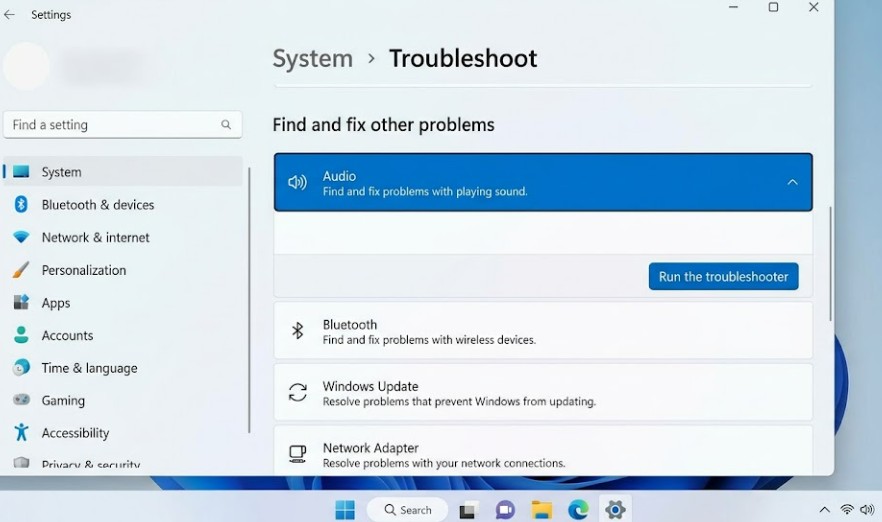
Settings > System > Troubleshoot > Other troubleshooters > Audio playback > Run. It’s not magic, but it catches the obvious stuff (disabled device, wrong default) fast enough that it’s worth doing before anything manual.
Image: Windows 11 Troubleshoot settings page showing the Audio playback troubleshooter
Step 2: Check the Audio Services
Win + R, typeservices.msc, Enter- Find Windows Audio — right-click, Properties, set Startup type to Automatic, then Start it if it’s stopped
- Do the same for Windows Audio Endpoint Builder
- Restart your computer after, not just the services — a clean restart matters more here than people expect
Step 3: Check Device Manager
- Right-click Start > Device Manager
- Expand Sound, video and game controllers
- Look for a yellow warning icon or a device listed as “Unknown”
- If your real audio device is missing entirely, click View > Show hidden devices, since disconnected/disabled audio endpoints sometimes hide themselves there
Step 4: Roll Back or Update the Driver Properly
If you suspect the generic driver swap:
- In Device Manager, right-click the audio device > Properties > Driver tab
- If “Roll Back Driver” is available (it’s grayed out if there’s no previous version stored), use it
- If not, uninstall the driver entirely (check “Delete the driver software for this device” if offered), restart, and let Windows reinstall — or better, grab the exact driver from your manufacturer’s support page instead of letting Windows pick one automatically
Step 5: Re-Enable the Playback Device
- Right-click the speaker icon in the taskbar > Sound settings > More sound settings (or search “Sound Control Panel”)
- Go to the Playback tab
- Right-click in the empty space and check “Show Disabled Devices” and “Show Disconnected Devices”
- If your device shows up disabled, right-click and Enable it, then set it as Default
Step 6: Check for the Update That Broke It
Settings > Windows Update > Update history. If the error started right after a specific update, try uninstalling that update from Update history > Uninstall updates, then reinstall the correct manufacturer driver before letting Windows retry the update later.
Advanced Fixes and Edge Cases
Registry audio endpoint corruption. In rare cases, the registry keys tracking audio endpoints under HKEY_LOCAL_MACHINE\SOFTWARE\Microsoft\Windows\CurrentVersion\MMDevices\Audio get corrupted, usually after an abrupt shutdown during an update. This is deeper than most people need to go, and editing it directly is risky — a clean driver uninstall/reinstall usually rebuilds these entries without you having to touch the registry by hand.
BIOS/UEFI audio controller disabled. Worth checking on desktops after any BIOS update or CMOS reset — there’s occasionally an “Onboard Audio” or “HD Audio Controller” toggle that can get reset to disabled. If Device Manager shows no audio device at all, not even a generic or unknown one, this is worth ruling out before assuming it’s a Windows-side problem.
Conflicting third-party audio enhancement software. Dolby Atmos apps, Realtek’s own control panel, or other audio enhancement tools installed alongside the base driver can sometimes lock the device in a state Windows doesn’t recognize as valid. Temporarily uninstalling these (not just disabling) is a reasonable diagnostic step if the driver itself checks out fine in Device Manager.
Event Viewer audio service crash logs. Windows Logs > System, filtered for events from AudioSrv or AudioEndpointBuilder around the time the error started, can confirm whether a service is crashing repeatedly rather than just being stopped — that distinction changes whether the fix is a service restart or a deeper driver reinstall.
What Actually Worked For Me
On the laptop, it was the generic driver swap — a Windows update had quietly replaced the manufacturer’s Realtek driver with the basic Microsoft one, and Device Manager looked completely normal at a glance, no warning icons, nothing obviously wrong. I burned a fair bit of time on the services and Sound settings checks before actually comparing the driver version against what was listed on the manufacturer’s support page.
That’s not entirely how I’d describe it looking back, actually — I didn’t compare versions on purpose. I noticed almost by accident that the driver name in Device Manager said “High Definition Audio Device” instead of the Realtek name I remembered seeing before. Uninstalling it and grabbing the actual driver from the laptop manufacturer’s site fixed it immediately.
On the desktop, a completely different cause — I’d opened the case to add a drive and apparently bumped the front panel audio header without noticing. Reseating that cable was the entire fix, which felt almost anticlimactic after expecting a driver issue again.
Checking and restarting the audio services is the fix that works most reliably as a fast first step, mainly because it’s quick to rule out, not necessarily because it’s the most common root cause. Running the built-in audio troubleshooter gets recommended everywhere and it’s fine as a first move, but on its own it rarely fixes anything beyond the most basic “wrong device selected” cases — it doesn’t touch driver corruption or hardware issues at all.
Prevention Tips
- After major Windows updates, briefly check Device Manager for your audio device’s driver name — catching a generic driver swap early saves a troubleshooting session later
- Download and keep your manufacturer’s actual audio driver installer somewhere accessible, rather than relying on Windows Update to always get it right
- If you regularly switch between audio devices (USB headset, Bluetooth, speakers), check the Playback tab occasionally to make sure an old device hasn’t quietly ended up disabled
- On desktops, after any case-opening hardware work, do a quick speaker test before reassembling everything fully — it’s much easier to check a cable while the case is still open
FAQ
Why did this happen right after I plugged in a new USB headset? Windows sometimes disables your previous default device rather than just adding the new one as an option. Check the Playback tab and re-enable the old device if you still want to use it.
Does reinstalling Windows fix this? Almost never necessary. The vast majority of cases trace back to a service, driver, or simple disabled-device setting — all fixable without touching the OS install itself.
My Device Manager shows no audio device at all, not even with a warning icon — what does that mean? That usually points to either a BIOS-level controller disable or a more significant driver removal than the typical case. Check BIOS settings before assuming it’s purely a Windows software issue.
Is this related to a virus or malware? Almost never, in my experience anyway. This error is overwhelmingly a driver, service, or settings issue rather than anything malicious — but a full malware scan rules it out quickly if you want to be sure.
Will Windows Update break this again after I fix it? It can, particularly if the generic driver swap was the cause. Keeping the manufacturer driver installer on hand makes round two a five-minute fix instead of a repeat investigation.
Editor’s Opinion
this error always looks scarier than it actually is because of the wording — “no audio device is installed” sounds like Windows thinks your hardware vanished, but almost every time it’s a service, a driver, or a setting, not actual broken hardware. check the boring stuff first (services, disabled devices) before assuming you need a new driver or god forbid a reinstall. the generic driver swap thing genuinely catches people off guard though, that one’s not obvious unless you know to look for it.
