Your WordPress database is silently getting fatter every day. Post revisions, expired transients, orphaned plugin tables, spam comments — it all piles up, and eventually you start noticing it in your page load times, your bloated backups, and your sluggish admin panel. These are the five WordPress database optimization plugins worth actually installing.
Why Your WordPress Database Gets Slow in the First Place
Before jumping into plugin recommendations, it’s worth understanding what’s causing the bloat — because picking the wrong tool for the wrong problem is how people end up nuking their database by accident.
WordPress stores everything in MySQL tables. And I mean everything. Every draft you ever saved, every comment that hit your spam folder, every transient your caching plugin created and forgot to clean up, and every table left behind by plugins you uninstalled three years ago. None of this disappears automatically.
The specific culprits that eat the most space:
- Post revisions — WordPress saves a copy every time you hit “update.” On an active content site, this gets out of hand fast.
- Expired transients — Temporary cached values that plugins dump into
wp_optionsand frequently fail to clean up after themselves. - Orphaned metadata — Post meta and user meta rows that reference posts or users that no longer exist.
- Leftover plugin tables — When you deactivate and delete a plugin, its custom tables often stay in the database. Nobody cleans them up by default.
- Spam and trashed content — Trashed posts, auto-drafts, spam comments. All still stored.
- Autoload bloat in
wp_options— This one trips people up. Plugins can register options withautoload=yes, which means that data gets loaded on every single page request, even if it’s only needed once a year.
That last one — autoload bloat — is probably the most overlooked cause of slow WordPress performance. A site can have perfectly clean revisions and still run like it’s stuck in 2012 because the wp_options table is loading 4MB of stale plugin settings on every request.
The 5 Best WordPress Database Optimization Plugins
1. WP-Optimize — Best All-Around Option
WP-Optimize is the one most people reach for first, and honestly, it’s a reasonable default choice. It handles database cleanup, image compression, and page caching all from one dashboard. The database side lets you clean revisions, transients, spam comments, auto-drafts, and optimize tables — either manually or on a schedule (daily, weekly, monthly).
The scheduler is where it earns its place on production sites. Set it, forget it, and your database stays clean without you having to remember.
A few things worth knowing: WP-Optimize takes a conservative approach to cleanup. From what I’ve seen, it doesn’t delete all transients aggressively — which is actually sensible, since killing active transients mid-session can cause weird behavior. But it also means the raw size reduction you get from WP-Optimize is sometimes less dramatic than other tools.
Also, if you’re already running a caching plugin like LiteSpeed Cache or WP Rocket, the caching module in WP-Optimize will conflict. Disable it and just use the database features.
Best for: Site owners who want one plugin handling multiple optimization jobs without getting into the weeds.
2. Advanced Database Cleaner — Best for Power Users
This is the plugin I’d recommend if you actually want to understand what’s in your database, not just blindly delete things. It goes significantly deeper than WP-Optimize on the database side.
The premium version detects orphaned tables from deleted plugins, orphaned options, orphaned post meta, orphaned user meta, orphaned transients, and even leftover cron jobs. The free version is still useful — it covers the basics — but the real value is in the premium tier, which also gives you analytics showing how your database grows over time.
The custom query feature is something most users won’t touch, but for developers it’s genuinely useful. You can write targeted SQL cleanup queries and run them on a schedule.
One complaint: the interface feels a bit dense, especially at first. There’s a lot of information on screen and it’s not always obvious what’s safe to delete versus what will break something. Take the time to review the scan results before clicking “clean all.”
Best for: Developers, agency sites, WooCommerce stores, anything with heavy data accumulation or multiple plugins over a long lifespan.
3. WP-Sweep — Simplest and Surprisingly Effective
WP-Sweep is lightweight, does one thing, and does it well. No scheduling, no bloat, no confusing interface. You open it, you see a list of what can be cleaned, and you click Sweep.
What makes it stand out is the underlying approach: WP-Sweep uses WordPress’s own native delete functions rather than direct SQL queries. This makes it meaningfully less risky than plugins that run raw DELETE statements against your database. The data relationships are respected, and the chance of leaving behind broken references is lower.
In actual comparisons — and this surprised me a little — WP-Sweep and Optimize Database after Deleting Revisions tend to outperform WP-Optimize in terms of raw database size reduction. WP-Optimize is more conservative. WP-Sweep goes harder.
It also supports WP-CLI, which is a nice touch for developers who want to run cleanup remotely without touching the browser.
Best for: Smaller sites, developers who want CLI access, anyone who wants fast one-click cleanup without a plugin that tries to do everything.
4. Database Cleaner by Meow Apps — Best Visual Interface
Meow Apps makes some genuinely thoughtful plugins, and this one is no exception. The standout feature is how it handles analysis before deletion. Rather than presenting a list of things to delete and trusting that you’ll know what’s safe, it scans your database, identifies relationships, and flags what appears to be truly orphaned data versus what might still be in use.
It has “Easy” and “Expert” modes, which is a smart UI decision. Easy mode gives you broad cleanup options. Expert mode surfaces individual tables and lets you make decisions at the row level if you want to. The visual table management is actually useful for spotting leftover tables from old plugins — you can see the table name, its size, and whether it maps to anything active.
The free version handles the core stuff. Pro adds scheduling, more advanced orphaned data detection, and autoload optimization — which, again, is something you really want if your wp_options table has gotten out of control.
Best for: Users who want to see what they’re deleting before they delete it, or complex sites where you can’t afford to be careless.
5. WP-DBManager — Best If You Need More Than Just Cleanup
WP-DBManager is a different category from the others in this list. It’s less focused on cleanup and more focused on full database management: optimize, repair, backup, restore, and run SQL queries directly from the WordPress dashboard without touching phpMyAdmin.
It’s the plugin you reach for when you need to repair a corrupted table, run a one-off SQL query, or take a manual database backup before doing something risky. The optimization function cleans overhead from your tables, but it doesn’t go into post revisions, transients, or the detailed cleanup the other plugins offer.
Not 100% sure why more people don’t use this alongside a dedicated cleaner plugin — they cover different ground and don’t really overlap. WP-DBManager handles the technical database layer; something like WP-Sweep handles the WordPress-level data cleanup.
Best for: Developers or site admins who want phpMyAdmin-style control from inside WordPress, especially for repair and backup operations.
Quick Comparison
| Plugin | Cleanup Depth | Scheduling | Orphaned Tables | Best Use Case |
|---|---|---|---|---|
| WP-Optimize | Moderate | Yes | No (free) | All-in-one for non-developers |
| Advanced Database Cleaner | Deep | Yes | Yes (premium) | Power users, agencies |
| WP-Sweep | Moderate–High | No | No | Fast one-click cleanup |
| Meow Database Cleaner | Deep | Yes (pro) | Yes | Visual analysis, complex sites |
| WP-DBManager | Basic | Yes | No | Repair, backup, SQL access |
What Actually Worked For Me
I had a client site running WooCommerce that had been live for about four years with zero database maintenance. The admin panel was noticeably slow — hitting “All Products” would take five to eight seconds to load. Not a server issue; the server specs were fine.
First thing I tried was WP-Optimize because it was already installed. Ran the full cleanup. Helped a little. But the sluggishness in the admin persisted.
Then I looked at the wp_options table and found it was over 60MB. The autoload value was — well, a lot. Years of plugins had dumped options in there with autoload=yes and never cleaned them up. WP-Optimize hadn’t touched any of it.
I switched to Advanced Database Cleaner premium and ran the orphaned options scan. It found dozens of option groups from plugins that hadn’t been active in years. Cleaned those out, dropped the autoloaded data significantly, and the admin panel was noticeably faster immediately. That’s not a dramatic story — but it’s an accurate one. The fix came from knowing what to look for, not from just running whatever was installed.
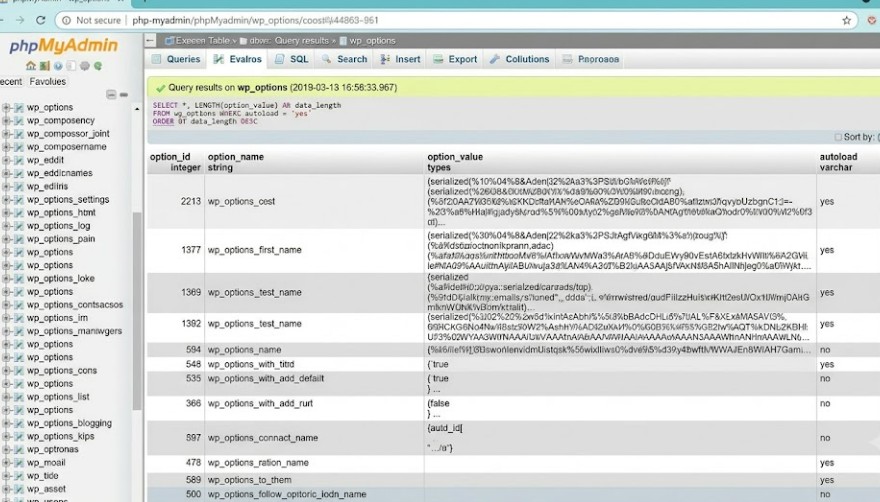
Advanced: Manual Cleanup With phpMyAdmin
Plugins are convenient, but there are situations where you want to go directly to the database. If you’re on a managed host with WP-CLI access, or if a plugin-level cleanup isn’t touching a specific problem, here’s what to know.
Checking autoload bloat manually:
sql
SELECT SUM(LENGTH(option_value)) AS autoload_size
FROM wp_options
WHERE autoload = 'yes';
If that returns more than 1MB, you have a problem worth investigating. Run:
sql
SELECT option_name, LENGTH(option_value) AS size, autoload
FROM wp_options
WHERE autoload = 'yes'
ORDER BY size DESC
LIMIT 30;
That’ll show you the biggest autoloaded items by size. Most of the large ones from inactive plugins can be safely set to autoload=no or deleted — but check what the plugin is before doing anything irreversible.
Limiting revisions in wp-config.php:
Add this before any plugin or theme calls:
php
define('WP_POST_REVISIONS', 5);That caps revisions to five per post going forward. It doesn’t retroactively clean up old revisions — you still need a plugin for that — but it prevents the problem from compounding. Your mileage may vary on the right number depending on your workflow; I’ve seen recommendations from 3 to 10.
Checking table overhead:
In phpMyAdmin, go to your database, select all tables, and choose “Optimize Table” from the dropdown. This reclaims space freed up after deletions but not yet released by the storage engine. Plugins usually handle this, but it’s worth knowing you can do it directly.
Things People Try That Rarely Help
A few things I see recommended repeatedly that don’t actually move the needle much:
- Deleting spam comments only — Unless you have tens of thousands of them, spam comment cleanup alone has minimal impact on performance.
- Clearing the trash once — Helpful, but not transformative. The bigger culprits are revisions and transient bloat.
- Running WP-Optimize and assuming you’re done — WP-Optimize is decent, but as mentioned, it’s conservative. If your database is genuinely bloated, you’ll probably need Advanced Database Cleaner or Meow to go deeper.
- Optimizing tables without cleaning them first — Running OPTIMIZE TABLE on a database still full of revision data is somewhat pointless. Clean first, optimize after.
Prevention: How to Keep the Database Clean Long-Term
Once you’ve done a major cleanup, staying on top of it is much easier than starting from scratch again.
- Set a revision limit in wp-config.php — Do this immediately after a cleanup. Uncapped revisions are the fastest way to refill a freshly cleaned database.
- Schedule automated cleanups — WP-Optimize, Advanced Database Cleaner, and Meow all support this. Monthly is usually enough for most sites; weekly if you’re running WooCommerce or have heavy comment traffic.
- Audit plugins before installing — Some plugins are aggressive about creating database tables and options. A plugin that seemed fine for six months can leave a significant mess when uninstalled.
- Take a database backup before any cleanup — Not negotiable. All the plugins in this list are generally safe, but “generally” isn’t “always.” WP-DBManager or UpdraftPlus for quick pre-cleanup backups.
- Check autoload sizes periodically — Running the SQL query above every few months takes two minutes and catches problems before they affect load time.
FAQ
Which WordPress database plugin is safest to use?
WP-Sweep is probably the lowest-risk option because it uses WordPress’s own delete functions instead of raw SQL. That doesn’t mean other plugins are unsafe — just that WP-Sweep has an architectural choice that reduces the chance of broken references.
Does WP-Optimize conflict with WP Rocket?
Only the caching module conflicts. If you’re using WP Rocket for caching, just disable WP-Optimize’s caching feature and use it for database cleanup only. No conflict there.
How often should I optimize my WordPress database?
Monthly is a reasonable default. If you’re running an active WooCommerce store with frequent orders, sessions, and transients, weekly makes more sense. A content blog with moderate traffic? Monthly or even quarterly is probably fine.
What happens to my database if I delete orphaned tables?
If the plugin that created them is no longer installed and active, deleting the orphaned tables won’t break anything. But verify the table belongs to something deactivated before deleting. Advanced Database Cleaner and Meow both help you confirm this before committing.
Can database optimization actually speed up my site?
Yes, but it depends where the bloat is. Cleaning revisions and transients has a moderate effect. Fixing autoload bloat in wp_options can have a significant effect, especially on admin panel performance. Don’t expect cleaning spam comments to cut your load time in half.
Should I use multiple database plugins at once?
Generally not a great idea for cleanup plugins — you can run into conflicts or redundant operations. Pick one cleanup plugin, use WP-DBManager separately if you need repair and backup tools, and that’s enough.
Is it safe to optimize the database on a live site?
Yes, with a backup taken first. Most cleanup operations are quick and won’t cause downtime. Running an optimize on massive tables can take longer and briefly lock them — so on high-traffic sites, schedule it during off-peak hours.
What’s the difference between cleaning and optimizing a database?
Cleaning removes data you don’t need — revisions, transients, spam. Optimizing restructures the tables to reclaim fragmented space and improve query speed. Both matter, and they should be done in that order: clean first, then optimize.
Editor’s Opinion
Honestly the hardest part of this isn’t picking a plugin — it’s that most sites go years without any database maintenance and then someone wonders why the admin panel feels like it’s loading through dial-up. WP-Sweep if you want fast and simple. Advanced Database Cleaner if you want to actually know what you’re deleting. And please, check your autoload sizes before anything else. That alone has fixed more “my site is slow” complaints than all the revision cleanups combined. do the backup first, obviously.
