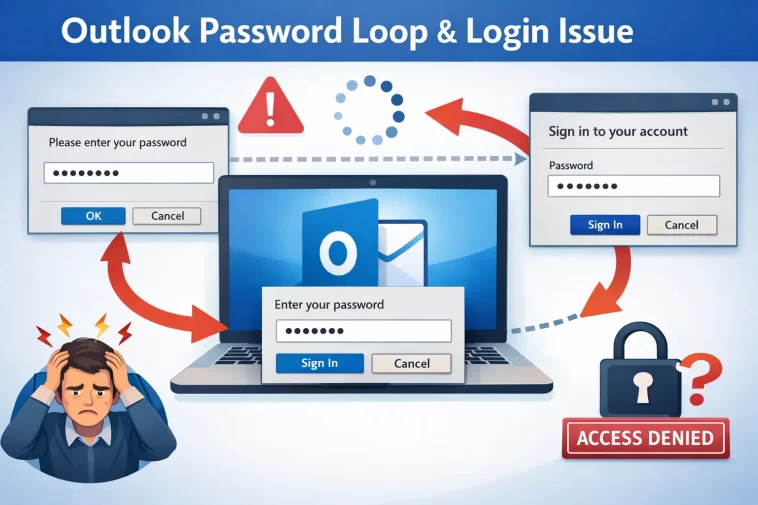
Outlook asking for password over and over is one of those problems that looks small until it eats your entire morning. I had a client’s machine doing this last winter — type the password, hit enter, box pops right back up, like Outlook never even saw it. So before I get into theory, let’s get you unstuck.
Quick Answer
- Clear saved Outlook credentials in Windows Credential Manager, then re-enter them
- Turn off “Always prompt for logon credentials” under your account’s security settings
- Disable add-ins temporarily (Outlook.exe /safe) to rule out a conflict
- Run Office updates — a stale build is a more common culprit than people assume
- If it’s a work/school account, modern authentication tokens may have expired and need a fresh sign-in, not just a password retype
If none of that clears it in five minutes, keep reading, because the deeper causes are where this actually gets interesting.
Why Outlook Keeps Asking For Your Password
There isn’t one single reason this happens, and that’s part of what makes it annoying to troubleshoot — you’re not chasing one bug, you’re chasing whichever one of four or five things broke on your specific machine.
Stale or mismatched cached credentials. Windows Credential Manager stores a copy of your Outlook login separate from what’s actually saved in your email provider’s system. If you changed your password somewhere else — webmail, a phone, another device — and Outlook didn’t get the memo, it keeps trying the old one behind the scenes and failing silently before prompting you again.
Expired modern authentication tokens. This is the one most people don’t think about. With Microsoft 365 accounts, Outlook doesn’t really log in with your password every time — it uses an auth token that’s supposed to refresh quietly in the background. When that refresh fails (often because of a clock sync issue, a conditional access policy, or just bad luck), Outlook falls back to asking for credentials, and since the underlying token problem never gets fixed by typing the password again, it loops.
A corrupted Outlook profile. Outlook profiles hold the account configuration, server settings, and a chunk of cached data. If part of that gets corrupted — and it does happen, usually after a crash or a bad shutdown — it can interfere with how Outlook authenticates, even though everything looks normal on the surface.
Add-in conflicts. I almost didn’t believe this one the first time I saw it, but a misbehaving add-in can interfere with the authentication handshake enough to trigger repeat prompts. Security and antivirus add-ins are the usual suspects.
Network and proxy interference. Unstable Wi-Fi, a VPN that’s quietly dropping the connection, or a corporate proxy with the wrong settings can all stop Outlook from completing the authentication round-trip, which it then interprets as a bad password.
And one more that’s easy to miss: antivirus software doing deep packet inspection on encrypted mail traffic. From what I’ve seen, this one’s underreported because most people never think to test with the antivirus paused.
Common Scenarios
This shows up a little differently depending on what you’re running:
- Outlook desktop with a Microsoft 365 work account — usually a token refresh issue, especially after a password change or an MFA re-registration
- Outlook.com personal accounts — more often cached credential mismatch or a basic profile glitch
- New Outlook for Windows — fewer legacy settings to fight with, but profile switching doesn’t work the same way, so “create a new profile” fixes don’t apply the same way they do in classic Outlook
- Shared mailboxes or delegated accounts — permission changes on the shared mailbox can trigger prompts that look identical to a normal password issue but aren’t
Step-by-Step Fixes
Step 1: Verify the basics first
Before anything else — check Caps Lock, confirm you’re typing the full email address as the username if that’s what your account expects, and make sure you’re not accidentally typing an old password out of muscle memory. This sounds obvious. It is obvious. But I’ve burned twenty minutes on this exact thing before catching it.
Step 2: Clear cached credentials in Windows Credential Manager
- Close Outlook completely
- Press Win + R, type
control /name Microsoft.CredentialManager, hit Enter - Go to Windows Credentials
- Find entries referencing Outlook, Office, MicrosoftOffice, or your mail server
- Remove each one
- Reopen Outlook and let it prompt you fresh — enter the password and check the “remember credentials” box this time
Step 3: Turn off forced credential prompting
- File > Account Settings > Account Settings
- Select the account, click Change > More Settings
- Security tab
- Uncheck Always prompt for logon credentials
This setting exists for a reason in some shared-PC environments, but on a personal machine it’s usually just creating noise.
Step 4: Test in Safe Mode
Run Outlook.exe /safe from the Run dialog. If the prompts stop, you’ve got an add-in problem. Re-enable them one at a time under File > Options > Add-ins to find the one responsible.
Step 5: Update Office
File > Account > Update Options > Update Now. Let it finish completely before reopening Outlook — don’t force-close it mid-update, that’s a good way to create the exact profile corruption issue we’re trying to avoid.
Step 6: Create a new Outlook profile
Control Panel > Mail > Show Profiles > Add. Set the new one up with your account and mark it as the default. Your old profile stays intact if you need to go back, which is reassuring if you’ve got a lot of local PST data tied to it.
Step 7: For Microsoft 365 accounts specifically
Sign out of all Office apps entirely (File > Account > Sign Out), restart the machine, then sign back in. This forces a full token refresh instead of a partial one, which is what actually fixes the modern auth loop in most cases — not the password re-entry itself.
What Actually Worked For Me
So here’s the honest version of how I fixed it on that client machine I mentioned. First thing I tried was the credential manager clear — standard move, didn’t help, prompts kept coming back within about thirty seconds of dismissing them. Then I figured it was an add-in, ran safe mode, no prompts at all in safe mode, felt pretty confident I’d found it.
Except — and this is the backtrack — when I re-enabled the add-ins one at a time, every single one was fine. The prompts came back the moment I exited safe mode entirely, not when any specific add-in loaded. That’s not how an add-in conflict is supposed to behave, so my theory was wrong.
Turned out it was a clock sync issue. The machine’s system time had drifted by almost four minutes because the time sync service had gotten disabled at some point (not sure why, possibly a group policy push that didn’t apply cleanly). Authentication tokens are time-sensitive, and a few minutes of drift is apparently enough to make Microsoft 365’s auth servers reject the handshake silently, which Outlook then reports back as a login failure. Fixed the time sync, restarted Outlook, problem gone. I wouldn’t have found that without re-checking Event Viewer logs out of frustration more than method.
Advanced Fixes and Edge Cases
Check system clock and time sync. Open Settings > Time & Language and confirm “Set time automatically” is on. A drift of even a couple minutes can break token-based authentication for Microsoft 365 accounts. This is the overlooked cause most guides skip entirely.
Event Viewer diagnostics. Open Event Viewer > Windows Logs > Application, and look for errors tagged Outlook around the timestamp of a failed login. You’re looking for authentication-related error codes — they won’t always be obvious, but they’ll usually point toward profile corruption versus network failure versus token issues.
Run the Microsoft Support and Recovery Assistant (SaRA). It’s not magic, but it does run automated diagnostics that catch some configuration issues faster than doing it manually, especially profile-level problems.
Check conditional access / MFA policy changes (work accounts). If your organization recently rolled out a new conditional access policy or changed MFA requirements, that can trigger persistent prompts that have nothing to do with your actual password. Worth a quick check with IT before you spend an hour on your end.
DNS and proxy tracing. If you’re on a corporate network, a misconfigured proxy can silently fail the auth round-trip. Running nslookup outlook.office365.com and comparing against known-good results can rule this in or out fast.
Prevention Tips
- Keep Windows set to sync time automatically — don’t disable it manually for any reason
- Update Office regularly instead of letting updates queue up for months
- Avoid abruptly killing Outlook through Task Manager during updates or syncs; close it normally
- If you change your password anywhere, update it in Outlook and Credential Manager right away instead of letting it nag you into it later
- Periodically check for add-ins you don’t actually use and remove them — fewer moving parts, fewer conflicts
FAQ
Why does Outlook keep asking for my password even after I enter it correctly? Most often it’s a cached credential mismatch or an expired auth token — the password itself usually isn’t wrong, the system just isn’t accepting the session behind it.
Will creating a new Outlook profile delete my emails? No, your data stays on the server (for Microsoft 365/Exchange accounts) or in your existing PST/OST files. Just back up local PST files first if you’re not 100% sure.
Does this happen more on Windows 11 than Windows 10? Not really — it’s more tied to the Office build and authentication method than the OS version, though new Outlook for Windows handles profiles differently, which trips people up.
Is this a security risk, or just annoying? Usually just annoying. But if prompts show up unexpectedly when you didn’t open Outlook, or the prompt window looks visually off, stop and verify it’s legitimate before entering anything — that’s a known phishing tactic.
I disabled antivirus and it stopped — does that mean my antivirus is broken? Not necessarily broken, just configured too aggressively for Outlook’s traffic. Add Outlook as an exception rather than leaving the antivirus off.
Editor’s Opinion
honestly this bug is more annoying than hard. nine times out of ten its either cached creds or a token thats gone stale, and the clock drift thing is way more common than people think — check that before you go nuking your whole profile. SaRA tool is fine as a fallback but i wouldnt start there. and if your IT department changed something with MFA recently, ask them before you blame your own machine for an hour like i did.
