My scroll wheel started jumping four lines at a time out of nowhere a few weeks back, and changing the mouse scroll settings in Windows turned out to be way less obvious than I expected — the setting exists, but it’s buried, and on top of that it doesn’t always apply the way you’d think. If your scrolling feels too fast, too slow, reversed, or just inconsistent across apps, this covers the actual settings and why some of them quietly get ignored.
There’s a basic fix for most people. But there are a few edge cases — Bluetooth mice, precision touchpad drivers, third-party mouse software — that override Windows entirely, and that’s where people usually get stuck.
Quick Answer
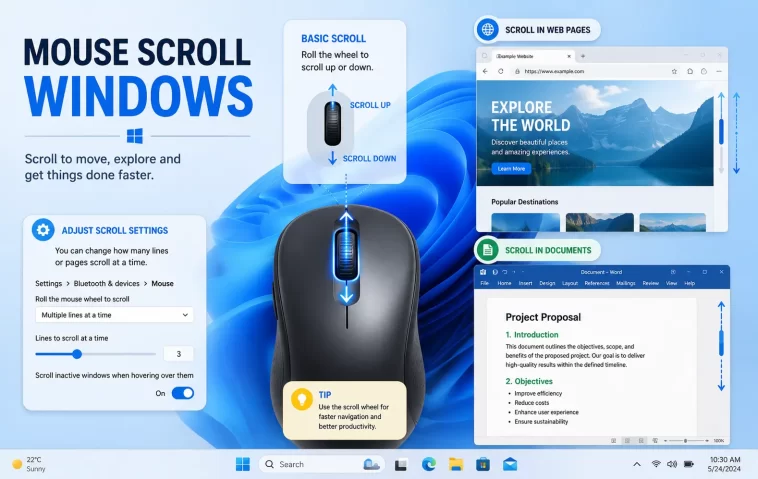
- Go to Settings > Bluetooth & devices > Mouse to adjust scroll speed and lines-per-notch
- “Roll the wheel to scroll” lets you set 1–100 lines per notch, or switch to “one screen at a time”
- Reversed scroll direction is usually a driver setting, not a Windows setting — check manufacturer software first
- Manufacturer mouse software (Logitech Options+, Razer Synapse, etc.) often overrides Windows settings silently
- Inconsistent scroll behavior between apps is frequently the app’s own scroll handling, not your system setting
Why Mouse Scroll Settings Don’t Behave the Way You Expect
A few different things tend to cause this, and they’re easy to mix up.
Windows controls scroll speed, but not scroll direction by default. This trips people up constantly. The Windows mouse settings panel only has a speed/lines control — there’s no native toggle for reversing scroll direction. That setting lives in the mouse driver or manufacturer software, if your mouse even has one installed.
Manufacturer software silently overrides the Windows panel. If you’ve got Logitech Options+, Razer Synapse, SteelSeries GG, or similar installed, that software is usually what’s actually controlling your scroll behavior in the background. Changing the Windows setting might do nothing at all, or it might apply briefly and then get reset the next time that software syncs its profile.
Precision touchpads use a separate settings page entirely. Laptop touchpad scrolling is handled under a different menu than a physical mouse, so if you’re trying to fix touchpad scroll and you’re in the mouse settings page, you’re in the wrong place — that’s a surprisingly common mix-up.
Some apps implement their own scroll handling. Browsers, PDF readers, and a few Office apps sometimes have internal smooth-scroll or acceleration settings that interact weirdly with your system-level scroll speed. So a fix that works fine in File Explorer might do something different in Chrome.
Bluetooth and wireless mice can have inconsistent polling. Not 100% sure why this happens on some setups and not others, but wireless mice occasionally report scroll events erratically when the battery’s getting low or the receiver is on an overloaded USB hub. It looks like a settings problem, but it’s a hardware/connection issue.
Step-by-Step Fix
Step 1: Open the mouse settings panel directly. Press Win + I, go to Bluetooth & devices, then Mouse.
Step 2: Adjust the scroll speed slider. Under “Roll the wheel to scroll,” set how many lines each notch moves — from 1 line up to 100, or check the box for “one screen at a time” if you want larger jumps.
Step 3: Toggle “scroll inactive windows when I hover over them” if needed. This is the setting that lets you scroll a background window without clicking into it first. Some people want it on, some find it disorienting and turn it off.
Step 4: Close any manufacturer mouse software before testing. If you’ve got Logitech, Razer, or another brand’s app running, close it from the system tray and test scrolling again. If behavior changes, that software was controlling things, not Windows.
Step 5: Check manufacturer software for direction and acceleration settings. If you’re trying to reverse scroll direction or adjust acceleration curves, that’s almost always in the brand’s own app, not Windows Settings.
What Actually Worked For Me
When my scroll wheel started jumping multiple lines per notch, I assumed it was a worn-out encoder in the mouse itself — it’s a few years old, and that’s a known failure mode for mechanical scroll wheels. I almost ordered a replacement mouse before checking anything else.
Turned out the actual cause was Logitech Options+ running in the background with an old per-app profile from a game I hadn’t played in months, and that profile had a scroll multiplier set to 3x. Windows settings looked completely normal the entire time — speed was set correctly, nothing seemed off in the panel itself. So the Windows side was never the problem here, even though that’s where I kept looking first.
Closing Options+ and resetting the profile fixed it instantly. And honestly, if I’d checked the system tray first instead of jumping straight to “the hardware is dying,” I’d have saved myself twenty minutes.
Advanced Fixes and Edge Cases
Check Device Manager for driver issues. Right-click Start, open Device Manager, expand “Mice and other pointing devices,” and look for a yellow warning icon. A generic or outdated driver can cause erratic scroll behavior that looks like a settings problem.
Use Event Viewer if scrolling stutters intermittently. Under Windows Logs > System, look for USB or HID-related errors around the times scrolling acts up — this can point to a power management or USB hub issue rather than a software setting.
Disable USB selective suspend for wireless dongles. Under Control Panel > Power Options > Change plan settings > Change advanced power settings, find “USB selective suspend setting” and turn it off. This fixes a specific case where wireless mice lose responsiveness, including scroll input, after sitting idle.
Roll back manufacturer software updates. If scroll behavior broke right after a Logitech, Razer, or similar app update, rolling back to a previous version is sometimes the fastest fix — manufacturer software updates occasionally introduce regressions in scroll handling that take a few weeks to get patched.
Prevention Tips
- Keep manufacturer mouse software updated, but check release notes if scroll behavior changes unexpectedly after an update
- Avoid running two mouse utilities at once (e.g., Logitech Options+ and a Windows third-party tweak tool) — they can conflict over who controls scroll input
- If you switch mice often, check for leftover per-app profiles in manufacturer software that might still be applying old settings
- Don’t assume a worn scroll wheel right away — software conflicts cause this more often than people expect
FAQ
Why can’t I find a scroll direction setting in Windows? Windows doesn’t have one natively for a standard mouse. You’ll need manufacturer software, or a third-party tool if your mouse doesn’t come with its own app.
Does changing scroll speed in Windows affect my touchpad too? No, touchpad scrolling is a separate setting under the same Bluetooth & devices page, just a different sub-menu.
My scroll setting resets every time I restart — why? Check for manufacturer software syncing a saved profile on startup. That’s the most common cause, more often than a Windows bug.
Is there a way to set different scroll speeds for different apps? Not through Windows itself. Some manufacturer software supports per-app profiles, though.
Editor’s Opinion
the lack of a built-in scroll direction toggle in windows still bugs me, not gonna lie. feels like something that should’ve been added years ago. if your scroll is acting weird, close your mouse software before doing anything else — that’s the fix that actually works most of the time, way more often than messing with the windows panel itself.
