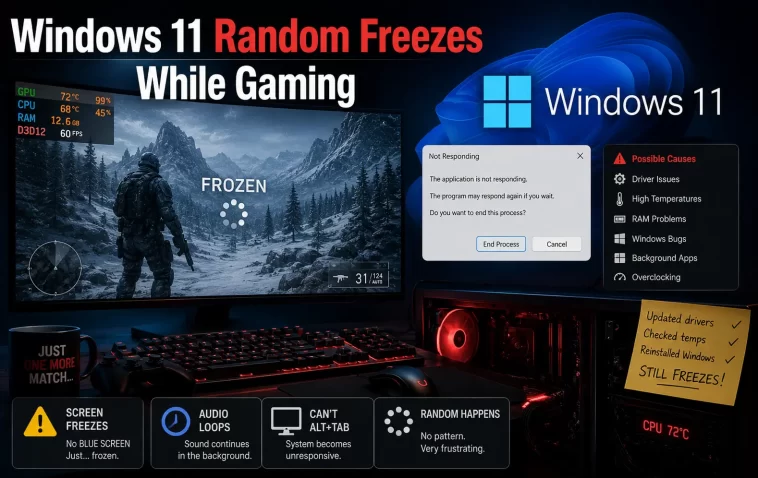
My PC froze mid-raid three times in one week — screen locked, audio looped on a half-second of sound, no blue screen, no error, nothing in the logs that jumped out at first glance. Windows 11 random freezes while gaming without a BSOD are some of the most annoying problems to diagnose because there’s no crash dump pointing you anywhere. You just get a frozen frame and a hard reboot.
This isn’t a one-fix problem. But there’s a logical order to work through it, and most people skip straight to reinstalling Windows when the actual cause is usually something smaller.
Quick Answer
- Check Event Viewer for Kernel-Power Event ID 41 — this confirms an ungraceful shutdown even without a visible crash
- Update GPU drivers using a clean install (DDU), not just the standard installer over the old one
- Disable XMP/EXPO memory overclocking temporarily to rule out unstable RAM timings
- Check temperatures during gaming — silent thermal shutdowns look identical to a freeze
- Run Windows Memory Diagnostic and a GPU stress test separately to isolate hardware vs. software
Why This Happens Without a BSOD
A BSOD means Windows caught an error it couldn’t recover from and reported it. A silent freeze usually means something failed at a lower level than Windows could even log — power delivery, GPU driver timeout, or a hard hang that took the whole system down before anything got written to disk.
GPU driver timeout (TDR) failing silently. Windows has a Timeout Detection and Recovery system that’s supposed to reset a hung GPU driver and recover the display. Sometimes it works and you get a brief flicker. Sometimes it doesn’t, and you get a full freeze instead, with no event logged because the recovery attempt itself never completed.
Power supply struggling under transient load spikes. This one gets overlooked constantly. Modern GPUs draw power in very short, very high spikes during demanding scenes, not a steady draw. A PSU that’s rated fine on paper for average wattage can still brown out for a fraction of a second during a spike, and that’s enough to freeze or hard-reset the system with zero warning.
Unstable RAM overclock or XMP/EXPO profile. RAM running outside its stable range can pass basic stress tests for hours and still freeze under the specific, chaotic memory access patterns that gaming produces. This is a genuinely overlooked cause — people blame the GPU or Windows long before they think to disable XMP.
Thermal throttling that crosses into a full shutdown. A frozen screen during a thermal event can look identical to a software hang. The difference is the cause: one’s a driver problem, the other is a CPU or GPU protecting itself at a hard limit, and the fix is completely different.
Background overlay or recording software conflicting with the GPU driver. Discord overlay, GeForce Experience overlay, MSI Afterburner, and recording tools all hook into the same rendering pipeline your game uses. And when two of them fight over that hook at the same time, the result is sometimes a freeze rather than a crash you’d actually see logged.
Corrupted or aging storage causing I/O stalls. Less common, but a failing SSD or a drive with bad sectors can stall so hard during a game-asset load that it looks exactly like a freeze, even though the actual fault is disk I/O, not the GPU or CPU at all.
Common Scenarios
This shows up differently depending on setup, which is part of why it’s hard to Google your way to an answer.
- High-end GPU, older PSU: Freezes tend to happen during demanding scene transitions or explosions — moments with sudden power draw spikes.
- Laptops: Often thermal-related, especially after dust buildup or running on battery instead of plugged in.
- Systems with XMP enabled by default from a prebuilt PC: Freezes appear random and unrelated to graphics load specifically, sometimes even happening at a desktop with the game minimized.
- Multi-monitor setups: GPU driver timeouts seem to happen more often here, possibly tied to higher overall rendering load, though that’s more of an observed pattern than a confirmed cause.
Step-by-Step Fixes
Step 1: Check Event Viewer for Kernel-Power Event ID 41. Open Event Viewer, go to Windows Logs > System, and filter for Event ID 41. If it’s there around the time of your freeze, that confirms an ungraceful shutdown happened — useful for ruling out “Windows itself just hung” versus a power-related cut.
Step 2: Do a clean GPU driver reinstall using DDU. Boot into Safe Mode, run Display Driver Uninstaller to fully remove the current driver, then install the latest driver fresh from the manufacturer’s site. A standard “update over the old driver” install often leaves conflicting files behind that a clean DDU pass avoids.
Step 3: Disable XMP/EXPO and test. Go into BIOS, disable your memory overclock profile, and run the same games or sessions that triggered freezes before. If freezing stops, your RAM kit or motherboard’s memory controller isn’t fully stable at those timings — even if it passed memtest before.
Step 4: Monitor temperatures and power draw during gameplay. Run HWInfo or a similar tool in the background while gaming. Watch for GPU temps spiking near throttle limits, or sudden voltage drops right before a freeze — both point toward hardware rather than software.
Step 5: Close overlay software one at a time and retest. Disable Discord overlay, GeForce Experience/NVIDIA App overlay, and any recording software. Test gaming sessions with each disabled individually rather than all at once, so you can actually identify which one (if any) was the conflict.
What Actually Worked For Me
I went straight for the GPU driver first, since that’s the obvious suspect. Did a full DDU reinstall, freeze happened again two days later in a different game. So that wasn’t it, or at least not the whole story.
Next I assumed it was Discord’s overlay since I’d seen that mentioned somewhere — disabled it, freeze happened again a week later during a much less demanding game, which didn’t fit the overlay theory at all since overlay conflicts usually show up during heavier rendering load, not light ones.
What actually fixed it, almost by accident, was disabling XMP while troubleshooting something unrelated for a different problem entirely. Three weeks with zero freezes after that. Turned out my RAM kit was rated for a speed the motherboard’s memory controller couldn’t fully sustain under the kind of erratic access patterns gaming creates, even though it passed every memtest I threw at it for hours. Running at stock JEDEC speed instead of the XMP profile cost me maybe 3-4% performance in benchmarks, which is a trade I’d take every time over a frozen screen mid-game.
Your cause might genuinely be the GPU driver or overlay software — those really are common causes. But if you’ve tried the obvious stuff and it’s still happening, RAM stability is worth checking earlier than most guides suggest, not as a last resort.
Advanced Fixes and Edge Cases
Run Windows Memory Diagnostic and a separate stress test. Windows’ built-in tool catches obvious RAM faults, but it’s not aggressive enough to catch marginal instability. Pair it with something like TestMem5 or Karhu for a more demanding pass that mimics gaming’s chaotic access patterns better than a basic memtest does.
Check Reliability Monitor for a pattern, not just Event Viewer. Open Reliability Monitor (search for it in Start) and look at the timeline around your freezes. Sometimes there’s a driver update or software install that lines up suspiciously close to when the freezing started, even if no error got logged at the actual freeze time.
Test with a different PSU if you have one available. Borrowing a known-good, higher-wattage PSU temporarily is one of the more reliable ways to rule power delivery in or out, since there’s no software diagnostic that perfectly catches a microsecond brownout.
Underclock or undervolt the GPU slightly as a diagnostic step. If freezes stop with a mild undervolt, that points toward the GPU running right at the edge of stability under load — not necessarily broken, just tuned too aggressively out of the box, which is common on factory-overclocked cards.
Check for outdated motherboard chipset drivers and BIOS. This gets overlooked constantly. An outdated chipset driver or an old BIOS version can cause exactly this kind of vague, unexplainable freeze, especially on AM5 and recent Intel boards where early BIOS versions had real memory-stability bugs that later updates fixed.
Prevention Tips
- Don’t enable XMP/EXPO and assume it’s automatically stable just because it passed a basic memtest
- Keep GPU drivers updated, but do clean installs (DDU) for major version jumps rather than installing over the old one
- Monitor temps occasionally, not just when something already seems wrong
- Avoid running more than one overlay/recording tool at the same time if you can help it
- Update motherboard BIOS periodically, especially on relatively new platforms still getting stability patches
FAQ
Why doesn’t a freeze show up in Event Viewer at all sometimes? If the system hard-locks completely, Windows may not get the chance to log anything before you have to force a reboot. That’s expected, unfortunately.
Is this more common with certain GPU brands? Not really brand-specific — it’s more tied to individual driver versions and specific game engines than the manufacturer overall.
Could this be a Windows 11 bug rather than my hardware? Possible, but less likely than people assume. Most cases trace back to drivers, power, or RAM stability rather than Windows itself.
How long should I test after disabling XMP before trusting the result? At least a week of normal gaming, honestly. Marginal instability sometimes takes a few sessions to show up again.
Will reinstalling Windows fix this? Rarely, since the root causes here are almost always hardware or driver related, not OS corruption. It’s one of the most commonly recommended fixes that almost never actually solves this specific problem.
Editor’s Opinion
if you’ve already updated drivers and it’s still happening, just disable xmp for a week before doing anything more drastic. it’s the one thing nobody checks first and it fixed it for me after weeks of blaming the gpu for no reason. reinstalling windows for this is mostly a waste of an afternoon, not gonna lie.
