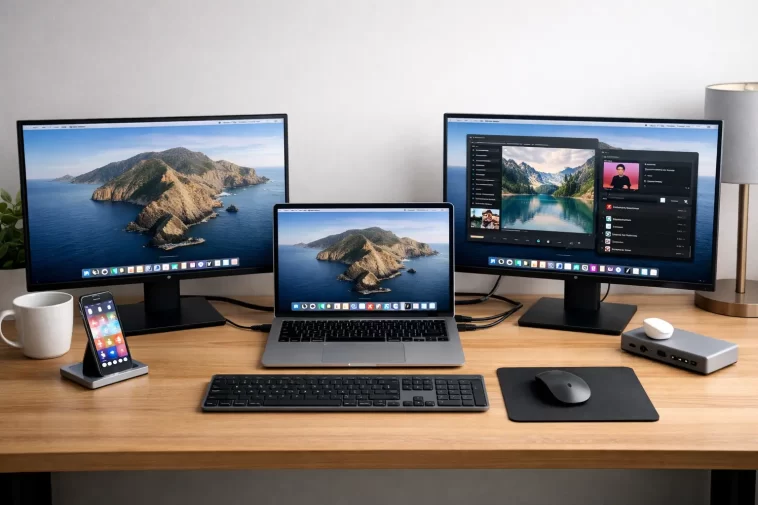
I spent an embarrassing amount of time last year trying to get two 4K monitors running off my M2 MacBook Air before I figured out the problem wasn’t my cables. A proper MacBook Air dual monitor setup isn’t something Apple’s chip lets you do out of the box on most models, and that one fact will save you a trip back to the electronics store.
So here’s the short version before we get into the why: the GPU inside the M1 and M2 MacBook Air can only drive one external display, period. The M3 model loosened that up a little, but only under a specific condition most people never use. If you want two monitors, you’re either working around the chip or you’re not getting it done natively.
Quick Answer
- M1 and M2 MacBook Air: one external display max, lid open or closed, no exceptions.
- M3 MacBook Air: can drive two external displays, but only with the laptop lid closed (clamshell mode).
- The fastest real fix for lid-open dual monitors is a DisplayLink-based dock or adapter — it bypasses the GPU’s display pipe limit entirely.
- An iPad running Sidecar can act as a second screen without counting against the external display limit.
- Buying a “better” USB-C hub will not fix this. It’s not a port problem.
Why It Fails
This trips people up because it feels like it should be a cable or hub issue. It isn’t, and that’s the first thing to get straight.
The chip only has so many display pipes. Apple Silicon GPUs are built with a fixed number of display engines — basically dedicated hardware paths that push pixels to a screen. The base M1 and M2 chips were built with one external display pipe. It doesn’t matter if you’ve got a Thunderbolt dock, a triple-headed USB-C hub, or daisy-chained adapters — there’s no software setting that conjures up a pipe that doesn’t physically exist on the silicon.
macOS will mirror instead of extending when it hits the wall. Plug in a second monitor past the limit and instead of erroring out, macOS often just mirrors the first external display onto the second one, or refuses to extend onto it at all. People assume something’s broken because the screen “works” — it’s just stuck showing a duplicate.
Clamshell mode changes the math on M3, but only sometimes. Apple quietly added a second display pipe to the M3 MacBook Air, but it’s gated behind clamshell mode — lid closed, external keyboard and mouse, external displays only. Open the lid back up and you’re back to one external display, full stop. A lot of people buy an M3 Air expecting open-lid dual monitor support because they half-remembered a YouTube video, and that’s not quite how it works.
DisplayLink and non-DisplayLink adapters are not the same thing, and a surprising number of “multi-monitor” docks on Amazon don’t actually use DisplayLink chips — they just split one native output, which still counts against the same single display pipe. So you can buy a dock marketed as “dual 4K” and still hit the wall.
Common Scenarios
- Home office, lid open, two external monitors: this is where most people hit it. Works fine with one monitor, second one mirrors or won’t activate.
- M3 Air owners assuming it works lid-open: it doesn’t — only in clamshell.
- Conference room or hot-desk setups: USB-C hub plugged into a shared monitor dock, second monitor connected via HDMI splitter off the first — this never works natively and usually isn’t even attempting the right kind of fix.
- Video editors or anyone pushing 4K@60Hz to two screens: even with DisplayLink, expect some compromise, since DisplayLink renders over USB rather than native GPU output, and high refresh 4K can get choppy on basic adapters.
Native Display Support By Chip
| Chip | Lid Open | Lid Closed (Clamshell) | Notes |
|---|---|---|---|
| M1 (2020 Air) | 1 external display | 1 external display | No change with lid state |
| M2 (2022 Air) | 1 external display | 1 external display | Same limitation as M1 |
| M3 (2024 Air) | 1 external display | 2 external displays | Second pipe only unlocks closed-lid |
Not every row needed filling in here — the M1 and M2 behave identically regardless of lid state, and that’s worth knowing before you buy a closed-lid stand expecting it to fix anything on an older chip.
Step-by-Step Fixes
Step 1: Confirm which chip you actually have
Apple menu → About This Mac. If it says M1 or M2, the lid-open dual monitor route is closed to you natively. If it’s M3, try clamshell mode first since it’s free and built in.
Step 2: Try clamshell mode (M3 only)
Connect an external keyboard, mouse, and both monitors. Close the lid. Wake the Mac by clicking the mouse or pressing a key on the external keyboard — not the trackpad, since that’s now under the closed lid. Give it a few seconds; the second display sometimes takes a moment to initialize.
Step 3: Get a DisplayLink-certified dock or adapter
This is the actual fix for M1, M2, or M3-with-lid-open setups. Look specifically for “DisplayLink” in the product description or chipset spec — not just “supports dual monitors,” since plenty of cheap docks claim that without the chip that makes it possible. Brands like Plugable, Kensington SD-series, and some CalDigit models use genuine DisplayLink chipsets.
- Install the DisplayLink Manager app from DisplayLink’s own site (not always preinstalled, and macOS will often prompt for a System Settings permission you need to approve).
- Connect the dock via USB-C.
- Plug your second (and sometimes third) monitor into the dock’s HDMI/DisplayPort outputs.
- Open Displays in System Settings and arrange them.
Step 4: Use an iPad as a second display via Sidecar
If you already own an iPad, this costs nothing extra. Sidecar uses a separate rendering path from the native display pipes, so it doesn’t compete with your one external monitor limit. It’s wireless or wired (USB-C cable for lower latency), and works well for reference panels, Slack, or a notes app — less great as a primary work monitor since it’s still iPad-sized.
Step 5: Consider Luna Display for a second Mac or iPad
Similar concept to Sidecar but more flexible — turns a spare iPad or even another Mac into an extended display over Wi-Fi or USB. It’s a paid app, and performance depends a lot on your network, so your mileage may vary here.
What Actually Worked For Me
My first instinct was the dumb one — I assumed my USB-C hub was just cheap, so I bought a more expensive one. Same result: second monitor mirrored the first, no amount of restarting fixed it. Tried a different cable. Tried resetting NVRAM, which, in hindsight, never made sense for a hardware display pipe limitation, but at 11pm you try things that don’t make sense.
What actually got me unstuck was a comment buried in a Reddit thread about Apple Silicon GPU display engines — somebody just said, flatly, “the M1 and M2 only have one display pipe, it’s not your hub.” That’s not entirely accurate as I first read it — I assumed “pipe” meant a software limit Apple could patch, but it’s baked into the chip itself. Once I understood that, I stopped troubleshooting cables and bought a DisplayLink dock instead. Worked on the first try, and I felt a little annoyed I hadn’t looked it up sooner.
Advanced Fixes and Edge Cases
Checking which display pipe is active via system logs. Open Console.app and filter for “WindowServer” while connecting your second monitor — you’ll often see explicit rejection messages when macOS can’t allocate a display pipe to a new screen. It’s not pretty output, but it confirms the hardware-limit theory if you’re still doubting it.
DisplayLink performance under heavy GPU load. Since DisplayLink renders frames in software and pushes them over USB, anything GPU-intensive — video editing timelines, 3D work, even some Zoom screen-share scenarios — can lag on the DisplayLink screen specifically while your native display stays smooth. This is the trade-off nobody mentions on the product page.
Thunderbolt dock daisy-chaining. Some Thunderbolt docks support daisy-chaining multiple displays, but on a single-pipe MacBook Air, daisy-chaining still only gives you one usable external output — the rest mirror or go blank. This catches people who assume Thunderbolt’s bandwidth automatically means more displays.
External GPU (eGPU) is not an option here. Apple Silicon Macs don’t support eGPUs at all, so that’s a dead end some Intel-Mac-era forum posts still suggest. Worth flagging since old threads about this topic come up high in search results.
Prevention Tips
- Check the chip generation and lid-state requirement before buying any monitor hardware.
- Buy adapters that explicitly list “DisplayLink” in the spec sheet — not just “supports multiple displays.”
- If you’re going M3 specifically for dual monitors, plan around clamshell mode from the start rather than discovering the lid-open restriction later.
- Keep DisplayLink Manager updated — older versions have had compatibility hiccups with macOS point releases.
FAQ
Will a Thunderbolt dock let my M2 Air run two monitors? No. Thunderbolt bandwidth isn’t the bottleneck — the chip’s display pipe count is. A Thunderbolt dock without DisplayLink still hits the same wall.
Does closing the lid on an M2 MacBook Air unlock a second display? No, this only applies to M3 and later. M1 and M2 are capped at one external display regardless of lid state.
Is DisplayLink as good as a native display connection? For office work, browsers, docs, email — yes, mostly. For video editing or gaming on that second screen, you’ll likely notice some lag or stutter.
Can I use two iPads as dual external displays? Sidecar only supports one iPad as an external display at a time, so no.
Does macOS Sonoma or Sequoia change the M1/M2 limit? From what I’ve seen, no — this is a hardware constraint, not something a software update changes.
Editor’s Opinion
Honestly this whole limitation feels like a spec sheet footnote Apple buried for a reason — most people don’t find out until they’ve already got two monitors on their desk and one of them won’t cooperate. The clamshell-only fix on M3 is a weird half-step too, feels like Apple solved it but didn’t want to commit fully. DisplayLink works, it’s just not glamorous, and nobody wants to admit their $1000+ laptop needs a $40 dongle to do something a budget Windows machine handles natively.
