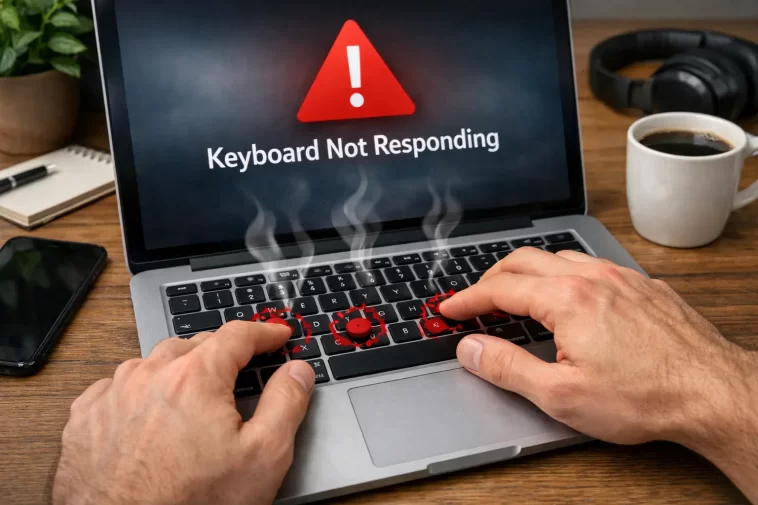
A MacBook keyboard that stops responding mid-session is one of those problems that feels random but almost never is. I’ve run into this twice — once on a 2019 MacBook Pro with the butterfly keyboard, once on an M1 Air — and the causes were completely different both times. The fix depends heavily on which Mac you have and exactly what “not responding” means.
First, Narrow Down the Problem
“Keyboard not responding” covers a lot of ground. Before trying anything, figure out which category you’re in:
- The entire keyboard is dead — no keys register at all
- Specific keys don’t work — one key, a row, or a cluster
- Keys work but type wrong characters — input source or layout issue
- Keys work in some apps but not others — software/permissions problem
- The keyboard works but feels wrong — stuck keys, double-typing, missed keystrokes
Each of these has different causes. Treating them all the same is why most troubleshooting guides waste your time.
The Most Common Causes
Software glitch with the keyboard daemon. macOS runs a process called hidd (Human Interface Device Daemon) that handles keyboard input. It occasionally crashes or gets stuck, especially after waking from sleep. When this happens, the keyboard goes completely unresponsive — trackpad still works, mouse cursor moves, but nothing you type registers.
Stuck modifier key. If Caps Lock, Shift, Control, Command, or Option gets physically or logically stuck, it can make the keyboard seem broken when really it’s just sending every keystroke with an unintended modifier attached. This is more common than it sounds, and it’s one of the causes people consistently overlook.
Input source switched accidentally. Command + Space opens Spotlight; Command + Option + Space switches input sources if you have multiple keyboard layouts installed. One accidental keystroke and suddenly your keyboard is typing in a different language or layout. Everything works, it just looks broken.
The butterfly keyboard. If you have a MacBook from 2015–2019 with the butterfly mechanism, this is its own category of problem entirely. Dust or debris under a single key can cause it to stop registering, double-type, or stick. Apple acknowledged this was a design defect and ran a free replacement program — though that program has since ended.
Corrupted keyboard preferences file. macOS stores keyboard settings in a preferences file that can occasionally get corrupted, especially after a failed software update. When this happens, behavior gets weird in hard-to-predict ways.
SMC or firmware issue. Less common, but the System Management Controller handles low-level hardware behavior including some keyboard functions. An SMC reset sometimes fixes keyboard problems that don’t respond to anything else.
Step-by-Step Fixes
Step 1: Restart, but do it deliberately
Not sleep — an actual restart. If hidd has crashed, this fixes it. Hold the power button if the keyboard isn’t responding enough to use the menu.
If the keyboard comes back after a restart but the problem keeps returning, that points to a software process that’s interfering with input — worth checking Activity Monitor once you’re back up.
Step 2: Check for a stuck modifier key
Press each modifier key individually — Shift (both sides), Command (both sides), Option, Control, Caps Lock. Then try typing. Also look at the Caps Lock indicator light; if it’s on when it shouldn’t be, that’s a clue.
In System Settings → Keyboard, there’s a Modifier Keys section. Sometimes resetting these to defaults clears a logical stuck-key state.
Step 3: Check your input source
Look at the menu bar. If you see a flag or a language abbreviation you don’t recognize, your input source switched. Click it and select your normal keyboard layout.
To prevent this happening accidentally: System Settings → Keyboard → Input Sources → uncheck “Use the Caps Lock key to switch to and from ABC” if you have it enabled.
Step 4: Delete the keyboard preferences file
Open Terminal and run:
rm ~/Library/Preferences/com.apple.HIToolbox.plistThen restart. macOS will recreate this file with defaults. This fixes corrupted preference issues and takes about 30 seconds to try.
Step 5: Reset SMC (Intel Macs only)
On Intel MacBooks with a T2 chip: shut down, then hold Control + Option + Shift for 7 seconds, then add the power button and hold all four for another 7 seconds. Release, wait a few seconds, power on normally.
On older Intel MacBooks without T2: shut down, hold Shift + Control + Option + Power for 10 seconds, release, power on.
Apple Silicon Macs don’t have an SMC in the traditional sense — just restart, and the equivalent process happens automatically.
Step 6: Boot into Safe Mode
Hold Shift while starting up (on Intel) or hold the power button until you see startup options, then Shift-click Continue in Safe Mode (on Apple Silicon).
Safe Mode disables third-party extensions and login items. If the keyboard works fine in Safe Mode but not normally, something you’ve installed is the problem. Common culprits: Karabiner-Elements, keyboard customization apps, some VPN software.
Step 7: Create a new user account and test
If Safe Mode fixed it but you can’t figure out which app is causing it, the fastest diagnostic is to create a new user account (System Settings → Users & Groups) and log in fresh. If the keyboard works there, the problem is in your user profile, not the hardware.
The Butterfly Keyboard: A Special Case
This deserves its own section because the troubleshooting is completely different.
If you have a MacBook from 2015–2019 — specifically any model with the butterfly keyboard mechanism — and individual keys are failing or behaving erratically, it’s almost certainly the mechanism itself. Not software. Not SMC. The physical switch under the key is either jammed with debris or has failed mechanically.
Apple’s free replacement program for butterfly keyboard issues officially ended, but AppleCare coverage still applies if you have it. Out of warranty, Apple will replace the entire top case (keyboard + battery + trackpad as one unit) which is expensive. Third-party repair shops can sometimes replace individual keys for less, but the parts are fiddly.
Before going to repair: try compressed air. Hold the MacBook at a 75-degree angle (not flat, not vertical — tilted), spray compressed air across the affected keys in a left-to-right sweeping motion, rotate the Mac and repeat. Apple actually published this method officially. It works sometimes. Not always, but sometimes.
What Actually Worked for Me
On the M1 Air, the keyboard went completely silent — nothing typed, not even in the login screen password field. Restarting didn’t help. I was genuinely stumped for about 20 minutes.
Turned out to be Karabiner-Elements, a keyboard remapping app I’d installed and half-forgotten about. It had updated itself overnight and apparently the new version was conflicting with something in macOS at the time. I only figured it out because Safe Mode fixed the problem immediately, which pointed squarely at a third-party extension.
Uninstalled Karabiner, restarted normally, keyboard came back. I reinstalled it a week later when a newer version came out and it was fine. Not 100% sure what the exact conflict was, but the fix was clean.
The 2019 MacBook Pro situation was different — that was the butterfly keyboard, a specific key that started requiring harder and harder presses before eventually not registering at all. Compressed air bought me a few weeks. Eventually had it replaced.
When It’s Definitely Hardware
Some signs that you’re past software fixes and looking at hardware:
- The problem persists in Safe Mode AND with a fresh user account
- Apple Diagnostics (hold D at startup) reports a keyboard error
- Physical damage is visible — liquid contact indicators triggered, keys look warped
- The issue started immediately after a drop or liquid spill
- Specific keys work but feel physically different from surrounding keys
If all software fixes fail, Apple Service or an Apple Authorized Service Provider is the next step. They can run more granular hardware diagnostics than you can do yourself.
Advanced: Check Console Logs
If the problem is intermittent and you want to understand what’s triggering it, open Console (Applications → Utilities → Console) and filter for “keyboard” or “hidd” while the problem is occurring.
You’re looking for crash reports or repeated error messages tied to hidd, WindowServer, or any third-party kernel extensions. It won’t always give you a clean answer, but it can point at a specific process or driver worth investigating.
FAQ
My MacBook keyboard works at the login screen but stops working after I log in. What does that mean?
Almost certainly a software or user profile issue, not hardware. Something loading at login is interfering. Boot into Safe Mode, which bypasses login items, and see if it persists there.
Only one key stopped working. Is this a hardware problem?
On butterfly keyboard MacBooks, probably yes. On newer scissor-switch models, try the compressed air method first, then delete the HIToolbox preferences file. If one specific key is dead on a modern Mac after software fixes, it may need service.
My keyboard randomly types extra characters or repeats keystrokes.
Check System Settings → Keyboard → Key Repeat and Delay Until Repeat settings. Also check for debris under the key. On butterfly keyboards, this was a known failure mode.
Could a macOS update have broken my keyboard?
Yes, it happens occasionally. Check if the problem started right after an update. If so, look for others reporting the same issue online — there’s usually a subsequent point release that fixes it. In the meantime, an SMC reset and deleting the HIToolbox plist file are worth trying.
External keyboard works but built-in doesn’t. What does that tell me?
It means the operating system is fine and input is working — the problem is specific to the built-in keyboard, either hardware or a driver issue tied to it. Run Apple Diagnostics to check for hardware faults.
I spilled something on my keyboard. Keys work but feel sticky.
Don’t use it until you clean it. Turn the Mac off immediately if you haven’t. Let it dry completely — at least 48 hours — before powering on. For sticky keys after drying, isopropyl alcohol (90%+) on a cotton swab applied carefully around the key edges can help dissolve residue.
Editor’s Opinion
honestly the hidd daemon crashing is more common than apple lets on, and a plain restart fixes it 80% of the time. the cases that actually take work are butterfly keyboard failures and third-party software conflicts. if you have a 2015–2019 MacBook and a key is dying, don’t waste time on software fixes — it’s the hardware. and if you use Karabiner or any keyboard remapping tool, that’s always my first suspect when things get weird after an update.
