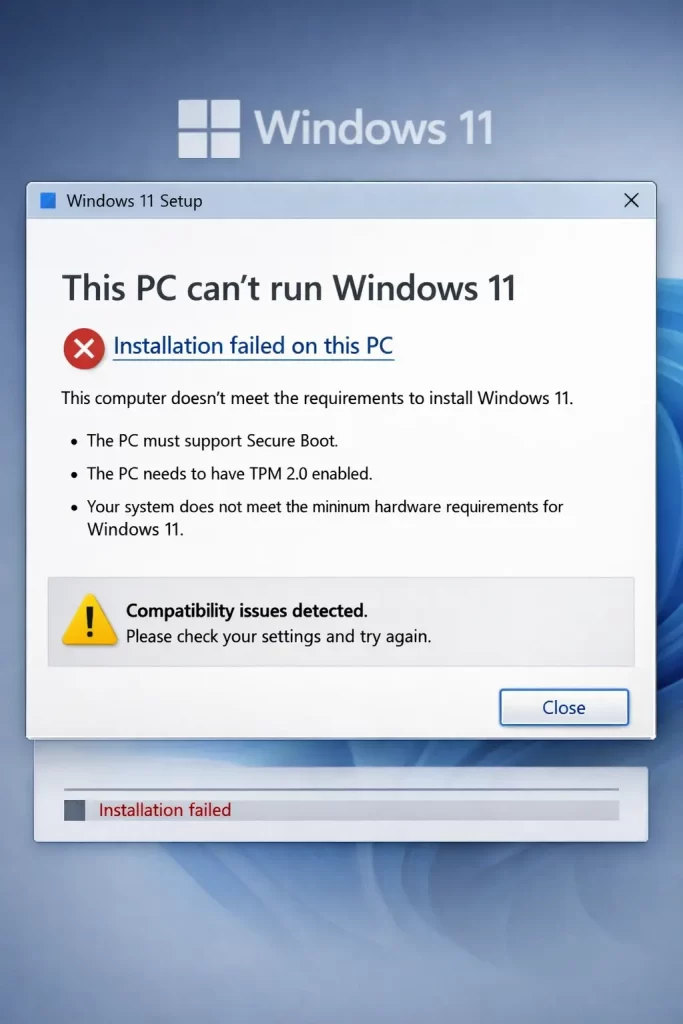
You click through the installer, feeling good about finally upgrading, and then you hit it: this PC can’t run Windows 11. No real explanation, just a flat rejection. I’ve hit this message on three different machines over the last year, and every single time the actual cause was something different than what I assumed at first.
So let’s skip the theory and get into what’s actually going on, and what fixes tend to work in practice versus what just wastes your afternoon.
Quick Answer
If you’re in a hurry, here’s the short version:
- Check TPM 2.0 status in
tpm.msc— this is the most common blocker - Confirm Secure Boot is enabled in BIOS/UEFI
- Verify your CPU is on Microsoft’s supported list (older i5/i7 chips get excluded more than people expect)
- Make sure your disk is using GPT, not legacy MBR
- If all else fails, use the Installation Assistant with a registry bypass — but read the risks below first
Why It Fails
There isn’t one reason “this PC can’t run Windows 11” shows up. From what I’ve seen, it’s almost always one of these:
1. TPM 2.0 is missing, disabled, or too old. Windows 11 requires Trusted Platform Module version 2.0. A lot of motherboards from 2016–2019 technically support TPM 2.0 through firmware (fTPM on AMD, PTT on Intel) but ship with it turned off by default. The PC has the hardware. It’s just not switched on.
2. Secure Boot is disabled. This one trips up a surprising number of people who built their own PC and turned off Secure Boot years ago to dual-boot Linux, then forgot about it.
3. The CPU isn’t on Microsoft’s approved list. And this is the one that makes people angriest, honestly. You can have a perfectly capable 7th-gen Intel chip that runs everything fine, and Windows 11 will still block it because it’s not on the compatibility list. It’s not a power issue. It’s a policy decision.
4. The system disk is still MBR instead of GPT. Windows 11 needs a GPT partition table with UEFI boot mode. Machines upgraded from Windows 7 or 8 often never got converted.
5. RAM or storage falls just under the minimum. 4GB RAM and 64GB storage are the hard floors. Some machines report enough total RAM but the PC Health Check tool still flags it — usually a BIOS memory allocation quirk, not an actual shortage.
Common Scenarios
- Home-built desktops from 2015–2018: TPM present but disabled by default in BIOS.
- Business laptops with IT-managed BIOS: Secure Boot locked off intentionally, sometimes without the user’s knowledge.
- Dual-boot Linux/Windows machines: Secure Boot and sometimes CSM (Compatibility Support Module) both disabled for Linux compatibility.
- Older Dell/HP OEM machines: BIOS menus that hide TPM settings under oddly named submenus like “PTT” or “Security Device Support.”
- Upgraded-not-fresh-installed systems: Still running MBR from a Windows 7 install a decade ago.
Technical Comparison: Common Blockers
| Blocker | How You’ll Know | Typical Fix | Reliability |
|---|---|---|---|
| TPM disabled | tpm.msc shows “not found” or version below 2.0 | Enable fTPM/PTT in BIOS | Works almost every time |
| Secure Boot off | PC Health Check flags it directly | Enable in BIOS, may need MBR→GPT first | Works, but order matters |
| CPU unsupported | Health Check names the processor as the issue | Registry bypass or clean install workaround | Works but unsupported by Microsoft |
| MBR disk | diskpart shows MBR under disk properties | Convert with mbr2gpt.exe | Works, but back up first |
Not every machine hits just one of these — I’ve seen a laptop fail on both TPM and Secure Boot at the same time, which makes the error message even less helpful since Windows doesn’t always tell you which one it choked on first.
Step-by-Step Fixes
Step 1: Check TPM Status
Press Win + R, type tpm.msc, hit enter. If it says “Compatible TPM cannot be found,” your TPM is either disabled or genuinely absent.
Go into BIOS/UEFI (usually Del or F2 on boot) and look for:
- Intel systems: “PTT” or “Intel Platform Trust Technology”
- AMD systems: “fTPM” or “AMD PSP fTPM”
Enable it, save, reboot. Re-check tpm.msc.
Step 2: Enable Secure Boot
Still in BIOS, find the Boot tab. Secure Boot usually needs UEFI mode active (not “Legacy” or “CSM”) before it’ll even let you toggle it on. If Secure Boot is greyed out, that’s your sign CSM is still enabled — turn that off first.
Step 3: Convert MBR to GPT (If Needed)
Open Command Prompt as admin and run:
mbr2gpt /validateIf validation passes:
mbr2gpt /convertBack up your data before this step. It’s usually safe, but “usually” is doing some work in that sentence.
Step 4: Run PC Health Check Again
Download Microsoft’s PC Health Check app and re-scan. It’ll tell you specifically what’s still blocking the install — CPU, RAM, TPM, or Secure Boot.
Step 5: If the CPU Is the Blocker
This is where things get less official. You can bypass the CPU and TPM check using a registry edit during setup, or by modifying appraiserres.dll. Microsoft doesn’t support this path, and updates aren’t guaranteed on unsupported hardware. But it does work for a lot of people running older but still-capable machines.
What Actually Worked For Me
Okay, so on my own desktop — an aging but still fine Ryzen 5 build — I assumed it was the CPU right away, since I’d read a dozen forum posts blaming unsupported processors. I spent almost an hour digging through registry bypass guides before even opening BIOS.
That wasn’t it. Turns out fTPM was just switched off, buried under an “Advanced CPU Configuration” submenu that had nothing indicating it was TPM-related. One toggle, one reboot, done. I got a little lucky that a coworker mentioned offhand that AMD hides fTPM in weird places — otherwise I’d probably still be messing with registry edits for a problem that didn’t exist.
On a second machine, a client’s old business laptop, it really was the CPU. No amount of BIOS digging fixed it because the hardware genuinely wasn’t on the list. Registry bypass was the only path there, and it worked, but I told them plainly it’s not something Microsoft guarantees long-term support for.
Advanced Fixes and Edge Cases
Check Event Viewer for setup failure codes. Under Applications and Services Logs > Setup, failed installs often leave a specific error code (like 0x8007002C or 0xC1900101) that narrows down whether it’s a driver conflict, disk issue, or compatibility block rather than a generic hardware fail.
Driver conflicts during in-place upgrade. Sometimes it’s not hardware at all — it’s a third-party antivirus or an old GPU driver interfering with setup. Uninstalling anything non-Microsoft security software before the upgrade fixes more of these than people expect.
Setup log deep-dive. setupact.log and setuperr.log in C:\$WINDOWS.~BT\Sources\Panther (if the failed install left remnants) will usually name the exact failing check. Not glamorous reading, but it’s the most direct way to confirm the cause instead of guessing.
BIOS version itself. An outdated BIOS can misreport TPM or Secure Boot status even when the hardware supports both. Updating BIOS firmware occasionally fixes a “TPM not found” error that no in-Windows setting could touch.
What Rarely Works
Reinstalling the PC Health Check app repeatedly doesn’t fix anything — it’s just a detector, not a repair tool, and people burn time reinstalling it hoping for a different verdict. Similarly, generic “run as administrator” advice gets repeated a lot in comment sections and almost never addresses TPM or CPU blocks, since those are hardware-level checks, not permission issues.
Prevention Tips
- Check TPM and Secure Boot status before attempting any major Windows upgrade, not after it fails
- Keep BIOS firmware reasonably current, especially on machines older than 3–4 years
- Back up before any MBR-to-GPT conversion, even though it’s generally safe
- If buying new hardware, cross-check the CPU against Microsoft’s supported list first — don’t assume “recent enough” is good enough
FAQ
Why does my PC show enough RAM but still fail the RAM check? Usually a BIOS-level memory allocation issue, not an actual shortage — check for any memory reserved for integrated graphics.
Can I install Windows 11 on unsupported hardware safely? You can, using a bypass, but Microsoft may withhold updates later, and that’s a real tradeoff, not just a warning label.
Does enabling TPM erase my files? No. Enabling fTPM/PTT in BIOS doesn’t touch your data.
Is the registry bypass permanent? It applies at install time only — future feature updates can still trigger compatibility checks again.
Will converting MBR to GPT wipe my drive? mbr2gpt is designed to preserve data, but backups exist for a reason.
Editor’s Opinion
honestly this whole compatibility check thing feels overkill for how many machines get flagged that run windows 11 totally fine once you bypass it. TPM stuff makes sense i guess for security, but the CPU list feels more like a hardware sales push than anything technical. anyway if your pc fails the check, dont panic, its usually fixable in 10 mins once you know where to look in bios.
