The printer’s own little screen said connected, full signal bars, network name matching my router exactly. Windows said offline anyway. That contradiction is the whole problem in a nutshell — your printer can be completely fine on the network while your computer has simply lost track of it, and from what I’ve seen, that mismatch confuses people way more than an actual dead connection would.
Quick Answer
- Check the “Use Printer Offline” setting in your print queue first — Windows can silently flip this on, and clearing it fixes the issue immediately when that’s the cause
- Confirm your computer and printer are on the exact same network, not a guest network or a 5GHz/2.4GHz split some routers create
- Clear a stuck print queue and restart the Print Spooler service before touching anything else
- Run Diagnose & Fix inside the HP Smart app — it automates most of this in one pass
- If nothing sticks, remove the printer from Windows entirely and re-add it fresh, since a stale IP address is a very common root cause
Why the Printer and Your Computer Disagree
So this is the part that actually explains the frustrating contradiction — the printer’s own network status and Windows’ printer status are two separate things being tracked in two separate places, and they can drift out of sync without either device doing anything wrong.
Windows can silently mark a printer offline on its own. There’s a literal checkbox, “Use Printer Offline,” buried in the print queue settings, and it doesn’t take much for it to get toggled — sometimes a stalled job flips it, sometimes it just happens after a sleep/wake cycle. Once it’s set, Windows won’t even try to reach the printer regardless of how well-connected it actually is.
The printer’s IP address changed. Most home networks assign IP addresses dynamically, and if your printer’s address shifts after a router reboot or a long time offline, Windows can keep trying to reach the old address. The printer looks perfectly connected from its own display because it is — just at a different address than the one Windows has saved.
A stuck print job jams the whole queue. One corrupted or stalled job can make everything behind it appear stuck, and the printer reports as offline as a side effect even though the actual connection is fine.
Network profile mismatches on Windows. If your PC’s network connection is set to “Public” instead of “Private,” Windows applies stricter security rules that can block the kind of local network traffic printer discovery depends on.
Being on the wrong network entirely, even when it looks right. Some routers create separate 2.4GHz and 5GHz networks with similar names, or a “guest” network that looks identical to your main one. If the printer and computer end up on different bands or networks, they genuinely can’t see each other even though both show “connected” to something.
Outdated or mismatched drivers after an OS or firmware update. When Windows updates and the printer driver doesn’t keep pace (or vice versa), the two can lose the ability to communicate status correctly, which shows up as a persistent offline flag even when the underlying connection works.
Common Scenarios
- Right after a router restart or firmware update — printer’s IP likely changed, Windows still has the old one cached
- After the computer wakes from sleep — a common trigger for Windows silently setting “Use Printer Offline”
- Multi-band home routers (2.4GHz + 5GHz with similar SSIDs) — printer and computer connected to different bands without realizing it
- Shared/office printers with multiple users — one person’s setting change or driver mismatch affecting everyone’s view of the printer’s status
- Public network profile on a home Wi-Fi connection — Windows treating your own trusted network like an untrusted one
Technical Comparison Table
| Symptom | Likely Cause | Fix |
|---|---|---|
| Printer’s own screen shows connected, full signal | Windows-side issue, not the printer’s Wi-Fi | Check “Use Printer Offline,” clear print queue |
| Worked yesterday, broke after a router restart | Printer’s IP address changed | Remove and re-add printer, or set a static IP |
| Stuck immediately after computer wakes from sleep | Windows silently toggled offline mode | Uncheck “Use Printer Offline” in the print queue |
| Multiple stalled jobs sitting in the queue | Queue jam, not a connection problem | Cancel all jobs, restart Print Spooler |
| Persists across every fix, multiple devices affected | Driver/firmware mismatch or wrong network entirely | Verify exact network match, reinstall drivers |
Step-by-Step Fixes
Step 1: Check the “Use Printer Offline” setting first
This is genuinely the single most common cause of this exact symptom, and it costs nothing to check.
Windows 11: Settings > Bluetooth & devices > Printers & scanners > select your printer > Open print queue. In the Printer menu, make sure Use Printer Offline is unchecked.
Windows 10: Settings > Devices > Printers & scanners > select your printer > Open queue > Printer menu, and clear both Pause Printing and Use Printer Offline if either is checked.
Step 2: Clear the print queue
In that same queue window, cancel every pending job, even ones that look harmless. A single stuck job can be enough to make the printer report offline as a side effect.
Step 3: Confirm you’re on the exact same network
Check the printer’s own display or control panel for the network name it’s connected to. Compare it precisely against what your computer shows as connected — not just “looks similar,” but the exact same SSID. Watch specifically for separate 2.4GHz/5GHz networks or a guest network with a near-identical name.
Step 4: Restart printer, router, and computer — in that order
Turn off the printer and unplug it from power (don’t just use the power button if it’s not fully shutting down). Restart your router. Restart the computer. Then power the printer back on and give it a minute to fully rejoin the network before trying to print.
Step 5: Check your Windows network profile
Click the network icon in the taskbar, click your connected network name, and confirm it’s set to Private rather than Public — only do this on a network you actually trust, like your home or office Wi-Fi.
Step 6: Run Diagnose & Fix in the HP Smart app
Open the HP Smart app (Windows or Mac), and run the built-in Diagnose & Fix tool. It’s specifically built to catch network discovery issues and reconnect an offline printer automatically, and it’s worth running even if you’ve already tried the manual steps above, since it checks a few things simultaneously that are tedious to verify by hand.
Step 7: Remove and re-add the printer
If the printer’s IP address has drifted, this is often the cleanest fix. In Windows, go to Printers & scanners, select the printer, and choose Remove device — this only clears Windows’ memory of it, the printer itself is untouched. Then use Add a printer or scanner to rediscover it fresh, which forces Windows to pick up its current address.
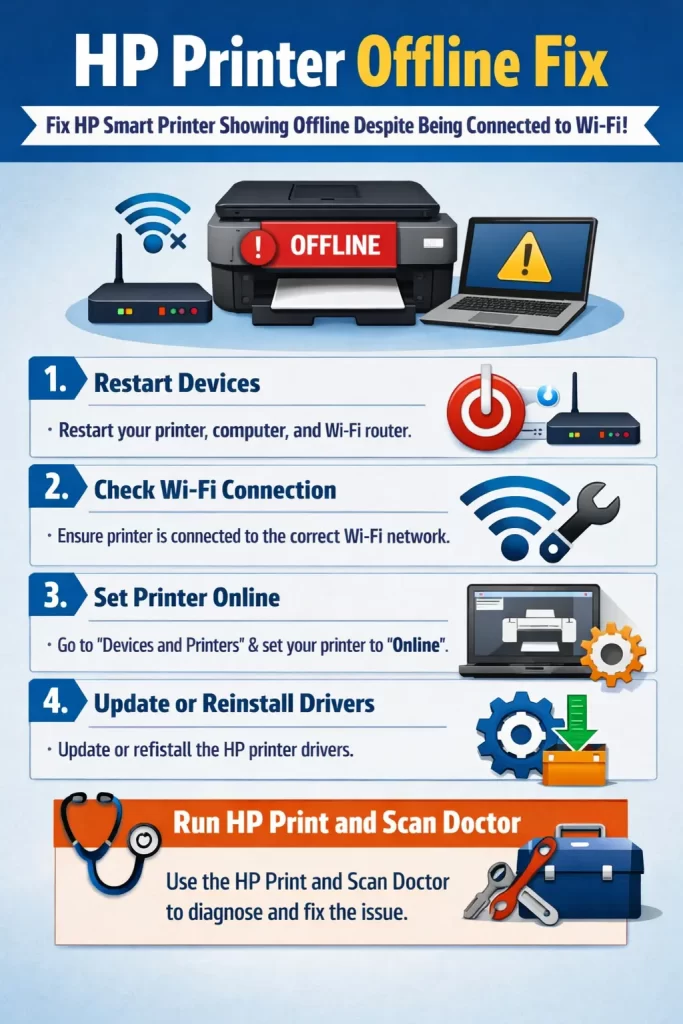
Step 8: Update or reinstall the driver
If the above hasn’t resolved it, uninstall the printer driver through Device Manager (under Print queues), then reinstall using the HP Smart app rather than a generic Windows driver — HP’s own setup flow tends to configure the network connection more reliably than the default driver install.
What Actually Worked For Me
I went straight for the classic power-cycle-everything approach first, since it’s usually my default and it’s worked plenty of times before. Printer, router, laptop, all off and back on in sequence. Didn’t help even slightly — same offline message within seconds of the printer finishing its restart.
What actually fixed it was the print queue check, and I felt a little silly once I found it — “Use Printer Offline” was checked, sitting there the whole time, almost certainly flipped after my laptop went to sleep mid-print job the day before. Unchecked it, queue cleared itself, printed immediately. Not a dramatic fix, but it’s the one that mattered, and it’s exactly the kind of thing a full network restart won’t touch since it’s not a network problem at all.
Advanced Fixes and Edge Cases
Assigning a static IP to stop the drift from recurring. If your printer’s IP address keeps changing and causing this repeatedly, assigning it a static or reserved IP address through your router’s settings (usually under DHCP reservations) prevents the address from shifting after restarts, which removes this specific cause going forward.
Print Spooler service issues. If jobs are stuck and won’t clear through the normal queue interface, the underlying Windows Print Spooler service itself may need a manual restart. Search for “Services” in Windows, find Print Spooler, right-click, and select Restart. This clears a jammed queue at a lower level than simply canceling jobs in the visible interface.
Shared office printers with multiple users. If several people share one printer and only some see it as offline, the cause is more likely a specific user’s driver version or local queue settings rather than the printer or network itself. Isolating it to one affected machine narrows the fix considerably.
When it’s genuinely a firmware issue. If you’ve confirmed matching networks, cleared the queue, checked the offline setting, and reinstalled drivers, and it still won’t hold a connection, check for a pending printer firmware update through the HP Smart app. A firmware/driver version mismatch following an OS update is a less common but real cause at this stage.
Prevention Tips
- Assign your printer a static or reserved IP address through your router to stop this from recurring after restarts
- Keep the HP Smart app and printer drivers updated rather than relying solely on whatever installed automatically
- Avoid letting your computer sleep mid-print-job repeatedly, since that’s a recurring trigger for the offline flag
- Double-check network names carefully if your router broadcasts separate bands or a guest network
- Periodically clear old, completed print jobs from the queue even when nothing seems wrong
FAQ
Does “offline” mean my printer is broken? No, almost never. In the vast majority of cases it’s a communication mismatch between Windows and the printer, not a hardware failure.
Why does the printer’s own screen say connected while Windows says offline? Because they’re two separate systems tracking connection status independently. The printer can be genuinely connected to Wi-Fi while Windows is still trying to reach an old IP address or has the offline flag manually set.
Should I reinstall the printer driver before or after checking the print queue? After. Checking “Use Printer Offline” and clearing the queue take under a minute and fix a large share of cases — reinstalling drivers is more time-consuming and should come later if the quick checks don’t work.
Will assigning a static IP definitely stop this from happening again? It removes one specific and common cause (IP drift after router restarts), but it won’t prevent every possible cause, like Windows toggling the offline setting after sleep.
Is this different on Mac? The same underlying causes apply, but the interface differs — on Mac, check System Settings > Printers & Scanners, remove and re-add the printer there, and use the Diagnose & Fix option inside the HP Smart Mac app rather than the Windows queue settings described above.
Editor’s Opinion
check the “use printer offline” box before you do anything else, seriously — its free, it takes ten seconds, and it fixes this constantly. everyone (including me) jumps straight to restarting the whole router and printer, which feels like the “real” fix but often does nothing if the actual problem is just a checkbox windows flipped on its own. save the driver reinstall and static ip stuff for when the quick checks genuinely dont work.
