If your Windows 11 microphone volume automatically lowering itself is driving you nuts mid-call, you’re not imagining it — this is a real and fairly common issue, and it’s almost never caused by a single setting. I’ve chased this one down on three different machines now, and the cause was different each time. So let’s go through the actual culprits instead of the usual “just check your mic settings” advice that doesn’t fix anything.
This one’s annoying specifically because it’s inconsistent. Sometimes it happens on every call, sometimes only in certain apps, sometimes only after a Windows update. That inconsistency is actually a clue, not just bad luck.
Quick Answer
- Turn off “Automatically adjust mic sensitivity” or AGC in your mic’s app settings
- Disable Windows’ communication volume ducking under Sound Settings > Communications
- Check for audio enhancement software (Realtek, Nahimic, Dolby) that’s applying automatic gain control on top of Windows
- Update or roll back your audio driver — this fixes it more often than people expect
- Check per-app microphone volume overrides, since some apps silently reduce input gain
Why This Happens
There’s no single reason your mic volume drops on its own. From what I’ve seen, it’s almost always one of these, though sometimes it’s two stacked on top of each other, which is what makes this particularly annoying to diagnose.
Automatic Gain Control (AGC) is doing exactly what it’s designed to do — just badly. AGC exists to normalize volume so quiet speakers don’t get drowned out and loud speakers don’t clip. The problem is when multiple layers of AGC stack — your headset’s own DSP, Windows’ built-in enhancement, and the app you’re using (Discord, Zoom, Teams all have their own AGC) — they fight each other. Windows lowers it a bit, the app lowers it a bit more, and you end up whispering into your mic by the end of a call.
Windows’ “Communication” settings duck your mic, not just your speakers. Most people know Windows can lower other apps’ volume when you’re on a call. What’s less known is that some driver implementations apply similar ducking logic to input volume too, especially with certain USB headsets.
Driver-level automatic leveling that isn’t exposed in Windows’ own UI. Realtek, Nahimic, and certain USB DAC/headset software packages run their own gain adjustment separate from Windows Sound settings. You can set your mic to 100 in Windows and still watch it creep down over time because the actual leveling is happening one layer below what you can see.
Exclusive mode conflicts. If another app grabs exclusive control of the microphone (some VOIP and streaming software does this by default), Windows and that app can both try to manage gain simultaneously, with unpredictable results.
And one that gets missed constantly: per-app microphone volume in the Windows 11 Volume Mixer. Since Windows 11 introduced per-app input volume control, some apps get assigned a lower default input level than others, and it’s easy to not even know that setting exists, let alone that it’s overriding your system mic level.
Common Scenarios
This shows up differently depending on your setup:
- USB headsets (especially gaming headsets) — usually AGC baked into the headset’s own software, layered on top of Windows
- Built-in laptop mics — usually Windows’ own noise suppression/AGC combo, sometimes tied to Dolby Atmos or similar bundled audio software
- Bluetooth headsets — mic volume drops are often actually a bandwidth/codec issue rather than a true AGC problem, worth ruling out separately
- Discord specifically — has its own input sensitivity/AGC toggle that’s easy to forget is even there, separate from Windows entirely
Step-by-Step Fixes
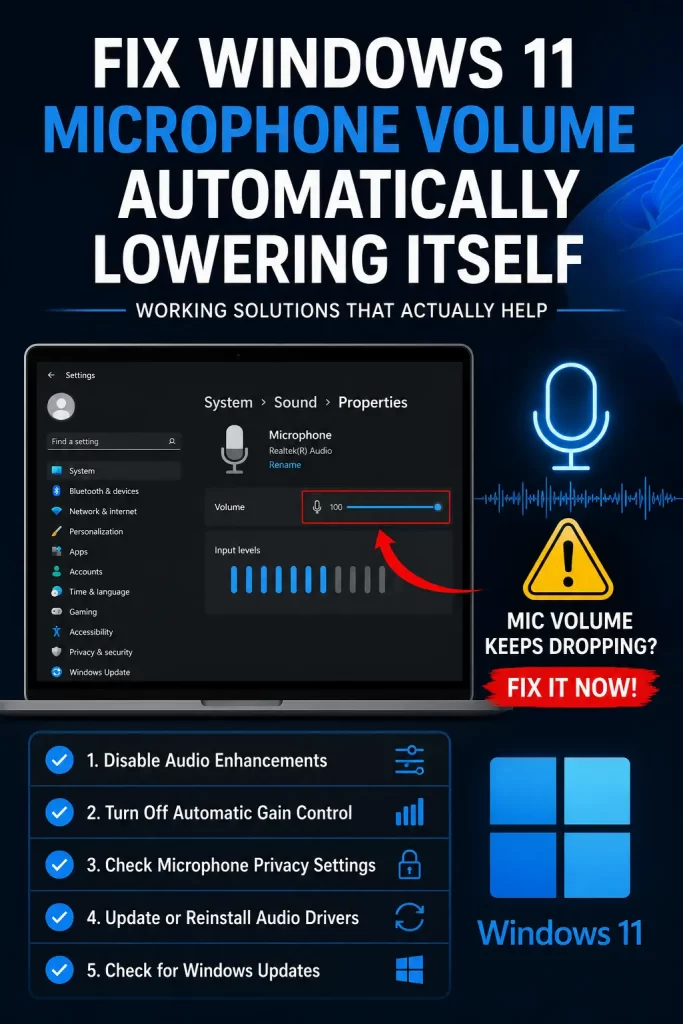
Step 1: Disable Automatic Gain Control at the Windows Level
- Right-click the speaker icon in the taskbar, choose Sound settings
- Under Input, click your microphone, then “More device properties”
- In the Levels tab, note your current mic level
- Go to the Advanced tab (if present) and disable any “Enable audio enhancements” checkbox
- If your driver has a separate app (Realtek Audio Console, for example), open it and look for AGC or “Auto gain” — disable it there too
This step alone fixes a decent chunk of cases, but not all. It won’t touch anything happening at the driver’s own DSP level.
Step 2: Turn Off Communication Volume Ducking
- Open Sound settings > Communication
- Set it to “Do nothing” instead of “Reduce the volume of other sounds”
This is more commonly known for fixing speaker ducking, but on some driver setups it affects mic behavior too. Worth testing even if it seems unrelated on paper.
Step 3: Check the App-Specific Settings
Every major call/streaming app has its own input handling:
- Discord: User Settings > Voice & Video > turn off Automatic Gain Control and Input Sensitivity (set to manual)
- Zoom: Settings > Audio > uncheck “Automatically adjust microphone volume”
- Teams: Settings > Devices > Noise suppression (set to Low or Off, since aggressive suppression can look like volume drops)
- OBS: Check the Filters on your mic source for a Gain or Compressor filter you may not remember adding
Step 4: Update or Roll Back Audio Drivers
Sounds obvious, but it’s genuinely one of the more effective fixes here:
- Open Device Manager, expand Audio inputs and outputs
- Right-click your microphone device, Update driver
- If the problem started after a recent Windows Update, try “Roll Back Driver” instead — this fixes it more often than a fresh update does, in my experience
But don’t assume newer is always better here. I’ve seen driver updates introduce this exact bug rather than fix it, particularly with certain Realtek builds.
What Actually Worked For Me
My case was a USB headset that would start every call at a normal volume and quietly fade down over about ten minutes. I spent a while adjusting Windows mic levels manually, assuming it was a Windows problem. It wasn’t — Windows level stayed the same the whole time, I just didn’t realize the headset had its own software running in the background applying gain compression that wasn’t visible anywhere in Windows’ UI.
I found this out almost by accident. I was uninstalling the headset software for an unrelated reason, and the mic-fading problem just… stopped happening. Didn’t even connect the two until a day later when it hadn’t recurred. Reinstalled the software, dug into its settings specifically, found an “Auto Level” toggle buried three menus deep, turned it off, reinstalled properly, and the fade stopped for good.
So that’s the actual lesson here: if you’ve fixed everything on the Windows side and it’s still happening, the culprit is very possibly bundled hardware software you forgot was even running.
Advanced Fixes and Edge Cases
Check Event Viewer for audio driver crashes. Under Applications and Services Logs > Microsoft > Windows > Audio, repeated driver resets can cause volume to reset to a lower default each time, which looks like gradual lowering but is actually the driver restarting.
Registry check for stuck enhancement flags. Some enhancement settings persist in the registry even after unchecking them in the UI, under HKCU\Software\Microsoft\Multimedia\Audio. Not something I’d recommend touching unless you’re already comfortable in the registry — back it up first.
Exclusive mode conflicts with multiple recording apps open. If you’re running OBS and Discord and a game all accessing the same mic, try closing everything except the one app that needs it, and see if the issue persists. If it doesn’t, you’ve got an exclusive mode conflict rather than a pure AGC issue.
Prevention Tips
- Disable AGC/auto-leveling in one place only (pick either Windows, your app, or your headset software — not all three)
- Keep headset/audio companion software updated, since a lot of these auto-gain bugs get patched quietly
- Avoid installing multiple audio enhancement suites (Nahimic + Realtek Console + a headset app) on the same machine — they conflict more than people expect
- If you use Discord or Zoom regularly, set input sensitivity manually instead of relying on automatic detection
FAQ
Why does my mic volume reset every time I restart my PC? That’s usually a driver default being reapplied on boot, not the same issue as gradual fading during a call. Check your audio driver’s startup behavior in its companion app.
Is this a hardware problem or a software problem? Almost always software — specifically competing gain control layers. Actual hardware mic failure looks more like cutting out completely, not a gradual fade.
Does disabling noise suppression help? Sometimes, yes, especially in Teams, where aggressive suppression can sound like your volume dropped when it’s really cutting background audio too hard.
Will a USB hub cause this? Rarely, but on some cheap or unpowered hubs, voltage drops can affect USB mic gain circuitry. Worth trying a direct port connection to rule it out.
Do I need third-party software to fix this permanently? No, not usually. Most of the time this is fixable with the built-in Windows and app settings above — third-party volume-locking tools are more of a band-aid than a fix.
Editor’s Opinion
this one took me way longer to figure out than it shoulda, mostly becuase i assumed it was a windows setting the whole time. turns out half these mic fade issues are hiding in bundled hardware software nobody thinks to check. if you’ve already tried the windows fixes and nothing’s sticking, go dig through whatever app came with your headset or mic, theres a good chance somethings buried in there doing exactly this.
