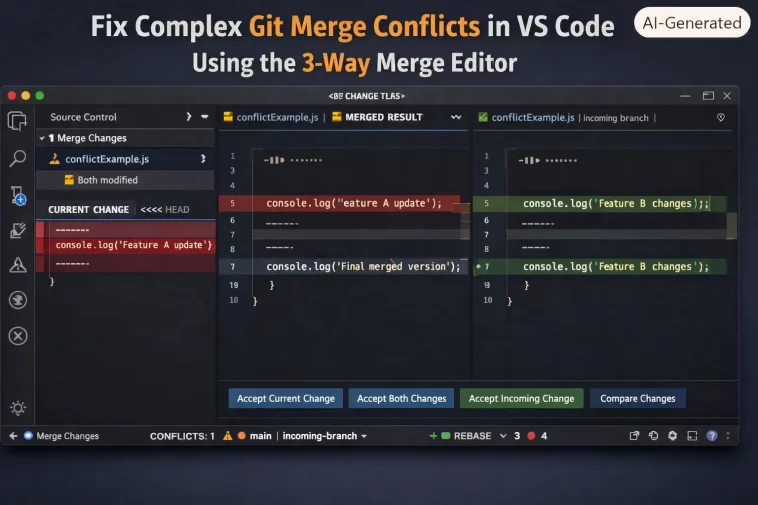
Had a merge conflict once where the same function got refactored on both branches, in different ways, and the classic <<<<<<< markers made it basically unreadable — I couldn’t tell what was actually different versus what was just reordered. Fixing complex Git merge conflicts in VS Code with the 3-way merge editor works by showing you the base version, your incoming changes, and the current branch side by side instead of jamming everything into inline conflict markers, and it genuinely makes the harder conflicts manageable instead of a guessing game. I’ve used it enough now on messy multi-file merges that it’s basically replaced how I resolve conflicts entirely, except for a few edge cases I’ll get into.
So let’s go through how it actually works and where it still trips people up.
Quick Answer
- Run your merge or rebase as normal, then open a conflicted file — VS Code will prompt you to “Open Merge Editor” or you can run it from the Source Control panel
- The editor shows three panes: incoming (theirs), current (yours), and the base version they both diverged from
- Use “Accept Incoming,” “Accept Current,” or “Accept Combination” per block, or edit the result pane directly
- For conflicts involving moved or reordered code, don’t trust the auto-suggestions blindly — read the actual diff carefully
- Once resolved, save the file and stage it like normal before completing the merge
That’s the core workflow. The trickier cases are where this gets more interesting.
Why Complex Merge Conflicts Are Hard in the First Place
Simple conflicts — two people editing the same line differently — are usually easy no matter what tool you use. Complex ones have specific characteristics that make them genuinely harder to resolve correctly, not just annoying to look at.
Structural changes on both branches. If one branch refactored a function’s internals while another branch added a new parameter to that same function, Git can’t reliably merge those automatically, and the conflict markers end up showing you two versions that don’t obviously map onto each other line by line.
Moved or reordered code. Git’s diffing is line-based, not semantic. If code got moved to a different part of the file on one branch, Git often can’t tell that it’s the same code and will show a conflict that looks a lot messier than what actually changed.
Whitespace and formatting differences mixed with real changes. If one branch ran a formatter (Prettier, Black, whatever) across a file while the other branch made actual logic changes, the conflict includes a ton of noise from formatting differences that has nothing to do with the actual disagreement in the code.
Long-lived feature branches. The longer a branch has diverged from main before merging, the more accumulated changes there are to reconcile, and the more likely you are to hit conflicts that touch code neither branch’s author fully remembers the context of anymore.
Conflicts spanning multiple related files. Sometimes the real conflict isn’t fully visible in a single file’s markers — a change in one file assumes a related change in another file that’s also conflicted, and resolving them independently without checking both can leave you with code that doesn’t actually work even though Git considers the conflict resolved.
How the 3-Way Merge Editor Actually Helps
The traditional inline conflict marker view (<<<<<<<, =======, >>>>>>>) shows you two versions stacked on top of each other with no real visual separation of what changed versus what stayed the same. The 3-way editor instead gives you:
- Incoming changes (the branch you’re merging in) on one side
- Current changes (your branch) on the other side
- The base version both diverged from, shown for context
- A result pane where your actual resolution gets built, either automatically or as you make choices
Having the base version visible is honestly the part that makes the biggest difference for complex conflicts, since it lets you actually see what each side changed relative to the original, rather than just comparing two already-diverged versions against each other and trying to guess what changed.
Step-by-Step: Resolving Conflicts with the Merge Editor
Step 1: Trigger a Merge or Rebase
Do this the normal way — git merge branch-name or git rebase branch-name. If there are conflicts, Git will tell you which files are affected.
Step 2: Open the Merge Editor
In VS Code’s Source Control panel, conflicted files show up with a warning indicator. Click on one, and you’ll usually get a prompt to “Resolve in Merge Editor,” or you can right-click the file and select it directly. If it doesn’t prompt automatically, check that git.mergeEditor is enabled in your VS Code settings.
Step 3: Review Each Conflict Block
Work through conflicts one at a time rather than trying to resolve the whole file at once. For each block, you’ll see options to accept the incoming change, the current change, both combined, or to edit the result manually. Don’t just default to “Accept Combination” out of habit — sometimes that produces code that’s syntactically fine but logically wrong, especially with function-level conflicts.
Step 4: Handle Structural Conflicts Manually
For conflicts involving actual logic disagreements (not just simple additions), read the base version alongside both sides before deciding. Sometimes the right resolution isn’t a clean pick of one side or the other — it’s a manual edit that incorporates the intent of both changes, which the auto-merge suggestions won’t get right on their own.
Step 5: Check Related Files Before Finishing
If your conflict touches code that interacts with other files (a function signature change, a renamed variable used elsewhere), search the codebase for other usages before marking the merge complete. VS Code’s merge editor resolves what’s in front of you, not the ripple effects elsewhere.
Step 6: Mark as Resolved and Complete the Merge
Once you’re satisfied with the result pane, save the file. VS Code should mark it as resolved in Source Control automatically. Once all conflicted files are resolved, stage them and run git commit (for a merge) or git rebase --continue (for a rebase) to finish.
Common Conflict Types Compared
| Conflict Type | Merge Editor Helpfulness | Manual Review Needed | Notes |
|---|---|---|---|
| Simple line addition on both sides | High — usually auto-resolves cleanly | Low | Straightforward case |
| Same function edited differently | Medium | High | Base pane context matters most here |
| Code moved/reordered | Low-Medium | High | Git’s line-based diff struggles with this |
| Formatting mixed with logic changes | Low | High | Consider re-running formatter after resolving |
| Cross-file dependent conflicts | Low | High | Merge editor can’t see the other file’s context |
What Actually Worked For Me
The conflict that really sold me on using the base pane properly was a case where a teammate had renamed a variable throughout a file on their branch, while I’d added new logic using the old variable name on mine. The inline conflict markers made it look like total chaos — dozens of lines all flagged, seemingly unrelated to each other.
Switched to the merge editor and pulled up the base version next to both sides, and it became obvious pretty quickly that it wasn’t actually dozens of separate conflicts, it was one conflict (the rename) that just touched a lot of lines. Once I saw that pattern, I resolved it by accepting their renamed version everywhere and then re-adding my new logic using the new variable name, which took maybe five minutes instead of the twenty-plus I’d have spent picking through inline markers line by line.
Not every conflict is that clean, though. And I’ve had a couple where the merge editor’s “Accept Combination” produced code that looked completely fine and even ran without errors, but was subtly wrong logically — a conditional that should’ve been an AND ended up as effectively an OR because of how the two branches’ changes got stitched together. That one only got caught in code review, not by me, which is a good reminder that the tool helps you see the conflict clearly, but it doesn’t verify your resolution is actually correct.
Advanced Fixes and Edge Cases
Using git log and blame to understand context. For conflicts where you don’t have context on why a change was made, run git log -p <file> or use VS Code’s built-in Git blame view before deciding how to resolve. Understanding the intent behind a change usually matters more than the specific lines in front of you.
Aborting and retrying with a different strategy. If a merge is going badly, git merge --abort or git rebase --abort gets you back to a clean state. Sometimes it’s worth trying git merge -X patience or rebasing instead of merging (or vice versa) since different merge strategies handle moved code differently.
Resolving conflicts across a rebase with multiple commits. Rebasing replays commits one at a time, which means you might hit the same conflict repeatedly across several commits if the underlying disagreement spans your whole branch. In that case, git rebase --skip or squashing your branch’s commits before rebasing can sometimes simplify things considerably.
Formatting-driven conflicts. If a big chunk of a conflict is pure formatting noise, resolve the logical conflict first using whichever side’s formatting is easiest to work with, then run your formatter across the resolved file afterward rather than trying to manually reconcile formatting differences line by line.
Prevention Tips
- Keep feature branches reasonably short-lived to reduce the odds of major structural conflicts building up
- Agree on formatting tools and run them consistently across a team, so formatting changes don’t get mixed into logic conflicts
- Rebase against main periodically during long-running feature work instead of merging once at the very end
- Communicate with teammates before large refactors that touch shared files, since that’s where the worst conflicts usually come from
FAQ
Does the 3-way merge editor work for rebases too, not just merges? Yes, it works the same way for rebase conflicts as it does for regular merge conflicts.
Can I switch back to the old inline conflict marker view if I prefer it? Yeah, you can disable git.mergeEditor in settings and VS Code will fall back to the classic inline diff view.
Why does “Accept Combination” sometimes produce broken code? Because it’s combining both sides based on line position, not actual code logic, so it can produce something that’s syntactically valid but semantically wrong, especially with conditionals or function calls.
Is the merge editor better than command-line merge tools like vimdiff? That’s mostly personal preference, honestly. The visual base/incoming/current layout tends to help more with complex, hard-to-parse conflicts, but some people are just faster with a terminal-based tool they already know well.
Should I always check related files after resolving a conflict? For anything involving a function signature, renamed variable, or shared module, yes. The merge editor can’t see conflicts that ripple into files that weren’t part of the original conflict.
Editor’s Opinion
base pane is genuinely the underrated part of this whole thing, most people just glance at incoming vs current and miss it entirely. accept combination is fine for easy stuff but dont trust it blindly on anything with conditionals, learned that one the hard way in a code review i really didnt enjoy sitting through
