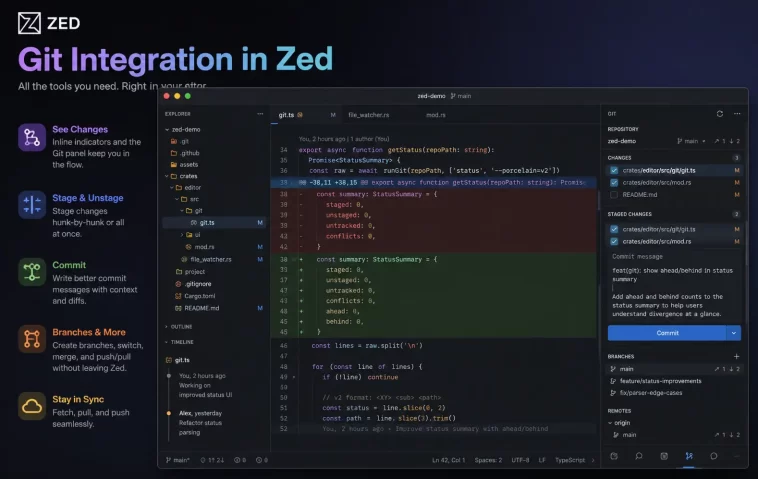
I used to keep a terminal tab open at all times just for Git. Stage this, commit that, push, pull, check the diff — it was a constant back-and-forth that pulled me out of flow more times than I’d like to admit. When I started using Zed and discovered its native Git integration, that terminal tab finally closed for good. Everything I needed was already in the editor, faster and more keyboard-driven than anything I’d used before.
If you’re using Zed and still running all your Git commands in a separate terminal, this guide is for you. Zed’s Git integration is built directly into the editor’s core — not a plugin, not an extension — and it covers everything from staging and committing to branch management, stashing, merge conflict resolution, and even AI-powered commit messages.
What Zed’s Git Integration Actually Covers
Before diving into the how-to, it’s worth knowing what you’re working with. Zed’s native Git support includes:
- A dedicated Git Panel for staging, committing, and viewing file status
- A Project Diff view showing all changes across your repository
- Inline diff highlighting in the editor gutter
- Git blame on the current line
- Branch creation, switching, and deletion
- Fetch, push, and pull from the editor
- Stash management
- Merge conflict resolution with visual UI
- Git worktrees for multi-branch workflows
- AI-generated commit messages
That covers the full day-to-day Git workflow without touching the terminal. For anything more niche, Zed’s integrated terminal is always there as a fallback.
Opening the Git Panel
The Git Panel is your home base for version control in Zed. It shows the current branch, which files have changed, and the staging status of each file.
To open it:
- Click the Git icon in the status bar at the bottom of the editor
- Or use the Command Palette (Cmd+Shift+P on macOS, Ctrl+Shift+P on Windows/Linux) and type
git panel: toggle focus
By default, the panel docks on the left side of the screen. If you prefer it on the right or bottom, open Settings (Cmd+,), navigate to Panels > Git Panel, and change the Git Panel Dock setting.
You can also switch between a flat file list and a tree view organized by folder. Right-click inside the panel and toggle Tree View, or enable it in the same settings page.
Viewing Diffs
Inline Gutter Indicators
When you open any file with uncommitted changes, Zed shows colored bars in the left gutter:
- Green for added lines
- Yellow/orange for modified lines
- Red for deleted lines
These update in real time as you type. If you find them distracting, go to Version Control > Git Gutter in Settings and set Visibility to “Hide.”
Project Diff View
To see every change across your entire repository in one place, open the Project Diff with Ctrl+G D or search for git: diff in the Command Palette.
The Project Diff is a multibuffer — meaning every changed file is displayed as an editable excerpt. You can make edits directly inside the diff view. You don’t have to close it to fix a mistake before staging.
By default, Zed highlights changed words within modified lines, not just changed lines. This makes it easy to spot exactly what shifted in a line. To turn off word-level highlighting, go to Languages & Tools > Miscellaneous in Settings and disable Word Diff Enabled.
Split vs. Unified Diff
Zed supports two diff display modes:
- Split: Shows the original and modified versions side by side. Best for reviewing structural changes.
- Unified: Shows additions and deletions inline in a single view. Best for focusing on specific line changes.
Split is the default. To switch, open Settings and search for “diff view style.” You can also add this to your settings.json:
json
{
  "diff_view_style": "unified"
}
Staging Changes
Zed gives you two ways to stage changes, and both are worth knowing.
Staging from the Project Diff
In the Project Diff view, focus on any hunk and use:
- Cmd+Y (macOS) / Alt+Y (Linux/Windows) — stage the current hunk and move to the next
- Cmd+Ctrl+Y (macOS) / Ctrl+Space (Linux/Windows) — stage all changes at once
Every diff displayed is an editable surface, so you can adjust the code before staging it — no need to close the view and go back to the file.
Staging from the Git Panel
In the Git Panel, each changed file has a checkbox. Check individual files to stage them, or click the Stage All button at the top of the panel to stage everything at once.
You can also right-click on any file in the panel for additional options, including discarding changes or viewing file history.
Committing Your Changes
Once your changes are staged, committing in Zed takes just a few keystrokes.
Quick Commit from the Git Panel
At the bottom of the Git Panel, there’s a commit message textarea. Type your message and press Cmd+Enter (macOS) or Ctrl+Enter (Linux/Windows) to commit.
If you commit and immediately realize you made a mistake, look for the bar just under the commit textarea that shows your recent commit. Click Uncommit to undo it — this performs a git reset HEAD^ --soft, which keeps your changes staged but removes the commit.
Expanded Commit Editor
For longer commit messages (subject line + body), press Shift+Escape while focused in the Git Panel commit textarea to open the expanded commit editor. Zed automatically wraps commit messages at 72 characters, following standard Git conventions. You can adjust this in Settings under “Git Commit.”
AI-Generated Commit Messages
This is one of the more useful features in Zed’s Git integration. With an LLM configured (like Claude via your Anthropic API key), you can have Zed write your commit message for you.
In the Git Panel commit textarea, either click the pencil icon in the bottom left or press Alt+Tab (macOS/Linux) to trigger AI commit message generation. Zed analyzes your staged diff and writes a message based on what actually changed.
To specify which model handles commit messages, add this to your settings.json:
json
{
  "agent": {
    "commit_message_model": {
      "provider": "anthropic",
      "model": "claude-haiku-4-5-20251001"
    }
  }
}
Haiku is a good choice here — it’s fast and cheap for a task this focused.
Fetch, Push, and Pull
You don’t need to leave Zed to sync with your remote. The Git Panel has Fetch, Push, and Pull buttons in the header. You can also use these keyboard shortcuts:
- Push: Ctrl+G Up
- Force Push: Ctrl+G Shift+Up
- Pull: Ctrl+G Down
- Pull with Rebase: Ctrl+G Shift+Down
- Fetch: Ctrl+G Ctrl+G
If your repository has multiple remotes, Zed shows a remote selector in the Git Panel. Click the remote button next to push/pull to choose which remote to target.
Zed respects your Git push configuration. If you’ve set pushRemote for a branch or remote.pushDefault in your .gitconfig, Zed uses those settings automatically — no extra configuration needed.
Branch Management
Creating and Switching Branches
To create a new branch, open the Command Palette and run git: branch. To switch to an existing branch, use git: switch or git: checkout branch.
You can also click the branch name in the status bar at the bottom of the editor to open a quick branch picker.
Deleting a Branch
Open the branch switcher with git: switch, find the branch you want to delete, and use the delete option. Zed will ask for confirmation before deleting.
You can’t delete the branch you currently have checked out — switch to another branch first.
Git Worktrees
Git worktrees let you keep multiple branches checked out on disk at the same time without stashing or disturbing your current work. This is particularly useful when you’re reviewing a colleague’s pull request while still working on your own feature.
To open the worktree picker, look in the title bar next to the project picker, or run git: worktree from the Command Palette. From there you can:
- Create a new linked worktree from the current or default branch
- Switch the current workspace to a different worktree
- Open an existing worktree in a new Zed window
- Delete worktrees you no longer need
By default, Zed creates new worktrees in a ../worktrees directory relative to your repository. To change this location, add a git.worktree_directory setting to your settings.json.
Resolving Merge Conflicts
When you hit a merge conflict after a merge, rebase, or pull, Zed highlights conflicting regions directly in the editor and shows resolution buttons above each conflict block.
Conflicting files appear in the Git Panel with a warning icon. In the editor, you’ll see:
- Your branch’s changes highlighted in green
- The incoming branch’s changes highlighted in blue
Above each conflict, three buttons appear:
- Use [your branch] — keep your changes, discard the incoming ones
- Use [incoming branch] — keep the incoming changes, discard yours
- Use Both — keep both sets of changes, with yours first
Click a button to resolve the conflict. The conflict markers are removed and replaced with your chosen content. Once all conflicts in a file are resolved, stage it and commit to complete the merge.
For conflicts that need manual editing, you can also edit the file directly in the editor — just remove the <<<<<<<, =======, and >>>>>>> markers and write the final version yourself.
Stashing Changes
Sometimes you need to put your work aside without committing it. Zed’s stash support handles this entirely from within the editor.
Creating a Stash
Run git: stash all from the Command Palette to stash all current staged and unstaged changes. Your working directory reverts to a clean state.
Viewing and Managing Stashes
Open the stash picker with git: view stash or from the Git Panel’s overflow menu. From there you can:
- Browse all saved stashes with timestamps and descriptions
- Preview a stash’s contents as a diff
- Apply a stash (keeps the stash entry)
- Pop a stash (applies and removes the entry)
- Drop a stash (removes without applying)
For quick operations on the most recent stash, use git: stash apply or git: stash pop directly from the Command Palette.
Git Blame
Zed shows inline Git blame information on whatever line your cursor is on. It appears automatically with a small delay. If you find it noisy, go to Version Control > Inline Git Blame in Settings to turn it off or adjust the delay.
To toggle blame for a specific file, search for editor: toggle git blame inline in the Command Palette. You can also bind it to a custom key in your keymap.json.
File History
To see the full commit history for any individual file:
- Right-click the file in the Project Panel or Git Panel and select View File History
- Right-click an editor tab and choose View File History
- Search for “file history” in the Command Palette
Each entry shows the commit’s author, timestamp, and message. Click any commit to open a diff view scoped to the changes made to that file in that commit.
Using Zed as Your Git Commit Editor
If you commit from the command line but prefer writing commit messages in Zed, you can set it as your default Git editor:
sh
git config --global core.editor "zed --wait"Or add this to your shell profile (~/.zshrc, ~/.bashrc, etc.):
sh
export GIT_EDITOR="zed --wait"With this in place, every git commit from the terminal opens a Zed window for the message. Save and close the file to complete the commit.
Git Hosting Integrations
Zed automatically turns commit hashes and references to issues, pull requests, and merge requests into clickable links for GitHub, GitLab, Bitbucket, SourceHut, and Codeberg.
If you’re using a self-hosted instance and Zed doesn’t recognize the URL automatically, add a custom provider to your settings.json:
json
{
  "git_hosting_providers": [
    {
      "provider": "gitlab",
      "name": "Company GitLab",
      "base_url": "https://git.yourcompany.com"
    }
  ]
}
Supported provider values are github, gitlab, bitbucket, gitea, forgejo, and sourcehut.
You can also copy a permalink to any selected line or range of code via the right-click context menu or by searching “permalink” in the Command Palette. These links point to the specific commit and line range on your hosting platform — useful for sharing code snippets in pull request reviews or documentation.
Quick Reference: Key Git Shortcuts
| Action | macOS | Windows/Linux |
|---|---|---|
| Toggle Git Panel | Git icon in status bar | Git icon in status bar |
| Open Project Diff | Ctrl+G D | Ctrl+G D |
| Stage all | Cmd+Ctrl+Y | Ctrl+Space |
| Stage hunk & next | Cmd+Y | Alt+Y |
| Commit | Cmd+Enter | Ctrl+Enter |
| Push | Ctrl+G Up | Ctrl+G Up |
| Pull | Ctrl+G Down | Ctrl+G Down |
| Fetch | Ctrl+G Ctrl+G | Ctrl+G Ctrl+G |
| Git blame | Cmd+Alt+G B | Alt+G B |
| Worktree picker | Cmd+Ctrl+W | Alt+Ctrl+Shift+W |
FAQ: Git Integration in Zed
Does Zed replace the terminal for Git entirely? For most day-to-day workflows — staging, committing, pushing, pulling, branching, stashing, and resolving conflicts — yes. For more advanced operations like interactive rebase, cherry-pick, or reflog browsing, Zed’s integrated terminal is still there.
Do I need any extensions to use Git in Zed? No. Git support is built into Zed’s core and requires no plugins or extensions. As long as Git is installed on your system and your project is a Git repository, Zed’s Git features work automatically.
Can I stage individual lines or hunks rather than whole files? Yes. In the Project Diff view, you can stage or unstage individual hunks using the tab bar buttons or keyboard shortcuts. Zed also plans to add line-by-line staging in a future update.
Does the AI commit message feature work without Claude specifically? No — it works with any configured LLM provider in Zed, including OpenAI, Gemini, and local models via Ollama. You’re not locked into Claude or any specific provider.
How does Zed handle large repositories with many changed files? Zed is built in Rust with a GPU-accelerated rendering pipeline, so it handles large diffs and long file lists without the slowdown you’d notice in Electron-based editors. The flat file list in the Git Panel can also be switched to tree view for better navigation in large repos.
Can I use Git worktrees with Zed’s AI agent? Yes. Zed supports worktree isolation for parallel agent workflows — useful if you want multiple AI agents working on separate branches simultaneously without stepping on each other.
What happens if I make a mistake in a commit? Immediately after committing, Zed shows an Uncommit button in the Git Panel. Clicking it runs git reset HEAD^ --soft, undoing the commit while keeping your changes staged. For older commits, you’ll need to use the terminal.
