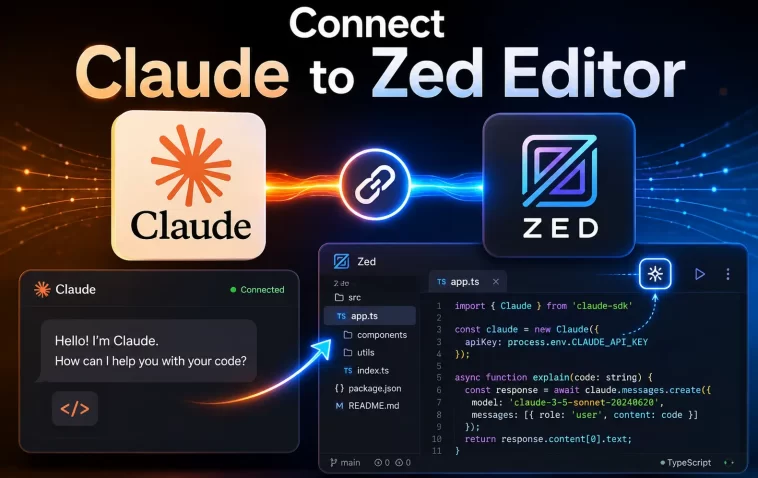
I remember the first time I tried Zed. I had been using VS Code for years, and a colleague kept telling me it was worth the switch. I was skeptical — every “fastest editor” claim I’d heard before turned out to be marketing fluff. But Zed was different. The moment I opened it, I could feel the difference in speed. And when I figured out how to connect Claude to Zed, my entire workflow changed for the better.
If you’re here, you’ve probably already discovered Zed’s performance. Now you want to pair it with Claude — Anthropic’s AI assistant — to get real AI-powered coding help right inside the editor. Good news: it’s easier than you might think, and there are actually two distinct ways to do it depending on your workflow.
This guide walks you through both methods step by step.
What Is Zed and Why Connect Claude to It?
Zed is a high-performance code editor built from scratch in Rust by the team behind Atom and Tree-sitter. It uses GPU-accelerated rendering, delivers sub-millisecond input latency, and has AI features built natively into its core — not bolted on as extensions.
Unlike VS Code or Cursor, Zed doesn’t rely on Electron. That means it’s faster, lighter on memory, and more responsive under heavy workloads. And unlike most editors, Zed natively supports multiple AI providers, including Anthropic’s Claude, right out of the box.
When you connect Claude to Zed, you get:
- AI-powered code generation and refactoring inside your editor
- Inline suggestions and context-aware completions
- A full agent panel for multi-step coding tasks
- Access to Claude’s extended thinking and long context capabilities
Two Ways to Connect Claude to Zed
There are two main approaches, and it’s worth understanding the difference before you start.
Method 1: Direct Anthropic API (Built-in Agent) You use your own Anthropic API key. Claude runs through Zed’s built-in agent. Billing goes through your Anthropic account based on token usage.
Method 2: Claude Agent via ACP Registry (External Agent) You install Claude Agent from Zed’s ACP (Agent Client Protocol) Registry. Claude Agent manages its own authentication separately. This is better for agentic, multi-step coding tasks.
Most developers will start with Method 1 for quick setup, then explore Method 2 for advanced workflows. Both are covered below.
Method 1: Connect Claude Using Your Anthropic API Key
Step 1: Get Your Anthropic API Key
You’ll need an active Anthropic account with API access.
- Go to console.anthropic.com and sign in
- Click on API Keys in the left sidebar
- Click Create Key, give it a name (e.g., “Zed Editor”), and copy it immediately — you won’t be able to see it again
- Make sure your account has billing set up; the key won’t work without credits loaded
Keep this key somewhere safe. You’ll paste it into Zed shortly.
Step 2: Install Zed (If You Haven’t Already)
Download the latest version of Zed from zed.dev. Make sure you’re running the most current version — AI features are updated frequently, and older builds may not support all the options described here.
On macOS, you can also install via Homebrew:
brew install --cask zedStep 3: Open the Agent Panel
Once Zed is open, press:
This opens the Agent Panel on the right side of the editor. If it doesn’t appear, go to View → Agent Panel from the menu bar.
Step 4: Configure Claude as Your AI Provider
Now open Zed’s settings file. Press Cmd + , (macOS) or Ctrl + , (Windows/Linux), or go to Zed → Settings from the menu.
Add the following configuration to your settings.json file:
json
{
  "language_models": {
    "anthropic": {
      "api_key": "YOUR_ANTHROPIC_API_KEY"
    }
  },
  "agent": {
    "default_model": {
      "provider": "anthropic",
      "model": "claude-sonnet-4-5"
    },
    "version": "2"
  }
}
Replace YOUR_ANTHROPIC_API_KEY with the key you copied from the Anthropic Console.
Note: Zed stores your API key in your operating system’s secure credential storage, not as plain text in the config file. You can also enter the key through the Agent Panel GUI instead of the settings file if you prefer.
Step 5: Choose Your Claude Model
Zed supports multiple Claude models. The most commonly used options are:
claude-sonnet-4-5— Best balance of speed and capability; recommended for most tasksclaude-opus-4-6— Most powerful; higher cost per tokenclaude-haiku-4-5-20251001— Fastest and cheapest; good for simple tasks
For day-to-day coding work, Claude Sonnet is the sweet spot. You can always adjust this later.
Step 6: Test It
Go back to the Agent Panel (Cmd + ? or Ctrl + ?), type a simple question like “Explain what this function does” or “Write a unit test for this method,” and hit Enter.
If Claude responds, you’re connected. If you get an error, double-check your API key and make sure your Anthropic account has active billing.
Method 2: Install Claude Agent from the ACP Registry
The Agent Client Protocol (ACP) is an open standard that Zed launched to decouple editors from AI agents. Rather than tight integrations, it lets any ACP-compatible agent plug into Zed without bespoke code. Claude Agent is one of those agents.
This method is ideal when you want Claude handling multi-step agentic tasks — running tools, reading files, executing searches — all from inside the editor.
Step 1: Open the ACP Registry
Inside Zed, open the Command Palette by pressing Cmd + Shift + P (macOS) or Ctrl + Shift + P (Windows/Linux).
Type acp registry and select Zed: ACP Registry from the results.
Alternatively, go to Agent Settings → Add Agent → Install from Registry.
Step 2: Find and Install Claude Agent
In the ACP Registry, search for Claude Agent. You’ll see it listed as Anthropic’s Claude integrated through Zed’s SDK adapter.
Click Install. Zed will download and configure the agent automatically.
Step 3: Authenticate Claude Agent
Claude Agent manages its own authentication separately from Zed’s built-in API configuration.
- Open a new Claude Agent thread from the Agent Panel or Threads Sidebar
- In the thread input, type
/loginand press Enter - Follow the prompt to enter your Anthropic API key or authenticate through Claude Code if you have it set up
Important: An Anthropic API key entered for Zed’s built-in agent does not automatically apply to Claude Agent. They are separate authentication flows.
Step 4: Start Using Claude Agent
Once authenticated, Claude Agent appears in the new-thread menu in the Agent Panel and Threads Sidebar.
Click the + button, select Claude Agent, and start a new thread. You can now give Claude multi-step instructions like “Refactor the authentication module and add error handling” — and watch it work through the task step by step, with full visibility into its reasoning and tool calls.
Fine-Tuning Your Claude Setup in Zed
Adjusting Model Temperature
If you want more deterministic output (useful for code generation), you can lower the temperature:
json
{
  "agent": {
    "model_parameters": [
      {
        "provider": "anthropic",
        "model": "claude-sonnet-4-5",
        "temperature": 0.2
      }
    ]
  }
}
Using Claude for Inline Editing
Beyond the Agent Panel, Claude also powers Zed’s inline assistant. Select any block of code, press Cmd + Enter (macOS) or Ctrl + Enter (Windows/Linux), and type an instruction. Claude will edit the selection in place.
This is great for quick refactors, renaming variables, adding comments, or converting code from one pattern to another.
Setting Up Custom Instructions
Zed supports project-level instruction files. Create a file called AGENTS.md in your project root and write any persistent context you want Claude to always have — like your coding style preferences, the frameworks you use, or team conventions.
Claude Agent will read this file automatically when working in that project.
Connecting Claude to Zed via MCP Servers
If you want to extend Claude’s capabilities even further inside Zed, you can configure MCP (Model Context Protocol) servers. MCP lets Claude interact with external tools and services — databases, APIs, file systems — through a standardized interface.
Zed-configured MCP servers can be forwarded to Claude Agent over ACP. To debug MCP tool availability, open the Command Palette and type dev: open acp logs to inspect the messages passing between Zed and Claude Agent.
To add an MCP server to Zed, add it to your settings.json under the context_servers key, following the server’s documentation for the specific command and arguments needed.
Troubleshooting Common Issues
Claude isn’t responding in the Agent Panel Check that your API key is correct and that your Anthropic account has available credits. Go to console.anthropic.com and verify your billing status.
“Cannot find claude command” error with Claude Agent If you’ve installed Claude Code CLI and Zed can’t find it, add the path manually in settings: look for agent.path in Zed settings (Cmd + ,) and point it to your Claude CLI binary location.
MCP tools not showing up in Claude Agent Check both Zed’s MCP configuration and Claude Agent’s native MCP configuration. Use dev: open acp logs from the Command Palette to inspect what’s being passed.
Opus models are unavailable During Zed Pro trials, Opus-tier models are restricted. Switch to Claude Sonnet for the trial period, or use your own API key with an account that has Opus access enabled.
FAQ: Connecting Claude to Zed
Do I need a paid Anthropic account to use Claude in Zed? Yes. You need an Anthropic API account with active billing. You can start with a small credit top-up — Anthropic doesn’t charge a subscription for API access, only for the tokens you use.
What’s the difference between Zed’s built-in Claude and Claude Agent? Zed’s built-in Claude uses your API key through the editor’s native agent. Claude Agent is a separate external agent installed via the ACP Registry that manages its own authentication and is better suited for complex, multi-step agentic tasks.
Can I use Claude in Zed without an API key? If you have a Zed Pro subscription, Zed provides some built-in AI access. However, for direct Claude access and the full model selection, you’ll need your own Anthropic API key.
Which Claude model should I use in Zed? For most coding tasks, Claude Sonnet is the best choice — it’s fast, highly capable, and more cost-effective than Opus. Use Haiku for quick, repetitive tasks and Opus when you need maximum reasoning power for complex problems.
Is my code sent to Anthropic when I use Claude in Zed? When you use Claude via your own API key, your code is processed by Anthropic’s API according to their privacy policy. Anthropic doesn’t use API traffic to train models by default. Check Anthropic’s current data usage policy on their website for the most up-to-date details.
Can I use Claude Code CLI alongside Zed? Yes. Claude Code integrates with Zed via the ACP standard. You can run Claude Code as a Terminal Thread agent inside Zed, which routes billing through your Claude Code subscription rather than your Anthropic API key.
Does Claude in Zed support extended context? Yes. When using your own API key in BYOK mode, Zed supports the full context window of the model you’ve selected — including the 1M-token context available on Opus 4 models.
Connecting Claude to Zed is one of those setups that genuinely changes how you code. Between the editor’s raw speed and Claude’s reasoning ability, you end up with a workflow that gets out of your way and lets you focus on building. Start with Method 1 to get up and running quickly, then explore Claude Agent and MCP integrations as you get comfortable with the setup.
