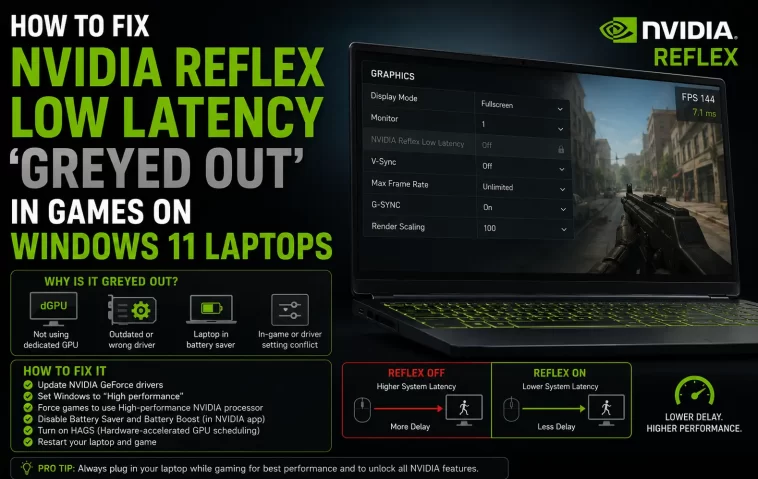
I noticed this myself in Apex on my Legion laptop after a routine driver update — Reflex just sat there greyed out, no toggle, nothing in the tooltip explaining why. On desktop this setting basically never misbehaves. On laptops it’s a different story entirely, mostly because of stuff that has nothing to do with the game itself. So here’s what actually causes it and the order I’d check things in.
Quick Answer
- Reflex greyed out on a laptop is almost always tied to hybrid graphics (Optimus/MUX), not a broken game install
- Check whether your laptop is running the display through the iGPU instead of the dGPU directly — this alone accounts for a large chunk of cases
- Outdated or mismatched GeForce drivers between the dGPU and the laptop’s OEM package are the second most common cause
- Overlay software like RTSS, GeForce Experience/NVIDIA App overlay, or Afterburner can conflict and grey the option out
- Some games require a specific rendering API (DX12 or Vulkan) for Reflex to even appear as selectable — check that before assuming it’s broken
Why It Fails
Reflex needs a fairly direct path from the game to the dGPU to actually do its job, and laptops throw a few extra layers into that path that desktops just don’t have.
Hybrid graphics routing through the iGPU. <cite index=”36-1″>On a laptop with hybrid graphics, the screen runs on the iGPU while demanding applications get passed through to the dGPU and back, with the dGPU output routed through the iGPU before it reaches the display.</cite> That extra hop is exactly the kind of overhead Reflex is designed to cut out, so on some driver versions and games, the option just won’t activate at all when running in that mode.
MUX switch set to Optimus/Hybrid instead of dGPU-only. <cite index=”41-1″>Laptops with a MUX switch let you choose between running the display through the iGPU or wiring it directly to the discrete GPU, and that choice has a real effect on which features are available.</cite> If yours is sitting in hybrid mode, that’s often the whole story right there.
MS Hybrid laptops and VSYNC/G-Sync quirks. <cite index=”28-1″>Hybrid-based laptops don’t support VSYNC ON through the NVIDIA Control Panel, and gamers wanting G-Sync plus VSYNC plus Reflex together on these laptops need to use the in-game VSYNC option instead.</cite> Some games interpret that mismatch as “Reflex isn’t compatible right now” and grey the setting out rather than just quietly ignoring it.
Driver mismatch between OEM and dGPU package. Laptop manufacturers sometimes ship a customized driver branch, and if it’s a version or two behind what a game expects for Reflex support, the option shows but won’t toggle.
The one nobody expects: running on battery power. Some laptops throttle GPU behavior or force a power-saving graphics mode when unplugged, and that alone can be enough for a game to disable Reflex as unsupported in that state, even though it works fine plugged in five minutes later.
Common Scenarios
- Gaming laptops with a MUX switch left in “Hybrid” or “Optimus” mode — probably the single most common scenario reported
- Laptops without a MUX switch at all, where the display is permanently wired through the iGPU and there’s no bypass except an external monitor
- Fresh Windows 11 installs where the OEM’s GPU switching app (Armoury Crate, Legion Toolkit, Omen Gaming Hub) hasn’t been reinstalled yet, leaving the system in a default state
- Games running in DX11 when Reflex support in that specific title requires DX12 or Vulkan
Step-by-Step Fixes
Step 1: Check your GPU mode
Open your laptop manufacturer’s control software (Armoury Crate, Legion Toolkit, Omen Gaming Hub, MSI Center, or similar) and look for a setting called GPU Mode, Graphics Switch, or Hybrid Mode. Switch it to Discrete/dGPU-only if that option exists. This requires a reboot, so save your game first.
Step 2: Confirm you’re plugged into AC power
Test with the laptop plugged in before troubleshooting further. If Reflex becomes selectable the moment you’re on AC power, you’ve found your cause, and the fix is either living with that limitation on battery or adjusting your power plan.
Step 3: Update GPU drivers directly from NVIDIA, not just Windows Update
Go to NVIDIA’s driver page, select your specific laptop GPU model, and install the latest Game Ready driver. And this matters more on laptops than desktops — Windows Update sometimes pushes an older, more “stable” driver that quietly lags behind the version a game expects for newer Reflex features.
Step 4: Close overlay software before launching the game
Shut down RivaTuner Statistics Server, MSI Afterburner, and the NVIDIA app overlay completely (check the system tray, not just the main window) before testing. Relaunch the game fresh.
Step 5: Check the game’s rendering API setting
In the game’s video settings, confirm which API it’s running — DX11, DX12, or Vulkan. If Reflex is only supported under one of those for that specific title, switching will often make the option selectable immediately.
Step 6: Verify in NVIDIA Control Panel as a sanity check
Open the NVIDIA Control Panel, go to Manage 3D Settings, and check the Low Latency Mode setting under Global or Program-specific settings. This won’t force in-game Reflex to work, but if it’s also unavailable here, that’s a stronger signal the issue is driver or hardware-mode related rather than something in the game itself.
What Actually Worked For Me
I went straight for a driver reinstall first, figuring that’s the obvious move, and it did nothing — Reflex was still sitting there greyed out in Apex. So then I spent a while convinced it was an overlay conflict, closed everything in the tray one by one, restarted the game each time, no change.
Turns out my Legion had quietly defaulted back to Hybrid mode after a BIOS update a few weeks earlier, something I hadn’t even noticed because everything else ran fine. Flipped it to dGPU-only mode in Legion Toolkit, rebooted, and Reflex was selectable again within about two minutes of actually finding the setting. That’s not a satisfying fix to write up, honestly, because it means the driver reinstall and overlay hunt were both wasted time — but from what I’ve seen, checking the GPU mode first would’ve saved me the whole detour.
Advanced Fixes and Edge Cases
Check Windows Graphics settings per-app. In Windows 11, go to Settings > System > Display > Graphics, find your game in the list, and confirm it’s set to use the “High performance” GPU rather than letting Windows decide automatically. Windows occasionally defaults a specific executable to the iGPU even on a MUX-equipped laptop, which will grey out Reflex regardless of your MUX position.
Look at Hardware-Accelerated GPU Scheduling (HAGS). This is a Windows 11 setting under Graphics settings as well, and some driver versions have had documented conflicts between HAGS and Reflex’s frame pacing behavior. Toggling it off, rebooting, and testing is a legitimate diagnostic step even though it won’t be the answer for everyone.
Run DDU and do a clean driver install if mismatches persist. Display Driver Uninstaller run in Safe Mode wipes out leftover driver files that a normal update or rollback can leave behind. This is the more “nuclear” option and it’s not something I’d reach for first, but if you’ve been driver-hopping trying to fix this, leftover files can genuinely cause weird half-working states.
Check for a pending BIOS update related to GPU switching. Some manufacturers have shipped BIOS updates specifically addressing MUX switch behavior and Optimus routing bugs after Windows 11 feature updates. Worth a quick check on the support page for your exact model number.
Prevention Tips
- After any BIOS update, double-check your GPU mode setting hasn’t silently reset
- Keep the OEM GPU switching app installed and updated, not just the base NVIDIA driver
- Update GPU drivers through NVIDIA’s site for your specific laptop model rather than relying solely on Windows Update
- Test competitive settings like Reflex on AC power first before assuming a game-side bug
- Keep overlay software to a minimum when troubleshooting anything latency-related, even if you use it day to day otherwise
FAQ
Does this happen on desktop GPUs too? Rarely, and usually for different reasons — desktop cases are mostly driver mismatches or overlay conflicts, not hybrid graphics routing.
Will a MUX switch always fix this? Not always, but it resolves the most common cause. If your laptop doesn’t have one, you’re limited to the driver, overlay, and power-related fixes above.
Is Reflex greyed out a sign my GPU doesn’t support it? Almost never, if you’re on an RTX or newer GTX card. Reflex support goes back further than most people expect, so hardware age is rarely the real reason.
Can I force Reflex on through a config file if the game won’t let me toggle it? Some games have this via config edits, but it’s genuinely per-title and not something to assume works reliably — messing with config files can also break other settings, so tread carefully.
Why does it work fine one day and not the next with no changes on my end? Windows Update or a background driver update can flip GPU mode settings without much notice. It feels random, but it’s usually not — something changed even if you didn’t do it directly.
Editor’s Opinion
turned out to be the dumbest possible cause for me (gpu mode reset after a bios update) after i’d already gone through drivers and overlays like an idiot. laptops just have more moving parts than desktops for this stuff, optimus and mux switches are convenient until theyre not. check your gpu mode first, save yourself the hour i lost chasing driver versions that were never the problem.
