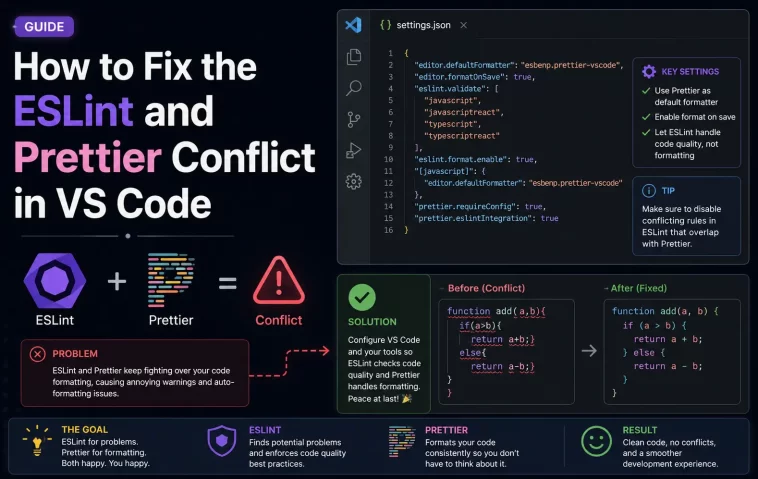
You hit save, and your code changes shape right in front of you — quotes flip, semicolons vanish, indentation jumps. That’s the ESLint and Prettier conflict in VS Code, and it usually means two formatters are fighting over the same file. I’ve lost actual hours to this on a client project where every commit looked like a diff war between two developers who’d never agreed on a style guide, except it was just me, alone, at 11pm.
Quick Answer
- The fight almost always comes down to two tools trying to format the same document on save — check
editor.defaultFormatterfirst - Install
eslint-config-prettierto turn off every ESLint stylistic rule that overlaps with Prettier - Pick ONE tool to run on save — either Prettier formats and ESLint only lints, or ESLint’s
fixAllhandles both - If you’re on ESLint 9+, confirm the VS Code extension is actually reading your
eslint.config.jsand not silently falling back to nothing - Check for a stray
.prettierrcor workspace setting overriding your user settings — this one gets missed constantly
Why It Fails
There isn’t one single cause here, and honestly, that’s part of why this problem sticks around so long for people. From what I’ve seen, it’s usually some mix of the following.
Two formatters registered for the same language. VS Code only respects one default formatter per file type at a time, but a lot of setups end up with both the Prettier extension and the ESLint extension trying to claim source.formatDocument or source.fixAll duties. When that happens, whichever one runs last “wins,” and it’s not always consistent between saves.
ESLint stylistic rules never got disabled. If your ESLint config still has rules like indent, quotes, or semi turned on alongside Prettier, you’ve basically got two formatting systems arguing about the same characters. Prettier writes double quotes, ESLint flags them as wrong, ESLint’s autofix rewrites them to single quotes, Prettier changes them back next save. It’s a loop.
Flat config migration gaps. ESLint 9 made flat config (eslint.config.js) the default, and the VS Code ESLint extension needs to actually recognize that file. So if you’re running an older extension version or a project that still has both .eslintrc.json and eslint.config.js sitting around, the extension can get confused about which one is authoritative — sometimes it just silently stops linting.
codeActionsOnSave ordering. VS Code runs code actions in the order you list them, not automatically the “smart” order. If source.fixAll.eslint runs before Prettier formats, or after, you get different results depending on what each tool touches last.
An unexpected one people miss: workspace settings silently overriding user settings. You fix your global settings.json, feel good about it, and the fight continues — because the repo has a .vscode/settings.json checked into git with a different defaultFormatter from three years ago that nobody remembered to update.
Common Scenarios
This shows up a little differently depending on the stack:
- Vue/Nuxt projects — Vetur or Volar can add a third formatter into the mix, not just ESLint and Prettier, which makes debugging genuinely more annoying
- Monorepos — different packages sometimes have their own
.eslintrcoreslint.config.js, so the “same” file behaves differently depending on which folder VS Code thinks is the working directory - Fresh installs from create-vue, create-react-app, or similar scaffolds — these sometimes ship ESLint and Prettier both enabled out of the box with no
eslint-config-prettierbridge between them, so the conflict is baked in from day one - TypeScript projects using
@typescript-eslint— stylistic TS rules can duplicate Prettier’s job in ways that are easy to miss because they’re not obviously “formatting” rules on the surface
Technical Comparison Table
| Setup | What Formats | What Lints | Conflict Risk |
|---|---|---|---|
| Prettier extension only, ESLint disabled for style | Prettier | Nothing (no linting) | Low, but you lose ESLint’s error catching |
ESLint + eslint-config-prettier, Prettier as formatter | Prettier | ESLint (logic only) | Low — this is the common recommendation |
ESLint + eslint-plugin-prettier, no default formatter set | ESLint (via Prettier rule) | ESLint | Medium — works but doubles formatting into lint output, which some people find noisy |
Both extensions active, no defaultFormatter set | Whichever ran last | Both, redundantly | High — this is the setup that usually breaks |
Step-by-Step Fixes
Step 1: Set a single default formatter
Open your settings.json (Command Palette → “Preferences: Open User Settings (JSON)”) and add:
json
{
  "editor.defaultFormatter": "esbenp.prettier-vscode",
  "editor.formatOnSave": true
}
This tells VS Code that Prettier — not ESLint — handles the actual formatting pass. You can scope this per language too, using [javascript] or [typescript] blocks, which matters if you format Markdown or CSS differently.
Step 2: Install eslint-config-prettier
bash
npm install -D eslint-config-prettierFor flat config (eslint.config.js):
javascript
import prettier from "eslint-config-prettier";

export default [
  // your other configs
  prettier,
];
Order matters — it needs to come last so it can override earlier stylistic rules.
For legacy .eslintrc:
json
{
  "extends": ["eslint:recommended", "prettier"]
}
Step 3: Configure codeActionsOnSave explicitly
json
{
  "editor.codeActionsOnSave": {
    "source.fixAll.eslint": "explicit",
    "source.organizeImports": "never"
  }
}
Setting organizeImports to “never” isn’t required, but it stops a separate class of surprise reordering that people often mistake for the same bug.
Step 4: Check for stray workspace settings
Look for .vscode/settings.json in the project root. So if it’s checked into git, everyone on the team is inheriting whatever formatter config someone set two years ago, and your user settings won’t override it. Update it there instead of just locally — otherwise you’ll “fix” this on your machine and watch it come back next time you pull.
Step 5: Confirm flat config is actually being read
If you’re on ESLint 9+ with eslint.config.js, make sure your VS Code ESLint extension is updated (v3.0.10 or later handles flat config natively, no experimental flag needed anymore). Run “ESLint: Show Output Channel” from the Command Palette and check for a line confirming which config file it loaded. If it’s not there, or it’s pointing at a stale .eslintrc, that’s your answer.
What Actually Worked For Me
I want to say I diagnosed this cleanly, but that’s not entirely accurate — let me back up. My first move was reinstalling both extensions, which did nothing, because obviously the problem wasn’t the extensions themselves. Then I spent a while adjusting formatOnSave timing settings, convinced it was some kind of race condition between the two tools. It wasn’t.
What actually fixed it was checking the repo’s .vscode/settings.json, which I’d honestly forgotten existed. Someone on the team had set editor.defaultFormatter to the ESLint extension months earlier, back when the project used eslint-plugin-prettier instead of the config-only approach. Nobody updated it when the setup changed. My user settings were correct the whole time — they just weren’t the ones being applied.
So the actual fix took about two minutes once I found the right file. The hour before that was mostly wasted on assumptions.
Advanced Fixes and Edge Cases
Diagnosing which formatter actually ran. Open the Output panel, switch the dropdown to “ESLint,” and save a file. If you see fix actions listed, ESLint touched the file. Do the same check with Prettier’s output channel. Comparing both tells you definitively who’s doing what, instead of guessing from the diff.
Stylistic rules hiding in shared configs. Popular presets like Airbnb or Standard bundle in formatting rules by default. eslint-config-prettier disables the well-known ones, but custom or less common plugins sometimes add their own stylistic rules that don’t get caught. If conflicts persist after following the steps above, run npx eslint-config-prettier path/to/file.js — it’ll list any rules in your active config that conflict with Prettier so you can turn them off manually.
Multi-root workspaces. If you’re working across multiple folders in one VS Code window, each root can resolve a different ESLint config and working directory. Check eslint.workingDirectories in your settings — without it, the extension sometimes guesses wrong about which node_modules/eslint to use, especially in monorepos with hoisted dependencies.
Prettier ignoring files it should format. A .prettierignore that’s stricter than you remember, or Prettier respecting .gitignore by default in some versions, can make it look like formatting “isn’t working” when really the file’s just excluded. Worth a quick check before you go down a rabbit hole assuming it’s a config conflict.
Prevention Tips
- Commit
.vscode/settings.jsonto the repo so the whole team shares the same formatter config — but review it whenever your ESLint or Prettier setup changes - Add
eslint-config-prettieras a default step in your project scaffold, not an afterthought - Run
npx eslint-config-prettierin CI occasionally to catch new rule conflicts introduced by dependency updates - Avoid running
eslint --fixand Prettier both in a pre-commit hook unless you’ve confirmed they agree — lint-staged configs are a common place this sneaks back in - Document which tool is “the formatter” for new team members, since assumptions here are where most of these fights start
FAQ
Do I need both ESLint and Prettier, or can I just pick one? You can run Prettier alone if you don’t care about catching logic errors, unused variables, or accessibility issues. Most teams keep both because they solve different problems — but if you’re a solo dev on a small script, Prettier alone is genuinely fine.
Why does my code format differently in the terminal than in VS Code? Different ESLint or Prettier versions, most likely — check your global CLI version against what’s in node_modules. Not 100% sure why this one keeps happening across so many projects, but version mismatches are the usual suspect.
Is eslint-plugin-prettier still recommended? Not really, no. Most current guidance points toward eslint-config-prettier plus letting Prettier format directly, rather than running Prettier through ESLint’s fix engine. It works either way, but it’s an extra layer most people don’t need.
My settings look right but nothing changes. What am I missing? Check .vscode/settings.json in the repo root before anything else. That’s the single most common thing people skip, and it overrides your personal settings without any warning.
Editor’s Opinion
honestly this is one of those bugs that feels dumb once you find it but eats way too much time before that. the fix is almost never “hard,” its just hidden in a settings file nobody thinks to check. if your team shares a repo, just commit the vscode settings and move on with your life. save yourself the 11pm debugging session, ask me how i know.
