You’re off Wi-Fi for five minutes and suddenly every Reel looks like it was uploaded in 2011 — blurry, compressed, barely watchable. Stopping Instagram from lowering video quality on mobile data usually comes down to more than just flipping one toggle, which is why so many people turn off “Data Saver” and still get the same blurry playback. I ran into this exact thing on a train last month, checked my settings, found Data Saver already off, and still got soup for video quality. Turns out there were two more layers I hadn’t touched.
Quick Answer
- Turn off Data Saver inside Instagram: Settings and privacy → Media quality → toggle off “Use less cellular data”
- Set “High resolution media” to “Always” instead of “Wi-Fi only” (Android has this as a separate option from Data Saver)
- Check your phone’s OS-level data saving mode too — iOS Low Data Mode and Android’s system Data Saver override app settings and are easy to forget about
- Weak signal will still force lower quality no matter what you toggle, since Instagram adapts bitrate to connection strength automatically
- Carrier-level video throttling on some prepaid or capped plans can cause this even with every app setting maxed out
Why It Fails (Even After You Turn Off Data Saver)
So this is the part that trips people up — there isn’t just one setting responsible for this, there are three separate layers that can each independently cause it, and most guides only mention the first one.
Instagram’s own Data Saver toggle. This is the obvious one, and it’s the one most articles cover. But it’s genuinely not the only thing controlling quality, which is why turning it off alone often doesn’t fully fix the problem.
High Resolution Media set to “Wi-Fi only.” On Android specifically, this is a separate setting from Data Saver. You can have Data Saver completely off and still have this one quietly restricting quality to standard resolution whenever you’re off Wi-Fi. It’s easy to miss because it lives in the same settings page and looks related, but it’s its own toggle.
Your phone’s operating system, not the app. iOS has a per-network “Low Data Mode” that you can enable individually for cellular and for each Wi-Fi network you connect to. Android has a similar system-wide Data Saver in the phone’s own settings. Both of these sit above Instagram’s app-level controls — so even with every Instagram setting maxed out for quality, the OS can still be quietly throttling the app’s data use, video included.
Adaptive bitrate based on real-time signal strength. Even with everything above turned off, Instagram — like most video platforms — dynamically adjusts video quality based on your actual connection speed at that moment. If you’re in an area with weak signal, it’ll drop quality automatically regardless of your settings, because it’s trying to keep the video playing smoothly rather than buffering constantly.
An overlooked one: carrier-side video optimization. Some prepaid carriers and certain regional plans compress video traffic at the network level to save bandwidth across their whole network, independent of anything on your phone. If you’ve checked every setting and it’s still happening consistently on one specific carrier or plan, this is worth ruling out.
Common Scenarios
- Android users who disabled Data Saver but forgot High Resolution Media — this is probably the single most common version of this exact complaint
- iPhone users with Low Data Mode enabled on their cellular plan settings, which most people set once and never revisit
- Travelers roaming on a different carrier, where the current network may apply its own throttling regardless of home-network settings
- Areas with inconsistent 4G/5G coverage, where quality fluctuates constantly because the adaptive bitrate system is reacting in real time
Step-by-Step Fixes
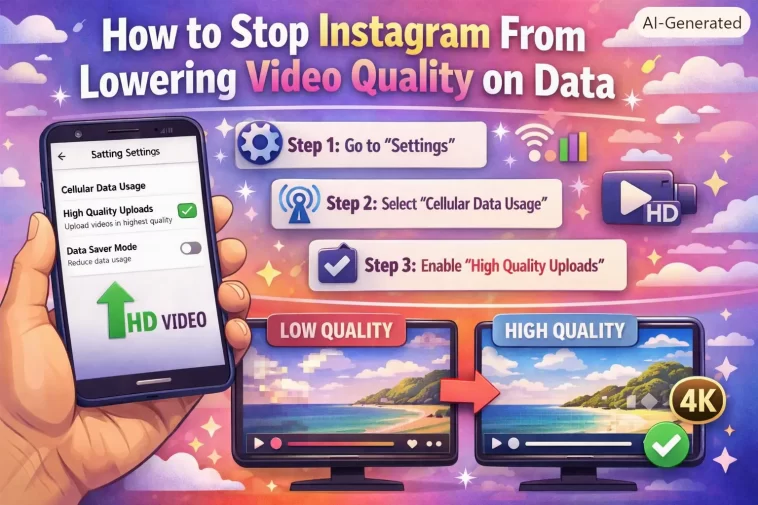
Step 1: Check Instagram’s Data Saver setting
Go to your profile → tap the menu (three lines, top right) → Settings and privacy → Media quality (sometimes labeled “Data usage and media quality” depending on your app version). Toggle “Use less cellular data” or “Data Saver” off.
Step 2: Check High Resolution Media separately (Android)
On the same Media quality page, look for “High resolution media.” Set it to “Always” instead of “Wi-Fi only” or “Never.” This setting exists independently of Data Saver, and leaving it on Wi-Fi only is probably the most common reason people still see low quality after disabling Data Saver.
Step 3: Check Upload at Highest Quality
If the issue is your own posted content looking compressed rather than other people’s videos, this is the one that matters. Same settings page — toggle “Upload at highest quality” on.
Step 4: Turn off Low Data Mode on iOS
Go to Settings → Cellular → Cellular Data Options → Data Mode → set to “Standard” instead of “Low Data Mode.” And check this separately for your Wi-Fi networks too: Settings → Wi-Fi → tap the (i) next to your network → toggle off Low Data Mode there as well, since it’s set per-network, not globally.
Step 5: Turn off Data Saver on Android (system level)
Settings → Network & internet → Data Saver → turn off, or add Instagram to the “Unrestricted data” exceptions list if you want to keep Data Saver on generally but exempt Instagram specifically.
Step 6: Test on a strong signal
Before assuming a setting is still wrong, check your actual signal strength. If you’re at one or two bars, the adaptive bitrate system will drop quality no matter what you’ve configured — that’s expected behavior, not a bug.
What Actually Worked For Me
I was sure I’d found the fix after step one — turned off Data Saver, felt good about it, closed the settings menu. Videos still looked rough. So I assumed it was a signal issue and basically gave up on it for a couple weeks, just accepting blurry Reels as a mobile-data fact of life.
Then I was digging through Android’s system settings for something completely unrelated and noticed Data Saver was on at the OS level, exempting almost nothing. I hadn’t touched that setting in probably a year and forgot it existed. Turned it off system-wide, and instantly the quality difference was obvious on the next video I opened. That’s not entirely the full story though — I also had to go back into Instagram and manually set High Resolution Media to “Always,” because apparently turning off system Data Saver alone wasn’t enough either. Took three separate settings across two different menus to actually fix it, which is a lot more than any single guide I’d read mentioned.
Advanced Fixes and Edge Cases
Check per-network Low Data Mode individually on iOS. People often disable it for cellular and assume they’re done, forgetting it’s a separate toggle for every Wi-Fi network they’ve ever joined. If you’re getting low quality on a specific Wi-Fi connection, check that network’s individual setting.
Test with a VPN temporarily. If you suspect carrier-side throttling, running a video through a VPN can sometimes bypass network-level video optimization, since the carrier can’t identify and compress the traffic the same way when it’s encrypted differently. This isn’t a permanent fix, but it’s a useful diagnostic to confirm whether the carrier is the culprit.
Restart the app after changing settings. Some of these settings don’t apply retroactively to videos already cached at lower quality — a fresh app restart forces new requests at the updated quality setting rather than serving what’s already been fetched.
Check for a carrier-specific “Instagram bundle” or zero-rating plan. Some carriers offer Instagram as part of a data-free or discounted bundle, and those plans sometimes cap video quality as a condition of the discount. If you’re on one of these, that cap may be outside your control entirely on the app or phone side.
Fixes People Recommend That Rarely Help
Reinstalling the app gets suggested constantly for this, and it almost never changes anything, because the issue is a settings/network problem, not a corrupted install. Similarly, clearing cache gets thrown around as a catch-all fix, and while it’s genuinely useful for other Instagram problems, it doesn’t touch video quality settings at all.
Prevention Tips
- Check both the Instagram app setting and your phone’s OS-level data saving mode together whenever quality seems off — checking only one is the most common reason this “doesn’t work”
- If you’re on a limited data plan, decide deliberately whether you want quality or data savings rather than leaving settings at whatever they defaulted to
- Revisit these settings after major OS updates — iOS and Android both occasionally reset network-related toggles during big updates
- Keep an eye on signal strength before assuming a settings problem, especially in areas you know have spotty coverage
FAQ
Does turning off Data Saver use significantly more mobile data? Yes, noticeably more, especially for Reels and Stories. If you’re on a capped plan, weigh that before turning everything to maximum quality.
Why does quality vary even after I fix all the settings? Signal strength. Instagram adjusts bitrate in real time based on your current connection, and that part isn’t something you can fully override through settings.
Is there a way to force one specific quality level manually? No — Instagram doesn’t offer a manual resolution selector like YouTube does. You can only influence it indirectly through the settings covered above.
Will this affect video call or Instagram Live quality too? Not directly. Live and video calls use a separate real-time streaming system that adjusts independently of the Media quality settings covered here.
Editor’s Opinion
took me way longer than it should have to realize this was three settings, not one. everyone online just tells you to turn off data saver and stops there. check your phones actual data saver mode too, not just instagrams, thats the one people forget exists after like month one of owning the phone.
