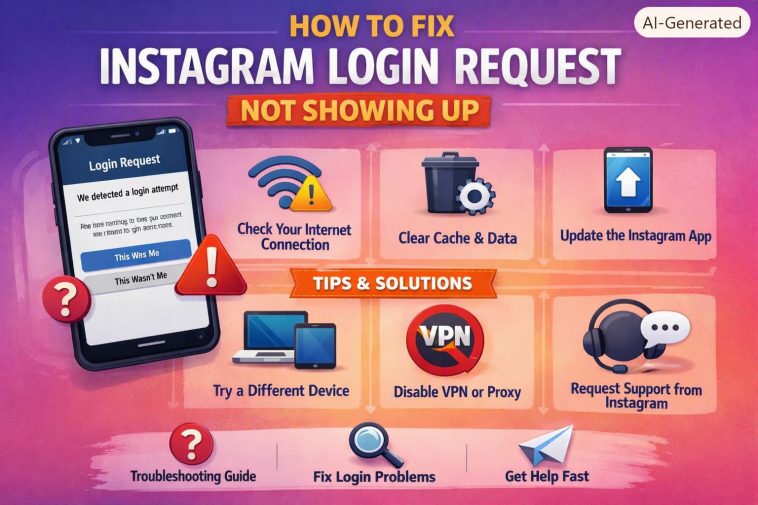
You try to log into Instagram from a new browser or device, it tells you a login request has been sent to your trusted device, and then… nothing. No notification, no banner, no badge on the app icon. You’re stuck staring at a “waiting for approval” screen that never resolves. This happens more than you’d expect, and it’s rarely actually a broken feature — it’s almost always a notification or permission setting quietly blocking the alert from reaching you.
I ran into this trying to log into a client’s Instagram from a new laptop, sat there for ten minutes assuming their phone was just being slow, and eventually found the actual problem sitting in notification settings I hadn’t touched.
Quick Answer
- Open the Instagram app manually instead of waiting for the push notification — the request often shows up under the menu (☰) → your username → the notice/activity icon even if the push never arrived
- Check that notifications are actually enabled for Instagram at the phone’s OS level, not just inside the app
- Turn off Do Not Disturb or Focus mode temporarily, since these can silently swallow the notification
- Confirm the device you’re checking is still on your trusted devices list — Instagram removes devices automatically after long periods of inactivity
- Make sure you’re checking the right account if you have more than one logged in on that device
Why It Fails
There isn’t one single cause here — this is really a notification delivery problem wearing an Instagram costume, and it can break at several different points along the way.
Notification permissions disabled at the OS level. This is the most common cause by a wide margin. You can have every setting correct inside Instagram and the login request will still never show up if your phone’s system settings have notifications for the app turned off entirely, or restricted to a silent/no-banner mode.
Do Not Disturb or Focus modes. iOS Focus modes and Android’s Do Not Disturb can both filter out app notifications even when the app itself is allowed to send them, depending on which apps you’ve whitelisted for that specific mode. So if you set up a Focus mode months ago and forgot which apps you allowed through it, this is worth checking.
Battery optimization killing background processes. Android in particular is aggressive about restricting background activity for apps it considers non-essential. If Instagram’s battery settings are set to “optimized” or “restricted” rather than “unrestricted,” the push notification service can get delayed or dropped entirely before it reaches you.
The device silently fell off your trusted devices list. Instagram periodically removes devices that haven’t been used to log in for a while, and it doesn’t always make a big deal about telling you. If the device you’re expecting the request on isn’t actually trusted anymore, no notification is coming — you’d need to complete verification a different way instead.
Push notification service delays. Both Apple’s APNs and Google’s FCM (the systems that actually deliver push notifications behind the scenes) occasionally have delivery lag, especially on unstable connections. And this one’s genuinely just bad luck sometimes — not a setting you can fix, just something that resolves itself in a few minutes.
An overlooked cause worth mentioning: if you have multiple Instagram accounts logged in on the same device, the request notification sometimes appears tied to whichever account is currently active in the app, not necessarily the one you’re trying to verify. Switching to the correct account inside the app before checking can resolve this instantly.
Step-by-Step Fixes
Step 1: Check the app manually instead of waiting
Open Instagram on your trusted device directly. Tap the menu icon (☰) in the top right, then look for a notice or activity icon — pending login requests often sit there even when the push notification itself never fired. This is the fastest fix and solves it more often than any setting change.
Step 2: Check notification permissions at the OS level
iOS: Settings → Notifications → Instagram → make sure “Allow Notifications” is on, and that Banners or Alerts are enabled, not just Badges.
Android: Settings → Apps → Instagram → Notifications → confirm notifications are enabled, and check that no specific category (like “Login and security”) is muted separately.
Step 3: Check Do Not Disturb / Focus settings
iOS: Settings → Focus → check whichever mode is currently active and confirm Instagram is allowed through, or just turn Focus off temporarily while you log in.
Android: Settings → Sound & vibration → Do Not Disturb → check the app exceptions list.
Step 4: Check battery optimization (Android)
Settings → Apps → Instagram → Battery → set to “Unrestricted.” This stops the system from delaying background notification delivery to save power.
Step 5: Confirm the device is still trusted
On the trusted device, go to Settings and privacy → Accounts Center → Password and security → where you can review devices Instagram currently recognizes as trusted. If the device isn’t listed, it’s no longer trusted, and you’ll need to verify through a different method (backup codes, email, or SMS if those are set up).
Step 6: Try requesting again after a short wait
If it’s a push delivery delay rather than a setting issue, waiting two or three minutes and requesting a fresh login attempt sometimes just works, annoyingly. Not the most satisfying fix, but it happens often enough to be worth trying before assuming something’s broken.
What Actually Worked For Me
My first assumption was that the app itself was glitching, so I force-closed it, reopened it, checked for an update — nothing changed. Then I figured maybe the device had fallen off the trusted list, so I went digging through account security settings looking for that, which turned out to be a dead end too; the device was still listed as trusted just fine.
It wasn’t until I happened to glance at the phone’s lock screen and noticed Focus mode was active — set up ages ago for a specific work schedule — that I put it together. Instagram wasn’t on the allowed apps list for that Focus mode, so the notification was getting silently filtered before it ever reached the lock screen. Turned Focus off, requested the login again, and the approval prompt showed up within a few seconds. So it wasn’t an Instagram problem at all — it was a phone setting that had nothing to do with the app on the surface, which is exactly the kind of thing that’s easy to overlook when you’re troubleshooting the app itself.
Advanced Fixes and Edge Cases
Check for multiple accounts on the trusted device. If you’re logged into more than one Instagram account in the app, switch to the account you’re trying to approve the login for before checking the activity icon. Requests sometimes don’t surface clearly if the “wrong” account is the one currently active in the foreground.
Reinstall the app if push tokens seem stuck. Push notifications rely on a device token that occasionally gets corrupted or stops refreshing properly, especially after OS updates. Uninstalling and reinstalling forces a fresh token registration, which can resolve delivery issues that persist even with every setting correct.
Check your network connection on the trusted device itself. Push notifications still need some form of connectivity to arrive — if the trusted device is in airplane mode, has no signal, or is on a network with restrictive firewall rules (some corporate or school Wi-Fi networks block push notification services outright), the request simply can’t reach it no matter what else is configured correctly.
Use backup verification if the trusted device genuinely isn’t working. If none of the above resolves it, Instagram usually offers a fallback through SMS or email verification codes instead of the device-based login request, assuming those are set up on the account.
Fixes That Rarely Help
Logging out and back into Instagram on the trusted device gets recommended a lot, and it occasionally forces a token refresh that helps — but more often it does nothing, since the actual blockage is usually a phone-level notification setting rather than anything inside the app’s session. Restarting the phone entirely is similar: it can clear a stuck background process, but it’s more of a shot in the dark than a targeted fix for this specific issue.
Prevention Tips
- Periodically check your Focus mode and Do Not Disturb app exception lists, especially after setting up a new mode
- Set Instagram’s battery usage to unrestricted on Android if you rely on login request notifications regularly
- Keep at least one backup verification method active (SMS or backup codes) in case your trusted device notification setup ever breaks
- Log into your trusted device occasionally even if you’re not actively using Instagram, so it doesn’t fall off the trusted devices list from inactivity
FAQ
Why did my trusted device stop receiving requests after I got a new phone? Trusted device status is tied to the specific device, not your phone number or Apple/Google account, so a new phone genuinely is a new device until you complete login and mark it as trusted again.
Can I approve a login request from a computer instead of my phone? Only if the computer itself was previously set up as a trusted device — the login request goes to whatever device is on the trusted list, which is usually a phone but doesn’t have to be.
Is it safe to just disable Focus mode permanently to avoid this? Not necessary — you just need Instagram specifically allowed through whatever Focus mode you use, rather than disabling the whole feature.
What if I don’t have access to my trusted device at all anymore? You’ll need to go through Instagram’s account recovery flow using backup codes, email, or identity verification instead, since the trusted device login request depends entirely on that device being reachable.
Editor’s Opinion
nine times out of ten its a phone notification setting, not instagram being broken. check the app manually first before waiting around for a push that might just never come. focus modes are the sneaky one, people forget those exist until months later when somethings not showing up right.
