I killed my terminal mid-flutter pub get once because it seemed frozen, and spent the next twenty minutes convinced I’d broken my entire SDK install. If you’re seeing “Waiting for another Flutter command to release the startup lock” and it’s just sitting there, not moving, Flutter isn’t actually broken — it’s waiting on a lockfile that a previous command left behind, usually because that command got interrupted before it could clean up after itself.
Let’s go through why this happens and the actual fixes, starting with the least destructive one first.
Quick Answer
- Check for and kill any hung
dartorflutterprocesses still running in the background - If nothing’s actually running, delete the lockfile at
<flutter-sdk>/bin/cache/lockfile - Close all IDEs (Android Studio, VS Code) fully before retrying — they sometimes hold a hidden process open
- If you just upgraded Flutter, give it a few minutes first; the lock sometimes self-releases once the upgrade finishes in the background
- Check
pubspec.yamlfor a syntax error if this happens repeatedly duringpub getspecifically
Why This Happens
Flutter uses a lockfile inside its SDK root (bin/cache/lockfile) specifically to stop two Flutter commands from running against the SDK cache at the same time and corrupting it. Under normal conditions you’d never even notice this exists — the lock gets taken, the command runs, the lock releases. The error shows up when that release step doesn’t happen.
A few concrete causes, not just “something’s wrong”:
A previous command got killed before it finished cleanly. Ctrl+C on a long flutter upgrade, force-closing a terminal mid-build, or your IDE crashing while a Flutter process was active — all of these can leave the lockfile in place with nothing actually running anymore to release it.
A hidden process held by your IDE. Android Studio and VS Code sometimes keep a background Dart analysis server or build process alive even after you think you’ve stopped it, and that process is still holding the lock as far as Flutter’s concerned.
A malformed pubspec.yaml. If there’s a syntax error in your pubspec.yaml, pub get can fail in a way that leaves the lock held, and every subsequent command hits the same wall until the underlying file gets fixed — this one’s easy to miss because the error message doesn’t point at your YAML file at all.
Filesystem lock behavior differences, mostly on macOS. Some setups run into a conflict between BSD and GNU flock implementations, which can cause the lock to appear held even when nothing’s actually running — less common, but it happens often enough to be worth knowing about if the usual fixes don’t help.
Step-by-Step Fixes
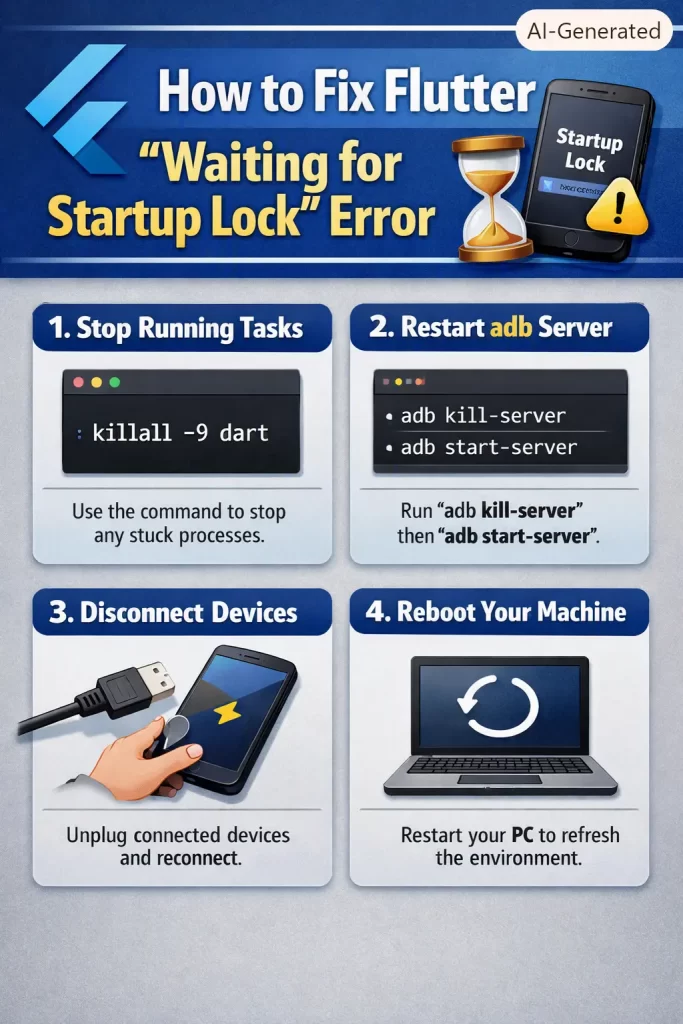
Step 1: Check for and kill lingering Dart/Flutter processes
On macOS or Linux:
bash
killall -9 dartOn Windows (Command Prompt or PowerShell):
bash
taskkill /F /IM dart.exeRun flutter doctor afterward to see if the command completes normally now. This alone resolves it most of the time, from what I’ve seen — the actual process holding the lock is usually still findable and killable, it’s just not visible from wherever you’re currently looking.
Step 2: Close your IDE completely, not just the project window
Quit Android Studio or VS Code entirely rather than just closing the project tab. So if you’re on Windows or macOS, do a full close and reopen rather than trusting the “close project” button to release everything it’s holding.
Step 3: Delete the lockfile directly
Navigate to your Flutter SDK root, then into bin/cache/, and delete the file named lockfile. On most installs that’s something like:
<flutter-sdk-path>/bin/cache/lockfileThen run flutter doctor again to confirm things are unstuck.
Step 4: Full shutdown, not just a restart
If steps 1–3 didn’t help, a full power-down (not a restart) can clear file handles that a restart sometimes doesn’t fully release, particularly on Windows. Logging out and back in can also work as a lighter alternative before going for a full shutdown.
Step 5: Check pubspec.yaml if this happens specifically during pub get
Open pubspec.yaml and check indentation and syntax carefully — YAML is picky about whitespace, and a single misaligned line can cause pub get to fail in a way that leaves the lock held rather than exiting cleanly with a useful error.
What Actually Worked For Me
My case was the interrupted-command one — I’d killed the terminal window mid-pub get assuming it had frozen, when it was actually just taking longer than usual on a slow connection. First thing I tried was just waiting, since I’d read that upgrades sometimes self-release the lock after a few minutes. That’s not entirely accurate for my situation, though — waiting did nothing, because there genuinely was no process left running to eventually finish and release anything.
Killing the Dart processes directly (killall -9 dart on my Mac) fixed it immediately once I actually did that. So the lesson for me wasn’t some deep technical insight, it was just that “wait it out” only applies if something’s actually still running, and I hadn’t checked that before deciding to wait.
Deleting the lockfile straight away is the fix most people jump to first since it’s the most commonly repeated advice, and it does work — but if there’s still a live process actually holding that lock, a new command will just recreate the file and hang again almost immediately. Checking for and killing the actual process first tends to be the more reliable order of operations.
Advanced Fixes and Edge Cases
BSD vs. GNU flock conflicts on macOS. If you’re on a Mac and the standard fixes aren’t working, this is worth checking — some tooling setups (particularly ones involving certain package managers or shell environments) can end up with a flock implementation mismatch that makes Flutter think the lock is held when it isn’t in any normal sense. Checking which flock binary is actually being invoked in your PATH can help narrow this down.
Clean SDK state as a last resort. Running flutter clean inside your project, and if that doesn’t help, doing a fresh clone or re-download of the Flutter SDK itself, resets build artifacts and forces a re-fetch of required components. This is a heavier fix and worth trying only after the lighter options above haven’t worked.
Firewall or network interference during an in-progress upgrade. If the lock appeared during flutter upgrade specifically, and your connection dropped or a firewall blocked Dart from reaching the network mid-download, the process can hang indefinitely waiting on a response that’s never coming. Checking that dart and flutter have outbound network access, then retrying the upgrade fresh, can resolve this.
Prevention Tips
- Let long-running commands like
flutter upgradefinish fully rather than interrupting them — if it looks frozen, check your network connection before killing the process - Close IDEs properly when shutting down for the day, rather than force-quitting or letting your machine sleep mid-build
- Validate
pubspec.yamlsyntax before runningpub getif you’ve just hand-edited it, especially around indentation - Avoid running Flutter commands from multiple terminals or IDE instances against the same project simultaneously
FAQ
Is it safe to just delete the lockfile without checking for running processes first? It’s usually harmless, but if a process actually is still running and using the SDK cache, deleting the file while it’s active can occasionally cause a different, messier error. Checking for and killing the process first is the safer order.
Why does this happen more often right after upgrading Flutter? Upgrades touch the SDK cache directly and can take a while depending on your connection, so an interrupted or network-stalled upgrade is one of the more common triggers for this specific error.
Does reinstalling the whole Flutter SDK actually fix this if nothing else works? Yes, generally, since it clears out any corrupted lock state entirely. It’s a heavier step though, so treat it as a last resort rather than a first move.
Can this happen if I’m not doing anything unusual, just running flutter run normally? Yes — it doesn’t require you to have done anything wrong. A crashed IDE background process or a dropped network connection during some other Flutter operation earlier in the day is enough to trigger it later.
Editor’s Opinion
the “just wait a few minutes” advice floating around isnt wrong exactly but it only applies in like one specific scenario (mid upgrade, still actually running) and ppl repeat it as a general fix which just wastes everyones time. check for the actual process first, always, taskkill/killall takes 5 seconds and tells you immediately whether waiting was ever gonna help in the first place.
