If your Switch dock’s green light is on, the console shows it’s charging, but the TV just stays on a black screen or says “No Signal,” you’re dealing with one of the most common Switch complaints there is — and it’s almost never a dead dock. The Switch dock no display issue usually comes down to the HDMI cable, a worn-out dock port, or an HDMI input mismatch on the TV side. I went through this exact thing after moving the dock to a different TV in another room, assuming the move had somehow broken it.
So let’s go through the real causes in order of how often they actually turn out to be the problem.
Quick Answer
- Most common cause: the HDMI cable itself, especially the original one that shipped with the dock — these degrade and fail more than people expect.
- Second most common: TV set to the wrong HDMI input, or the input got renamed/reassigned after a TV firmware update.
- Third: worn dock connector pins from repeated console insertion/removal, common on docks that are a year or more old.
- Fastest fix that works most often: swap the HDMI cable entirely before touching anything else.
- If that doesn’t work, test the console directly to a different TV via a different dock (or a friend’s) to isolate console vs. dock.
Why It Fails
The Switch dock isn’t just a stand — it’s doing active work every time you insert the console, switching video output from the internal screen to HDMI out and negotiating a display handshake with your TV. That handshake process is where most of these failures actually happen, not in some dramatic hardware death. The green light staying on just confirms power delivery is fine; it says nothing about whether the HDMI signal path is working.
From what I’ve seen, four causes cover almost every report:
A failing or marginal HDMI cable. This is the one people skip because “the cable’s fine, it’s the same cable I’ve always used.” But HDMI cables genuinely degrade with repeated bending, especially at the connector ends, and a cable that’s flaky can produce inconsistent results — works sometimes, doesn’t others, or works with one TV and not another. The original Nintendo-supplied cable isn’t immune to this either.
TV input confusion after a firmware update or cable rearrangement. Smart TVs love to auto-rename or reassign HDMI inputs during their own updates, and if you’ve got multiple things plugged in, the input labeled “Switch” might not actually be the port the dock’s plugged into anymore. Sounds too simple to be the actual cause half the time, but it genuinely is more often than people expect.
Worn dock connector pins. The USB-C connector inside the dock that the console slots into takes physical wear every time you insert or remove the console. After enough cycles — a year or more of daily use isn’t unusual — the pins can lose consistent contact, and video signal is often the first thing to go intermittent before charging does, since charging tolerates more contact resistance than a clean digital video handshake does.
HDCP handshake failure specific to certain TV/receiver combinations. If you’re running the dock through an AV receiver or an HDMI switch box rather than straight into the TV, HDCP (the copy-protection handshake) can fail silently on some combinations, especially older receivers not fully compliant with newer HDCP versions. This one’s an overlooked cause — plenty of people troubleshoot the dock itself for hours without realizing the receiver in the middle of the chain is the actual point of failure.
Common Scenarios
- Right after moving the dock to a new TV or room, cable route changed, or a different HDMI port used than before.
- After a TV software update, particularly on Samsung and LG smart TVs, which are more aggressive about auto-managing HDMI input labels.
- Docks in daily use for a year or more, console inserted and removed multiple times a day.
- Setups running through a soundbar, receiver, or HDMI switch rather than a direct TV connection.
Technical Comparison Table
| Symptom detail | Likely cause | Fix reliability |
|---|---|---|
| Works with a different HDMI cable | Original cable degraded | High |
| Works on a different TV, same cable/dock | TV-side input or HDCP issue | High |
| Console charges fine, video intermittent | Worn dock connector pins | Medium — may need dock replacement |
| Fails only through a receiver/soundbar | HDCP handshake in the chain | High — bypass or update the middle device |
Step-by-Step Fixes
Step 1: Swap the HDMI cable first, before anything else
Grab any other HDMI cable you have — from a game console, a streaming stick, whatever’s on hand — and swap it in. This single step resolves this issue more often than every other fix combined, from what I’ve seen and from what shows up repeatedly across Nintendo’s own support forums. If it works immediately with a different cable, you’re done; just replace the original one.
Step 2: Confirm the TV is actually on the right input
Cycle through your TV’s HDMI inputs manually rather than trusting the auto-labeled name. Unplug the dock’s HDMI cable, plug it into a different HDMI port on the TV, and select that port directly. This rules out both a mislabeled input and a specific dead port on the TV itself, which does happen occasionally too.
Step 3: Remove any receiver or HDMI switch from the chain temporarily
Run the dock’s HDMI cable directly into the TV, bypassing any soundbar, AV receiver, or switch box. If it works direct but not through the receiver, the issue is HDCP compatibility or a firmware problem on that middle device — check if the receiver has a pending firmware update, since that’s a genuinely common fix for this specific scenario.
Step 4: Inspect and clean the dock connector
Remove the console from the dock and look inside the USB-C connector with a flashlight. Check for visible dust, lint, or bent pins. A can of compressed air aimed into the connector, a few short bursts, clears most debris-related contact issues. Don’t insert anything solid into the connector to clean it — that risks bending the pins rather than clearing them.
Step 5: Test with the console removed and reinserted a few times
Sometimes it’s genuinely just a bad seat — remove the console fully from the dock, wait a few seconds, and reinsert firmly until it clicks into place. Not a permanent fix if it keeps happening, but worth ruling out before assuming hardware failure.
Step 6: Test the console on a completely different dock if possible
Borrowing a friend’s dock, or testing at a store display if you’re comfortable doing that, isolates whether the problem is the dock or something with the console’s own video output circuitry — which is a separate and less common failure, but does happen, particularly after drops or liquid exposure.
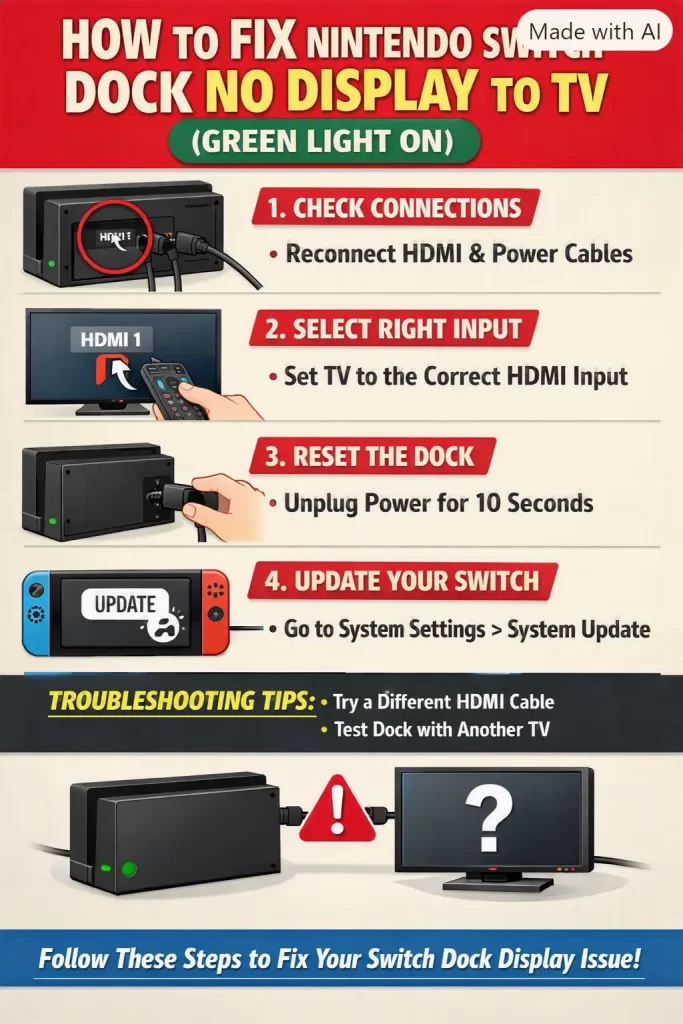
What Actually Worked For Me
Mine happened right after moving the dock to a different bedroom TV — plugged everything in, console showed charging normally, TV just sat there black with no signal detected at all. My first assumption was that the move itself had jostled something loose internally, which in hindsight wasn’t a very logical theory, but that’s where my head went.
Spent a while going through the TV’s input menu, manually cycling through every HDMI port, no luck on any of them. Then tried a different cable I had lying around from an old cable box — worked immediately, first try. So it really was just the cable, and honestly kind of a letdown after building up a bigger theory about the dock being damaged in the move.
That’s not entirely accurate though — let me back up, because I later realized the original cable had been getting bent at a sharp angle behind the old TV stand for months before the move, which probably weakened it well before the actual move happened. So it wasn’t really “the move broke it,” more like the move was just the point where an already-degrading cable finally gave out completely. A little lucky it was that simple, since I’d already mentally prepared for a dock replacement.
Advanced Fixes and Edge Cases
Check for a Switch system update stuck mid-install. Rare, but if a system update was interrupted, video output can behave inconsistently even though the console otherwise seems to boot fine. Try booting into Safe Mode (hold Volume Up + Volume Down + Power) and checking for pending updates from there.
Test docked mode output resolution manually. Under System Settings > TV Output, try manually switching between 1080p and Automatic resolution settings — some older TVs or specific firmware versions handle the Switch’s automatic resolution negotiation poorly, and forcing 1080p resolves handshake failures that Automatic mode doesn’t.
Inspect the dock’s internal HDMI board for physical damage if the dock’s been dropped. Not something most people can easily do without opening the dock, and doing so voids warranty — but if the dock’s taken a physical impact, a dislodged internal HDMI connector is a real possibility worth mentioning to Nintendo support if you go the repair route.
Rule out a bad HDMI port on the TV specifically by testing another device in that same port. Plug literally any other HDMI source — a laptop, another console, a streaming stick — into the exact port the dock’s using. If that device also fails, the port itself is the problem, not the Switch or dock at all.
Prevention Tips
- Avoid sharp bends in the HDMI cable, especially right at the connector ends, where the internal wiring is most vulnerable to fatigue over time.
- Insert and remove the console from the dock gently and squarely, not at an angle, to reduce wear on the connector pins.
- If running through a receiver or soundbar, keep its firmware updated, since HDCP compatibility issues are often patched over time.
- Keep a spare HDMI cable on hand — they’re cheap, and swapping one in is the fastest diagnostic step for this entire category of issue.
- Periodically clean the dock’s internal connector with compressed air, especially if it sits somewhere dusty like near a TV console with poor airflow.
FAQ
Does the green light on the dock mean the dock itself is definitely working? It confirms power delivery and charging, not video output — those are handled by different circuits internally, so a working green light doesn’t rule out an HDMI or connector problem.
Is this covered under Nintendo’s warranty? If it’s a genuine dock hardware defect and the dock’s still within warranty, yes. Cable issues generally aren’t covered since third-party or even original cables are considered a wear item.
Can I use any HDMI cable, or does it need to be a specific type? Any standard HDMI cable works — you don’t need anything Switch-specific. A basic HDMI 1.4 or 2.0 cable handles the Switch’s output resolution without issue.
Should I buy a replacement dock or just a replacement cable first? Cable first, always — it’s a five-dollar fix that resolves this more often than a dock replacement does, and there’s no reason to spend on a new dock before ruling that out.
Does this happen more with the OLED model’s dock versus the original? Both models have reported this issue at similar rates from what’s visible in community reports — it’s more about cable and connector wear over time than a design flaw specific to one dock version.
Editor’s Opinion
Swap the cable before you do literally anything else — it’s the fix that works most of the time and costs almost nothing to test. Green light staying on trips people up because it feels like proof the dock’s fine, but power and video are separate circuits entirely. If a spare cable doesn’t fix it, work through the TV input and connector checks before assuming you need a whole new dock.
