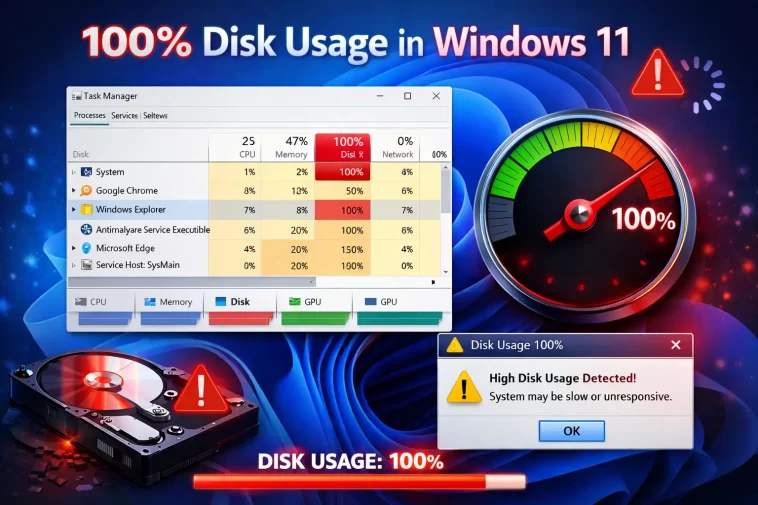
I had a laptop sitting completely idle — no apps open, no downloads running, nothing — and Task Manager was showing 100% disk usage in Windows 11 like the drive was being put through a stress test. No obvious culprit, no giant file transfer, nothing. So if you’re staring at that same red bar maxed out for what looks like no reason at all, I’ve been exactly there, and the “no reason” part is almost always a lie. There’s a reason. It’s just hiding somewhere Task Manager doesn’t show you by default.
This is going to get into some of the less obvious causes, because the obvious ones (Windows Update, antivirus scans) get covered everywhere and usually aren’t actually it once you’ve already checked them.
Quick Answer
- Open Resource Monitor (not just Task Manager) and sort by disk activity to find the real process
- Disable Superfetch/SysMain temporarily as a diagnostic test, not a permanent fix
- Check for Windows Search indexing stuck in a loop — this is one of the most overlooked causes
- Update or roll back storage drivers, especially after a recent Windows Update
- Rule out a failing drive using CrystalDiskInfo before assuming it’s a software issue
Why This Happens Even When Nothing’s Running
The “100% with nothing open” version of this problem usually comes from background processes that don’t show up clearly in the basic Task Manager view. Here’s where it tends to actually come from.
Windows Search indexing gets stuck in a loop. The search indexer is supposed to run quietly in the background and finish. But its indexing service occasionally gets corrupted or interrupted (often by a forced shutdown or update mid-index), and it restarts the indexing process from scratch repeatedly without ever finishing. This is, from what I’ve seen, one of the most common causes that gets missed because people check Task Manager’s “Disk” column and see SearchIndexer using a small percentage, not realizing it’s been doing that continuously for hours.
Superfetch/SysMain is pre-loading data inefficiently, usually on systems with an HDD or an underpowered SSD. Superfetch is meant to speed things up by preloading frequently used apps into memory. On older or slower drives, it can end up doing more harm than good, especially right after a reboot when it’s trying to rebuild its usage cache.
A driver update broke something quietly. This one’s sneaky because it often shows up right after a routine Windows Update, and people don’t connect the two. A storage driver (especially NVMe or chipset drivers) getting silently updated to a buggy version can cause constant background polling that looks like disk activity for no reason.
Antivirus real-time scanning on a delay. Not the obvious “full scan running” scenario — more like a background real-time protection feature scanning files repeatedly due to a corrupted definition update or a misconfigured exclusion list.
The drive itself is starting to fail. Less common, but worth ruling out, especially on older laptops. A drive with failing sectors can cause the OS to retry read/write operations repeatedly, which shows up as sustained high disk usage with no clear application behind it.
Technical Comparison: Likely Causes vs Fixes
| Cause | How It Usually Presents | Fix That Actually Works | Fix People Try First (Rarely Helps) |
|---|---|---|---|
| Search indexing loop | SearchIndexer.exe recurring, never fully completes | Rebuild or disable the index | Restarting the PC (temporary relief only) |
| Superfetch/SysMain | High disk right after boot, settles eventually | Disable service as a test | Increasing RAM (doesn’t address the root cause) |
| Driver issue post-update | Started right after a Windows Update | Roll back or reinstall storage driver | Running SFC scan (usually comes back clean) |
| Failing drive | Random spikes, sometimes with slow file access too | Run CrystalDiskInfo, back up data | Disk cleanup (doesn’t address hardware) |
Not a perfect 1-to-1 mapping every time, but this is roughly how it breaks down across the cases I’ve seen and read about.
Step-by-Step Fixes
Step 1: Use Resource Monitor, Not Just Task Manager
Task Manager’s disk view is fine for obvious hogs but bad at catching low-but-constant activity. Open Resource Monitor (type resmon in the Start menu) and go to the Disk tab. Sort by “Total” to see which process has been quietly chewing through disk activity over time, not just in the current snapshot.
This step alone solves the mystery for a lot of people — half the time it’s something you wouldn’t have guessed from the Task Manager view alone.
Step 2: Disable Windows Search Temporarily
- Press Win+R, type
services.msc, hit Enter - Find “Windows Search” in the list
- Right-click, Stop
- Watch disk usage in Resource Monitor for 5-10 minutes
If usage drops immediately, the indexer was your problem. Don’t just leave it disabled forever, though — search functionality degrades without it. Instead, rebuild the index: Settings > Privacy & Security > Searching Windows > Advanced indexing options > Advanced > Rebuild.
Step 3: Test With Superfetch/SysMain Disabled
- Open
services.mscagain - Find “SysMain” (this is what Superfetch is called now)
- Right-click, Stop, then set Startup type to Disabled if the test confirms it’s the cause
- Reboot and monitor disk usage over the next hour
This one’s a legitimate fix for older HDDs and some budget SSDs, but on a fast NVMe drive it’s less likely to be the actual cause — worth testing anyway since it costs nothing to try.
Step 4: Check for Recent Driver Updates
Open Device Manager, expand “Storage controllers,” right-click your main controller, and check Driver Details for the date. And if that date lines up with when the problem started, that’s your lead.
So roll back the driver if an update is the obvious trigger: right-click the device, Properties, Driver tab, Roll Back Driver (only available if Windows kept the previous version). If that button’s grayed out, you’ll need to manually download the previous driver version from your manufacturer’s site instead.
Step 5: Run a Full Malware and Antivirus Conflict Check
Run Windows Defender’s full scan, but also check if you’ve got a second antivirus product installed alongside Defender — that’s a more common cause of disk thrashing than people expect, since two real-time scanners checking the same files creates redundant disk reads.
What Actually Worked For Me
My case turned out to be the search indexer, but it took me embarrassingly long to find that out. I started with the usual suspects — disabled Superfetch, ran a malware scan, even did a clean boot to rule out third-party services. Nothing changed. Disk usage sat at 100% pretty much the whole time, idle or not.
I almost gave up and just assumed it was a dying drive, ran CrystalDiskInfo expecting bad news. Drive health came back fine, which was honestly a little annoying because at that point I wanted an answer, even a bad one.
What actually cracked it was opening Resource Monitor and just… watching it for ten minutes instead of glancing at it once. SearchIndexer.exe wasn’t using a huge percentage at any given moment, but it never stopped. It would dip, spike again, dip, spike again, on a loop. Rebuilt the index, left it running for about 40 minutes while it actually finished, and disk usage dropped to normal after that. Three days of intermittent annoyance for what ended up being a five-minute fix once I knew where to look.
Advanced Fixes and Edge Cases
Check Event Viewer for storage-related warnings. Open Event Viewer, navigate to Windows Logs > System, and filter for Warning/Error events related to disk or storage. Repeated “disk” or “ntfs” warnings can point toward a hardware issue that won’t show up in normal usage monitoring.
Run chkdsk to rule out file system errors. Open Command Prompt as administrator and run chkdsk C: /f /r. This requires a restart since it needs exclusive access to the drive. It’s a legitimate diagnostic step, but don’t run it as your first move — it’s slow, and most 100%-disk cases aren’t actually file system corruption.
Check for a stuck Diagnostic Tracking Service. This one’s obscure, but it shows up occasionally — the Connected User Experiences and Telemetry service (DiagTrack) has been known to cause sustained disk activity when its log files get unusually large. Stopping the service temporarily (via services.msc) and checking the size of C:\ProgramData\Microsoft\Diagnosis can reveal this.
Check virtual memory / page file settings if RAM is limited. On systems with 8GB or less RAM, a poorly sized page file can cause constant disk swapping that presents as sustained “no reason” disk activity, especially with several browser tabs and background apps open simultaneously.
Prevention Tips
- Keep storage drivers updated through the manufacturer’s site, not just Windows Update, especially for NVMe drives
- Avoid running two real-time antivirus products simultaneously
- Don’t force-shutdown your PC repeatedly during updates — this is a common trigger for search index corruption
- Periodically check drive health with CrystalDiskInfo even when nothing seems wrong, just so you have a baseline
FAQ
Is 100% disk usage always bad? Short bursts during updates or large file operations are normal. Sustained 100% with no clear cause for more than 10-15 minutes usually isn’t.
Will a fresh Windows install fix this? Probably, but it’s a last resort, not a first step. Most causes here are fixable without wiping the drive.
Does more RAM fix high disk usage? Sometimes indirectly, since less RAM means more page file swapping, which hits the disk. But it’s not a direct fix if the actual cause is something like the search indexer.
Why does this happen right after I install Windows updates? Usually the search index rebuilding itself after the update, or a driver getting silently replaced. Both are addressed in the steps above.
Can a bad SATA cable cause this on a desktop? Yes, actually — loose or damaged SATA cables can cause repeated read/write retries that look exactly like a software-caused disk usage spike. Worth checking on desktops if nothing else explains it.
Editor’s Opinion
the search indexer thing genuinely surprised me the first time i ran into it, mostly cause task manager makes it look so small and harmless. resource monitor should honestly just be the default tool windows shows you instead of task managers disk tab, it tells you so much more. anyway if youve tried the obvious stuff already and nothings working, go watch resmon for ten full minutes before you do anything drastic like reinstalling windows.
