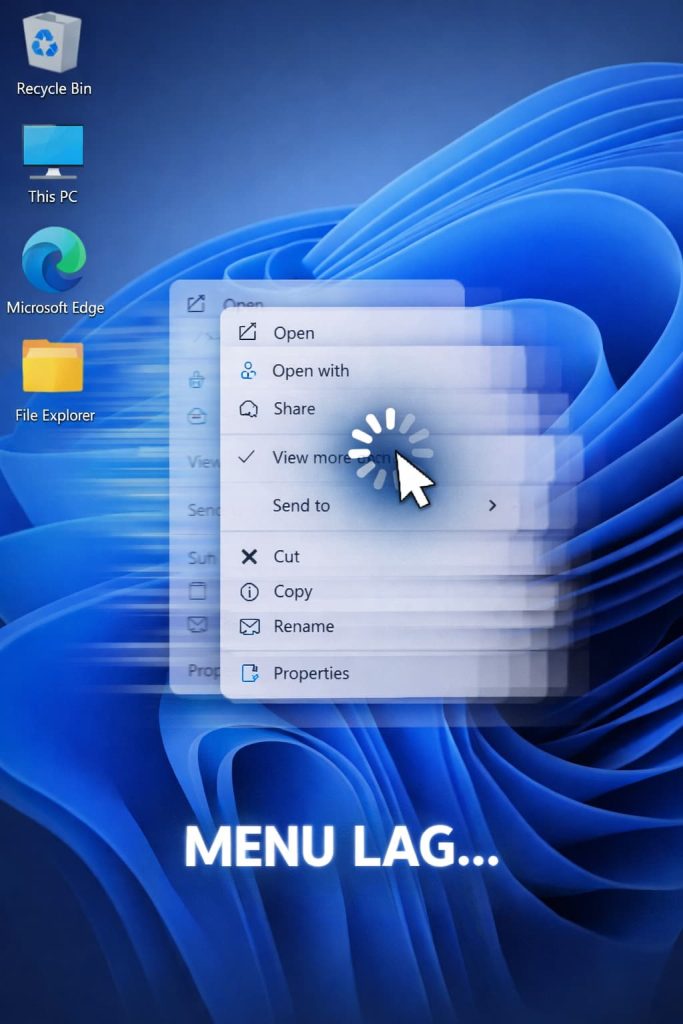
The Windows 11 right click context menu lag is one of those issues that seems minor until it happens forty times a day, and then it becomes genuinely maddening. I noticed it on my own machine a few weeks after upgrading — that half-second (sometimes longer) freeze before the new-style context menu actually opens. Here’s what’s causing it and how to actually fix it.
Why the Windows 11 Context Menu Is Slow
The new context menu in Windows 11 isn’t just a visual reskin. Microsoft rebuilt it as a WinUI 3 element, which means it’s rendered differently from the classic Win32 menu. That extra rendering layer introduces latency.
But that’s not the whole story — well, sort of. It’s actually more like a combination of things hitting at the same time. The WinUI rendering adds base overhead, but the lag you’re actually experiencing in practice usually comes from one or more of these:
Shell extension overload. Every piece of software that adds something to your right-click menu registers a shell extension. Antivirus tools, archive programs, cloud sync clients — they all hook in. When you right-click, Windows loads all of them before displaying the menu. If even one is slow or broken, the whole menu waits.
Thumbnail generation stalling the shell. Right-clicking in File Explorer can trigger thumbnail generation for the selected item. If the file is on a slow drive, a network location, or a format Windows doesn’t handle natively, this blocks the menu.
The new context menu querying legacy handlers. The modern Windows 11 menu still has to query old Win32 shell extensions for the “Show more options” layer. When those extensions take too long to respond, the delay bubbles up to the top.
OneDrive or cloud sync hooks. From what I’ve seen, this is one of the most overlooked causes. OneDrive adds shell extensions that check file sync status before the menu appears. On a slow connection or during a sync, this adds noticeable lag.
Quick Fix Summary
If you want the short version before reading everything:
- Disable or clean up shell extensions with ShellExView
- Switch back to the classic context menu via a registry edit
- Check for OneDrive or cloud sync delays
- Use Autoruns to identify slow-loading extensions
- Update or roll back your graphics and shell-related drivers
Step-by-Step Fixes
Step 1: Restore the Classic Right-Click Menu
This is the fix most people end up landing on, and it genuinely works. The classic Win32 context menu skips the WinUI rendering entirely.
Open Command Prompt or PowerShell as Administrator and run:
reg add "HKCU\Software\Classes\CLSID\{86ca1aa0-34aa-4e8b-a509-50c905bae2a2}\InprocServer32" /f /veRestart Explorer (or reboot). Your right-click menu will now default to the old Windows 10-style menu.
To undo it:
reg delete "HKCU\Software\Classes\CLSID\{86ca1aa0-34aa-4e8b-a509-50c905bae2a2}" /fThis doesn’t affect functionality. “Show more options” still exists — it’s just not the default anymore.
Step 2: Audit Shell Extensions
Download ShellExView (free, no install needed). Sort by “Company” and look at anything that isn’t Microsoft. Disable third-party entries one at a time and test. This is tedious but it’s how you actually find the culprit.
The usual suspects are:
- 7-Zip / WinRAR / WinZip
- NVIDIA or AMD context menu extensions
- Dropbox, Google Drive, OneDrive
- Older antivirus tools (especially legacy Norton or McAfee remnants)
Disable, restart Explorer, right-click, check latency. Repeat. Not 100% sure why, but NVIDIA’s shell extensions cause this more often than you’d expect — even on machines where the GPU drivers are fully up to date.
Step 3: Deal With OneDrive Shell Integration
If you use OneDrive and your files are synced, the shell extension is probably adding latency on every right-click. You can disable just the shell extension without fully uninstalling OneDrive.
Open ShellExView, search for “OneDrive,” and disable the context menu handler. Your files still sync — you just lose the right-click “Share” and “View online” options.
Alternatively, if you don’t actually use OneDrive: Settings > Apps > OneDrive > Uninstall. The right-click menu usually snaps back immediately.
Step 4: Check Thumbnail Cache and Disk Speed
Right-clicking files on a slow or failing drive can cause the shell to stall waiting on thumbnail generation. Run:
chkdsk C: /f /rOr check your drive health in Device Manager → Disk Drives → Properties → Events tab. If you’re seeing I/O errors, the context menu lag might just be a symptom of a bigger problem.
To rebuild the thumbnail cache:
- Open Disk Cleanup
- Check “Thumbnails”
- Clean up
This clears the corrupted or bloated cache that can slow down shell operations.
Step 5: Adjust the Menu Show Delay in Registry
Windows has a registry key that controls how long it waits before showing menus. This affects the right-click menu too.
HKEY_CURRENT_USER\Control Panel\DesktopLook for MenuShowDelay. Default is 400 (milliseconds). Drop it to 0 or 100. It won’t fix a broken shell extension, but it removes the built-in artificial delay Windows adds.
What Actually Worked for Me
I went through the obvious stuff first — MenuShowDelay to 0, cleared thumbnail cache. No change. Then I ran ShellExView and started disabling things, which I’ll admit I wasn’t very systematic about. I basically disabled everything that wasn’t Microsoft and right-clicked. Instant menu.
Then I re-enabled them in batches to narrow it down, and the culprit turned out to be an old Google Drive extension from a version I’d uninstalled months ago. The installer had left the shell extension registered even though the app was gone. Removing the leftover entry in ShellExView fixed it completely. I was slightly annoyed at myself for not checking uninstalled apps first — it’s an easy thing to miss.
The registry fix to restore the classic menu is what I recommend to anyone who doesn’t want to go through the diagnostic process. It’s just faster and the old menu works fine.
Advanced Fixes and Edge Cases
Diagnosing With Autoruns
Microsoft’s Autoruns tool shows every shell extension registered on your system with more detail than ShellExView. Run it as Administrator, go to the “Explorer” tab, and look at everything under “Shell Execute Hooks” and “Context Menu Handlers.”
Anything without a verified Microsoft signature is worth investigating. Right-click → Jump to Entry will show you the registry location, which helps when you need to manually delete orphaned entries from uninstalled software.
Event Viewer for Shell Errors
If the lag is intermittent or inconsistent, open Event Viewer and filter the Application log for errors around the time you notice slow right-clicks. Shell extension crashes often log entries with source “Explorer” or the extension’s own name. If you see repeated “The shell extension … failed to load” messages, that’s your problem — a broken extension trying and failing on every context menu call.
Group Policy and WinUI Rendering
On Windows 11 Pro or Enterprise, there’s no official Group Policy setting to disable the new context menu as of 2026, but some enterprise admins work around this by deploying the registry key change from Step 1 via a startup script. Your mileage may vary depending on how your org manages shell settings.
Conflicting Security Software
Some endpoint security tools add shell extensions that perform file reputation checks in real time. This is a feature — it’s scanning before showing you options. But on slower machines or aggressive scan configurations, it adds 500ms or more to every right-click. Check your security software’s settings for “Shell integration” or “Explorer integration” and look for options to disable real-time context menu scanning. Most tools let you do this without reducing protection meaningfully.
Fixes That Rarely Work But Keep Getting Recommended
For what it’s worth: disabling visual effects (Performance Options → “Adjust for best performance”) gets suggested constantly and almost never fixes context menu lag specifically. The lag is a shell extension or rendering issue, not a GPU animation issue.
Reinstalling Windows is obviously overkill. And clearing temp files with Disk Cleanup has no meaningful effect on this specific problem.
Prevention Tips
- After installing any app that integrates with Explorer (archive tools, cloud storage, creative apps), right-click something and check if the menu got slower
- Keep a note of which shell extensions you’ve disabled — after Windows updates, some get re-enabled
- Run ShellExView or Autoruns every few months if you install a lot of software
- When uninstalling apps, check whether their shell extensions are actually gone — many installers don’t clean up properly
FAQ
Will the registry fix to restore the classic menu break anything?
No. The new menu is still accessible via “Show more options.” You’re just changing which one appears first.
Do I need to restart my PC after disabling shell extensions in ShellExView?
You can restart Explorer instead. Task Manager → Details → explorer.exe → End Task, then File → Run new task → explorer.exe. Faster than a full reboot.
What if the lag only happens on network folders or mapped drives?
That’s a separate issue — it’s likely SMB negotiation or thumbnail generation over the network. Disabling thumbnails for network locations in Folder Options helps. Context menu shell fixes won’t solve it.
Is this a bug Microsoft plans to fix?
There’s been no official acknowledgment as of 2026. The WinUI rendering overhead seems intentional, and Microsoft has been quiet on the shell extension performance issue.
Can antivirus software cause this even if it’s up to date?
Yes, absolutely. The version doesn’t matter — it’s about whether the shell integration is doing real-time lookups. Check the antivirus settings, not just the update status.
Does this problem affect all Windows 11 versions?
It showed up with the initial Windows 11 release and has persisted across updates. Some versions are better than others, but the architecture hasn’t changed enough to fix it.
What if I disabled everything in ShellExView and it’s still slow?
Check for thumbnail cache issues, test with a fresh local folder (not synced or on a network), and look at Event Viewer for shell errors. If it’s still slow with nothing third-party loaded, the WinUI rendering itself is the bottleneck — the classic menu registry fix is your best option.
