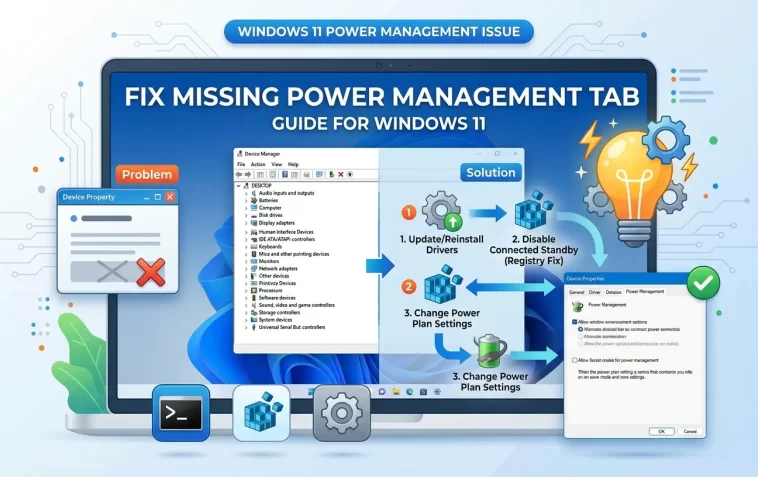
I went into Device Manager to stop my Wi-Fi adapter from turning itself off randomly, and the Power Management tab that’s supposed to be right there in Properties just… wasn’t. Power management tab missing, on a laptop I’d been using for months without this ever being a problem before. So I dug into it, and it turns out this isn’t really a bug most of the time — it’s Windows doing something specific on purpose that just happens to look broken.
If you’re expecting a simple driver reinstall to fix this, it might not. Read on before you burn an afternoon on that.
Quick Answer
- On most laptops, this tab disappears because of Modern Standby, not a broken driver.
- The registry fix is adding a DWORD called CsEnabled under
HKLM\SYSTEM\CurrentControlSet\Control\Powerand setting it to 0, then rebooting. - That forces your machine into legacy S3 sleep instead of Modern Standby, and the tab comes back.
- Not every device has this tab even when things are fine — some drivers simply don’t expose power management options at all.
- If it’s a work machine, check with IT first, since Group Policy can also hide this tab deliberately.
Why It Fails
There are a few genuinely different causes here, and mixing them up wastes a lot of time.
Modern Standby is the big one. Laptops built around Intel or AMD’s “Always On, Always Connected” platforms use Modern Standby (S0 low-power idle) instead of the older S3 sleep. On these systems, Windows deliberately removes the Power Management tab for certain devices — network adapters especially — because Modern Standby handles device power states itself, and exposing manual controls would conflict with that. This isn’t a glitch. It’s intentional, even though it feels like something broke.
Not every driver supports power management to begin with. Some devices genuinely never had this tab, because the driver never declared the capability in the first place. If you’re comparing notes with someone else’s PC and their identical-looking device has the tab but yours doesn’t, the driver version or vendor build might differ just enough to matter.
A recent driver update or rollback can remove it. I’ve seen this happen after a routine Windows Update pushed a generic driver over a vendor-specific one. The generic driver sometimes doesn’t implement the same power management hooks the manufacturer’s version did.
Group Policy on managed devices can hide device property tabs outright. This is more of a corporate/work-laptop thing, but it’s worth ruling out before touching the registry, because a policy will just reapply itself and undo anything you change locally.
Step-by-Step Fixes
Step 1: Confirm whether you’re on Modern Standby
Open Command Prompt and run:
powercfg /aIf you see “Standby (S0 Low Power Idle)” listed as available and S3 isn’t mentioned at all, you’re on Modern Standby, and that’s very likely your answer already.
Step 2: Force legacy standby via the registry
Open Registry Editor and go to:
HKEY_LOCAL_MACHINE\SYSTEM\CurrentControlSet\Control\PowerRight-click in the empty space, choose New > DWORD (32-bit) Value, name it CsEnabled, and leave the value at 0. Restart your PC. Run powercfg /a again afterward to confirm S3 is now listed.
Fair warning here — this changes how your whole system sleeps, not just how one device behaves. Some laptops handle this fine. Others (especially newer ones tightly built around Modern Standby hardware) may see longer wake times or slightly worse battery life on standby. It’s a real tradeoff, not a free fix.
Step 3: Check the driver itself
Go to Device Manager, right-click the device, and check Driver > Driver Details. If you recently updated Windows, try rolling the driver back one version and see if the tab reappears. If it does, that confirms the newer driver dropped the power management hooks — worth reporting to the manufacturer or waiting for a fixed release.
Step 4: Reinstall the device driver from the manufacturer’s site
Generic Windows Update drivers are convenient but sometimes strip out vendor-specific features. Grab the actual driver package from the laptop or NIC manufacturer’s support page instead of relying on whatever Windows auto-installed.
Step 5: Check Group Policy if this is a work device
Run gpedit.msc (not available on Home editions) and check under Computer Configuration > Administrative Templates > System > Device Installation for anything related to hiding device properties. If a policy is set here, local registry changes won’t stick — you’ll need IT to adjust it.
What Actually Worked For Me
I tried the driver reinstall first because it felt like the “correct” fix, and it did absolutely nothing — the tab stayed gone. So then I remembered reading something a while back about Modern Standby hiding power tabs specifically, half-remembered from a forum thread I can’t even find again now, and ran powercfg /a just to check. Sure enough, S0 was the only option listed.
The CsEnabled registry entry brought the tab back after one reboot. But I’ll be honest, my laptop’s wake-from-sleep time did get noticeably slower afterward — not a dealbreaker for me, but if you’re on a machine where fast resume actually matters, that’s the tradeoff you’re signing up for.
Advanced Fixes and Edge Cases
If CsEnabled doesn’t stick or gets reset, check whether your OEM has its own power management utility (Dell Power Manager, Lenovo Vantage, and similar tools sometimes override standby behavior independently of the raw registry value). These can silently re-enable Modern Standby on their own schedule.
If only one specific device is missing the tab while others have it, that’s more likely a driver-specific gap than a system-wide Modern Standby issue. Check Device Manager > View > Show hidden devices, since sometimes an old “ghost” version of the same device is still installed and interfering.
If you’re on a desktop, not a laptop, and still hitting this, Modern Standby is far less common on desktops, so double-check with powercfg /a anyway — some desktop motherboards do ship with Modern Standby support enabled by default now, which surprises people who assume it’s laptop-only.
Event Viewer can help confirm driver-level power capability issues. Check under Applications and Services Logs > Microsoft > Windows > Kernel-Power for events tied to device power state transitions if you want to dig deeper than just “the tab is gone.”
Prevention Tips
- Before updating drivers on a system where you rely on manual power management, note whether the tab currently exists so you can tell if an update removes it.
- If you’re not actually trying to prevent a device from waking the PC or draining battery, you might not need this tab at all — plenty of people never notice it’s missing until they go looking for a specific setting.
- On managed devices, ask IT before making registry changes; a policy reapplying itself will just waste your time.
- Keep a note of whether your device uses S0 or S3 sleep so you’re not troubleshooting blind next time something changes after a Windows Update.
FAQ
Will forcing legacy standby (S3) break anything else? Not typically, but expect slower wake times and potentially reduced battery life during sleep on newer hardware built specifically around Modern Standby.
Does this affect all devices or just network adapters? Network adapters are the most commonly reported, but it can affect other devices too depending on the driver and platform.
Is there a way to keep Modern Standby and still get the tab back? Not reliably, no. The tab’s absence on Modern Standby systems is largely by design for affected device classes.
Why did this start happening after a Windows Update and not before? Updates sometimes replace vendor drivers with generic ones, or push firmware changes that shift how the platform reports standby capabilities. Annoying, but common.
Editor’s Opinion
kind of a weird one because most “missing tab” bugs are just bugs, but this one is mostly windows doing exactly what its supposed to on modern standby hardware. the registry fix works but its not free, you’re trading a settings tab for slower resume times basically. worth it if you actually need to control the device’s power behavior, not worth it if youre just curious why the tab vanished.
