Changing the way your text looks is usually the first thing people want to do when they open a document. Whether you are writing a formal letter or a creative flyer, knowing how do I change the font style and size in Word is a fundamental skill that transforms a boring block of text into something professional and easy to read.
In this guide, we will cover the quickest ways to adjust your text, the keyboard shortcuts the pros use, and how to set a “default” font so you never have to change it manually again.
The Basics: Using the Home Ribbon
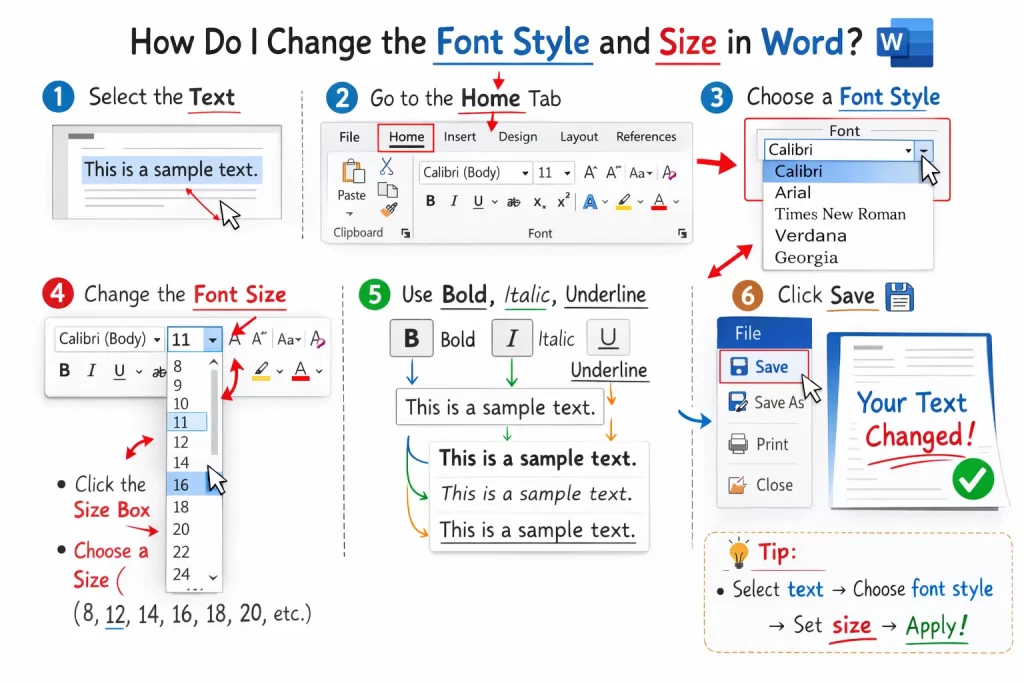
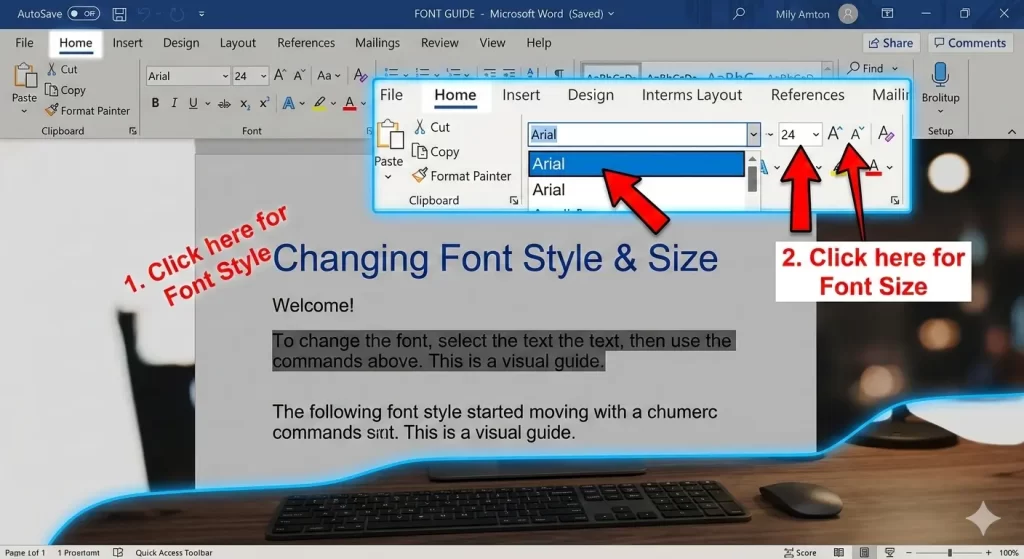
The most direct answer to “how do I change the font style and size in Word” lies in the Home tab at the top of your screen. This area is called the “Ribbon,” and it houses all your formatting tools.+1
Step 1: Select Your Text
Before you can change anything, Word needs to know which words you want to edit.
- To select a word: Double-click it.
- To select a paragraph: Triple-click anywhere in the paragraph.
- To select the entire document: Press
Ctrl + A(Windows) orCmd + A(Mac).
Step 2: Choose a Font Style
In the “Font” group on the Home tab, you will see a box with a font name (usually “Calibri” or “Aptos”). Click the small downward arrow next to it. A long list of fonts will appear. As you hover your mouse over the names, Word will show you a live preview of what your text will look like.
Step 3: Pick a Font Size
Right next to the font name is a box with a number. You can click the arrow to choose a standard size (like 12 or 14), or you can click inside the box and type a specific number (like 12.5) and hit Enter.
Using the Mini Toolbar (The Shortcut)
Microsoft Word has a “hidden” feature designed to save you time.
When you highlight a piece of text with your mouse and let go, a small, semi-transparent menu appears right above your cursor. This is the Mini Toolbar. It contains the font style dropdown and the size box. This allows you to make changes without having to move your mouse all the way to the top of the screen.+1
Keyboard Shortcuts for Speed
If you do a lot of writing, moving your hand back and forth to the mouse can slow you down. Here are the best shortcuts for changing font size on the fly:
- Make text bigger: Highlight text and press
Ctrl + Shift + >(Windows) orCmd + Shift + >(Mac). - Make text smaller: Highlight text and press
Ctrl + Shift + <(Windows) orCmd + Shift + <(Mac). - Open the Font Dialog Box: Press
Ctrl + D(Windows) orCmd + D(Mac) to open a window with every single font option available.
How to Set a Default Font
Are you tired of Word always starting with a font you hate? You don’t have to change it every single time you start a new document. You can set a permanent default.
- Go to the Home tab.
- Click the tiny arrow in the bottom-right corner of the Font group (or press
Ctrl + D). - Select the font and size you want to use for everything.
- Click the Set As Default button at the bottom of the window.
- Word will ask if you want this for “This document only” or “All documents based on the Normal template.”
- Select All documents and click OK.
Now, every time you open Word, your preferred style will be waiting for you.
Why Font Choice Matters
You might wonder why we spend so much time on this. The truth is, fonts carry “personality.”
- Serif Fonts (like Times New Roman): These have little “feet” at the ends of letters. They look traditional, formal, and are great for printed books.
- Sans Serif Fonts (like Arial or Calibri): These are clean and modern. They are much easier to read on digital screens (phones and laptops).
- Size Matters: For most professional documents, 11pt or 12pt is the standard. Anything smaller is hard to read; anything much larger looks like a children’s book.
Summary
So, how do I change the font style and size in Word? You simply select your text, head to the Home tab, and use the dropdown menus. Whether you use the Ribbon, the Mini Toolbar, or keyboard shortcuts, the goal is the same: making your document look exactly how you imagined it.
