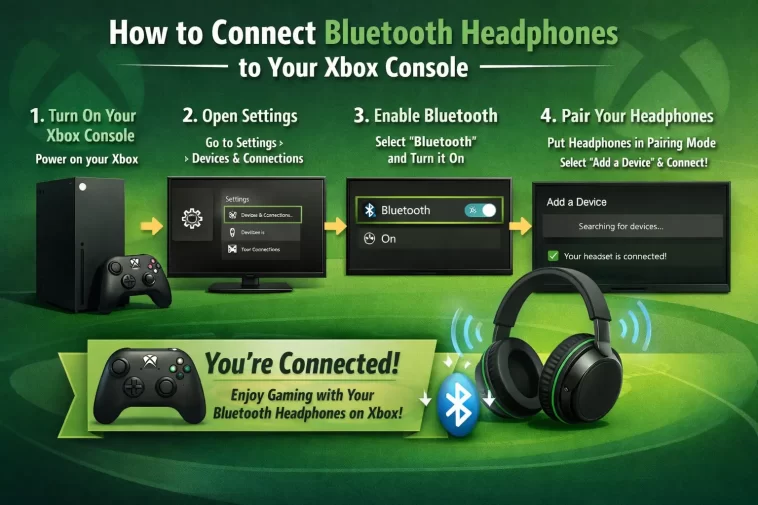
Connecting Bluetooth headphones to your Xbox console is something a lot of gamers want to do — and honestly, it’s a bit more complicated than it should be. If you’ve ever tried to pair your wireless earbuds or headphones to your Xbox Series X, Series S, or Xbox One and gotten nowhere, you’re not alone. This guide walks you through everything you need to know, step by step, without the confusing tech talk.
Let’s sort this out.
Why Xbox Doesn’t Support Standard Bluetooth (And What to Do About It)
Here’s the honest truth: Xbox consoles do not support standard Bluetooth audio. I know — it’s frustrating. While PlayStation and PC both allow regular Bluetooth headphone connections, Microsoft made a different call. Instead of Bluetooth, Xbox uses its own proprietary wireless protocol called Xbox Wireless.
This means if you try to pair your AirPods, Sony WH-1000XM5, or any other standard Bluetooth headphones directly to your Xbox like you would with your phone, nothing will happen. The console simply won’t recognize them.
But don’t give up yet. There are several ways to get Bluetooth headphones working with your Xbox, and some of them are surprisingly simple.
Method 1: Use a Bluetooth Audio Transmitter (The Easiest Option)
The most practical solution for most people is to plug a Bluetooth audio transmitter into your Xbox controller’s 3.5mm headphone jack and then pair your Bluetooth headphones to that dongle.
What You’ll Need
- A Bluetooth audio transmitter/adapter with a 3.5mm plug (brands like Avantree, TaoTronics, or 1Mii work great)
- Your Bluetooth headphones
- An Xbox controller with a 3.5mm headphone jack (most controllers made after 2015 have this)
Steps to Connect
Step 1: Plug the Bluetooth transmitter into the 3.5mm jack at the bottom of your Xbox controller.
Step 2: Put the transmitter into pairing mode. Most transmitters have a small button — hold it for a few seconds until an LED starts flashing.
Step 3: Put your Bluetooth headphones into pairing mode as well. Usually this means holding the power button or a dedicated Bluetooth button until you see a flashing light or hear a pairing sound.
Step 4: Wait for the two devices to find each other. Once paired, you should hear audio from your game in your headphones within a few seconds.
Step 5: Go to Settings > General > Volume & audio output on your Xbox and make sure the headset audio is set to “Headset” rather than speakers.
That’s it. It sounds more complicated than it is. The whole process takes about two minutes once you have the transmitter in hand.
Pro tip: Look for a transmitter that supports aptX Low Latency codec. Standard Bluetooth can have a small audio delay, which gets annoying fast in gaming. Low-latency adapters keep the sound in sync with what’s happening on screen.
Method 2: Use Xbox Wireless Headphones (The Native Option)
If you want zero hassle and the best possible audio experience on Xbox, the cleanest path is to use a headset that supports Xbox Wireless — Microsoft’s own wireless standard.
Headsets That Work Natively With Xbox
- Xbox Wireless Headset (Microsoft’s own — affordable and excellent)
- Turtle Beach Stealth 600 Gen 2 Xbox version
- SteelSeries Arctis 9X
- Razer Kaira Pro for Xbox
- ASTRO A50 Gen 4 (with Xbox base station)
These headsets connect directly to the Xbox console without any adapter. Here’s how to pair them:
Step 1: Turn on your Xbox console.
Step 2: Press the Pair button on the console (it’s the small button near the USB ports on the front).
Step 3: Press and hold the Pair button on your headset. The exact location varies by model, so check your manual — but it’s usually on the ear cup.
Step 4: The headset and console will connect automatically within a few seconds. You’ll usually hear a tone or see an LED change to solid.
Once connected, these headsets also let you mix game audio and chat audio through the Xbox accessory app, which is a nice bonus.
Method 3: Connect via Your TV (Works for Bluetooth TVs)
If you have a smart TV with Bluetooth audio support, you can connect your Bluetooth headphones to the TV rather than the console. The Xbox video and audio both run through the TV anyway, so this works just fine for single-player gaming.
How to Do It
Step 1: On your TV, go to Settings > Sound > Bluetooth Speaker List (the exact path varies by brand — Samsung, LG, and Sony all have slightly different menu layouts, but it’s always under Sound settings).
Step 2: Put your Bluetooth headphones into pairing mode.
Step 3: Select your headphones from the list on your TV.
Step 4: Set your TV audio output to Bluetooth headphones.
The downside here is that you can’t use this for Xbox party chat or game chat, since the microphone on your headphones won’t feed back into the Xbox. It’s best for solo gaming or watching content.
Method 4: Use a USB Bluetooth Adapter in Your Xbox
Some Bluetooth USB dongles can work when plugged into the Xbox’s USB port — but this is hit or miss, and Microsoft doesn’t officially support it. A handful of community members have had luck with certain adapters, but there’s no guarantee.
For most people, this is not worth the trouble. Stick with the transmitter-in-controller method or an Xbox Wireless headset instead.
Method 5: Connect Your Phone as a Middleman (Party Chat Workaround)
If you mainly want Bluetooth headphones for Xbox party chat (voice chat), there’s a workaround using the Xbox mobile app:
Step 1: Download the Xbox app on your iOS or Android phone.
Step 2: Connect your Bluetooth headphones to your phone.
Step 3: Open the Xbox app and join your Xbox party chat from within the app.
Step 4: Your phone microphone picks up your voice, and party chat audio comes through your Bluetooth headphones.
You’ll still hear game audio through your TV or a separate source, but this is a solid option if you just need to talk to your friends while gaming.
Common Problems and How to Fix Them
My headphones connected but there’s no sound
Go to Settings > General > Volume & audio output on your Xbox. Check that the audio output isn’t muted and that the headset format is set correctly. Also make sure your controller’s volume wheel is turned up.
The audio is out of sync with the video
This is a Bluetooth latency issue. Try a transmitter that supports aptX Low Latency. Alternatively, check if your headphones have a “gaming mode” — many modern headphones include one that reduces audio delay.
My transmitter keeps disconnecting
Some cheaper Bluetooth transmitters lose connection if the controller goes to sleep. Go to Settings > Power & Sleep and adjust the auto-sleep timer, or just make sure you’re gaming actively enough that the controller doesn’t power off.
The headset is paired but the microphone doesn’t work
Transmitters typically carry audio one way only — from controller to headphones. If you need a mic, you’ll either need to use the phone workaround above, use an Xbox Wireless headset, or use a wired headset with a mic.
Which Method Should You Choose?
Here’s a quick summary to help you decide:
| Situation | Best Method |
|---|---|
| You already own Bluetooth headphones | Bluetooth transmitter via 3.5mm jack |
| You want the best Xbox audio experience | Xbox Wireless headset |
| You have a Bluetooth-capable TV | Connect headphones to TV |
| You only need voice/party chat | Xbox app on your phone |
| You want simplicity above all else | Microsoft Xbox Wireless Headset |
What About AirPods on Xbox?
AirPods are one of the most commonly asked-about headphones for Xbox — and the answer is the same as for any Bluetooth headphones. AirPods cannot connect directly to Xbox.
Your options are:
- Use a Bluetooth transmitter in your controller (works great, minimal setup)
- Pair your AirPods to your iPhone and use the Xbox party chat app
The transmitter route works well for game audio. The sound quality is good, latency is acceptable with a decent adapter, and setup takes a few minutes.
Final Thoughts
The fact that Xbox doesn’t support Bluetooth natively is genuinely annoying, especially when you’ve got a perfectly good pair of wireless headphones sitting right there. But the workarounds work — and once you have one set up, you forget it’s even there.
If you’re buying a new headset specifically for Xbox, do yourself a favor and just get one with Xbox Wireless built in. The Microsoft Xbox Wireless Headset is reasonably priced and sounds excellent, and the one-button pairing is dead simple. No dongles, no adapters, no fuss.
If you’re trying to use headphones you already own, the Bluetooth transmitter method is your best bet. Pick up a quality adapter that supports low latency, plug it into your controller, and you’re good to go in about five minutes.
Either way, you don’t have to put up with TV speakers or a tangled wired headset anymore. There’s always a way to make it work.
Frequently Asked Questions (FAQ)
Q: Can I connect Bluetooth headphones directly to Xbox Series X or Series S?
No, Xbox Series X and Xbox Series S do not support standard Bluetooth audio connections. You need to use either an Xbox Wireless headset, a Bluetooth transmitter plugged into your controller, or connect your headphones to a Bluetooth-capable TV.
Q: Does Xbox One support Bluetooth headphones?
Xbox One also does not support Bluetooth audio natively. The same workarounds apply: use a Bluetooth transmitter via the 3.5mm jack on your controller, or use a headset designed for Xbox Wireless.
Q: What is the best Bluetooth adapter for Xbox controllers?
Look for adapters with aptX Low Latency support to minimize audio delay. Brands like Avantree (the Leaf and Priva models are popular) and 1Mii are frequently recommended by the gaming community.
Q: Will AirPods work with Xbox?
Not directly. AirPods can be used with Xbox by connecting them to your phone and using the Xbox party chat app for voice, or by plugging a Bluetooth transmitter into your controller for game audio.
Q: Can I use Bluetooth headphones for Xbox party chat?
Not through a Bluetooth transmitter — those only carry audio one way. To use Bluetooth headphones for party chat, connect them to your phone and use the Xbox mobile app to join your party from there.
Q: Do wireless headsets work with Xbox without an adapter?
Yes, if the headset uses Xbox Wireless technology. Headsets labeled “Xbox Wireless” or “Designed for Xbox” connect directly to the console with no dongle needed. Standard Bluetooth headsets still require an adapter.
Q: Is there any Bluetooth headphone that works natively with Xbox?
As of now, no standard Bluetooth headphones work natively with Xbox consoles. Microsoft has not added Bluetooth audio support to any Xbox model. You need Xbox Wireless-compatible headsets for a native wireless connection.
