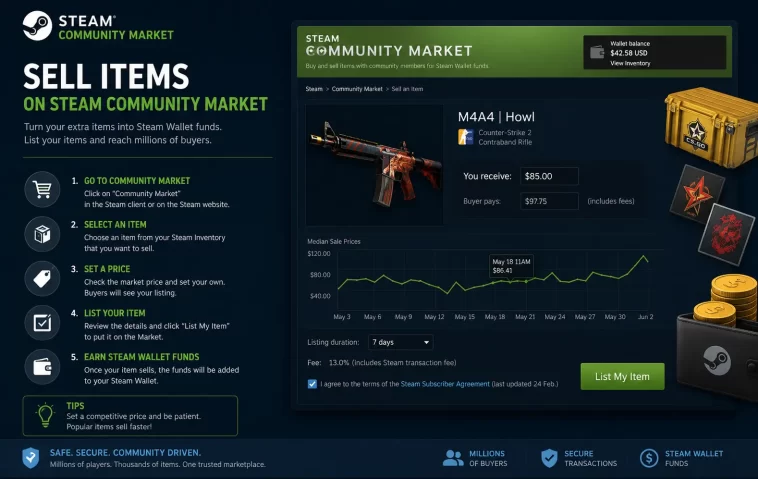
I tried to sell items on Steam Community Market for the first time last year and watched my listing just… sit there, unsold, for three days, while identical items moved every few hours. So I started digging into why some listings sell fast and others rot in the queue.
Why It Actually Fails
Most “my listing won’t sell” complaints come down to one of these, not bad luck.
You’re priced above the lowest active listing, even by a cent. Steam’s market sorts by price first, so if there are 40 copies of the same item listed and yours is the most expensive, buyers see the cheaper ones before they ever scroll to yours.
Your account doesn’t actually have market access yet. Steam requires a purchase that’s older than 7 days but not older than a year on the account before the Community Market unlocks. New accounts, gifted accounts, and accounts that went a full year without a purchase lose that “trusted” status and get quietly blocked from listing anything.
The item itself is non-marketable. Some drops, event rewards, and promotional skins are flagged by the publisher so they can never be listed, no matter how clean your account is. This shows up as a missing “Sell” button with no real explanation in the UI.
Regional pricing mismatches. Steam shows prices in local currency, and demand for a skin in USD can look completely different from demand in EUR or TRY. So a listing that looks “priced fairly” in your currency might be wildly overpriced for the region actually buying it.
Common Scenarios
- You just unboxed a case or got a trade-up item and want to cash it out immediately, but the Sell button is greyed out
- You listed something a week ago and it’s still sitting there while newer listings of the same item sold already
- You’re trying to sell a gift or a Steam-gifted game item and the market won’t let you touch it
- You sold something but the money showed up as Steam Wallet funds instead of cash, and that wasn’t what you expected
- You’re listing low-value trading cards or junk drops and the fee eats almost the entire sale
Comparison Table
Here’s how the two most common ways people try to offload items actually compare once fees and waiting periods are factored in.
| Factor | Steam Community Market | Third-Party Trading Site |
|---|---|---|
| Total fee | ~15% (5% Steam + 10% game fee) | Usually 0–5%, varies by site |
| Payout type | Steam Wallet only | Cash, crypto, or skins |
| Trade hold on new purchases | Up to 7 days for tradable items | Depends on site, often instant for verified accounts |
| Account requirements | Purchase 7 days–1 year old | Account login + trade link |
| Buyer protection | Backed by Valve directly | Varies, escrow on reputable sites only |
| Best for | Quick wallet top-ups, low-risk selling | Maximizing cash value on expensive items |
What Actually Worked For Me
So here’s the part nobody really explains well. I had a CS2 case full of skins worth maybe $40 total and I wanted that money as actual wallet funds before a sale ended. My first move was just listing everything at the “suggested” price Steam shows you. Nothing moved. Not one sale in two days.
I tried undercutting by a few cents, which is the advice you see everywhere, and it helped a little — well, sort of. It actually didn’t do much until I checked what the lowest listing actually was instead of guessing from the average price shown on the item page. There’s a difference between the displayed “starting at” price and the real lowest active listing, and that gap is where most people lose patience and give up.
What actually worked was opening the listing page for each item, sorting the existing listings by price ascending, and pricing exactly one cent below whatever the current lowest active seller had. Annoying, manual, and not something Steam tells you to do anywhere in its own help docs. But every single item sold within an hour of doing that. The “set it and forget it” pricing everyone recommends just doesn’t account for how aggressively undercut these markets already are.
Step-by-Step Fixes
- Open Steam and go to your inventory, then click the item you want to sell.
- Click “Sell Item” in the item’s context menu. If this option is missing, the item is non-marketable — skip to the Advanced Fixes section.
- Check the “You’ll Receive” amount carefully. Steam shows you the net amount after fees, not the buyer’s price.
- Before confirming, open the item’s market listing page in a new tab and check the current lowest price under “Listings.” [Image: Steam Community Market listing page showing the price history graph and active listings sorted by price]
- Adjust your price to undercut the lowest current listing by at least one cent if you want a fast sale.
- Confirm the listing. You may be asked to confirm via Steam Guard Mobile Authenticator — have your phone ready.
- If you see a message saying your account isn’t eligible for the market, your account doesn’t meet the purchase-age requirement. Check Step 1 in Advanced Fixes. [Image: Steam Guard mobile confirmation screen for a market listing]
- Once sold, funds land in your Steam Wallet, usually within minutes, occasionally with a short processing delay.
Advanced Fixes / Edge Cases
If the Sell button is missing entirely, check the item’s detail page for any mention of “not marketable” — Valve sometimes states this directly in small text under the item name, and no amount of account fixing will change it.
If listings keep getting cancelled automatically, open your Steam account’s License history (Account Details page) and confirm your most recent qualifying purchase date. If it’s inside the 7-day window or outside the 1-year window, that’s your answer — the market literally won’t let you list anything until that resolves itself.
If you sold an item but the wallet balance didn’t update, check your Steam Wallet transaction history before assuming something broke. Sales sometimes post a few minutes behind the confirmation screen, and what looks like a missing payout is usually just a delay in the ledger refreshing.
Prevention & Best Practices
- Check the actual lowest active listing before pricing, never trust the “suggested price” shown by default
- Keep at least one purchase active on your account every 12 months so you don’t lose trusted status
- Don’t list right after a major item drop or update — prices crash hard in the first hour as everyone dumps at once
- Screenshot your listing price and the fee breakdown before confirming, in case you need to dispute anything later
FAQ
Why does my item say it can’t be sold even though I see other people selling the same one? That’s almost always an account-level restriction, not an item-level one. Your account likely doesn’t meet Steam’s purchase-age window for market access, even if the item itself is fully marketable for other users.
Why did I get way less money than the listed price? Steam takes roughly 15% in combined fees for most games — a 5% transaction fee plus a 10% game-specific fee. The price you see buyers paying already includes both, but the number you receive doesn’t.
Can I sell items for real cash instead of Steam Wallet funds? No. The Community Market only pays out in Steam Wallet balance, which can be spent on games, DLC, or in-app purchases, but it can’t be withdrawn as cash through Steam itself.
Why is my new skin stuck and not sellable yet? Items received through trades or purchases that aren’t tied to a Steam-confirmed real-money transaction usually carry a trade hold, commonly up to 7 days, before they become tradable or marketable at all.
Why do prices look different when I check from my phone versus my PC? Steam shows prices in your account’s set currency, and regional pricing can shift based on location settings and currency conversion, so the same listing can display differently depending on where you’re checking from.
Editor’s Opinion
Honestly the fee always annoys me a little, every single time, even after years of using this market. Fifteen percent feels steep for what’s basically Valve hosting a listings page. But I still use it for quick stuff because it’s right there, no extra accounts, no third-party trust issues. For anything actually valuable though, I’d at least compare a third-party site first before committing. End of day it’s your call and your skins.
