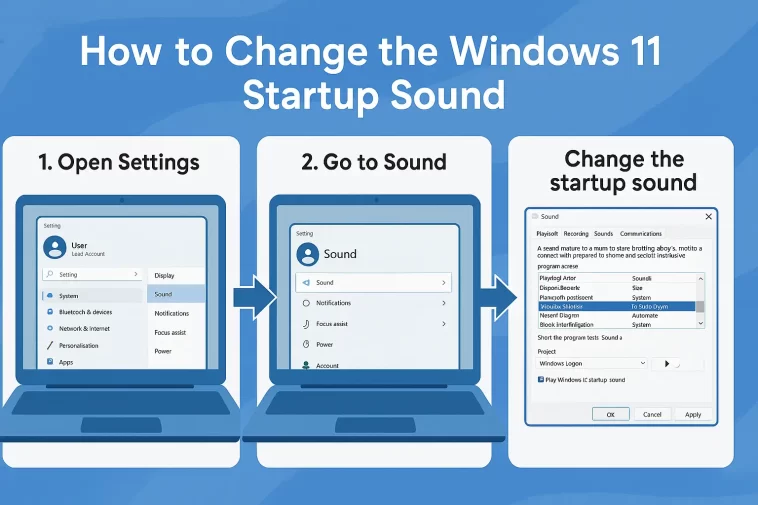
How to change the Windows 11 startup sound is a question many users ask after upgrading from Windows 10 or customizing their PC. Windows 11 looks modern and clean, but Microsoft removed or hid many personalization options, including the startup sound. If you miss the classic Windows startup chime or want to use a custom sound, you are not alone.
In this guide, you will learn how to change the Windows 11 startup sound step by step. We will cover official settings, registry tweaks, common problems, and useful tips. Everything is explained simply, so anyone can follow along.
Why Windows 11 Startup Sound Is Disabled by Default
Before learning how to change the Windows 11 startup sound, it helps to understand why it is disabled.
Microsoft designed Windows 11 to boot faster and feel quieter. Many laptops also start silently to save battery and avoid distractions. Because of this, the startup sound option is hidden by default, even though the sound file still exists inside Windows.
The good news is that you can enable and change it manually.
Check If Startup Sound Is Enabled in Windows 11
The first step in learning how to change the Windows 11 startup sound is making sure the startup sound is turned on.
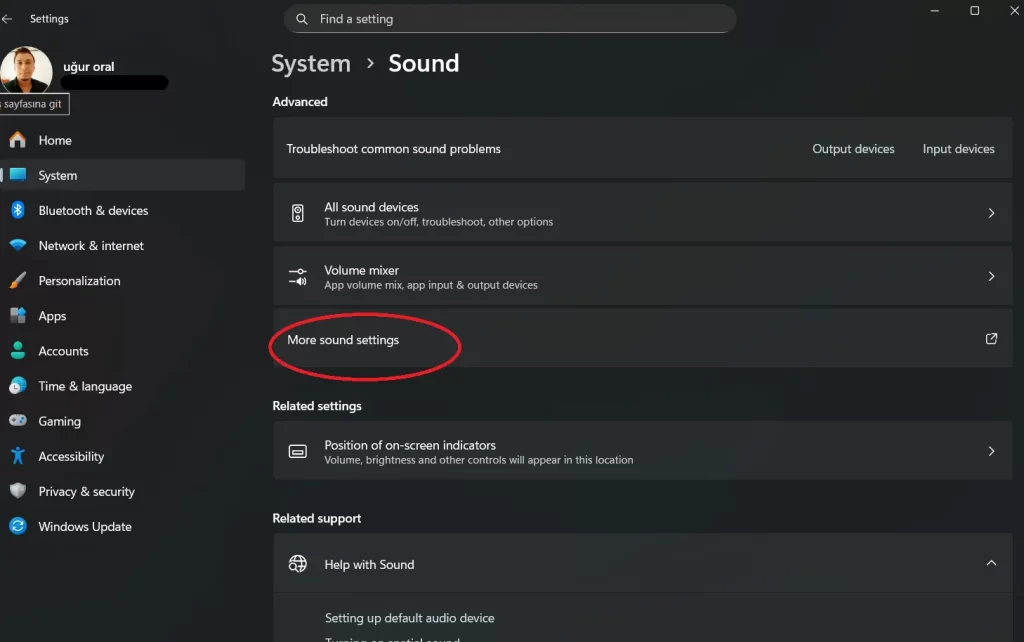
Step 1: Open Sound Settings
- Right-click the speaker icon in the taskbar
- Click Sound settings
- Scroll down and select More sound settings
Step 2: Enable Windows Startup Sound
- Go to the Sounds tab
- Check the box that says “Play Windows Startup sound”
- Click Apply and then OK
⚠️ If this option is grayed out or missing, don’t worry. This is normal in Windows 11. You’ll need to enable it using the Registry Editor, which we explain next.
Enable Windows 11 Startup Sound Using Registry Editor
This is the most important part of how to change the Windows 11 startup sound.
Step 1: Open Registry Editor
- Press Windows + R
- Type
regedit - Press Enter
- Click Yes when asked
Step 2: Navigate to the Correct Key
Go to this path:
HKEY_LOCAL_MACHINE
\SOFTWARE
\Microsoft
\Windows
\CurrentVersion
\Authentication
\LogonUI
\BootAnimation
Step 3: Enable Startup Sound
- Find the value called DisableStartupSound
- Double-click it
- Change the value from 1 to 0
- Click OK
Step 4: Restart Your Computer
After restarting, the startup sound option should now work properly.
How to Change the Windows 11 Startup Sound File
Now that startup sound is enabled, let’s move to the main topic: how to change the Windows 11 startup sound itself.
⚠️ Important: Windows does not officially support custom startup sounds, but there is a workaround.
Use the Default Windows Startup Sound
Windows 11 still includes the classic Windows startup sound.
To Assign the Default Sound:
- Open More sound settings
- Go to the Sounds tab
- Under Program Events, find Windows Logon
- Select a sound from the list
- Click Test
- Click Apply
If “Windows Logon” is missing, it means your Windows build hides it. In that case, continue to the advanced method below.
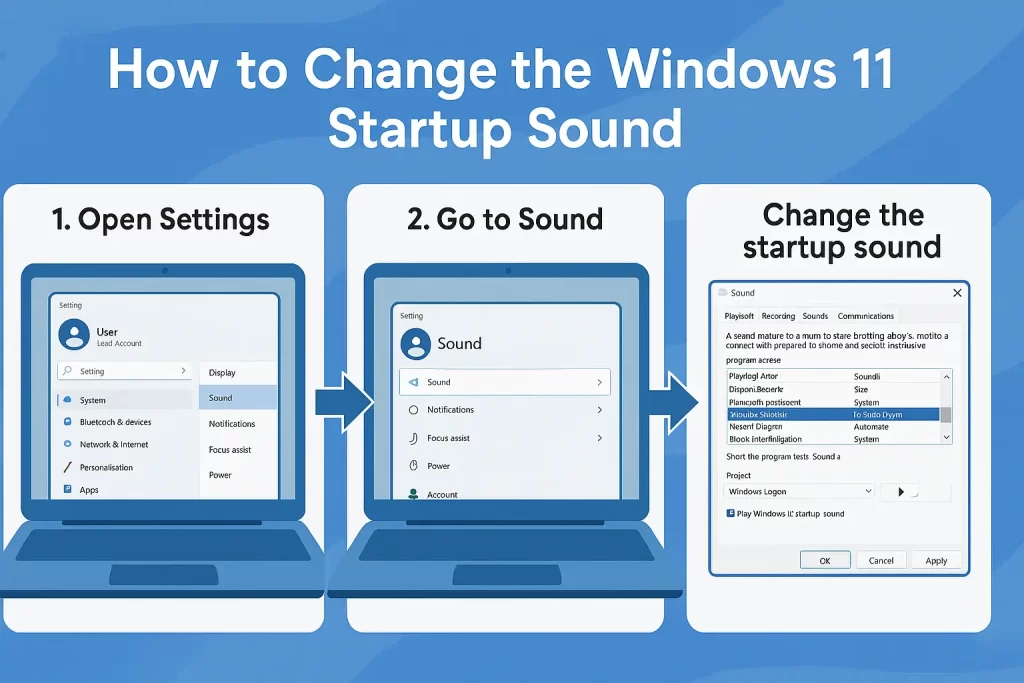
Advanced Method: Replace the Startup Sound File
This method allows you to fully customize the startup sound.
Step 1: Prepare Your Sound File
- Format: .WAV
- Length: Under 5 seconds
- Simple stereo sound works best
Rename your file to something simple like:
startup.wav
Step 2: Take Ownership of the System Sound Folder
- Go to:
C:\Windows\Media
- Find Windows Startup.wav
- Right-click → Properties
- Go to Security
- Click Advanced
- Change the owner to your user account
- Apply changes
⚠️ Be careful. Editing system files always carries some risk.
Step 3: Replace the File
- Backup the original Windows Startup.wav
- Copy your new sound file into the folder
- Rename it exactly as Windows Startup.wav
Restart your PC to test.
Common Problems and Fixes
Startup Sound Still Not Playing
- Fast Startup may be enabled
- Go to Control Panel → Power Options
- Disable Fast Startup
- Volume may be muted at boot
- BIOS/UEFI may disable startup audio
Windows Update Removed My Startup Sound
This is common. Major updates often reset system files. Simply repeat the steps above.
Is It Safe to Change Windows 11 Startup Sound?
Yes, if done carefully.
Tips:
- Always back up original files
- Avoid very loud sounds
- Use short audio clips
- Do not delete system files
Can You Add Music or MP3 Files?
No. Windows startup only supports WAV files. You must convert MP3 files before using them.
Free tools like Audacity can help.
Final Thoughts
Now you know how to change the Windows 11 startup sound safely and effectively. Even though Microsoft hides this feature, it is still possible with a few extra steps.
Custom startup sounds add personality to your PC and bring back nostalgia from older Windows versions. Whether you want the classic chime or a custom sound, Windows 11 still allows it — if you know where to look.
