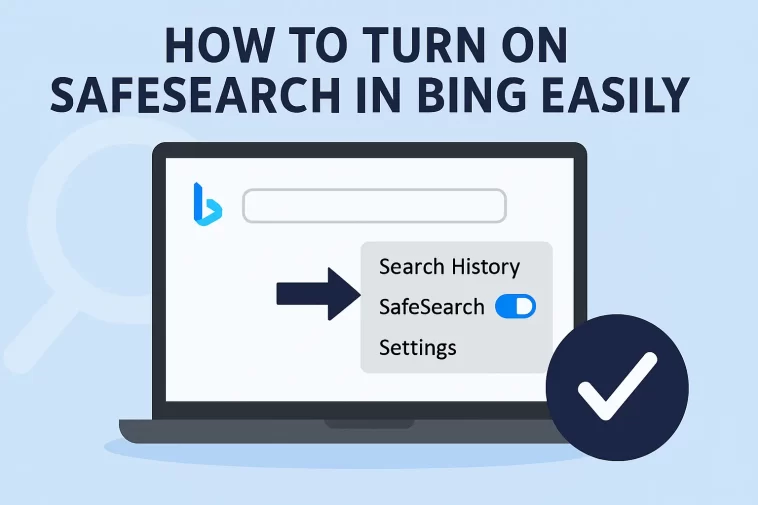
In this guide, you will learn exactly how to turn on SafeSearch in Bing, why it matters, how the different SafeSearch levels work, and how to lock SafeSearch for better control. The steps are easy, and you don’t need any technical knowledge to follow along.
What Is SafeSearch in Bing?
SafeSearch is a built-in filtering system in Bing that helps block explicit images, videos, and text from your search results. When SafeSearch is turned on, Bing automatically removes adult content and potentially inappropriate material from what you see.
SafeSearch is especially useful for:
- Parents and families
- Schools and educational institutions
- Shared or public computers
- Work environments
Understanding how to turn on SafeSearch in Bing ensures you stay in control of what content appears while browsing.
Why You Should Turn On SafeSearch in Bing
There are several good reasons to enable SafeSearch:
- Protect children from explicit content
Kids often search innocently, but results may not always be safe. - Avoid accidental exposure
Even adults can stumble upon unwanted images or videos. - Create a professional environment
SafeSearch helps keep search results appropriate at work or school. - Peace of mind
Knowing that explicit content is filtered makes browsing more comfortable.
Learning how to turn on SafeSearch in Bing gives you a safer and more reliable search experience.
How to Turn On SafeSearch in Bing (Step-by-Step)
Turning on SafeSearch in Bing only takes a few minutes. Follow these simple steps:
Step 1: Open Bing
Go to bing.com using any web browser.
Step 2: Open Settings
In the top-right corner of the Bing homepage, click the menu icon (three lines) or the Settings option.
Step 3: Click on “SafeSearch”
From the settings menu, select SafeSearch. This will open the SafeSearch settings page.
Step 4: Choose Your SafeSearch Level
Bing offers three SafeSearch options:
- Strict – Filters out adult text, images, and videos
- Moderate – Filters adult images and videos (default setting)
- Off – No filtering applied
To fully enable protection, select Strict.
Step 5: Save Your Settings
Scroll down and click Save at the bottom of the page.
That’s it. You now know how to turn on SafeSearch in Bing successfully.
Understanding Bing SafeSearch Levels
Choosing the right SafeSearch level depends on your needs. Here’s a quick breakdown:
Strict SafeSearch
- Best for children and schools
- Blocks adult text, images, and videos
- Strongest level of filtering
Moderate SafeSearch
- Bing’s default setting
- Filters adult images and videos
- Allows some adult text
SafeSearch Off
- No content filtering
- Not recommended for shared devices
If your goal is full protection, learning how to turn on SafeSearch in Bing using the Strict option is the best choice.
How to Lock SafeSearch in Bing
If you want to prevent SafeSearch from being changed, you can lock it.
Locking SafeSearch with a Microsoft Account
- Sign in to your Microsoft account
- Go to Bing SafeSearch settings
- Select Strict
- Save settings while logged in
This makes it harder for others to turn SafeSearch off.
Locking SafeSearch for Kids
Parents can also use Microsoft Family Safety to lock SafeSearch on children’s accounts, ensuring constant protection.
How to Turn On SafeSearch in Bing on Mobile Devices
SafeSearch works the same way on mobile browsers.
- Open Bing in your mobile browser
- Tap the menu icon
- Go to Settings > SafeSearch
- Choose Strict
- Save changes
If you use the Bing app, the SafeSearch settings are also available inside the app’s settings menu.
Does SafeSearch Block Everything?
While SafeSearch is very effective, it is not perfect. Some content may still slip through, and sometimes safe content may be filtered by mistake.
SafeSearch:
- Reduces exposure to explicit content
- Is not a replacement for parental supervision
- Works best when combined with device-level filters
Still, knowing how to turn on SafeSearch in Bing greatly improves online safety.
Troubleshooting SafeSearch Issues
If SafeSearch is not working as expected, try these tips:
- Make sure you clicked Save after changing settings
- Clear your browser cookies and cache
- Check if SafeSearch is locked by an organization or network
- Sign in to your Microsoft account
In some cases, schools or workplaces enforce SafeSearch automatically.
