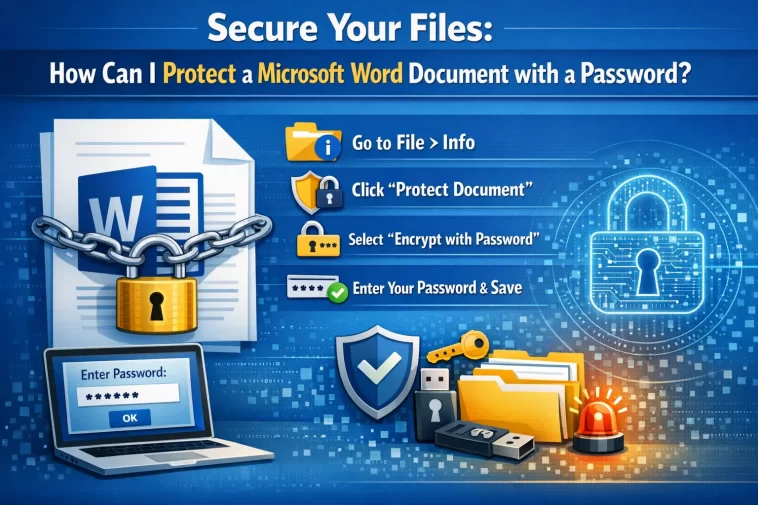
How can I protect a Microsoft Word document with a password? It’s a question many of us ask when we are about to share a sensitive contract, a private journal entry, or a business proposal. We live in an era where digital privacy isn’t just a luxury; it’s a necessity. Whether you’re worried about a nosy roommate or a data breach at work, knowing how to lock your files is a fundamental digital skill.
Fortunately, Microsoft Word makes this process relatively painless. You don’t need to be a cybersecurity expert to secure your work. In this guide, we will walk through the different ways to add layers of security to your documents, from basic passwords to restricting specific types of edits.
Why You Should Password Protect Your Documents
Before we dive into the “how,” let’s talk about the “why.” In a world of cloud sharing and email attachments, a document rarely stays on one hard drive.
- Confidentiality: If you are handling client data or personal financial records, a password is your first line of defense.
- Integrity: Sometimes you don’t mind people reading your work, but you don’t want them changing it. Password protection can prevent accidental (or intentional) edits.
- Professionalism: Sending a password-protected file shows clients and colleagues that you take security seriously.
The Step-by-Step Guide: Locking Your Word Document
The most common method is the “Open” password. This means that without the code, the file simply will not open. Here is how you do it on the latest versions of Word (Office 365, Word 2021, 2019, and 2016).
1. Open Your Document
Start by opening the document you wish to secure. Ensure you have saved any recent changes first.
2. Navigate to the File Menu
Click on the File tab located in the top-left corner of your screen. This will take you to the “Backstage” view.
3. Select ‘Info’
Usually, the Info tab is selected by default. If not, click it. You will see a large button labeled Protect Document.
4. Encrypt with Password
Click the Protect Document button. A dropdown menu will appear. Select the option that says Encrypt with Password.
5. Enter Your Password
A dialog box will pop up asking for a password.
- Warning: Microsoft cannot recover forgotten passwords. If you lose this code, you lose the document. Choose something memorable but complex.
- Type your password and click OK.
- You will be asked to re-enter the password to confirm. Do so and click OK again.
6. Save the Document
You will notice the “Protect Document” section is now highlighted in yellow, indicating a password is required. You must save the file for these changes to take effect.
Restricting Editing: A Different Kind of Protection
Sometimes, you want everyone to see your document, but you don’t want them messing with your formatting or changing your words. This is called Restricting Editing.
- Go to the Review tab on the top ribbon.
- Click on Protect and then Restrict Editing.
- A pane will open on the right side. Here, you can limit formatting to a selection of styles or allow only certain types of editing (like “Tracked Changes” or “Comments Only”).
- Once you’ve set your limits, click Yes, Start Enforcing Protection.
- You can then set a password so that only you can turn these restrictions off.
How to Protect a Word Document on a Mac
If you are using a Mac, the interface looks a little different, but the logic is the same.
- Open your Word document.
- Click on the Review tab in the top menu bar.
- Click Protect, then select Protect Document.
- In the “Password Protect” dialog box, you can set a password to open the file or a password to modify it.
- Click OK and save your file.
Best Practices for Document Passwords
Creating a password like “12345” or “password” is about as effective as leaving your front door unlocked with a sign that says “Please don’t come in.” To truly protect your work, follow these tips:
- Length is Key: Aim for at least 12 characters.
- Mix it Up: Use a combination of uppercase letters, lowercase letters, numbers, and symbols (like !, @, or #).
- Avoid the Obvious: Don’t use your name, your dog’s name, or your birthday.
- Use a Password Manager: Since Word passwords aren’t recoverable, save the password in a trusted manager like Bitwarden or 1Password.
What Happens if I Forget My Password?
This is the part where I have to be the bearer of bad news. Microsoft uses strong AES encryption. This is great for security, but terrible for forgetfulness. There is no “Forgot Password” link for an individual Word document.
There are “password recovery” tools available online, but many are scams or contain malware. Your best bet is to keep a backup of the password or a non-protected version of the file in a very secure physical location (like an encrypted thumb drive in a safe).
Removing a Password
If the document no longer needs to be top-secret, removing the password is easy:
- Open the document (you’ll need the current password to do this).
- Go to File > Info > Protect Document > Encrypt with Password.
- In the password box, delete the dots (the password) so the box is empty.
- Click OK and Save the document. The password is now gone.
Conclusion
Learning how can I protect a Microsoft Word document with a password is one of those small tasks that provides massive peace of mind. Whether it’s for legal compliance, protecting your creative writing, or keeping financial spreadsheets private, the built-in encryption in Word is a powerful tool.
