PowerShell commands for Windows 11 are becoming one of the fastest ways to repair common PC problems without downloading extra software or spending hours navigating Windows settings. While many users still rely on graphical troubleshooting menus, advanced users and IT professionals increasingly turn to PowerShell because it can quickly diagnose and repair system issues with just a few commands.
Microsoft has spent years improving PowerShell into one of the most powerful tools included with Windows. Today, it can fix corrupted system files, repair network problems, scan damaged drives, restore broken Windows components, and even improve overall system stability.
For many users, the biggest surprise is how easy most of these commands actually are. In many cases, users only need to open PowerShell as administrator, copy a command, press Enter, and let Windows handle the repair process automatically.
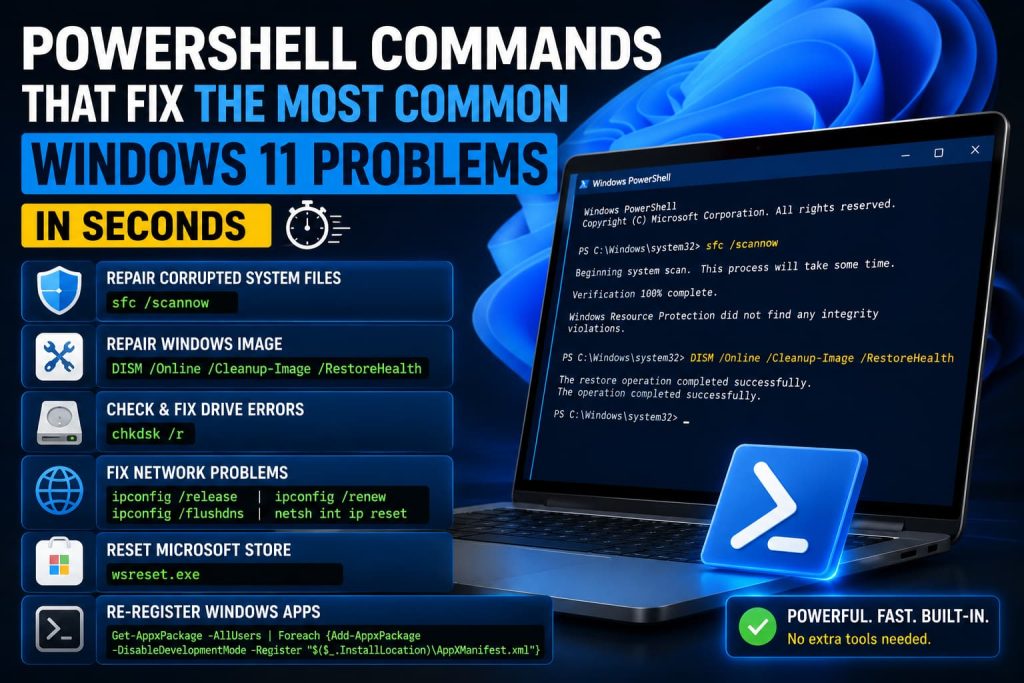
Why PowerShell Has Become Essential for Windows 11
Windows 11 includes dozens of troubleshooting menus and automatic repair systems, but PowerShell often works faster and provides deeper system access.
Unlike traditional settings menus, PowerShell directly communicates with Windows services, system files, storage devices, and networking tools. This allows users to solve problems that graphical tools sometimes fail to detect.
Technology experts frequently recommend PowerShell because:
- It works directly with Windows system components
- Commands can automate repairs
- Troubleshooting is faster
- Many repairs work instantly
- It avoids downloading risky third-party tools
Microsoft also continues expanding PowerShell capabilities with modern Windows updates. (howtogeek.com)
Before running most repair commands, users should open PowerShell with administrator permissions.
To do this:
- Press Windows + X
- Select Windows Terminal (Admin) or PowerShell (Admin)
Administrator access is important because many repair commands need permission to modify system files and Windows services.
SFC Command Repairs Corrupted Windows Files
One of the most useful PowerShell commands for Windows 11 is the System File Checker command.
When Windows starts crashing, freezing, showing blue screen errors, or behaving strangely, corrupted system files are often responsible. The SFC command scans Windows for damaged or missing files and automatically replaces them with healthy versions.
The command is:
sfc /scannowsfc /scannow
This process may take several minutes depending on system speed and storage performance.
Microsoft and Windows troubleshooting communities frequently recommend SFC as the first repair step because it solves many common Windows stability problems without reinstalling the operating system. (howtogeek.com)
Reddit users dealing with broken Start menus, crashing Settings apps, and missing taskbar functions also regularly report success after running SFC scans. (reddit.com)
DISM Can Repair Windows Images
If SFC fails to fix system corruption, the next recommended command is DISM.
DISM stands for Deployment Image Servicing and Management. It repairs the Windows system image itself, which SFC relies on to restore damaged files.
The command is:
DISM /Online /Cleanup-Image /RestoreHealthDISM /Online /Cleanup\-Image /RestoreHealth
This command connects to Windows Update and downloads clean replacement files if corruption is detected.
Many Windows experts recommend running DISM first and then running SFC again afterward for the best repair results. (howtogeek.com)
Community discussions on Reddit also show DISM helping users fix broken taskbars, crashing Settings panels, and update-related problems in recent Windows 11 builds. (reddit.com)
CHKDSK Finds Storage and Drive Errors
Storage problems are another major source of Windows instability.
Bad sectors, damaged file systems, and corrupted drive data can trigger freezes, crashes, slow loading times, and random boot problems.
Windows includes the Check Disk utility for diagnosing these issues.
The command is:
chkdsk /rchkdsk /r
The /r parameter tells Windows to:
- Locate bad sectors
- Recover readable data
- Repair detected file system errors
If users attempt to scan the main Windows drive, the system usually schedules the repair during the next reboot because Windows cannot lock the active system partition while running normally. (tech.yahoo.com)
IT professionals have used CHKDSK for decades because storage corruption often causes unpredictable Windows behavior.
PowerShell Can Instantly Repair Network Problems
Internet connectivity issues remain one of the most frustrating Windows problems.
Fortunately, PowerShell includes several commands that can quickly reset networking components and refresh internet settings.
Refresh IP Address
ipconfig /release
ipconfig /renewipconfig /release
ipconfig /renew
These commands release the current IP address and request a fresh one from the router.
Flush DNS Cache
ipconfig /flushdnsipconfig /flushdns
This clears outdated DNS cache data that may prevent websites from loading correctly.
Reset TCP/IP Stack
netsh int ip resetnetsh int ip reset
This resets Windows networking components back to default settings.
Windows troubleshooting experts frequently recommend these commands before reinstalling drivers or contacting internet providers. (howtogeek.com)
WSReset Repairs Microsoft Store Problems
The Microsoft Store occasionally becomes unstable in Windows 11. Users sometimes experience:
- Apps refusing to download
- Update failures
- Store crashes
- Missing Store pages
- Slow loading problems
Windows includes a dedicated command for resetting the Store cache.
The command is:
wsreset.exewsreset.exe
This clears corrupted Microsoft Store cache files and automatically relaunches the Store afterward. (howtogeek.com)
In many situations, this simple command fixes Store problems instantly without requiring full reinstallation.
Re-Registering Windows Apps Can Fix Broken Start Menus
Some Windows 11 updates have caused issues involving:
- Broken taskbars
- Missing Start menus
- Settings app crashes
- Non-working quick settings panels
Advanced PowerShell commands can re-register core Windows app packages.
Reddit users recently shared commands that restored broken Windows shell components after problematic updates. (reddit.com)
One commonly used command is:
Get-AppxPackage -AllUsers | Foreach {Add-AppxPackage -DisableDevelopmentMode -Register "$($_.InstallLocation)\AppXManifest.xml"}This command forces Windows to rebuild and re-register built-in applications and interface components.
Although powerful, users should only run advanced re-registration commands carefully and preferably after creating a restore point.
System Restore Still Remains Important
Even with powerful PowerShell commands available, System Restore remains one of the safest recovery tools included with Windows 11.
System Restore allows users to return Windows to an earlier working state after bad updates, broken drivers, or software conflicts.
Microsoft recommends creating restore points regularly before major system changes. (howtogeek.com)
PowerShell repair commands and System Restore often work best together.
Why Many Users Prefer PowerShell Over Third-Party Repair Tools
Many Windows users previously depended on third-party “repair” or “optimizer” software. However, PowerShell gives users direct access to Microsoft’s own repair systems without unnecessary background services or advertisements.
Compared to many external optimization tools, PowerShell offers:
- Better reliability
- Faster repairs
- No extra software installation
- Direct Microsoft support
- More advanced troubleshooting access
Technology communities increasingly recommend learning basic PowerShell commands instead of downloading random “PC repair” applications. (tech.yahoo.com)
Final Thoughts
These PowerShell commands for Windows 11 can solve many of the most common PC issues in just a few minutes. From repairing corrupted files and damaged storage drives to fixing networking errors and restoring broken Windows apps, PowerShell has become one of the most effective troubleshooting tools built directly into Windows.
Although the command line may initially look intimidating, most repair commands are surprisingly simple to use. In many situations, a single PowerShell command can fix problems that would otherwise require lengthy troubleshooting or even a full Windows reinstall.
As Windows 11 continues evolving, PowerShell is becoming more important than ever for fast, reliable system maintenance and repair.
